

Engagement
في هذه الصفحة
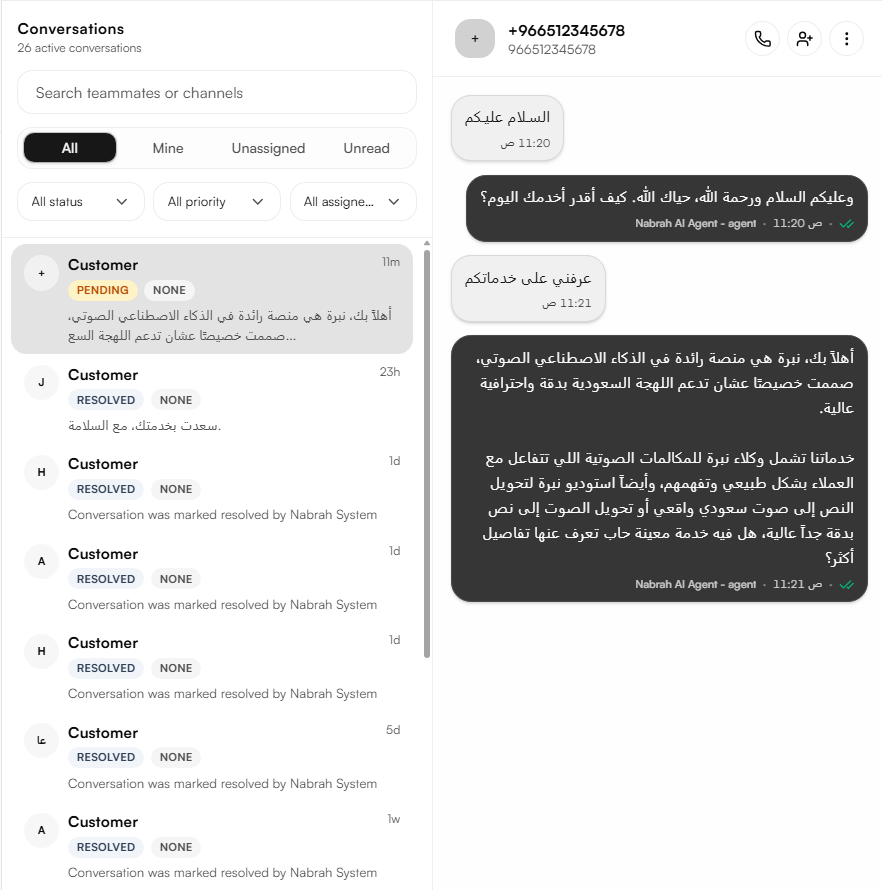
The WhatsApp section centralizes every WhatsApp conversation your workspace handles — resolved by your AI agent or by your team. Conversations land in a shared inbox where members review, assign, and reply.
This guide covers the full connection: preparing your Meta app, generating a permanent token, creating the inbox in Nabrah, connecting the webhook back in Meta, and sending your first test message.
Before you start
You need all of these. Missing any one will stop you partway through.
Requirement | How to check |
|---|---|
A Meta business portfolio | It appears at business.facebook.com/settings. If you have none, Meta offers to create one during app setup |
Admin access to that portfolio | You can open Users → System users |
A phone number not currently registered on the WhatsApp or WhatsApp Business app | Sending yourself a message on that number fails |
Owner or Admin role in your Nabrah workspace | WhatsApp Settings is visible in the sidebar |
A payment method on the Meta account | Needed only for business-initiated messages. Replies within a customer's 24-hour window are free, up to 1,000 service messages per number per month |
The Meta app published | An unpublished app receives only test webhooks. No real customer messages are delivered until you publish it |
If your number is live on the WhatsApp or WhatsApp Business app: registering it here disconnects it from that account and its chat history is lost. Use a different number — one that is not in use on WhatsApp.
Part 1 Prepare your Meta app
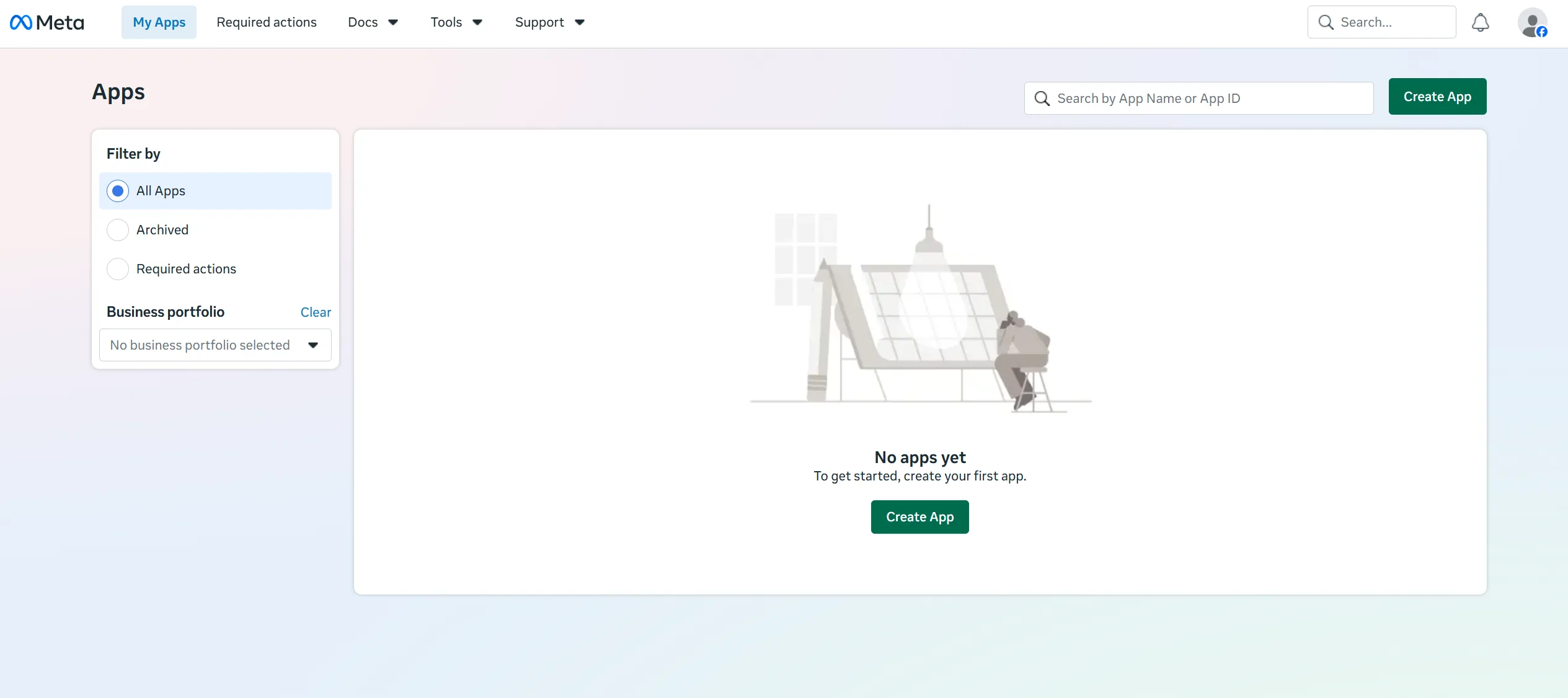
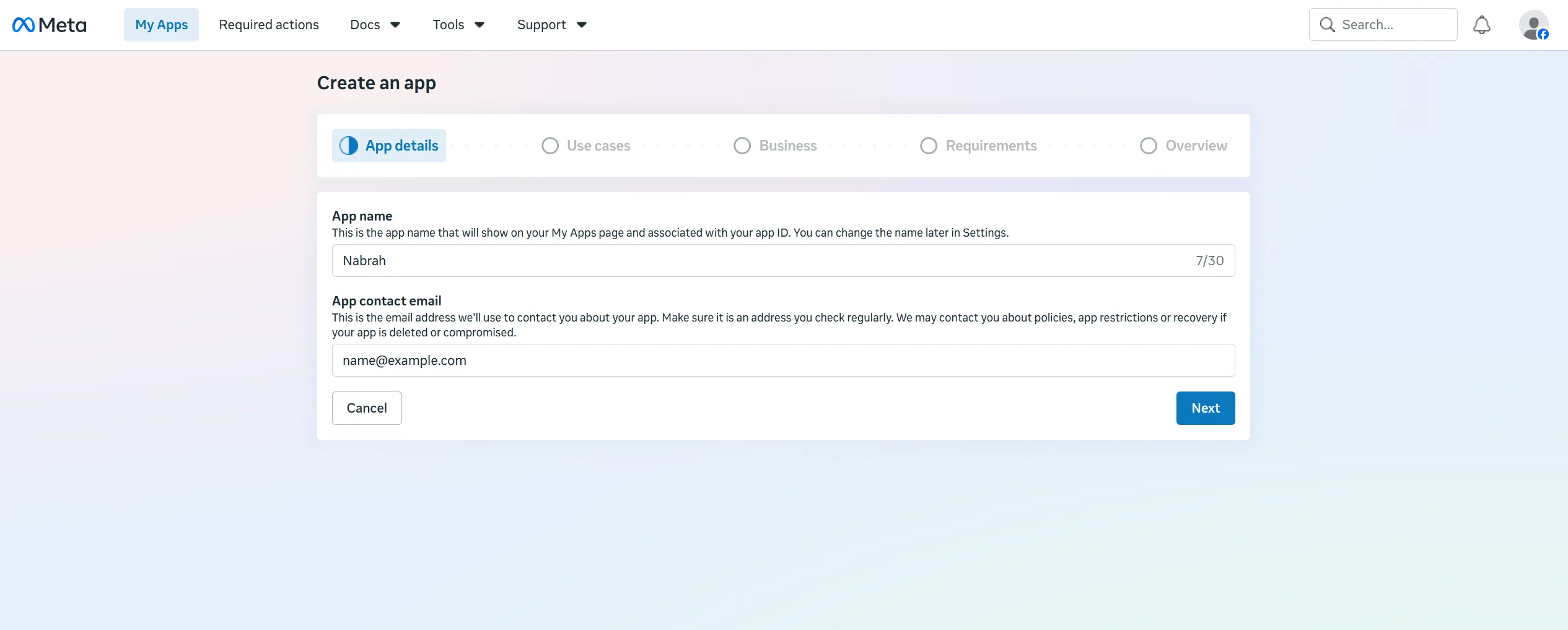
1.1 Create or select an app. Go to Meta for Developers. Select an existing app, or click Create app, enter an app name and contact email, then click Next.
Do not put "WhatsApp" in the app name. Meta rejects it. Use your company name instead.

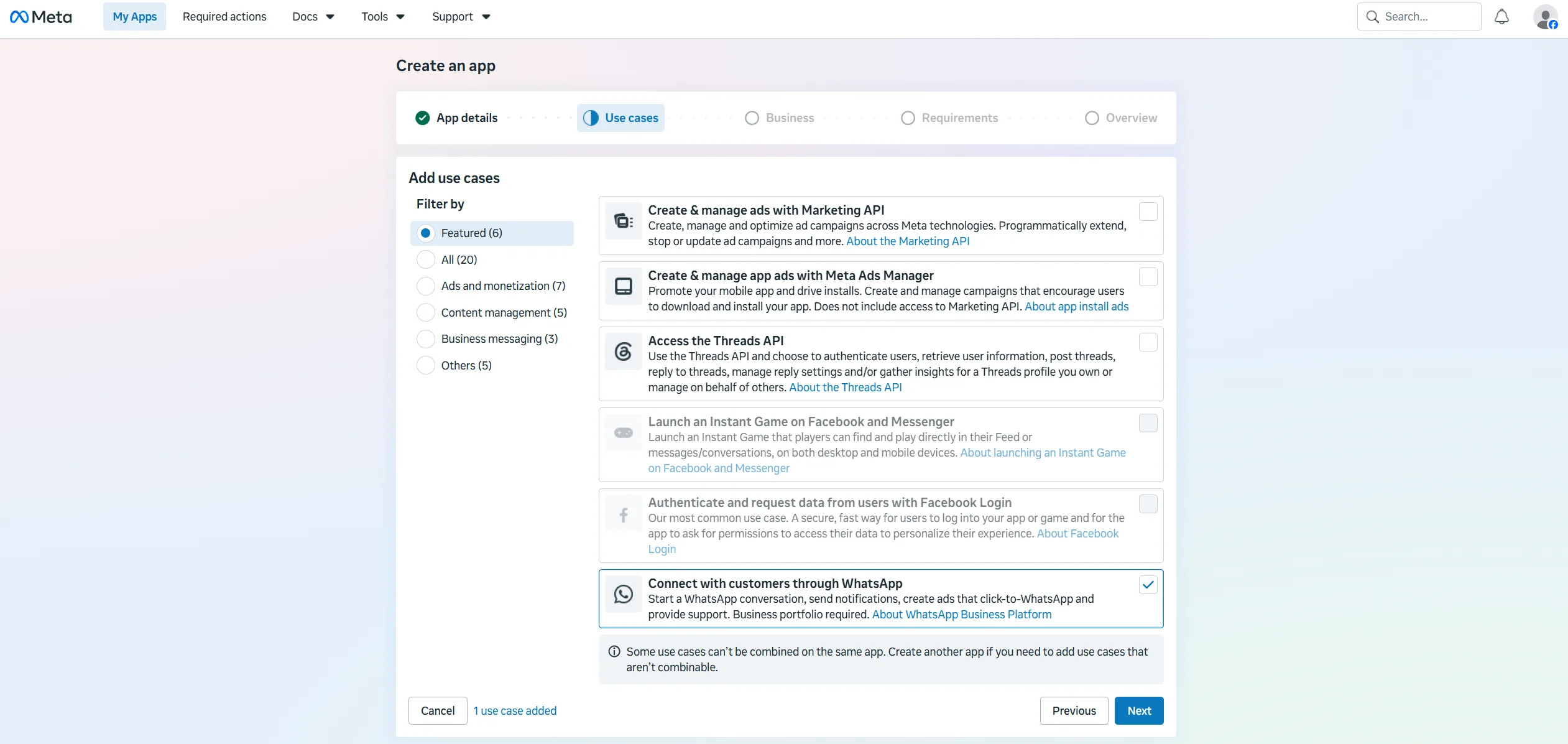
1.2 Choose the WhatsApp use case. Select Connect with customers through WhatsApp, then Next.
Add only this use case. Meta does not allow every combination on one app, and a second use case can force you to start over with a new app.
1.3 Choose a business portfolio. Select the portfolio that owns your WhatsApp Business Account. An unverified portfolio is accepted now, but complete verification before you go live.
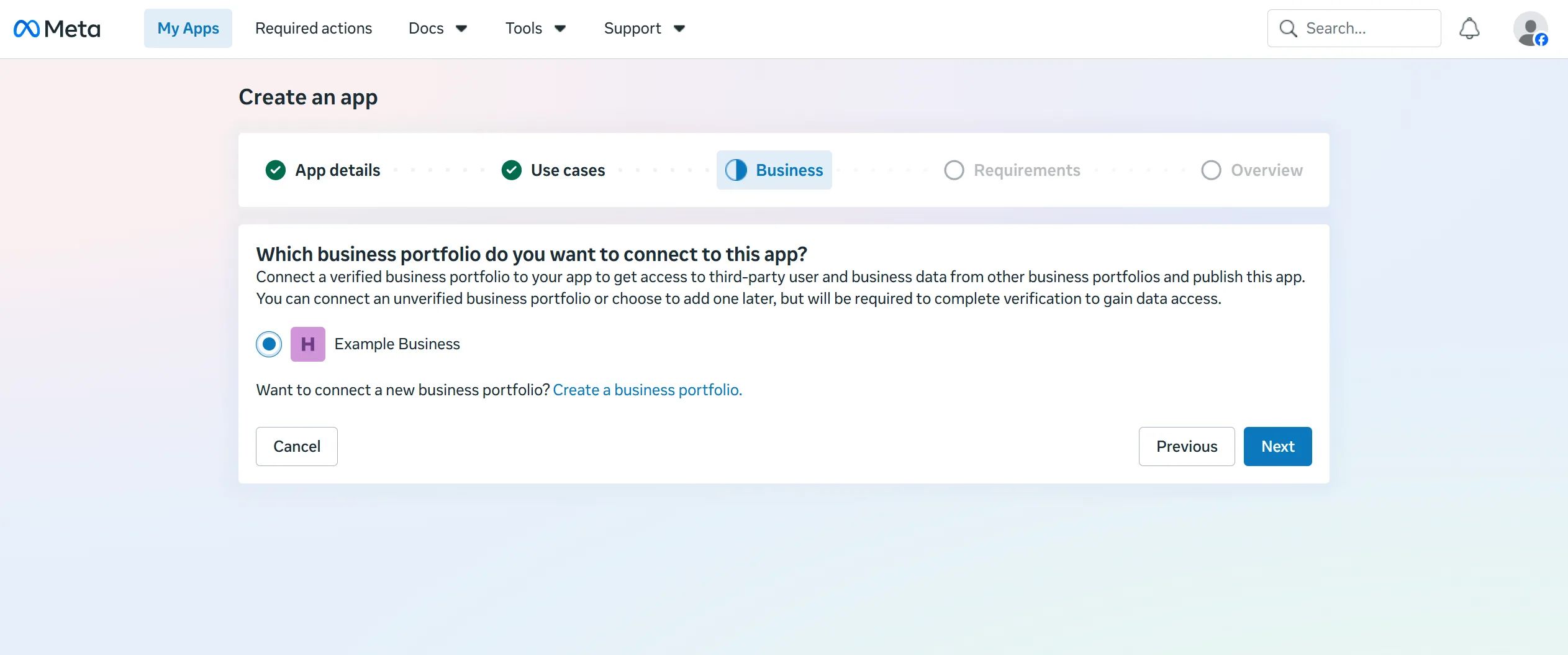
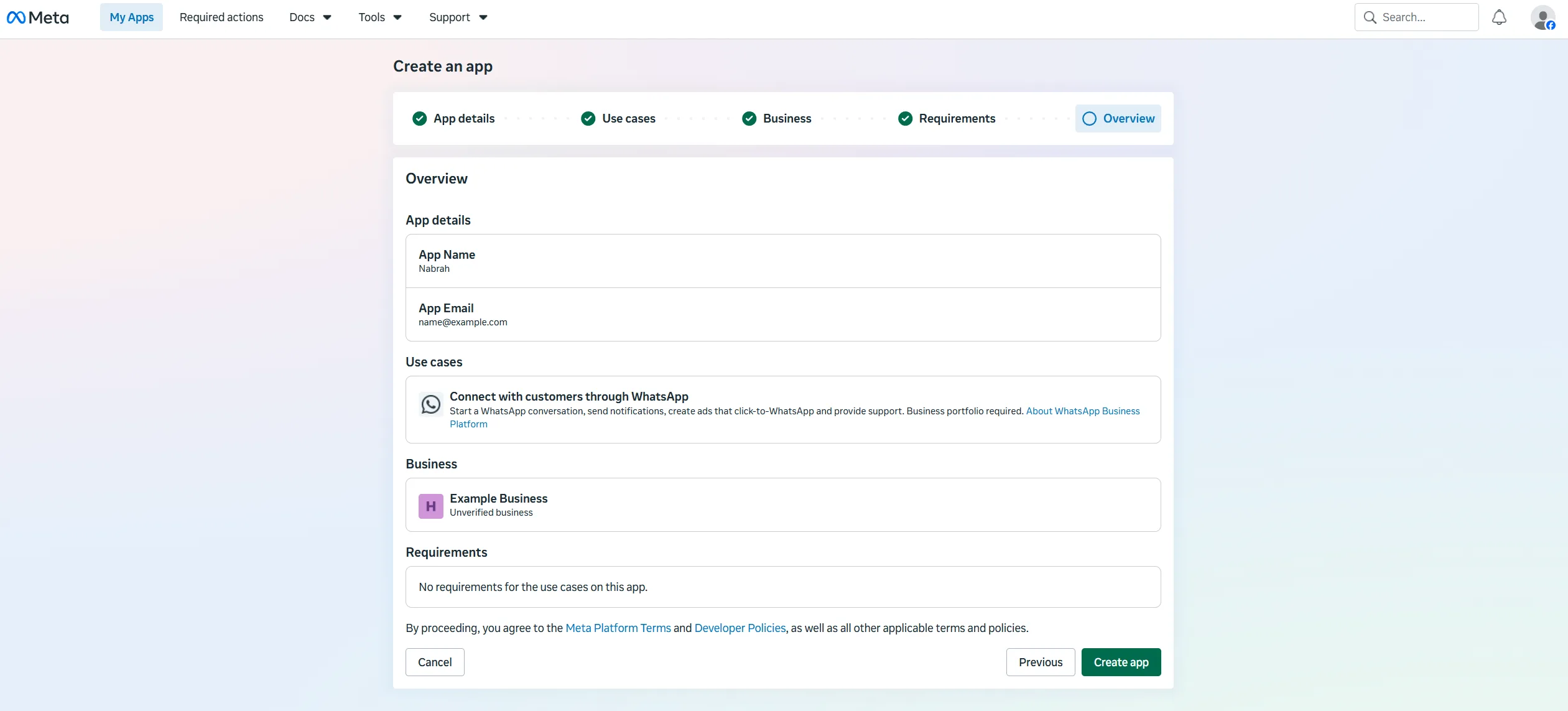
Meta then shows a Requirements step usually empty for a WhatsApp-only app and an Overview step summarising your choices. Review it and click Create app. You may be asked to re-enter your password.
1.4 Open the WhatsApp setup. On the app Dashboard, under App customization and requirements, click Customize the Connect with customers through WhatsApp use case, then open Step 2. Production setup.
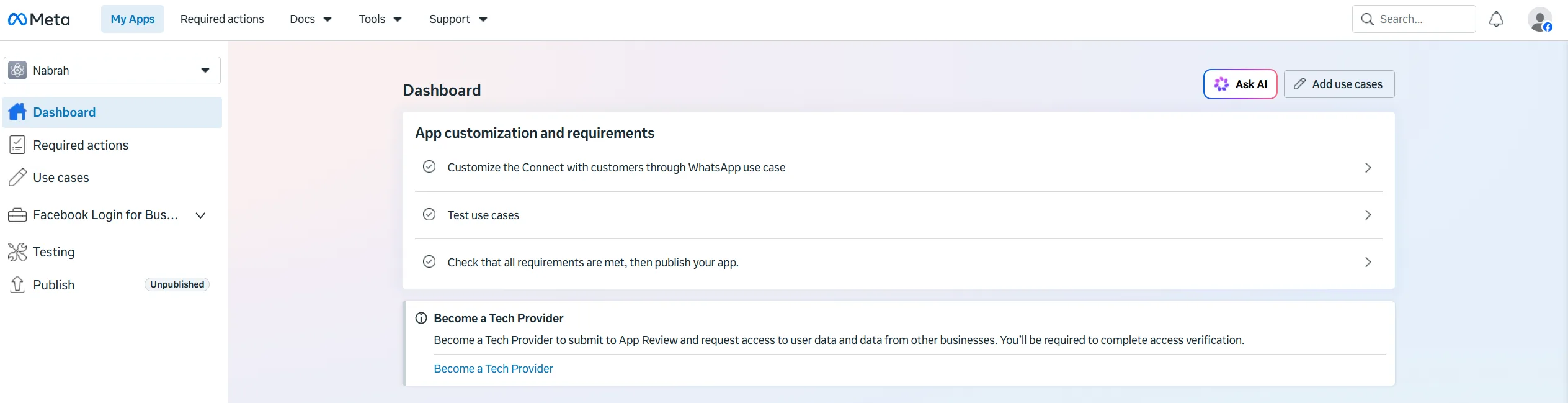
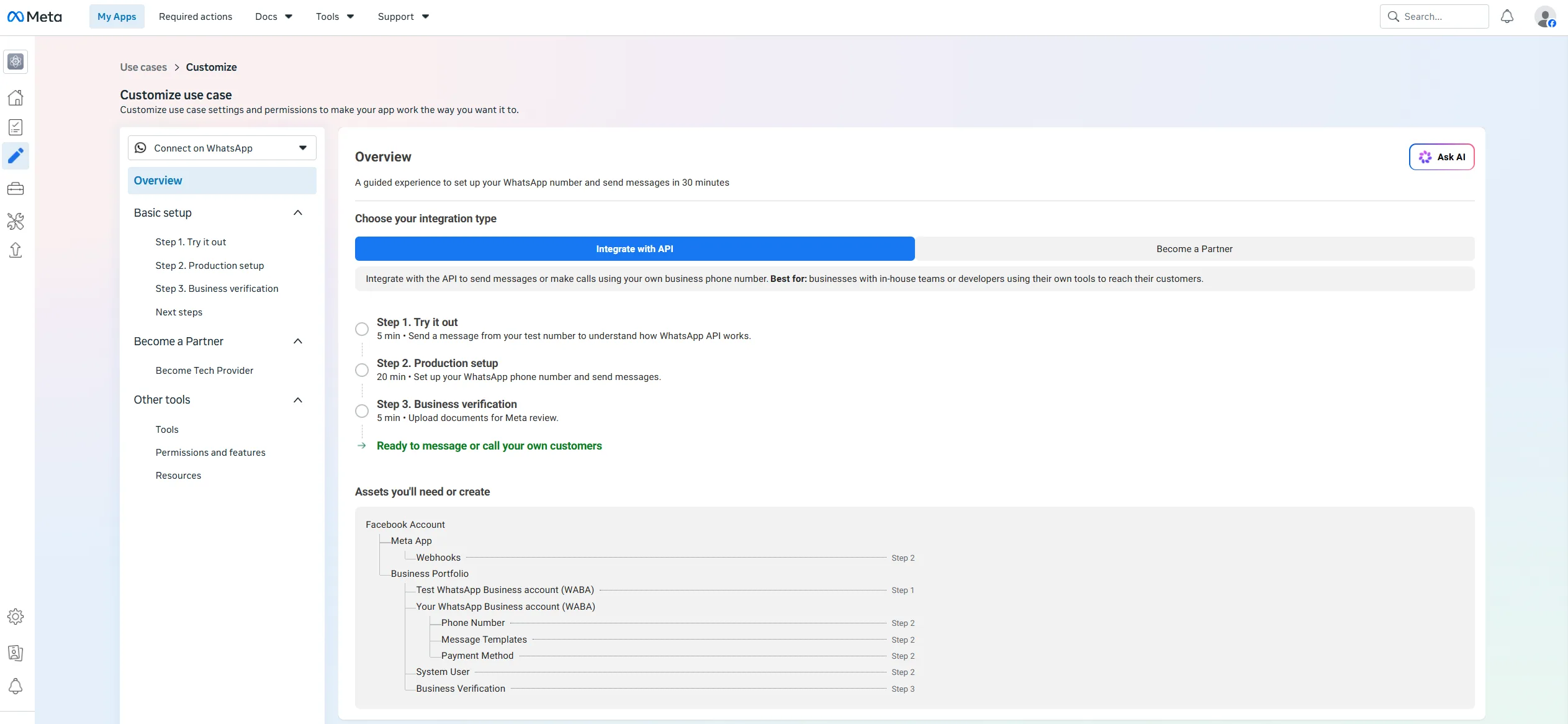
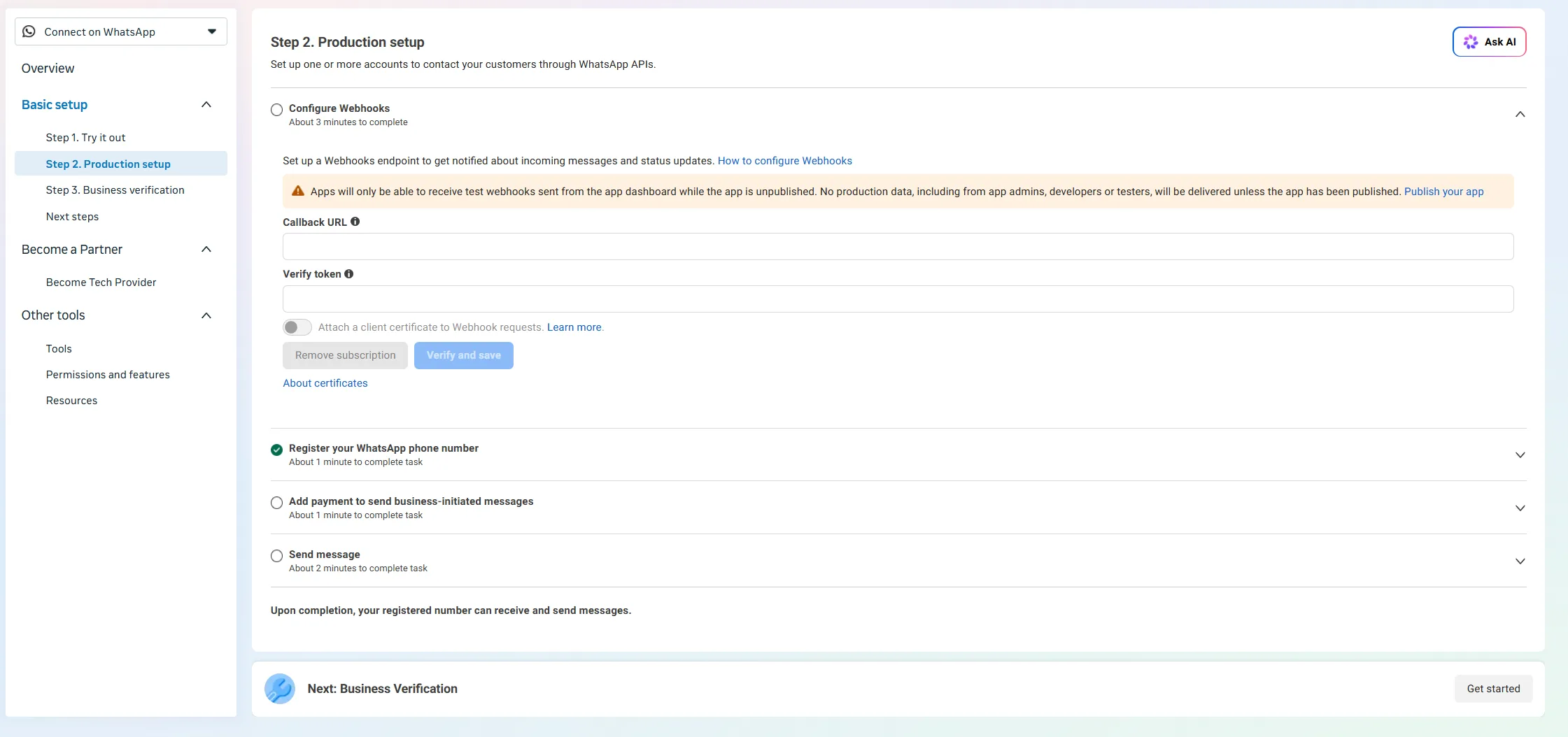
Skip Step 1. Try it out it only sends a test message from Meta's own number. And ignore Become a Tech Provider; it is not needed here.
If your screen looks different: Meta changes this interface often. Older apps show WhatsApp → API setup in the left sidebar instead. Look for the WhatsApp setup page and the selected sender number.
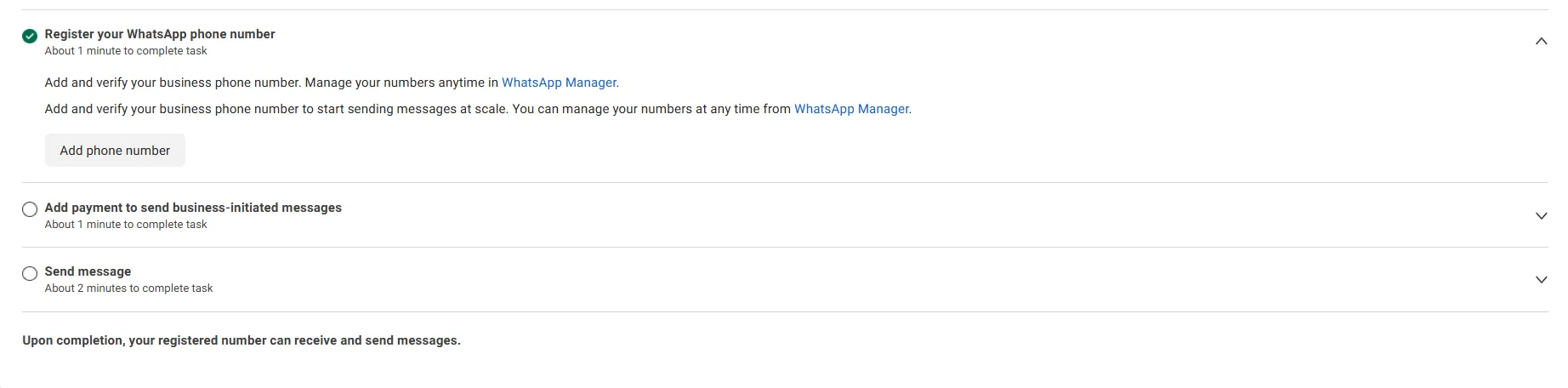
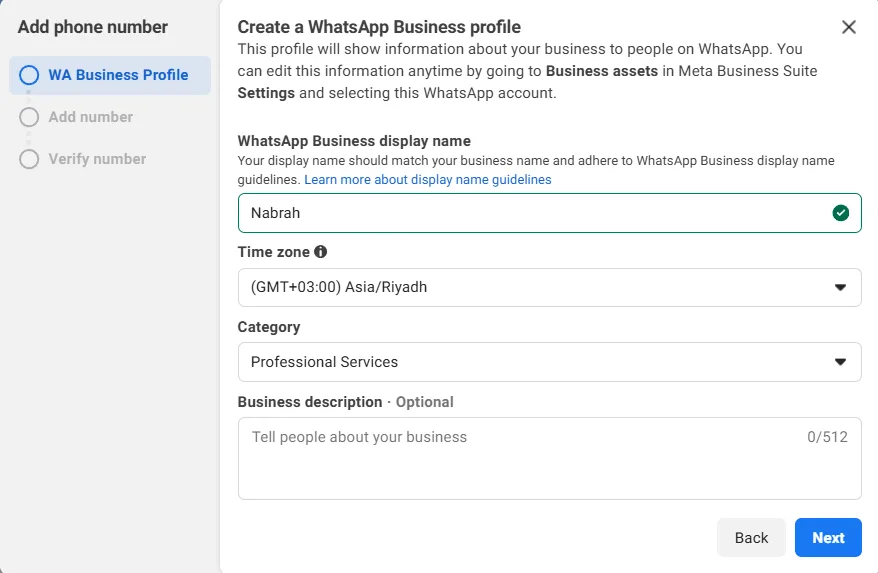
1.5 Add and verify your number. In Register your WhatsApp phone number, click Add phone number. Meta walks you through three screens:
1. WA Business Profile display name, time zone, and business category. The display name must match your business name or Meta rejects it.
2. Add number the number and whether to verify by text message or phone call. For a landline, choose phone call.
3. Verify number enter the code Meta sends.
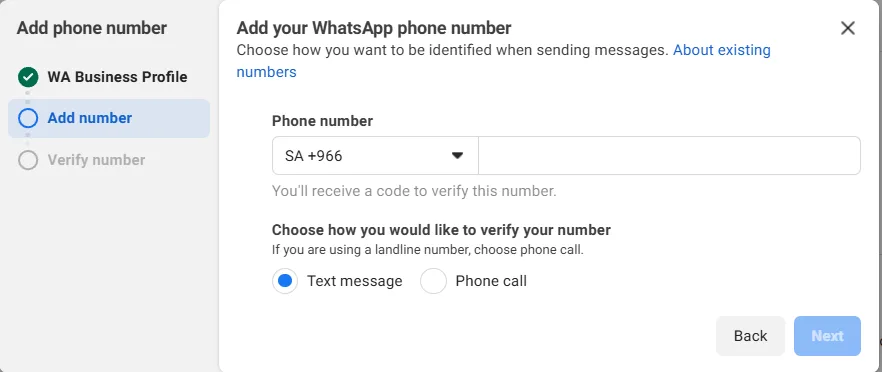
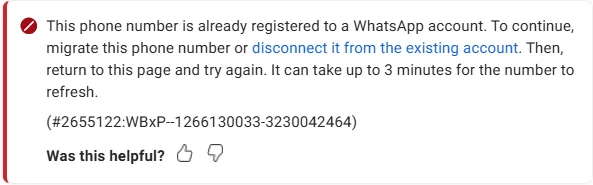
If Meta rejects the number at Verify number, it is already registered on WhatsApp. Use a different number see Troubleshooting.
1.6 Copy the two IDs. Still in Step 2, open Send message and pick your number from the From selector. The Phone number ID and WhatsApp Business Account ID appear beside it. Paste both somewhere temporary you need them in Part 3.
The IDs only exist once a number is registered. If the From selector is empty, go back to 1.5.
Part 2 Generate a permanent access token
Nabrah needs a System User token that never expires. You create it in Meta Business Settings.
There are three kinds of token and only one works. The token displayed on Meta's own setup page is temporary and dies after 24 hours. Your app's Generate token button may produce one with a default expiry. Follow the steps below for the third kind.
2.1 Open System users. Go to Meta Business Settings, select your portfolio, then Users → System users.
2.2 Create the system user. Click Add, name it Nabrah WhatsApp, set the role to Admin, then Create system user.
2.3 Assign assets. Select the system user, click Assign assets, choose your Meta app and your WhatsApp Business Account, grant Full control, and save.
Assign both assets, not just the app. Assigning only the Meta app is the most common reason a token stops working weeks later.
2.4 Generate the token. Click Generate new token, select the same Meta app, then set the expiry.
Set the expiry to Never. This one dropdown is the most common cause of a WhatsApp connection that works for weeks and then stops without warning. Any other value and the token dies on that date.
Then tick exactly these two permissions:
- whatsapp_business_messaging
- whatsapp_business_management
2.5 Copy the token. Click Copy and store it securely. Meta shows it once.
Treat the token like a password. Anyone holding it can send messages from your number. Do not paste it into chat, tickets, or screenshots.
Part 3 Create the inbox in Nabrah
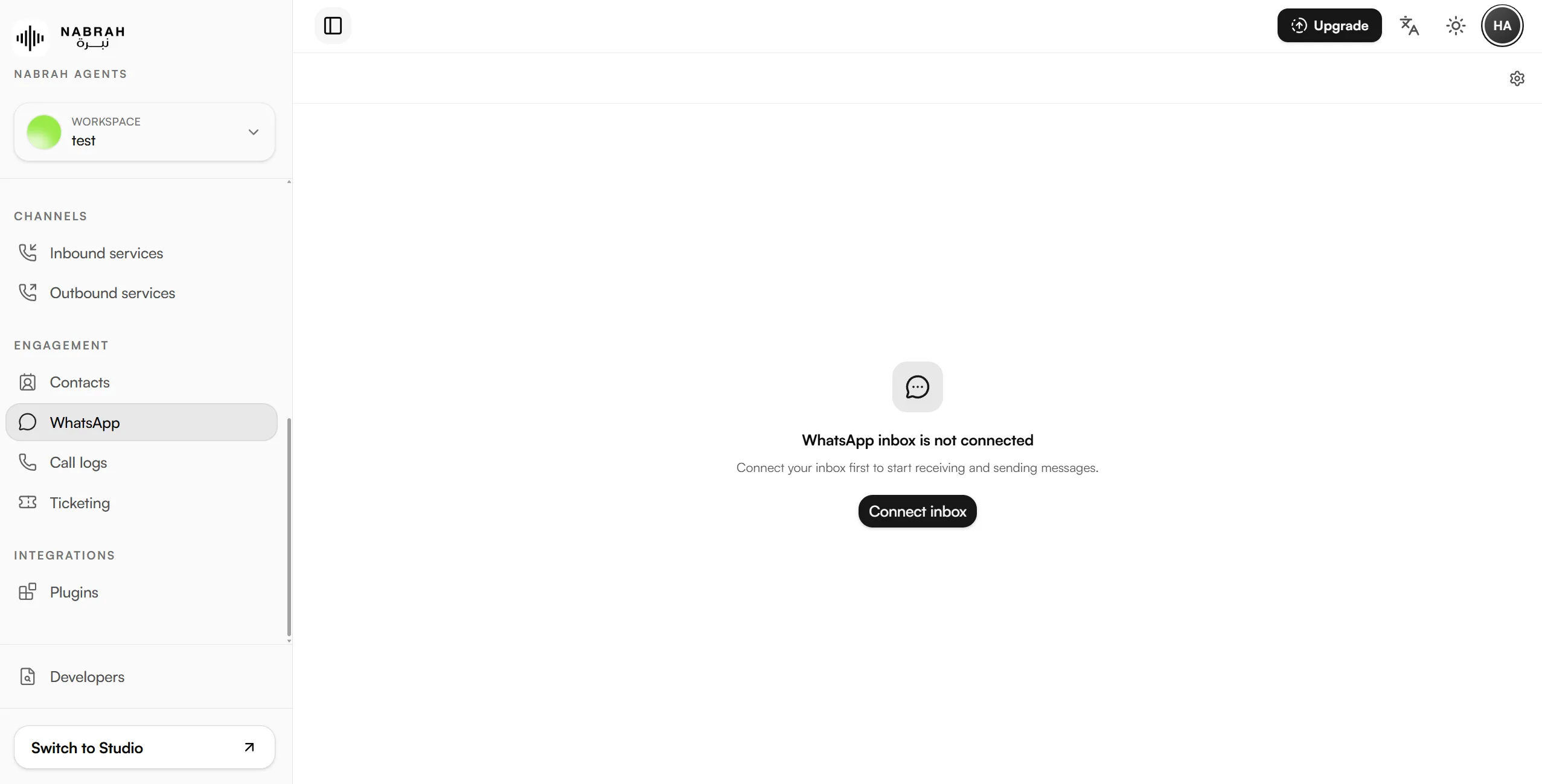
Go to WhatsApp Settings → Inbox → Add inbox.
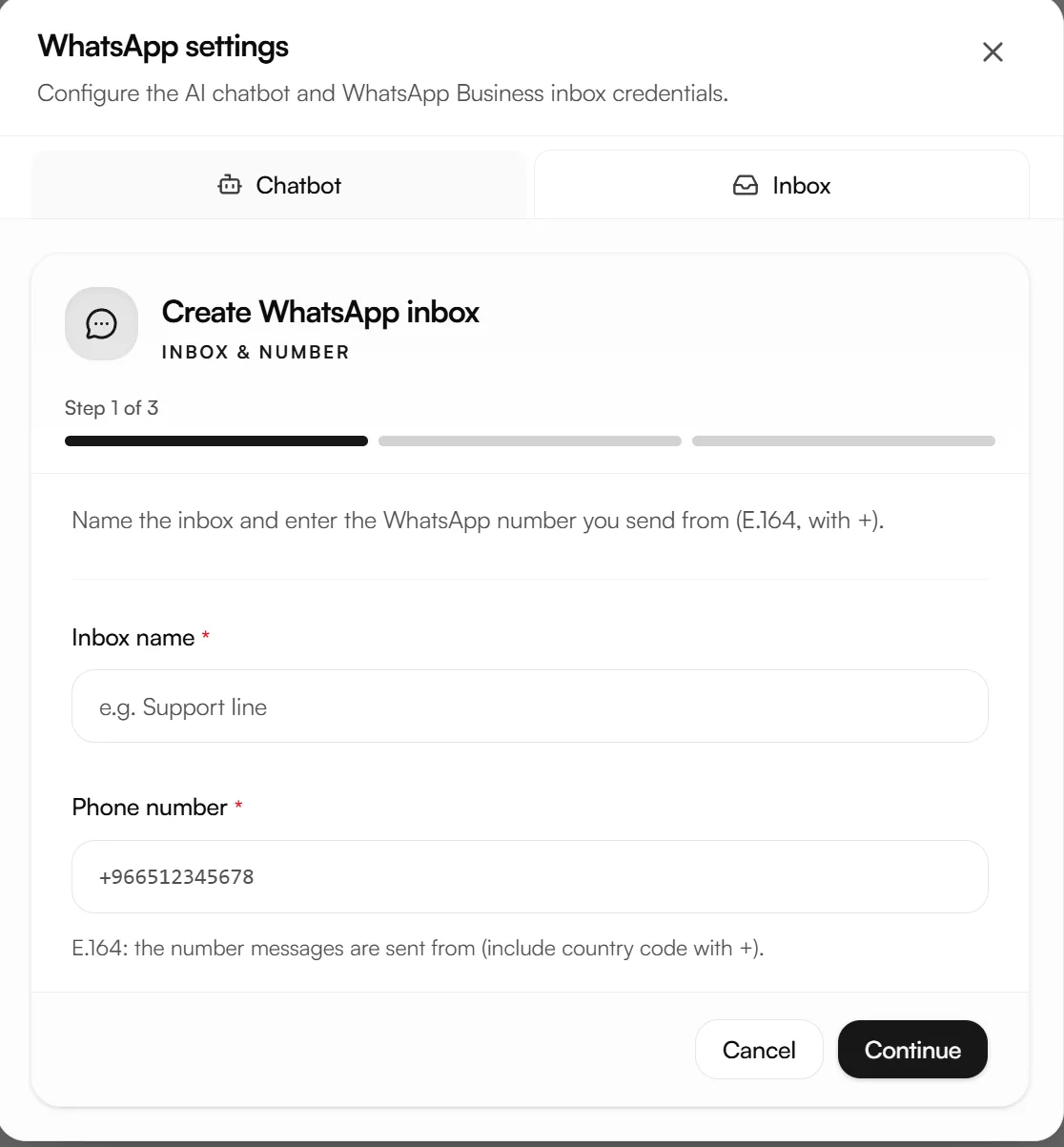
Step 1 — Inbox and number. Enter an inbox name and the sending number in E.164 format, for example +9665XXXXXXXX. No spaces, no dashes, no leading zero.
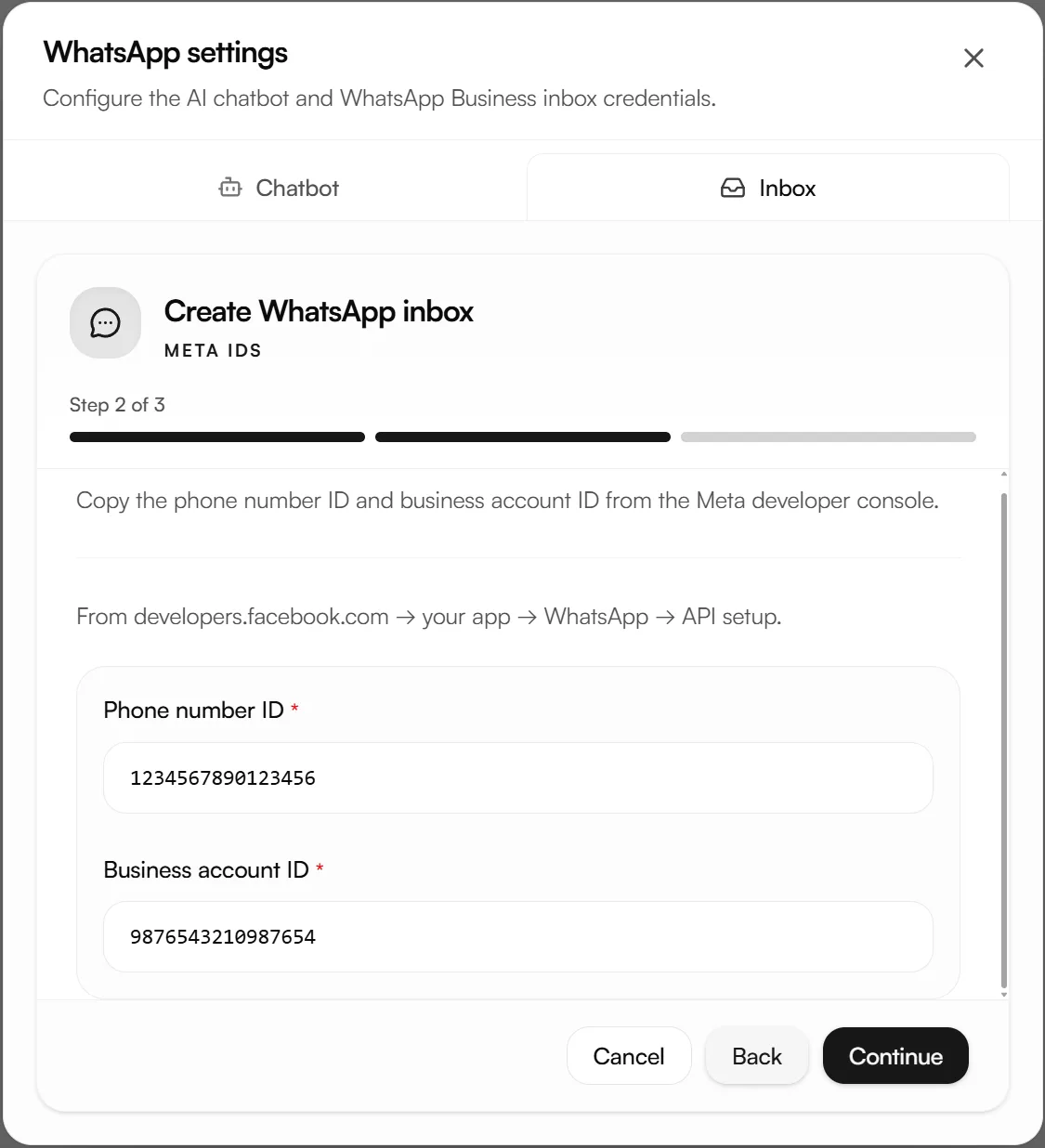
Step 2 — Meta IDs. Paste the Phone number ID and Business account ID from step 1.6.
Step 3 — Token and routing. Paste the system user token from step 2.5 into Meta / Facebook API key. No spaces before or after.
Turn on Auto assignment if you want incoming conversations distributed to team members automatically. Leave it off to triage from the Unassigned tab.
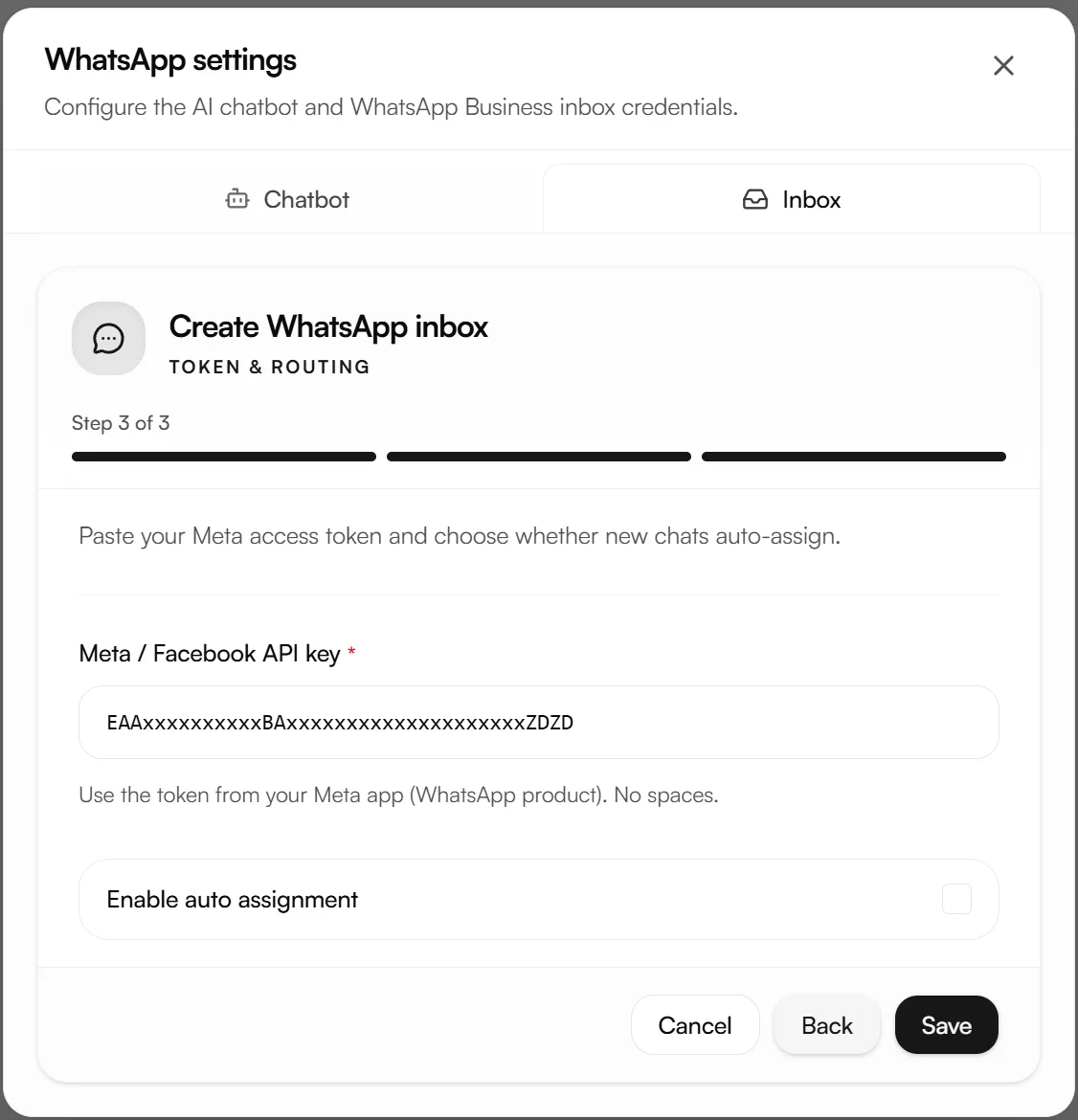
Step 4 — Webhook. Once Meta accepts your token, Nabrah advances to a fourth step that gives you the two values Meta needs.
Field | What to do |
|---|---|
Callback URL | Appears once WhatsApp provisions the inbox. If it is still blank, close and reopen WhatsApp settings to refresh. |
Webhook verify token | Generated for you. Click Copy. Change it only if you also rotate it in Meta. |
App secret | Optional. Leave it empty unless your security policy requires payload signing. |
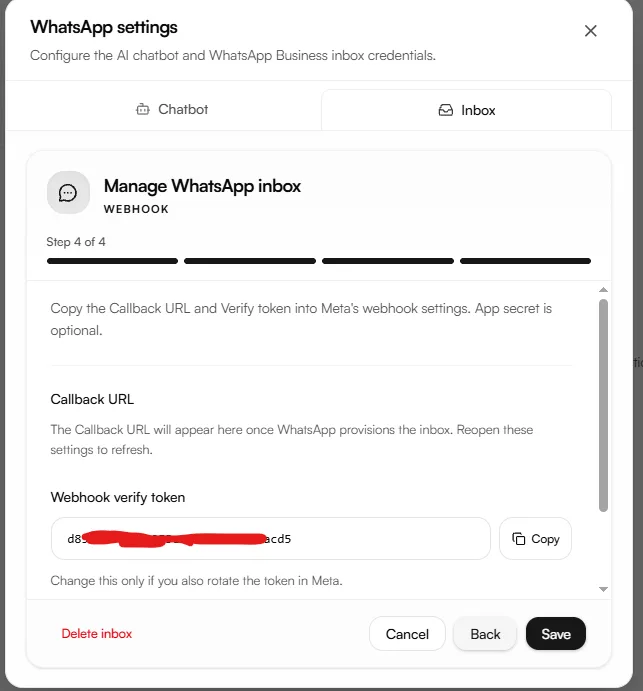
Now go back to Meta: Step 2. Production setup → Configure Webhooks, paste the Callback URL and the Verify token, click Verify and save, then subscribe to the messages field.
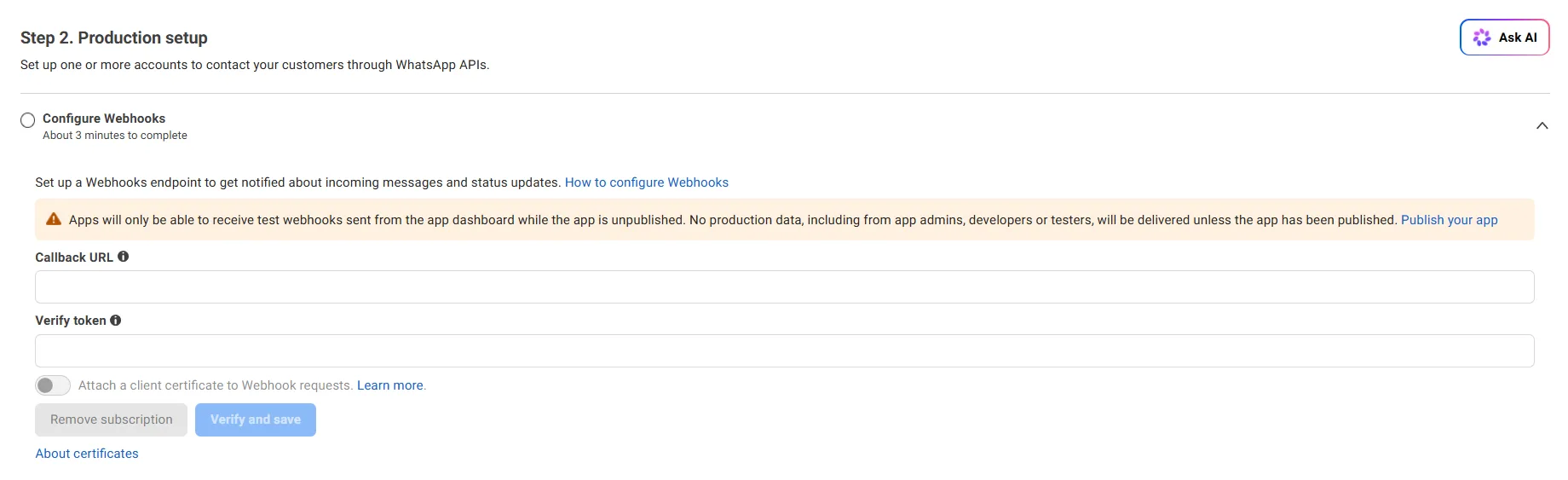
Step 4 only appears after a valid token. If the wizard stops at step 3 with Failed to create whatsapp inbox, the token is expired, mistyped, or missing thewhatsapp_business_messagingandwhatsapp_business_managementpermissions. Fix the token there is nothing wrong with the webhook.

Your app must be published. An unpublished Meta app receives only test webhooks from the app dashboard. No real customer messages are delivered until you publish it.
Part 4 Connect an agent
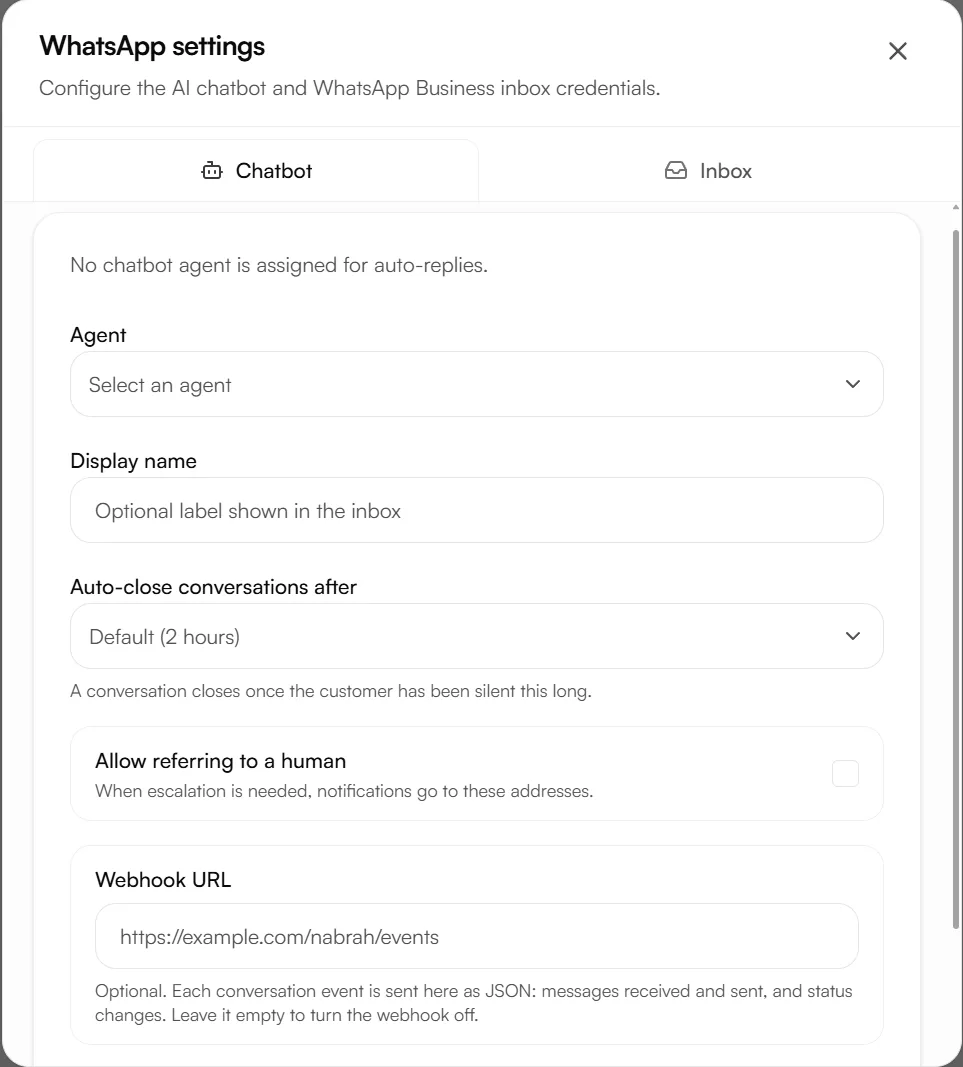
Open the Chatbot tab on the inbox you just created.
Field | What it does |
|---|---|
Agent | The Nabrah agent that answers incoming messages |
Display name (optional) | A label shown in the inbox so the team can tell the bot apart |
Allow referring to a human | Lets the agent escalate to a team member |
Human contact emails | Who receives the escalation notification |
Test the connection
1. From a personal phone, send any message to your business number.
2. Within a few seconds the conversation appears in WhatsApp → All.
3. Reply from the inbox and confirm the message arrives on the phone.
4. If an agent is connected, send a question it should answer and confirm it replies on its own.
Nothing arrives? Go to Troubleshooting below.
Using the inbox
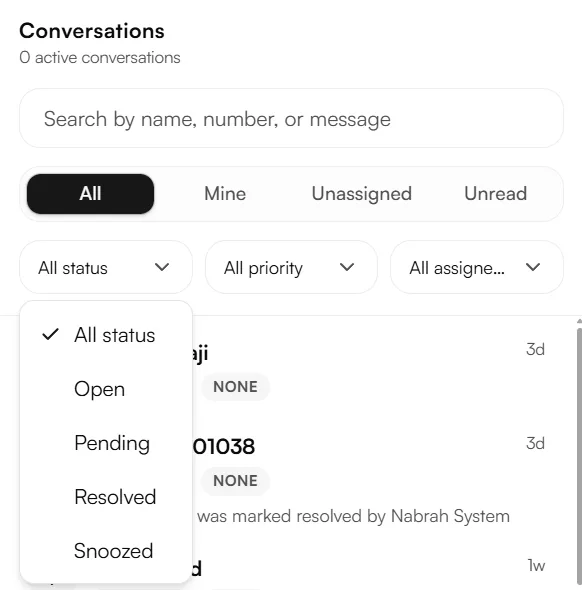
Conversation list. The left panel shows contact name, status, priority, last-message preview, and time elapsed. Four tabs filter it:
Tab | Shows |
|---|---|
All | Every conversation in the workspace |
Mine | Conversations assigned to you |
Unassigned | Conversations with no assignee |
Unread | Conversations with unread messages |
Three further filters narrow the list: Status (Open, Pending, Resolved, Snoozed), Priority (Urgent, High, Medium, Low, No priority), and Assignee.
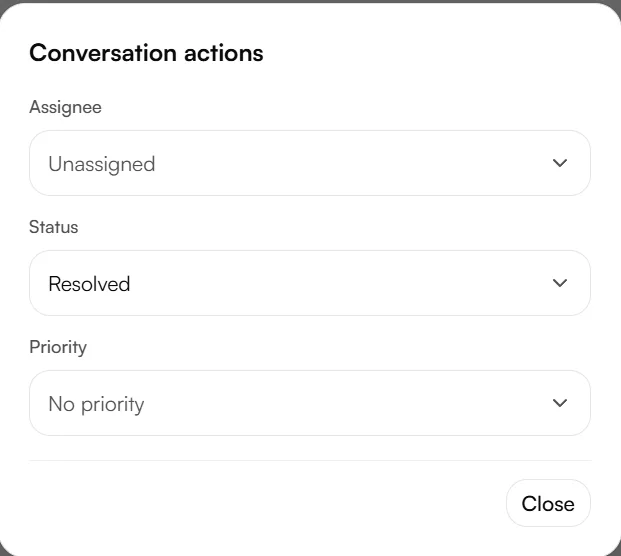
Conversation actions. From the actions panel, assign the conversation, change its status, and set its priority. Priority is always set by hand. Conversations the AI agent closes are marked resolved by Nabrah System automatically.
Troubleshooting
Symptom | Cause | Fix |
|---|---|---|
Inbox saves, but no incoming messages | The Callback URL and Verify token from step 4 were never pasted into Meta | Complete Part 3, Step 4 |
Still nothing after the webhook is configured | The Meta app is unpublished, so only test webhooks are delivered | Publish the app |
The wizard stops at step 3, Failed to create whatsapp inbox | Token expired, mistyped, or missing permissions | Generate a new system user token with both WhatsApp permissions |
Worked for a day, then stopped | The temporary 24-hour token from Meta's setup page was used | Generate a system user token with expiry Never |
Worked for weeks, then stopped with no warning | The token was generated with a fixed expiry instead of Never | Generate a new token and set expiry to Never |
Worked for months, then "Invalid access token" | The system user was removed, or its asset assignments were revoked | Re-assign the app and the WhatsApp account, generate a new token |
"This phone number is already registered to a WhatsApp account" | The number is in use on WhatsApp or WhatsApp Business | Use a different number, or disconnect it from the existing account after backing up its chats |
Meta rejects the app name | The name contains "WhatsApp" | Use your company name instead |
Meta rejects the display name | It does not match your business name | Follow Meta's display name guidelines |
"Phone number not found" | Phone number ID and Business account ID were swapped | Re-copy both from Step 2 |
Number rejected when saving the inbox | Not in E.164 format | Use |
Can only reply with templates | The 24-hour customer service window has closed | Send an approved template to reopen it |
Business-initiated messages fail | No payment method on the Meta account | Add one in Billing Hub |
Frequently asked questions
Can I connect more than one number? Yes. Create one inbox per number. A Meta app accepts a single webhook endpoint, so all numbers under that app route through it.
Which media types are supported? Images, documents, audio, and video, within Meta's size limits per type.
Why can I only send templates sometimes? WhatsApp allows free-form replies for 24 hours after the customer's last message. Outside that window, only approved templates.
Does the token ever need refreshing? No. A system user token with expiry set to Never keeps working until the system user or its asset assignments are removed.