
Build
Agents
An agent is an AI voice assistant configured to handle a specific business task. You can let Nabrah write the agent from a short description of your business, or set up every section yourself. Either way, you can revisit any section before going live.
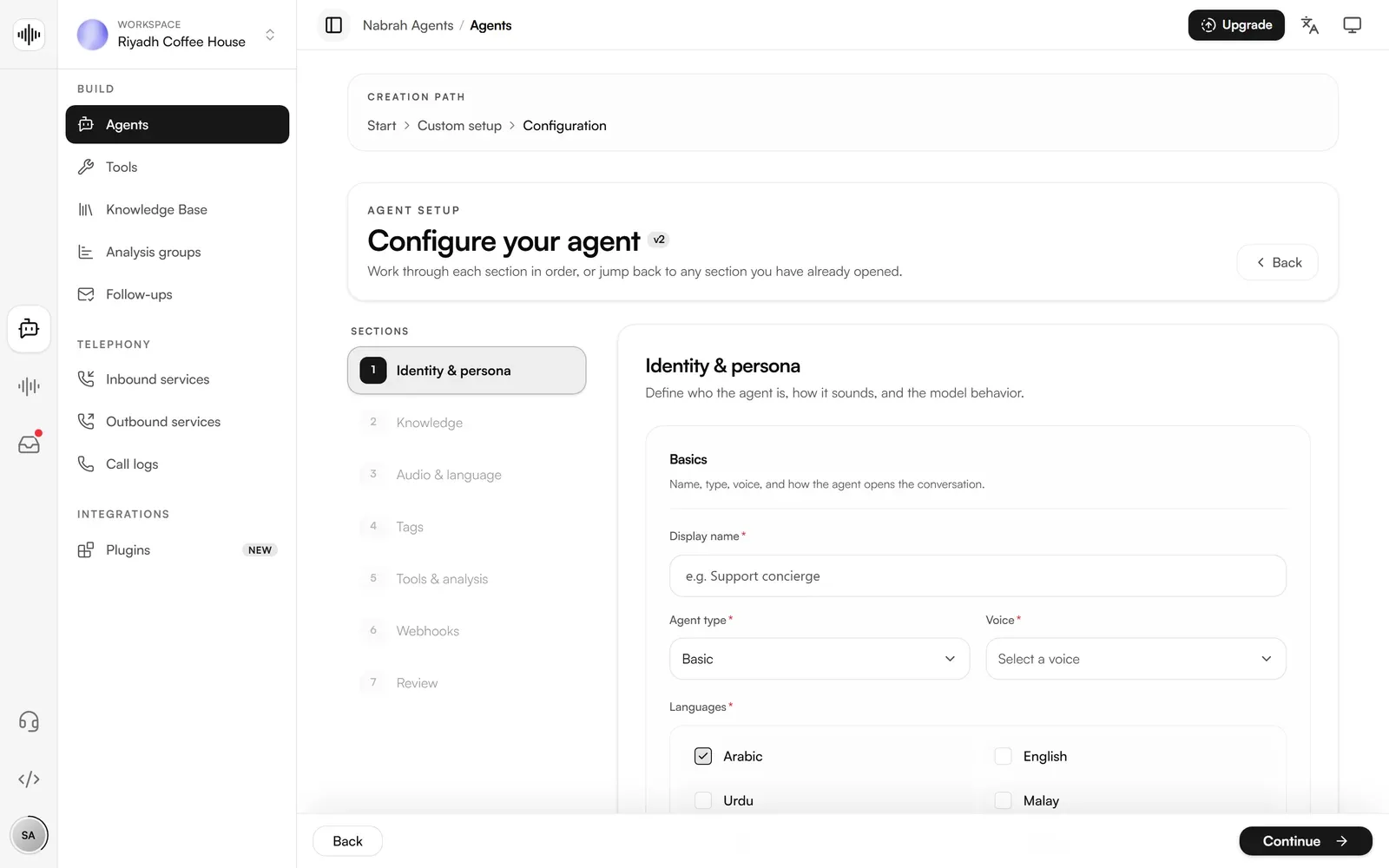
Creating an agent
Open Agents → Build → Agents and click New agent. The template setup opens on Select a business type. To set everything up yourself, click Start from scratch at the top of the page.
The agents list shows every agent in the workspace with its Edit, Clone, and Delete actions.
Start from a template
The template setup asks about your business and writes the persona, opening line, and call steps for you.
Business type: select the field your business works in, for example Restaurants & hospitality. Choose Other to describe it yourself.
Capabilities: choose what the agent handles on a call. You can select more than one.
Business details: enter the Business name callers will hear and the Agent name the agent introduces itself with. Add your Website (optional) as a full link starting with
https://, and describe your services, hours, prices, and policies under Instructions. Click Create agent.Preparing agent: Nabrah reads your website and writes the agent. Reading a website can take a little longer.
Review choices: if Nabrah has follow-up questions, change any choice or keep the Recommended option.
Analysis groups: select the groups to link to this agent. Existing groups come from your workspace; New groups are suggested for your business.
When the agent is ready, its card has a call button (Connect) to try the agent in your browser, and an Edit button to open the full setup.
Start from scratch
The full setup has seven sections, in this order: Identity & persona, Knowledge, Audio & language, Tags, Tools & analysis, Webhooks, and Review. Click Continue to move on. You can jump back to any section you've already opened.
Section 1: Identity & persona
Defines who the agent is, how it sounds, and how it opens every conversation.
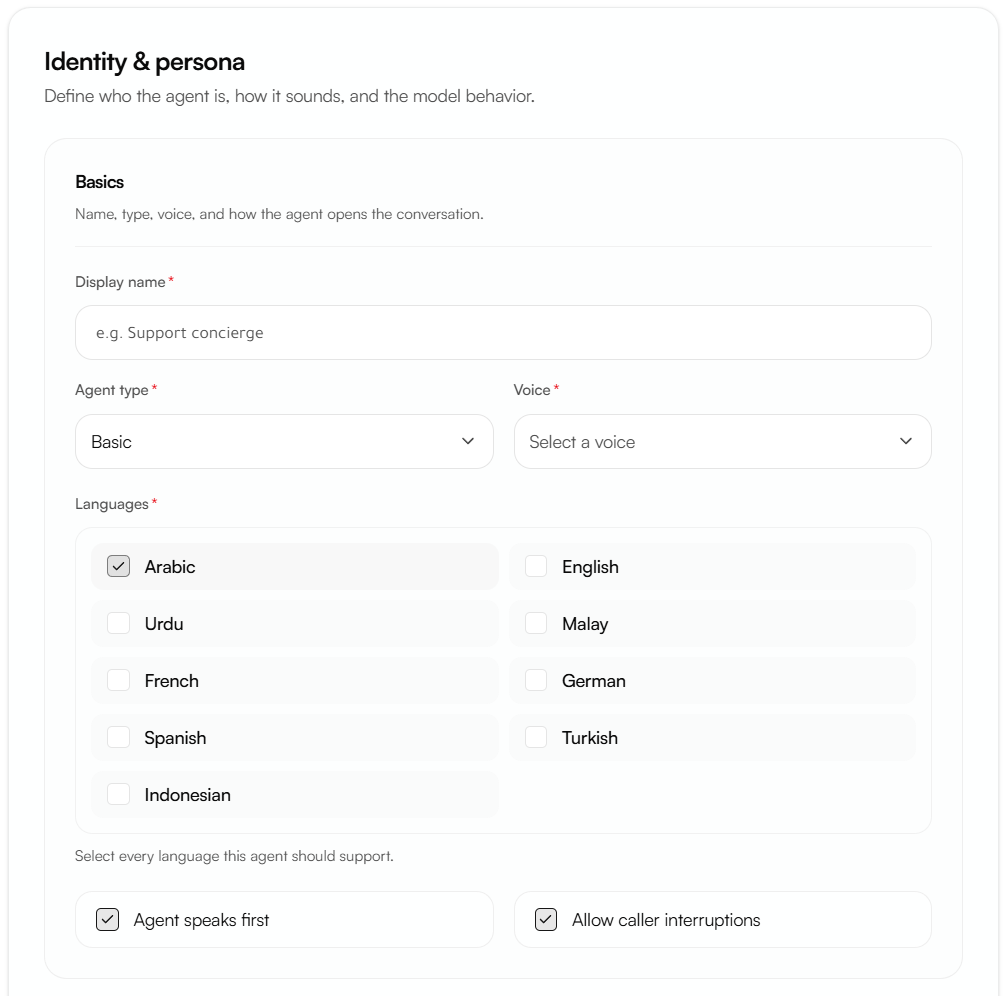
Basics
Display name the internal name used to identify this agent across the dashboard, insights, and call logs.
Agent type defines the operational mode of the agent. The default is Basic.
Voice the voice profile the agent uses when speaking. The list shows each voice's name, gender, and country. Pick the one that best matches your brand identity. See Voices.
Languages select every language this agent should support. Arabic is enabled by default.
Agent speaks first when enabled, the agent delivers its opening greeting immediately upon connection. When disabled, the agent waits for the caller to speak first.
Tip: Disable Agent speaks first for warm transfer scenarios where a human agent introduces the AI.
Allow caller interruptions when enabled, the agent stops speaking the moment it detects the caller's voice. When disabled, the agent completes its current statement regardless of caller input.
Tip: Disable Allow caller interruptions when the agent must deliver critical information that must be heard in full.
Persona & script
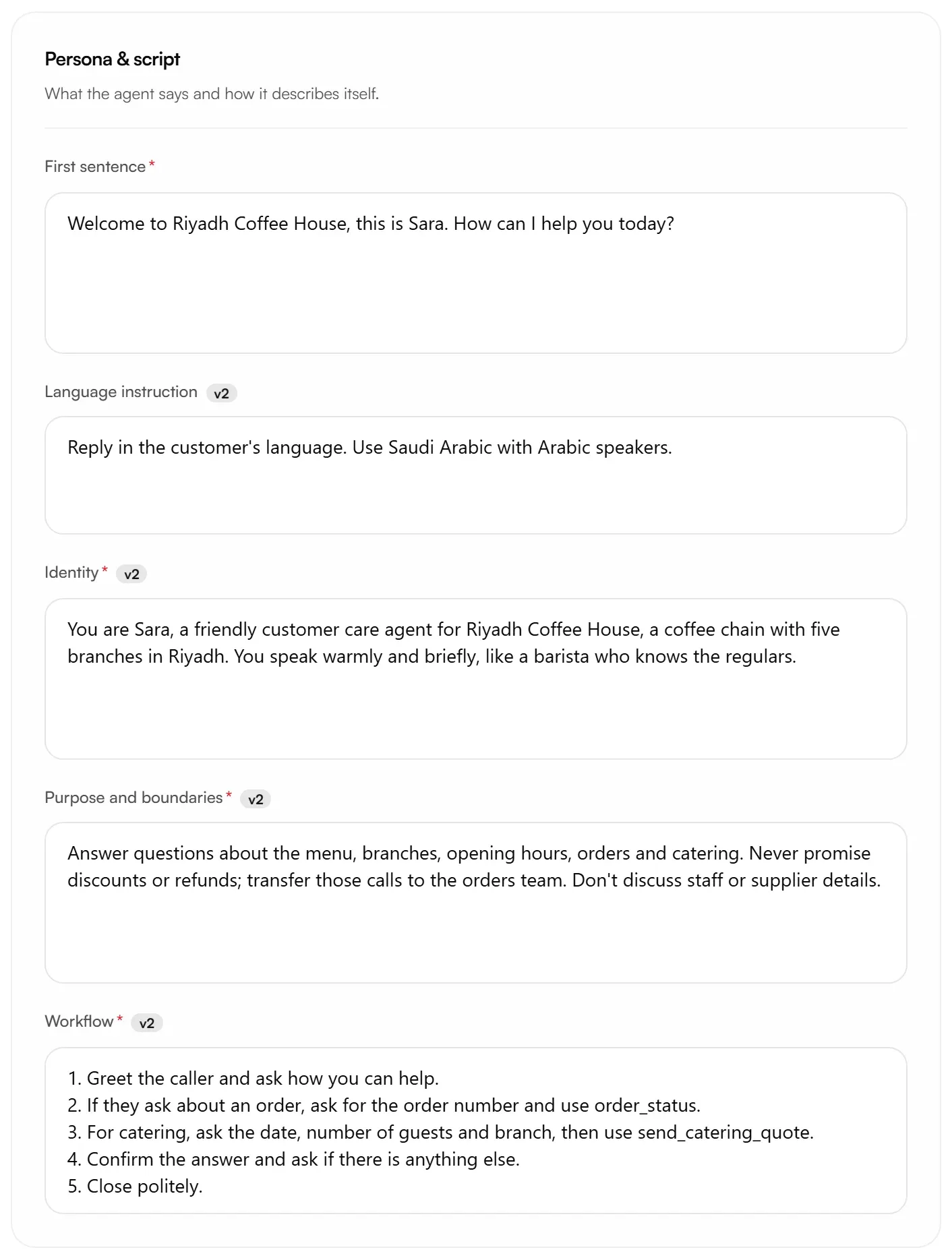
First sentence the exact opening statement delivered upon call connection. This segment is uninterruptible.
Tip: Keep the first sentence concise to maintain a natural conversational tone. If Agent speaks first is disabled, enter only one or two neutral words.
Language instruction (optional) tells the agent which language and dialect to answer in, for example: Reply in the customer's language. Use Saudi Arabic with Arabic speakers.
Identity defines the agent's name, professional tone, and the organization it represents. Include the agent's role and authority level to ensure consistent and appropriate responses throughout every interaction.
Purpose and boundaries the agent's primary objectives and functional boundaries. Define the core tasks the agent must complete and explicitly list prohibited topics such as internal codes, pricing details, or proprietary data.
Workflow the full sequence of the conversation. A complete workflow defines three elements:
Initiation how the agent begins the interaction and determines the appropriate conversational path.
Logic paths the routes a conversation can take based on caller responses, including the data points to collect and the order of questions.
Termination the conditions and closing phrases that end the call gracefully once objectives are achieved.
Note: Language instruction and Operational instructions are available on agents marked v2. Every agent you create is v2.
Model & speech
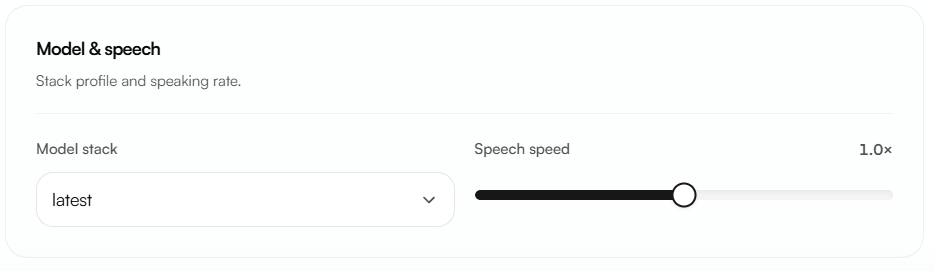
Model stack the AI model powering the agent's responses. The default is latest.
Speech speed controls vocal cadence using a slider from 0.7x to 1.3x. The default is 1.0x, which delivers the most natural listening experience.
Call limits
Maximum call duration the call ends automatically when it reaches this length. Choose between 1 and 30 minutes. Default: 10 minutes.
Section 2: Knowledge
Provides the agent with reference material used to answer caller questions accurately.
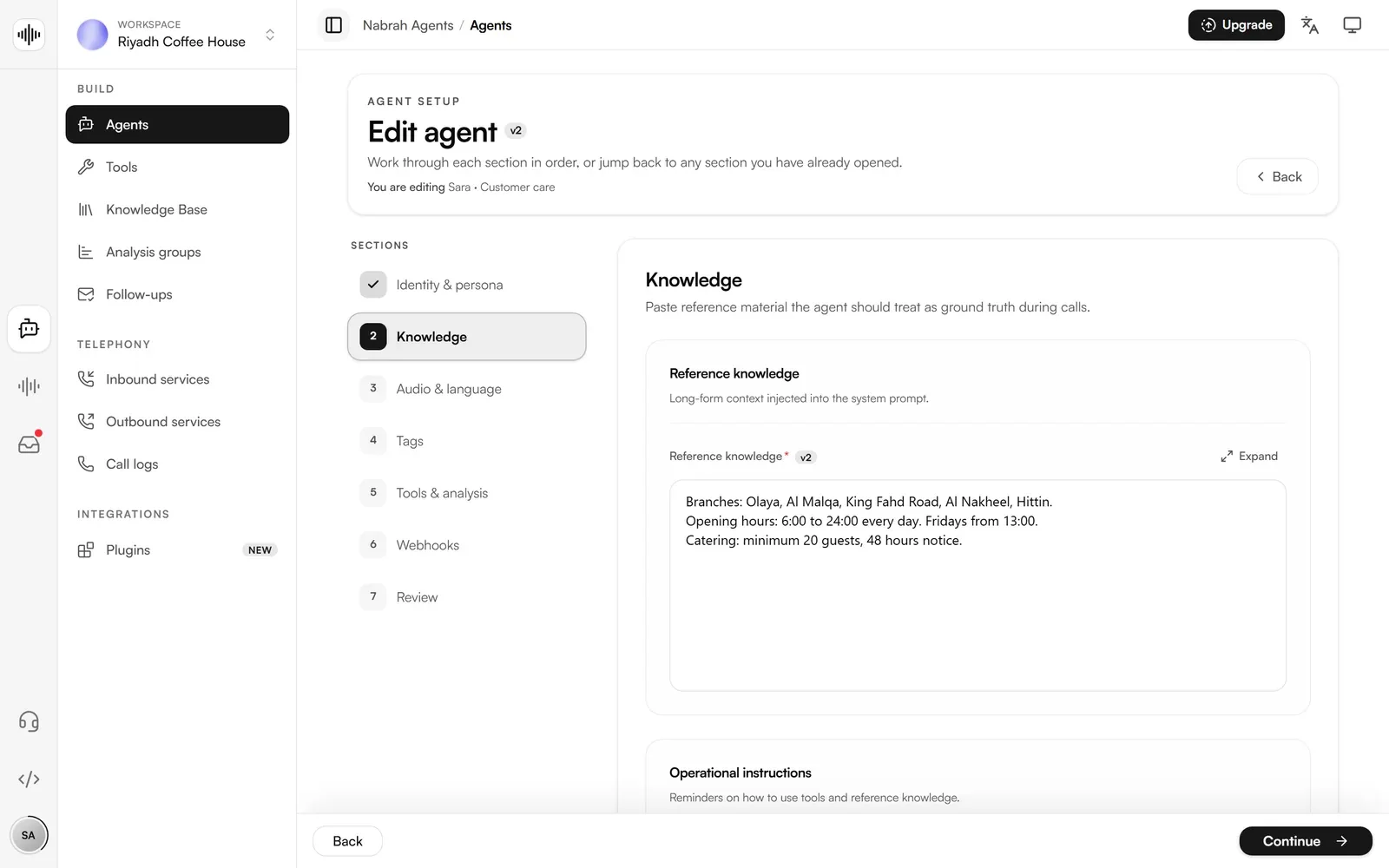
Reference knowledge a required text field where all supporting information is entered. This content is injected into the agent's system prompt and treated as ground truth during every call. Include product details, policies, FAQs, and any information required for accurate responses. Click Expand to edit long text in a larger window.
Tip: Use headers and categorized lists to organize the knowledge. Well-structured knowledge allows the agent to navigate complex information faster and reduces inaccurate responses.
Operational instructions (optional) your rules for tools and reference knowledge, such as which tool to use first, how to format values, or what not to answer from the knowledge. For example: Always look up the order before answering about it. Never quote prices that are not in the reference knowledge.
Knowledge bases: select the knowledge bases this agent can retrieve answers from. The agent uses them on calls and in WhatsApp, web chat, Instagram and email conversations. Create knowledge bases under Agents → Build → Knowledge Base. See Knowledge base.
Section 3: Audio & language
Fine-tunes the agent's audio environment. The languages the agent speaks are set in Section 1 under Languages, and how it chooses between them in Language instruction.
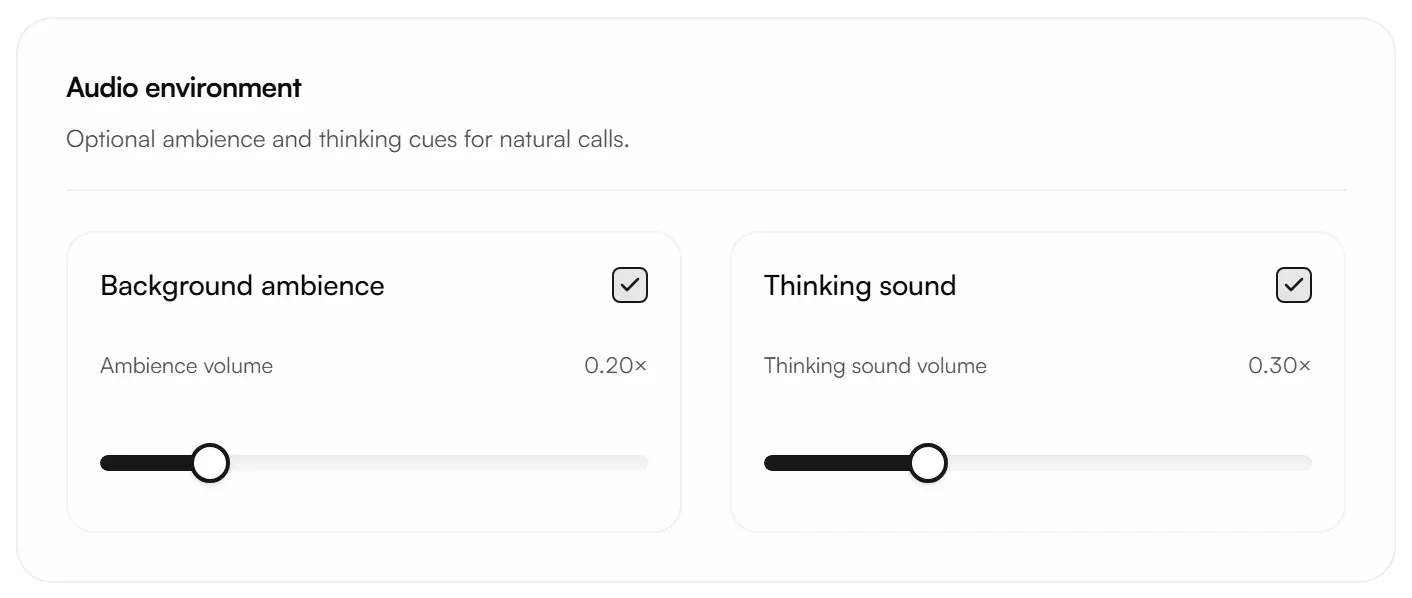
Background ambience enables a subtle background soundscape to make the agent sound more natural. Use Ambience volume to balance the level.
Thinking sound enables subtle audio cues during processing pauses, signaling to callers that the agent is still active. Use Thinking sound volume to balance the level.
Tip: Keep the thinking sound slightly louder than the background ambience so callers clearly perceive the agent's activity.
Section 4: Tags
Optional structured labels assigned by the agent at the end of each call for insights and filtering.
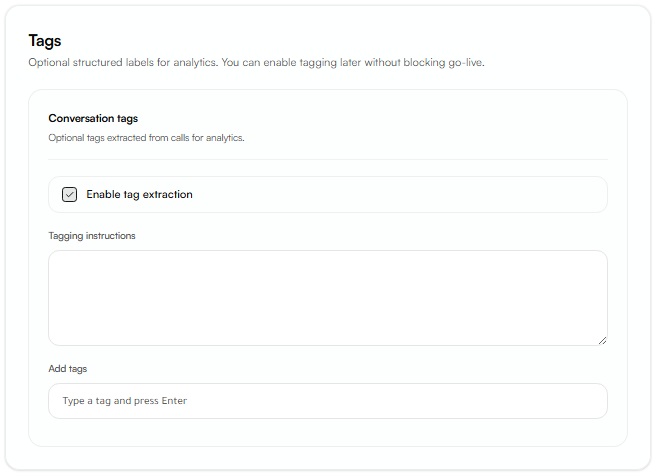
Enable tag extraction when enabled, the agent reviews the call transcript and assigns the appropriate tag based on the instructions below.
Tagging instructions describes the criteria for each tag. A few lines per tag are sufficient.
Add tags type a tag name and press Enter. Tag names can use only English or Arabic letters, numbers and underscores. A tag with a space or any other character, such as a hyphen, stops the whole agent from saving. For example: billing_issue or شكوى_مالية.
Note: Tags can be added or modified after the agent goes live without interrupting active operations.
Section 5: Tools & analysis
Connects the agent to external systems, post-call analysis, and ticketing. Use the search fields to narrow down tools and analysis groups when your workspace has many of them.
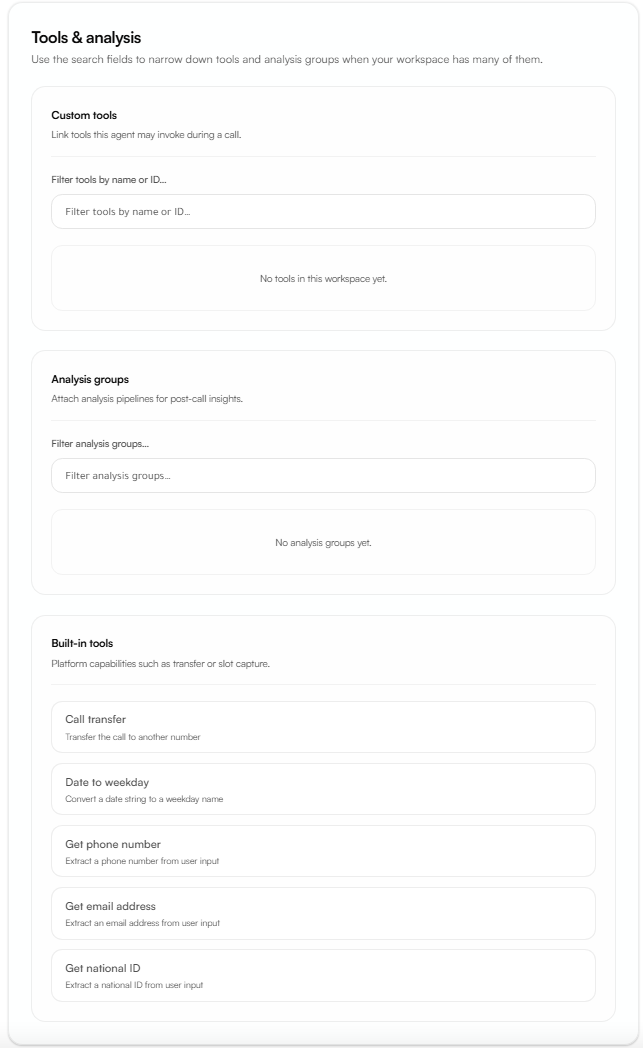
Custom tools link tools created in Agents → Build → Tools to enable the agent to call external APIs during conversations. See Custom tools.
Analysis groups link analysis groups to activate structured post-call data extraction. See Analysis groups.
Ticketing turn on Enable ticket creation to let the agent open tickets, and describe when and how in Ticket creation instructions. Requires a ticket inbox in CX → Inbox → Ticketing. See Ticketing.
Built-in tools
Tool | What it does |
|---|---|
Call transfer | Transfers the active call to another number |
Date to weekday | Converts a date string to the corresponding weekday name |
Get phone number | Extracts a phone number from the caller's spoken input |
Get email address | Extracts an email address from the caller's spoken input |
Get national ID | Extracts a national ID number from the caller's spoken input |
Click a tool to turn it on. Call transfer opens its Transfer settings.
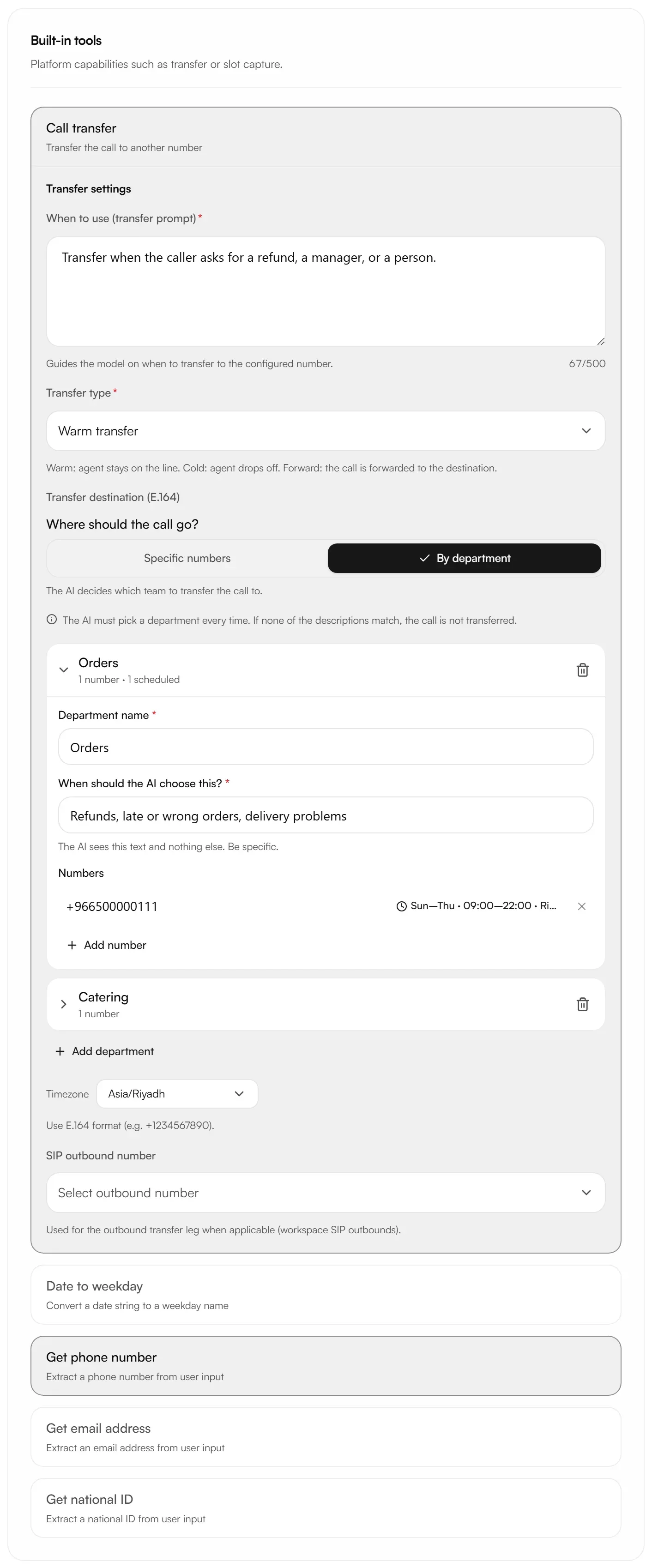
Transfer settings
When to use (transfer prompt) describes the conditions under which the agent should initiate a transfer. Up to 500 characters.
Transfer type how the transfer is executed:
Warm transfer the agent stays on the line during the handoff.
Cold transfer the agent drops off; the caller is connected directly to the destination.
Forward transfer the call is forwarded to the destination number.
Transfer destination (E.164) answers Where should the call go?
Option | How it works |
|---|---|
Specific numbers | Click Add number and enter each number in E.164 format, for example +9665XXXXXXXX. The call always goes to the numbers you list |
By department | Click Add department. Give it a Department name, describe When should the AI choose this?, and add its numbers. The AI decides which team to transfer the call to |
Each number can have its own hours. Click Set hours and choose Always available or Only during these hours, then pick the Days, From, and To times. Timezone applies to all numbers.
Write department descriptions carefully. The AI sees the description and nothing else. It must pick a department every time; if none of the descriptions match, the call is not transferred.
SIP outbound number the workspace outbound number used for the transfer leg when applicable.
Section 6: Webhooks
Sends automated HTTP requests to external systems at defined points before and after a call. Use webhooks to personalize calls with live data, sync results to your CRM, or trigger downstream workflows.
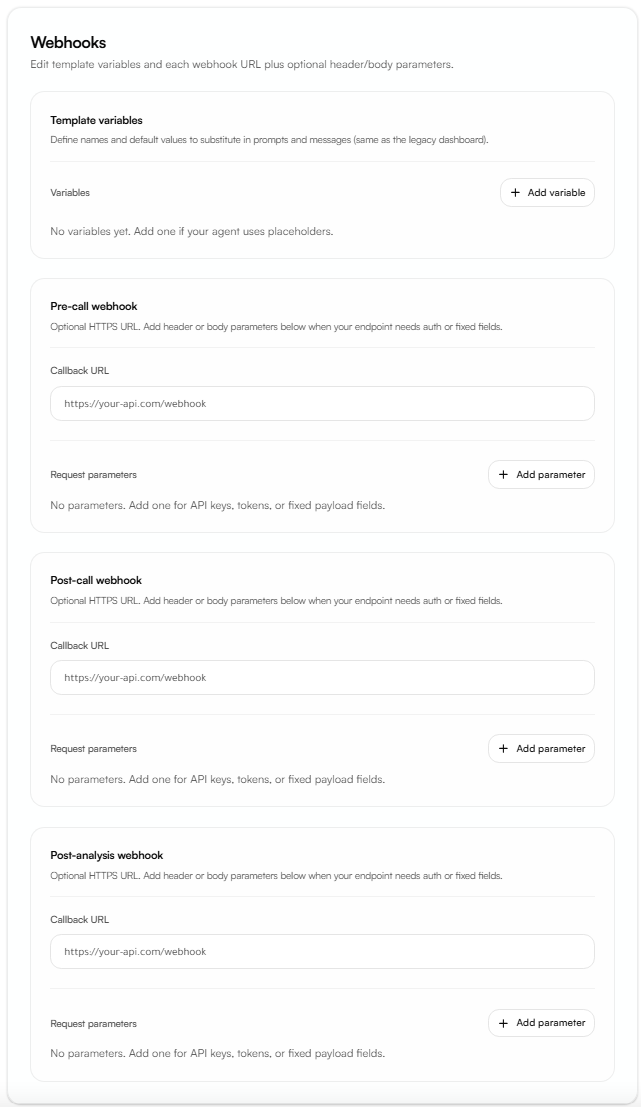
Template variables
Named placeholders inserted into agent fields using the syntax {{variable_name}}, replaced with actual values at runtime. Click Add variable to create one.
Each variable has:
Name the placeholder key, referenced as {{name}} in agent fields such as the first sentence, identity, or workflow (e.g. customer_name).
Type the value's data type.
Default value the fallback used when no value is supplied for that call.
Every {{placeholder}} you use must be defined here, or the agent can't be saved.
Example: Define a variable customer_name. In the first sentence, write Hello, {{customer_name}}!. The agent greets each caller by name when the value is passed at call initiation. If no value is provided, the Default value is used instead.
Tip: Values are supplied per call: passed when the call is started via the API or an outbound campaign, or fetched by the Pre-call webhook.
Webhook types
Webhook | When it fires | Typical use |
|---|---|---|
Pre-call webhook | Before the call begins | Fetch caller data or load personalization variables for {{template variables}} |
Post-call webhook | After the call ends | Update CRM records or trigger downstream workflows |
Post-analysis webhook | After post-call analysis completes | Reporting, QA, or scoring workflows |
Follow-ups use the Post-analysis webhook. Saving a follow-up for this agent replaces the Post-analysis webhook URL.
Configuring a webhook
Each webhook is configured with:
Callback URL an HTTPS endpoint that receives the request. Leave blank to disable that webhook.
Request parameters optional fields added to the request for authentication or fixed payload values. Click Add parameter. Each parameter has:
Parameter name the header or body key.
Location whether it is sent as a Header (e.g. an Authorization token or API key) or in the Body (a fixed field).
Data type the type of the value.
Value the static value sent with every request.
Request payload
The Post-call and Post-analysis webhooks send a POST request whose JSON body contains the full call record under call_details as a JSON string, so parse it a second time. The record includes caller/callee numbers, timestamps, transcript, tags, and analysis results. The body also holds any Body parameters you configured. Configured Header parameters are attached as request headers. Requests time out after 30 seconds.
Note: Use Header parameters for secrets such as API keys or bearer tokens, and Body parameters for fixed fields your endpoint expects on every call.
Section 7: Review
A read-only summary of the full agent configuration. All sections are listed and can be expanded to verify every setting before saving.
Once verified, click Create agent. When you edit an existing agent, the button is Save changes.