
الرؤى
Voice insights
Voice insights gives you a detailed view of your agents' calls over time. Use it to track call volume, see how many calls connect, find out who ended them and when customers call, and review the answers your analysis groups collect.
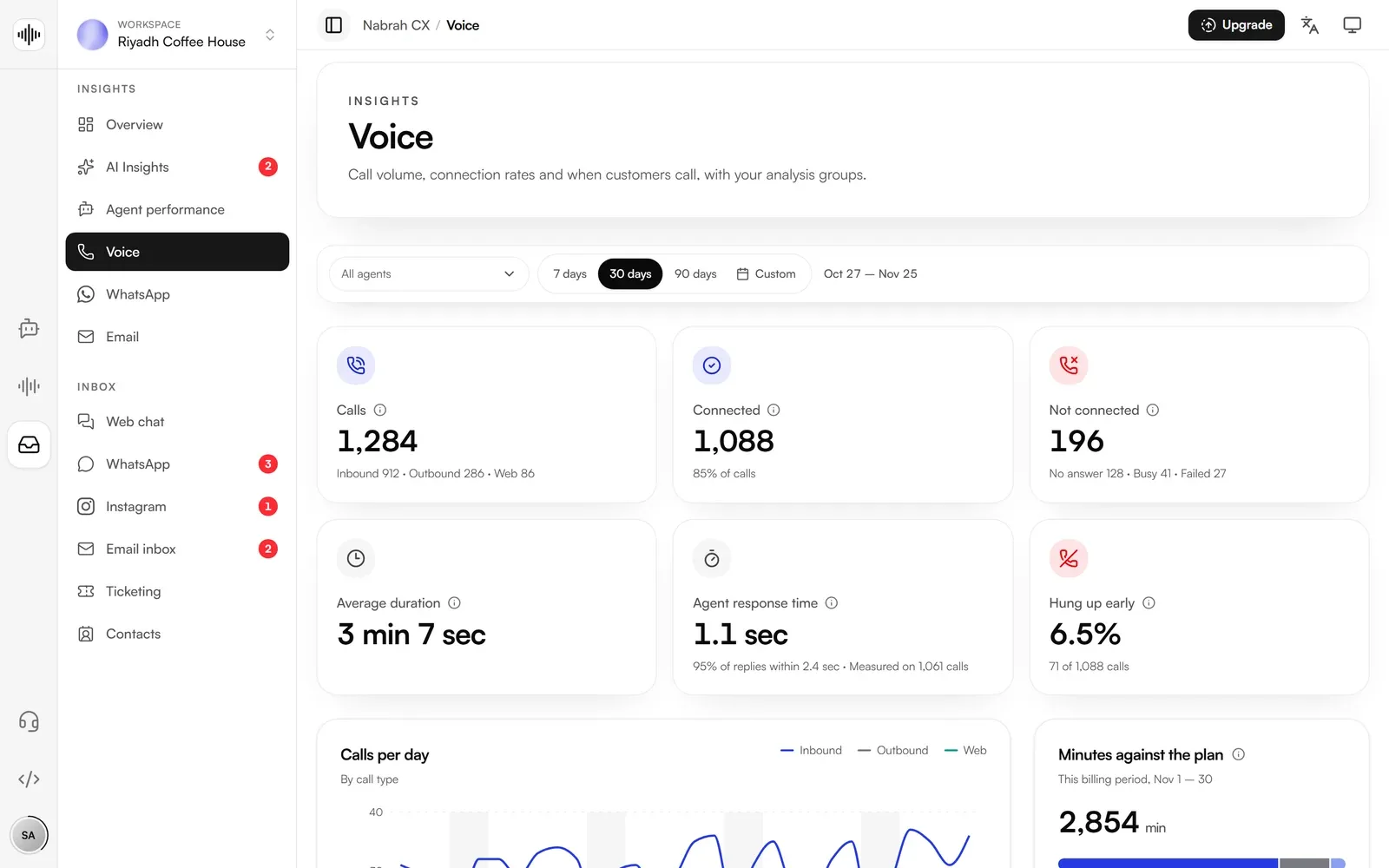
Open CX → Insights → Voice. To see who can open Insights, see Insights overview.
Filters
Two filters at the top of the page control what's shown:
Agent: one agent, or All agents.
Period: 7 days, 30 days or 90 days, each ending today, or Custom for any range up to 366 days. Default: 30 days.
All cards update as soon as you change a filter. The page counts days and hours in your browser's time zone. Your filter carries over to the other Insights pages.
Metrics
Six cards appear at the top of the page. They cover the selected agent and period.
Card | What it measures |
|---|---|
Calls | Calls created in the period that were dialed: completed, no answer, busy or failed. Scheduled, queued, in-progress and canceled calls aren't counted. The line below splits them into Inbound, Outbound and Web |
Connected | Dialed calls that were completed, with their share of all calls |
Not connected | No answer, busy or failed, with the count of each |
Average duration | Average length of completed calls, from pickup to hang-up |
Agent response time | Time from when the customer stops speaking to when the agent starts its reply, across every reply in connected calls. The middle value is shown, with the time 95% of replies came within and how many calls were measured |
Hung up early | Connected calls where the customer hung up before the agent achieved its objective, out of the calls where we know who ended the call. Calls the customer ended that aren't analyzed yet are left out |
Click Calls, Connected or Not connected to open those calls in Agents → Telephony → Call logs with the same dates and agent. Without Calls access, Call logs shows "Access Denied". See Call logs.
Charts
Calls per day
Calls per day over the selected period, with one line each for Inbound, Outbound and Web. Use it to spot peaks, drops and weekly patterns.
Minutes against the plan
Call minutes from the start of the current billing period to the start of today, split into Inbound, Outbound and Web. On plans that include call minutes, a bar shows the minutes used against the plan. With no calls yet, the card says "No call minutes yet this billing period."
Call status
Dialed calls only, split by status.
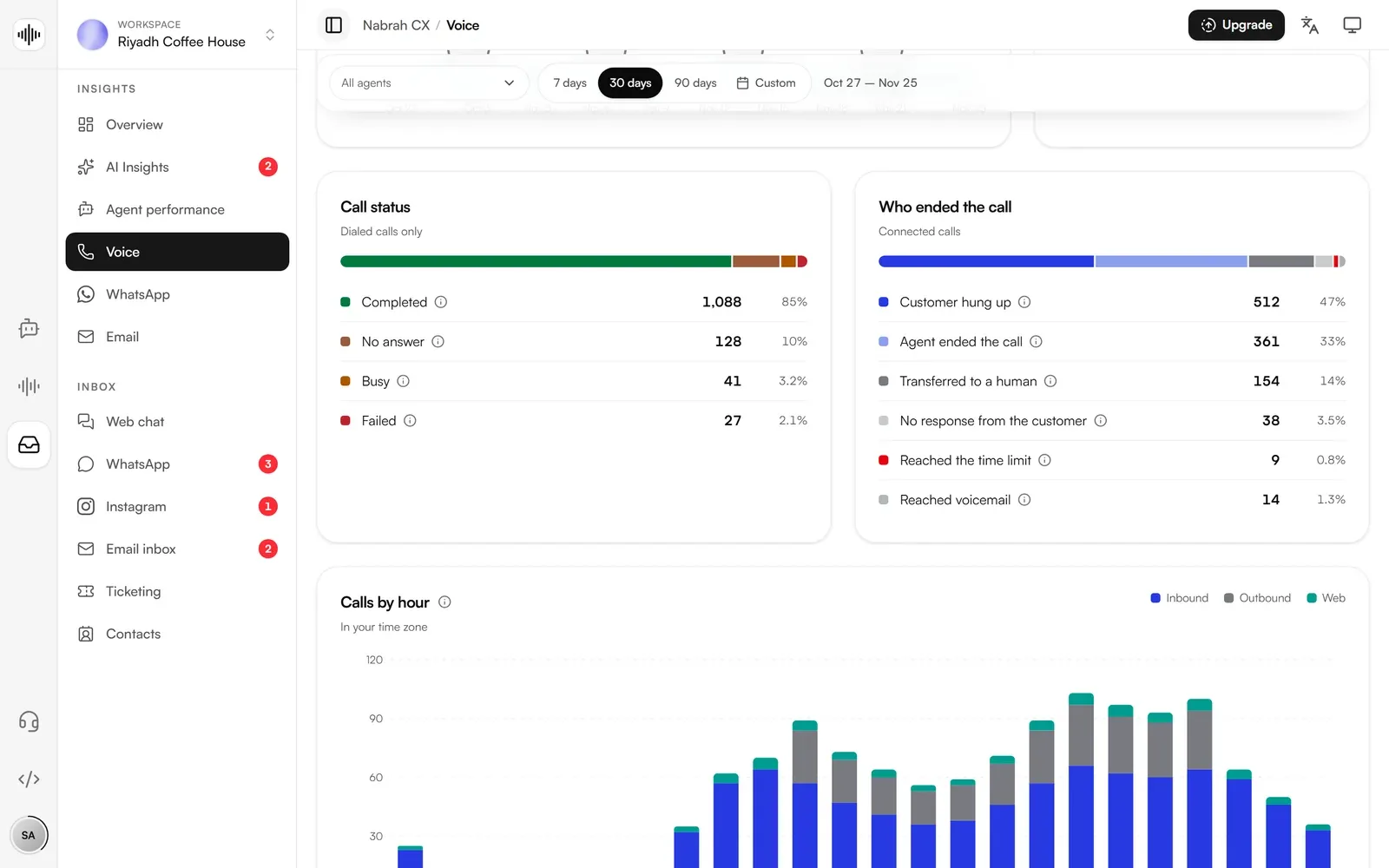
Status | What it means |
|---|---|
Completed | The call connected and ended normally |
No answer | Nobody picked up |
Busy | The line was busy |
Failed | The call couldn't be placed |
Who ended the call
How each connected call ended. Call records show the same label at the end of the transcript.
Reason | What it means |
|---|---|
Customer hung up | The customer hung up, or their line dropped |
Agent ended the call | The agent ended the call itself, usually after saying goodbye |
Transferred to a human | The agent handed the call to a human |
No response from the customer | The agent ended the call after the customer stopped responding |
Reached the time limit | The call reached the agent's maximum call length |
Reached voicemail | The agent detected voicemail and hung up |
Not recorded | Calls from before this was tracked, or where it couldn't be recorded |
Watch the customer share. If Customer hung up is high and Hung up early is rising, callers are leaving before the agent finishes. Listen to a few of those calls in Call logs and shorten the agent's opening or answers.
Calls by hour
Calls for each hour of the day, by the hour the call was picked up, or created when it wasn't. Bars are split into Inbound, Outbound and Web. Use it to plan staffing for the calls your agents transfer.
Peak times
A weekday-by-hour grid, Sunday first. Darker is busier, and the busiest slot is outlined. The line under the grid names it, for example "Busiest: Thu 20:00 · 18 calls". Hover a slot to see its calls and its share of that day's calls.
Agent analysis insights
The Agent analysis insights card at the bottom of the page shows the answers your analysis groups collected from the selected agent's calls in the period. Pick one agent in the Agent filter to see it. With All agents selected, the card says "Select an agent to view analysis insights".
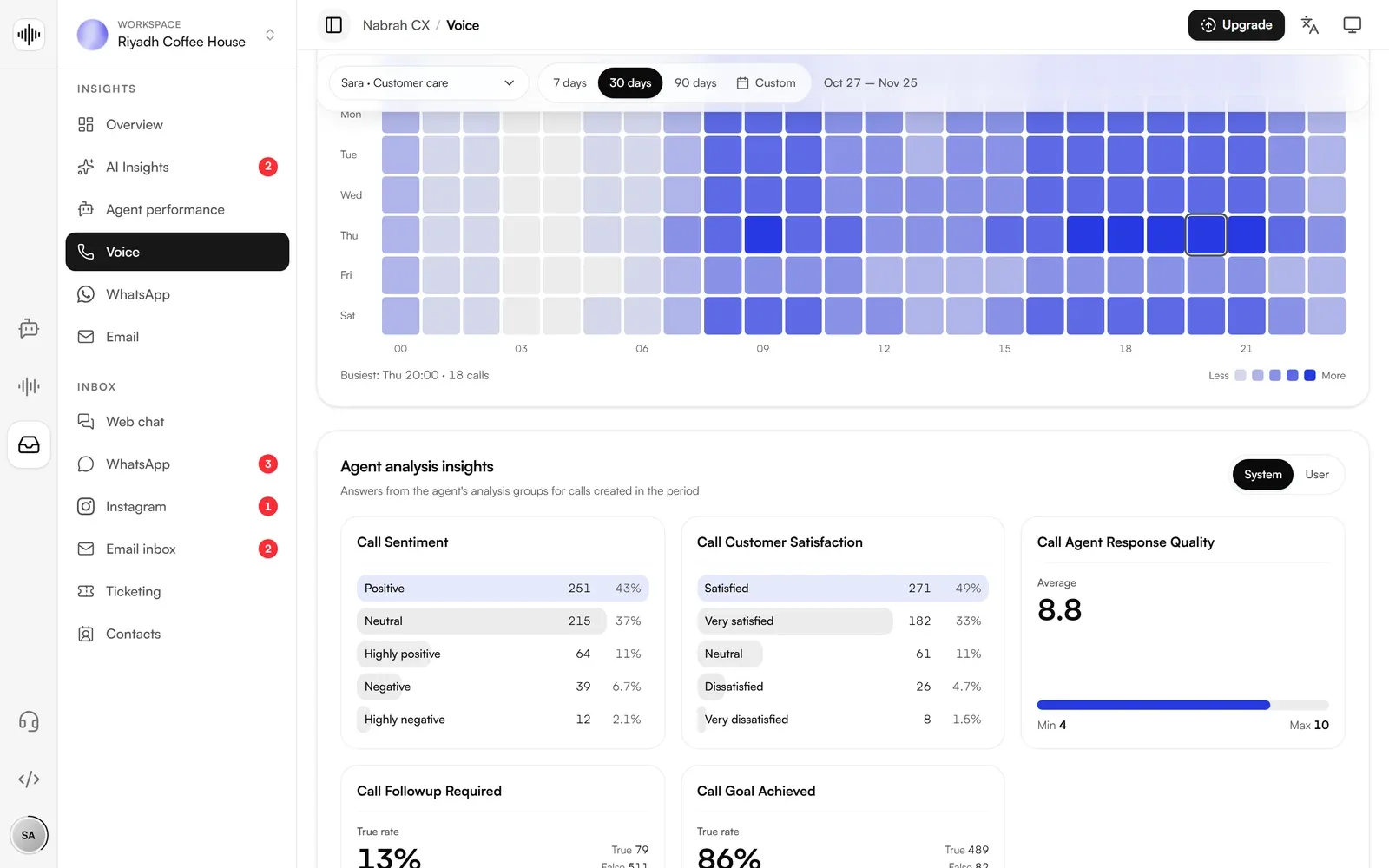
Switch between the two views at the top right of the card:
System: Nabrah's built-in analysis on every call, such as call sentiment, customer satisfaction, agent response quality and whether a follow-up is required.
User: the fields from the analysis groups you linked to the agent.
Each field shows as a card:
Field type | What the card shows |
|---|---|
List of answers | Each answer with its count and share, most common first |
Yes or no | True rate, with the True and False counts |
Number or score | The Average, with Min and Max |
Call sentiment uses these values:
Sentiment | What it indicates |
|---|---|
Highly positive | Caller expressed strong enthusiasm or appreciation |
Positive | Caller expressed satisfaction or agreement |
Neutral | Caller showed no strong emotional signal |
Negative | Caller expressed dissatisfaction or frustration |
Highly negative | Caller expressed strong frustration or hostility |
Customer satisfaction uses Very satisfied, Satisfied, Neutral, Dissatisfied and Very dissatisfied. Calls too short to judge get no answer.
Agent response quality is a score from 0 to 10 for how well the agent followed its prompt and guidelines.
Tip: To see data in the User view, link an analysis group to the agent. Open Agents → Build → Agents, edit the agent and go to Tools & analysis. See Analysis groups.
If the agent has no analysis results in the period, the card says "No analysis-group insights for this selection". Try another agent or a longer period.
Troubleshooting
Symptom | Cause | Fix |
|---|---|---|
Fewer calls than in Call logs | Insights counts dialed calls only. Scheduled, queued, in-progress and canceled calls are left out | Filter Call logs by status to compare |
Most calls in Who ended the call show Not recorded | The calls are from before this was tracked | Pick a more recent period |
Hung up early shows "not recorded for calls in this period" | Who ended the call isn't known for these calls | Pick a more recent period |
Agent analysis insights asks you to select an agent | All agents is selected | Pick one agent in the Agent filter |
The User view is missing | No analysis group is linked to the agent, or it has no answers yet | Link an analysis group and wait for analyzed calls |
Clicking a card shows "Access Denied" | You don't have Calls access | Ask an admin for Calls access |
Frequently asked questions
What's the difference between Connected and Completed? They're the same calls. Connected counts dialed calls that were completed.
Why do the hours look shifted? Hours follow your browser's time zone. Open the page from a computer set to your business's time zone.
Where do I see how WhatsApp performs? On WhatsApp insights. For calls and WhatsApp together, use the Insights overview.
Where are the spiking issues and trends from my calls? On AI insights.