
Build
Custom tools
Custom tools let an agent call external APIs during a live conversation to create a ticket, look up an order, update a record, or trigger any action exposed by an HTTPS endpoint. Once created, a tool can be linked to any agent in the agent's Tools & analysis section, or from the tool's own page.
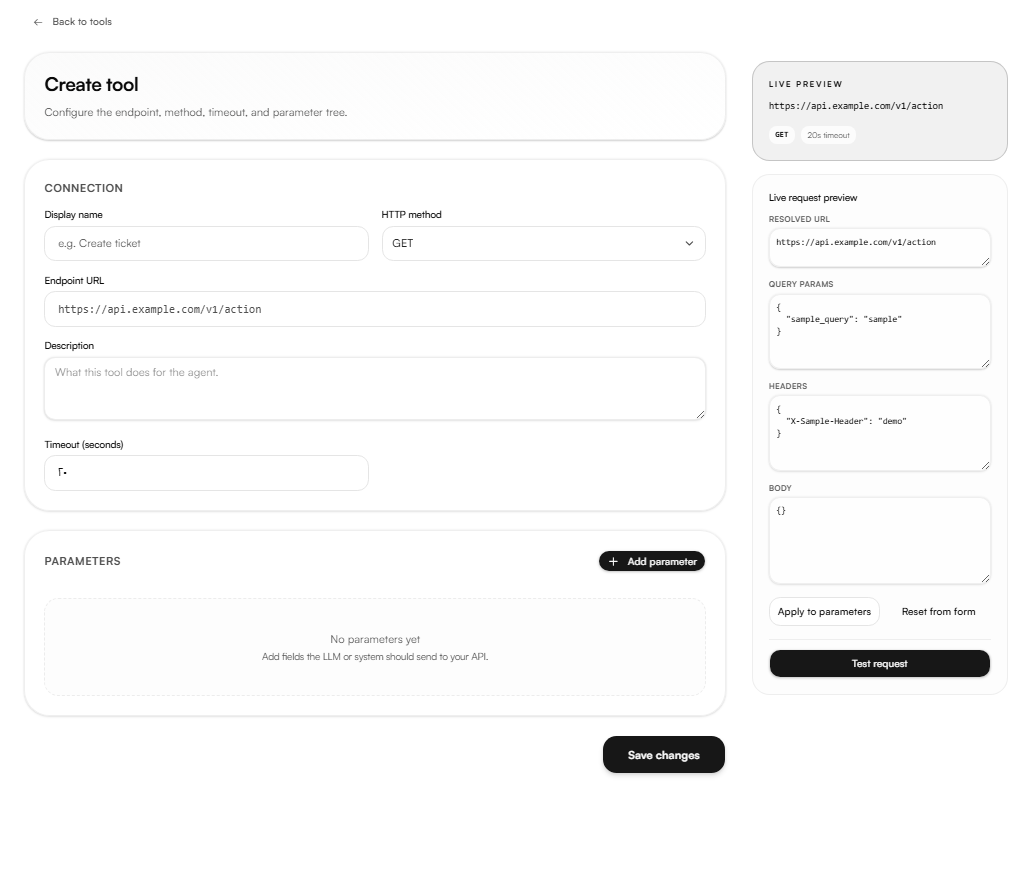
Creating a tool
Open Agents → Build → Tools and click New tool. The Create tool page opens.
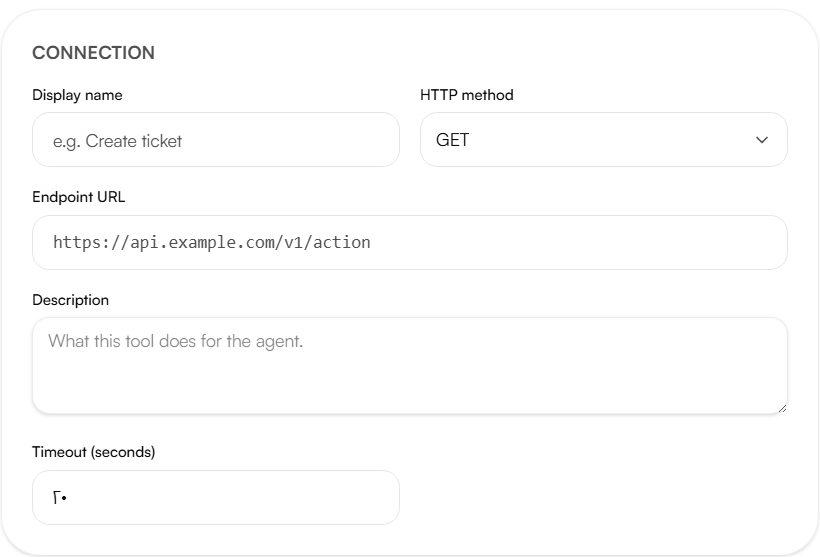
Connection
Display name: the name used to identify this tool when linking it to an agent, for example create_ticket. Start with a letter or underscore, then use only letters, numbers, underscores (_), dots (.) and hyphens (-), up to 64 characters. Spaces aren't allowed.
Choose your HTTP method, the request type sent to the endpoint:
Method | Use |
|---|---|
GET | Retrieve data |
POST | Create a new record |
PUT | Replace an existing record |
PATCH | Partially update a record |
DELETE | Remove a record |
Endpoint URL the full HTTPS address the tool calls, for example https://api.example.com/v1/action.
Description explains what this tool does for the agent. The agent uses this description to decide when to call the tool during a conversation. Write it clearly: a vague description leads to missed or incorrect tool calls.
Timeout (seconds): the maximum time the tool waits for a response before failing. Choose between 5 and 120 seconds. Default: 20.
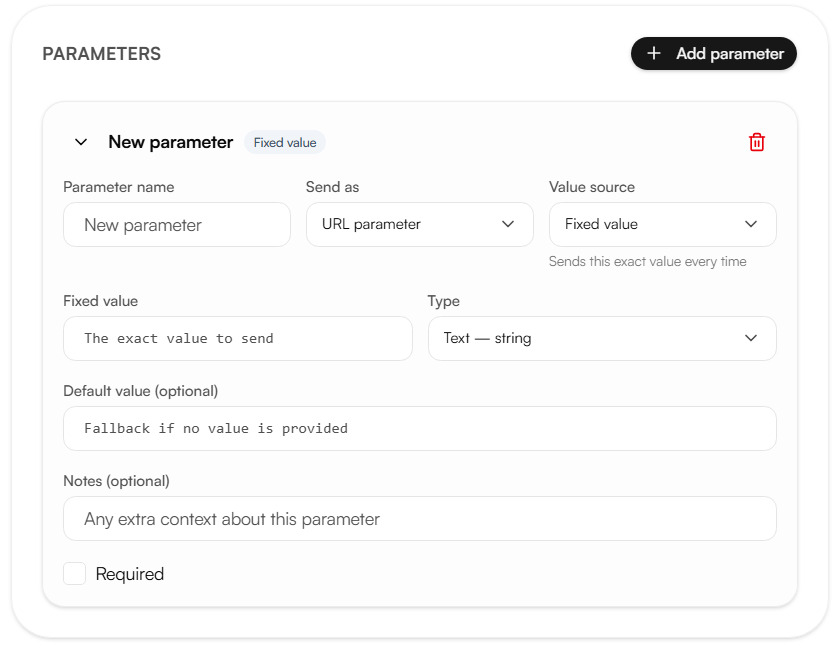
Parameters
Click Add parameter to define each piece of data the tool sends with its request. Each parameter is one field in that request: where it goes, where its value comes from, and its type.
Field | Description |
|---|---|
Parameter name | The field's key in the request (e.g. phoneNumber) |
Send as | Where the parameter is placed in the request: URL parameter (the query string), Header (an HTTP header), Request body (the payload), or URL path (inserted directly into the endpoint path) |
Value source | Where the value comes from: Fixed value, Platform variable, or AI decides (see below) |
Type | The data type of the parameter (see below) |
Notes (optional) | Additional context about the parameter for future reference |
Required | When checked, the agent must provide a value for this parameter before the tool can be called |
Value source
Value source | What it sends | Fields |
|---|---|---|
Fixed value | The exact same value every time | Fixed value, and Default value (optional) used when no value is provided |
Platform variable | A value filled in automatically at call time from Nabrah platform data | Variable name (e.g. caller_phone), and Default when variable is empty (optional) |
AI decides | A value the AI fills in during the conversation based on caller input | Guide the AI (describe what value the AI should provide), and Fallback value (optional) used if the AI does not provide a value |
Type
Type | Format |
|---|---|
Text | string |
Number | number |
True / False | boolean |
List | array |
Group (nested fields) | object |
Groups (nested fields)
Set Type to Group (nested fields) to nest fields inside a parameter, then click Add field under Nested fields. A phone field inside a customer group is sent as:
{ "customer": { "phone": "..." } }Platform variables: Nabrah vs. custom
When Value source is set to Platform variable, the variable name you type resolves to one of two kinds:
Nabrah variables (built-in) reserved names Nabrah fills in automatically, with no setup required. For example, nabrah_user_number resolves to the caller's phone number. Other nabrah_* variables are provided by the call runtime.
Custom variables names defined by the agent builder. Values come per call from the agent's template variables and their default values, a campaign, or the variables object passed via the API. For example, passing { "order_id": "A-1024" } makes a parameter set to order_id send A-1024.
At call time, Nabrah looks up the name (built-in or custom) and sends its value; if empty, it sends the default. Names are exact-match and case-sensitive.
Watch out:
The default is a literal, not another variable. If the variable name is nabrah_user_number and the default is also set to the literal text nabrah_user_number, a call with no caller number sends the raw string "nabrah_user_number" instead of a real fallback. Leave the default blank, or set an actual fallback value.
Variable names must match exactly. Nabrah_User_Number won't resolve; it falls through to the default, since names are case-sensitive.
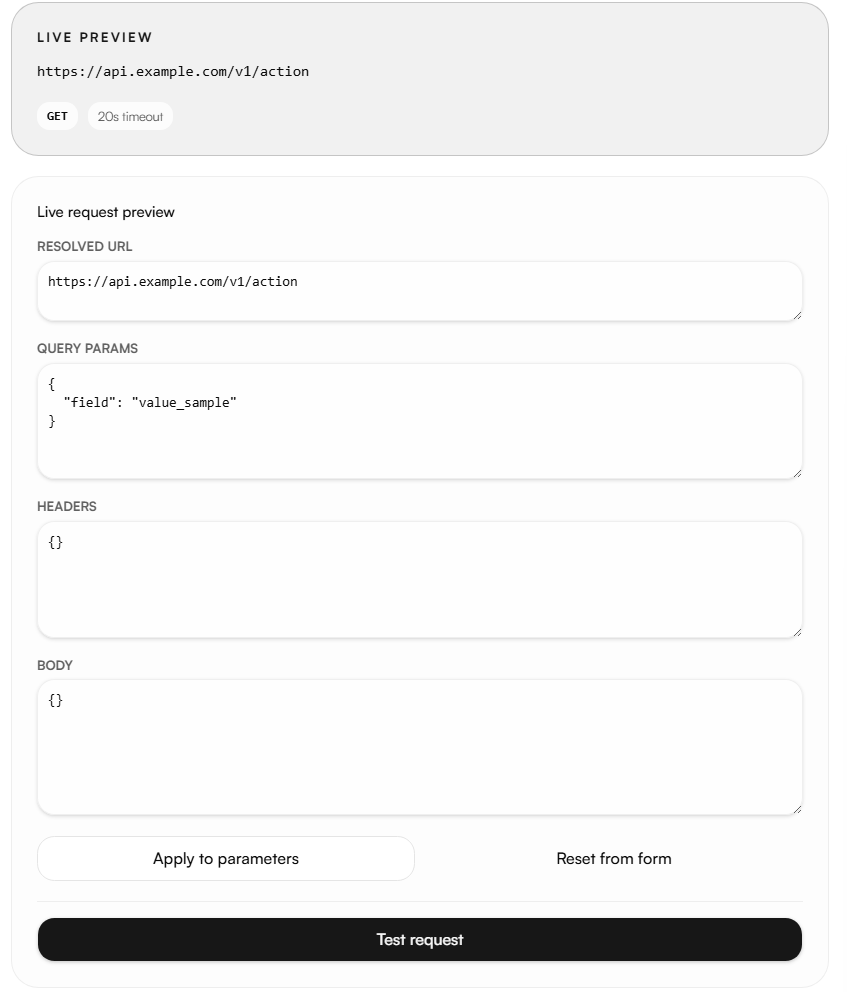
Live request preview
The Live request preview panel shows exactly what request the tool will send, based on the current configuration.
Resolved URL the final endpoint URL with path and query parameters applied.
Query params the parameters that will be sent in the URL query string.
Headers the headers that will be sent with the request.
Body the payload that will be sent in the request body.
GET and DELETE tools can't send Request body parameters. Use URL parameter, Header or URL path instead.
Click Apply to parameters to sync changes made in the preview back into the parameter fields, or Reset from form to rebuild the preview from the current form values.
Click Test request to send a live call to the endpoint and verify the tool works as expected before linking it to an agent. The test runs from your browser and uses sample values for missing parameters. The result shows the status code and how long the request took.
Saving the tool
Click Save changes to create the tool. Once saved, the tool becomes available to link in the agent's Tools & analysis section, under Custom tools.
Managing a tool
Click a tool in the list to open its page. It shows the tool's ID (click to copy), timeout, creation and update dates, and every parameter with its mode, value, and default.
Linked agents lists the agents that use the tool. Click Link agent, choose an Agent, and click Link to make the tool available to that agent. Click Unlink to remove an agent; the agent itself is not deleted.
To change the tool, click Edit. To remove it, click Delete in the tools list. If agents still use the tool, Nabrah warns you first: Agents still use this tool. Click Delete anyway to continue. Deleting a tool can't be undone, and the agents that used it stop calling it.
Troubleshooting
Symptom | Cause | Fix |
|---|---|---|
The agent never calls the tool | The description doesn't say clearly when to use it, or the tool isn't linked to the agent | Rewrite the Description as a clear instruction, and check Linked agents on the tool page |
The tool fails with a timeout | The endpoint takes longer than Timeout (seconds) | Raise the timeout (up to 120 seconds) or speed up the endpoint |
Test request fails but calls work | The test runs from your browser, so your endpoint may block browser requests | Check the endpoint's CORS settings, or test the tool on a real call |
A parameter arrives as the variable's name in text | The default of a Platform variable is set to the variable name | Leave the default blank or set a real fallback value |
A platform variable is always empty | The name doesn't match exactly | Match the name and letter case exactly, for example nabrah_user_number |