
الرؤى
WhatsApp insights
WhatsApp insights gives you a dedicated view of your WhatsApp conversations. It tracks how many conversations your AI agents resolved, how fast they and your team replied, message volume, each number and team member, and the templates you sent.
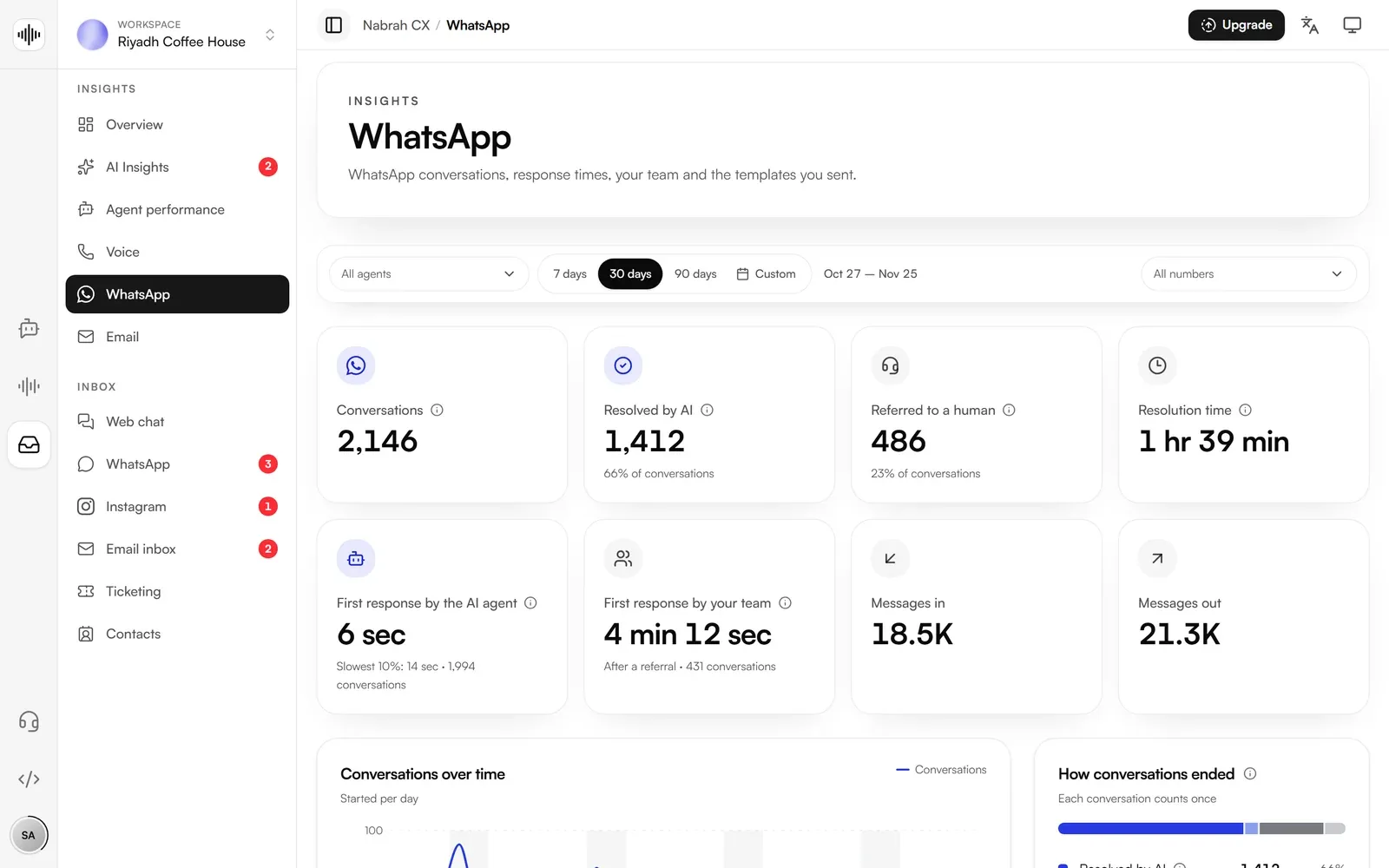
Open CX → Insights → WhatsApp. To see who can open Insights, see Insights overview.
Filters
Filter | Description |
|---|---|
Agent | All agents, or one agent. Only agents linked to a WhatsApp number are listed |
Period | 7 days, 30 days or 90 days, each ending today, or Custom for any range up to 366 days. Default: 30 days |
WhatsApp number | All numbers, or one number. Shown at the right of the filter bar when the workspace has more than one number. With an agent selected, it lists that agent's numbers |
All cards update as soon as you change a filter. Days are counted in your browser's time zone.
Metrics
Card | What it measures |
|---|---|
Conversations | WhatsApp conversations that started in the period |
Resolved by AI | Handled by the AI agent, never referred, and closed by auto-resolve. Shown with its share of conversations |
Referred to a human | The AI agent referred the customer, or a team member replied. Notes and templates don't count as replies |
Resolution time | Average time from a conversation's start until it was resolved |
First response by the AI agent | Time from the customer's first message to the AI agent's first reply. The middle value, with the slowest 10% below |
First response by your team | Time from a referral to the first reply by a team member. Notes and templates don't count |
Messages in | Messages received from customers |
Messages out | Messages sent to customers |
When nothing could be measured, a card says so, for example "no team replies after a referral".
Charts
Conversations over time
Conversations started per day over the selected period.
How conversations ended
Every WhatsApp conversation that started in the period is counted in exactly one group.
Group | What it means |
|---|---|
Resolved by AI | Handled by the AI agent, never referred, and closed by auto-resolve |
In progress | Handled by the AI agent and still active within the auto-resolve hours |
Referred to a human | The AI agent referred the customer, or a team member replied. Notes and templates don't count as replies |
Not handled by the AI agent | Conversations the AI agent never replied to, such as templates nobody answered |
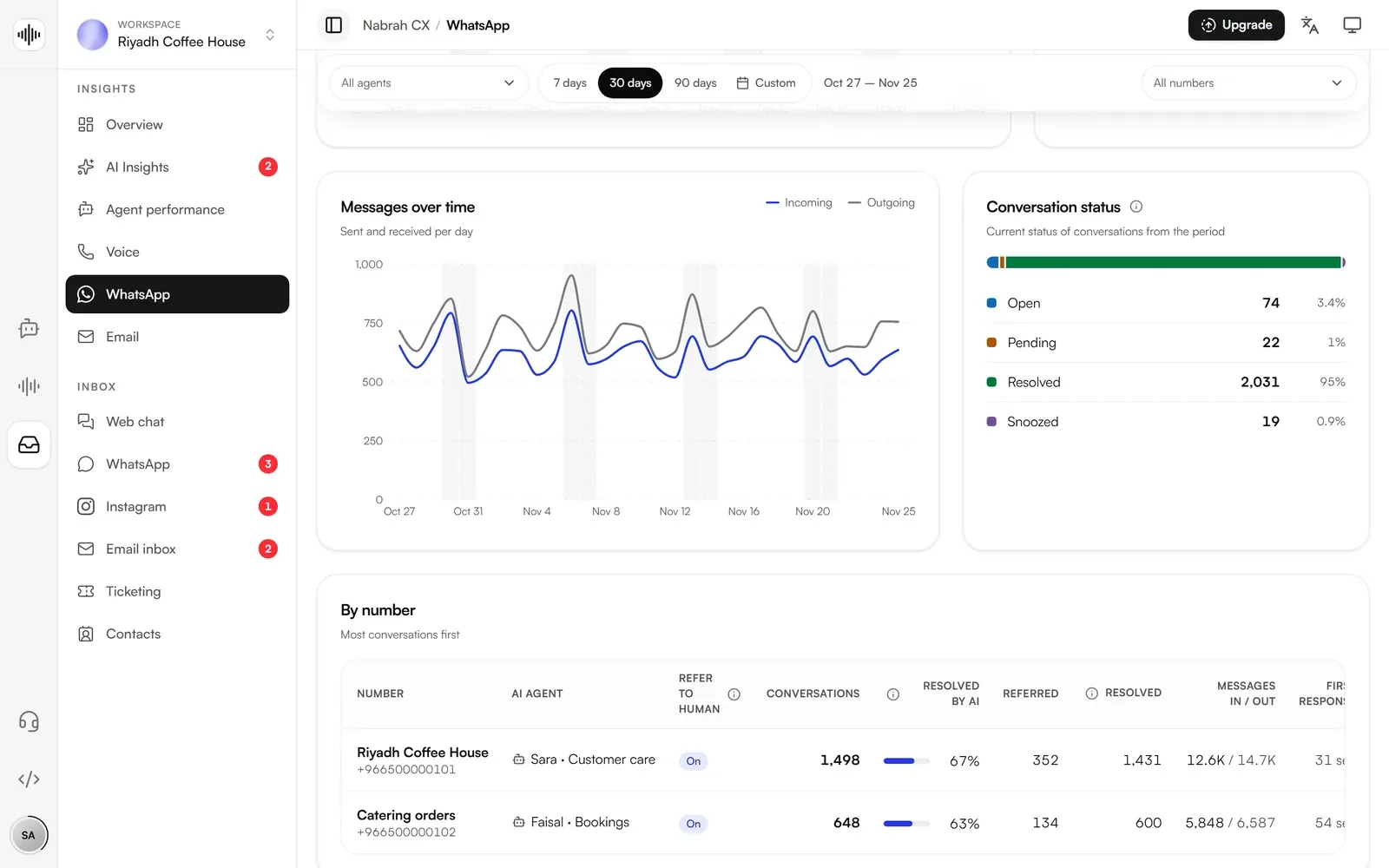
Messages over time
Messages sent and received per day, with one line for Incoming and one for Outgoing. Use it to spot days with unusually high or low activity.
Conversation status
The current status of the conversations from the period: Open, Pending, Resolved and Snoozed. Status is counted on whole days, so the total can differ slightly from the conversation count at the edges of the period.
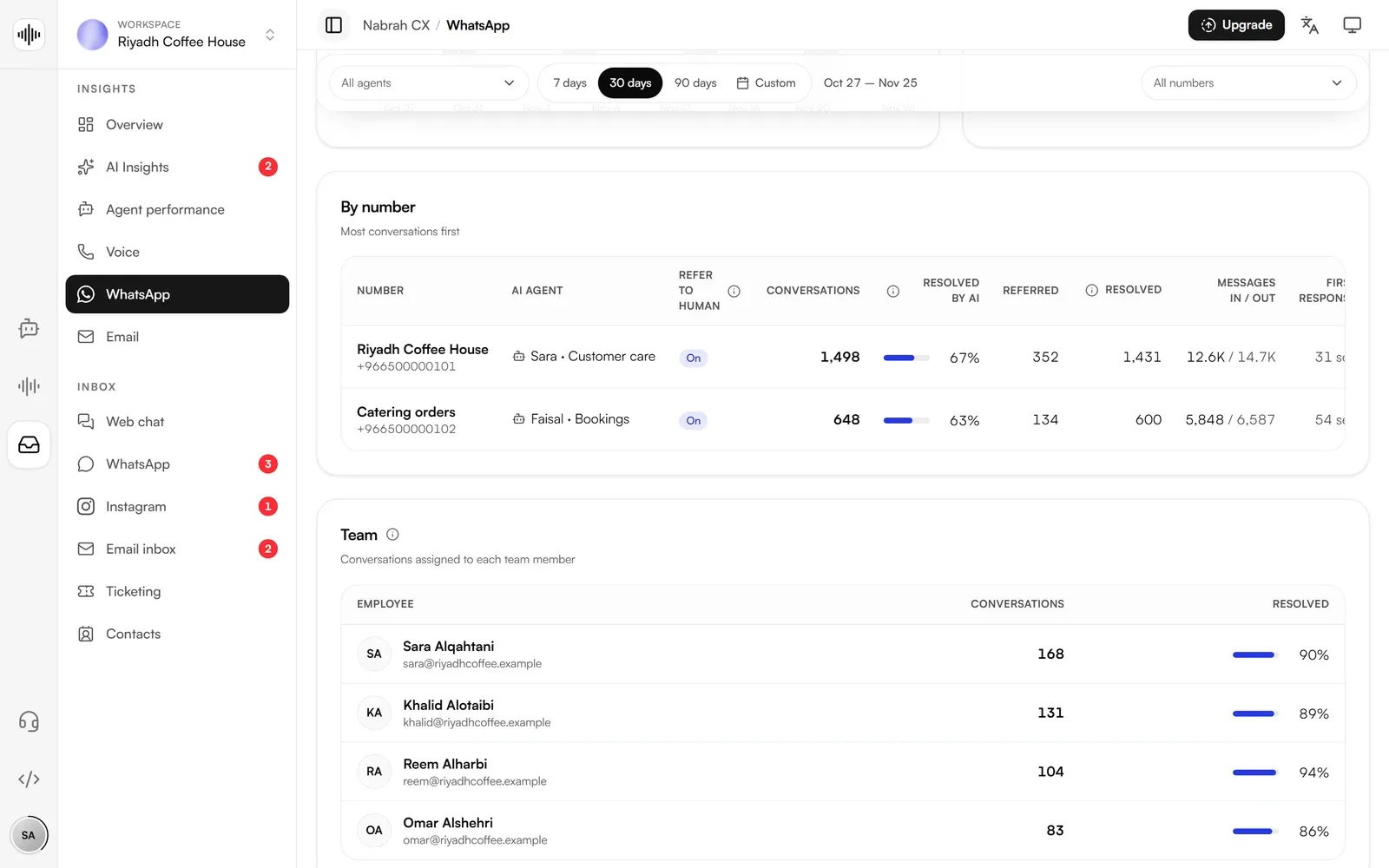
By number
One row per WhatsApp number, most conversations first.
Column | Description |
|---|---|
Number | The number's name and phone number |
AI agent | The agent that answers on the number |
Refer to human | On when the number's AI agent can hand conversations to your team |
Conversations | Conversations on the number in the period |
Resolved by AI | Share of the number's conversations resolved by AI |
Referred | Conversations referred to your team |
Resolved | Conversations on this number that are resolved at the moment |
Messages in / out | Messages received and sent |
First response | Average time to the first reply |
Resolution time | Average time from start to resolution |
Team
The Team table shows the conversations assigned to each team member in the period, with their reply times. It lists 6 people. Click Show more for the rest.
Column | What it shows |
|---|---|
Employee | The team member's name and email |
Conversations | Conversations assigned to this team member in the period |
Resolved | Share of assigned conversations marked resolved |
Avg. First Response | Average time between a customer's first message and this team member's first reply |
Avg. Resolution Time | Average time from conversation start to resolution, for this team member's conversations |
Avg reply | Average time between messages during an ongoing conversation |
The table shows reply times only when WhatsApp is the workspace's only inbox channel, the filters cover every number, and you can see every number. Otherwise it shows conversation counts only, because reply times would also include conversations outside this view.
Templates
Templates sent in the period, most sent first.
Column | What it shows |
|---|---|
Template | The template name and language |
Sent | How many times it was sent |
Delivered | Sent templates that reached the customer's phone |
Read | Sent templates the customer opened |
Failed | Sends that didn't go through |
Templates you send from the inbox or a campaign show up here. See WhatsApp templates and WhatsApp campaigns.
Empty states
Message | When you see it | What to do |
|---|---|---|
"No WhatsApp inbox connected" | The workspace has no WhatsApp number | Click Connect WhatsApp. See WhatsApp |
"No WhatsApp number available" | You don't have access to any WhatsApp number in this workspace | Ask a workspace admin for access |
"This agent has no WhatsApp number" | The selected agent isn't linked to a number | Link the agent to a number, or pick another agent |
"No templates sent in this period" | No templates were sent | Pick a longer period |
Troubleshooting
Symptom | Cause | Fix |
|---|---|---|
The WhatsApp number filter is missing | The workspace has one number | No action needed: the page shows that number |
An agent isn't in the Agent list | The agent isn't linked to a WhatsApp number | Link it in CX → Inbox → WhatsApp |
The Team table has no reply times | The workspace also uses web chat, email, Instagram or ticketing, the filters don't cover every number, or you can see only some numbers | With other channels, reply times aren't shown. Otherwise pick All agents and All numbers, or ask an admin for access to all numbers |
First response by your team shows "no team replies after a referral" | No conversation was referred and then answered by your team | No action needed |
Frequently asked questions
Which period does a conversation belong to? The period it started in. Messages in and Messages out count every message sent or received during the period.
Why do Resolved by AI and Resolved differ in By number? Resolved by AI counts only conversations the AI agent closed without help. Resolved counts every conversation on the number that is resolved at the moment, including those your team closed.
Where do I see calls and WhatsApp together? On the Insights overview.