
Build
Analysis groups
An analysis group defines the structured data points that Nabrah extracts automatically from every call. Once linked to an agent, the platform captures these data points after each interaction and surfaces them in Voice insights, Call logs, and the Outcomes of each outbound campaign.
Use analysis groups when you need to collect consistent, structured information across calls, for example tracking whether a caller was interested in a product, what issue they reported, or how they rated the interaction.
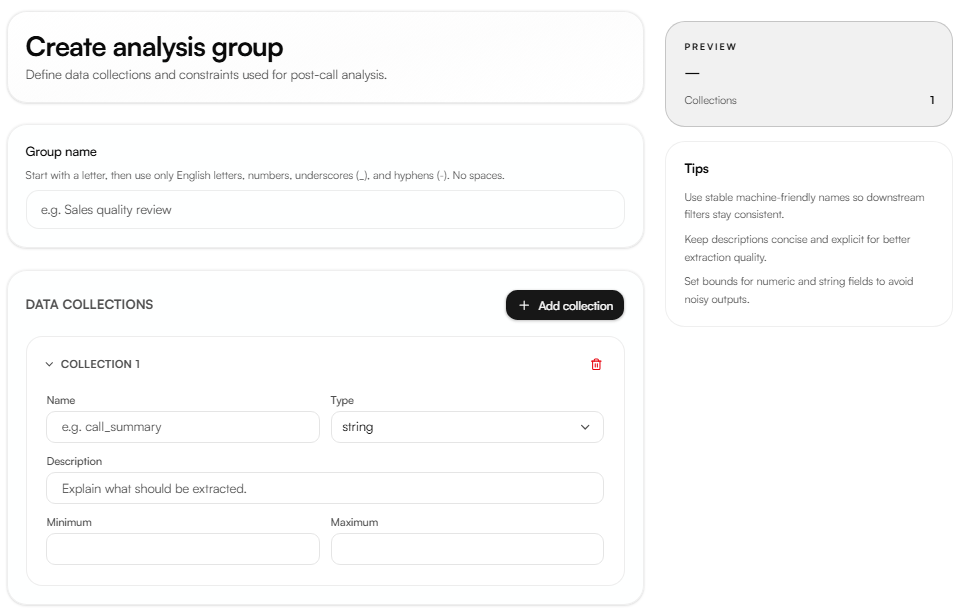
Creating an analysis group
Open Agents → Build → Analysis groups and click New analysis group.
Group name
The name must start with a letter and use only English letters, numbers, underscores (_), and hyphens (-). No spaces are allowed.
Data collections
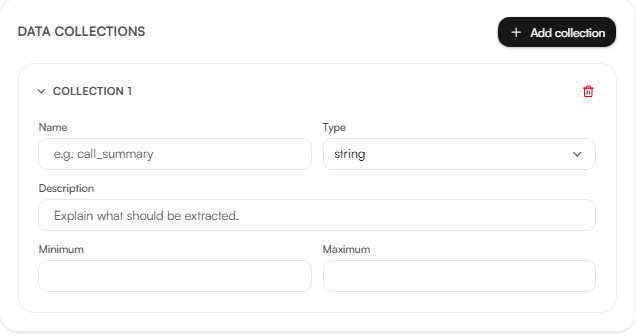
Each analysis group contains one or more data collections, one per data point to extract. Click Add collection to add one.
Name the field's name, for example call_summary. Use stable, machine-friendly names so filters and outcomes stay consistent.
Type determines what kind of value is captured:
Type | Description |
|---|---|
string | A text value, for example a reason or a quote |
boolean | A true or false value |
integer | A whole number |
number | A decimal number |
enum | One value from a defined list of options |
Description guides the AI on exactly what to extract from the conversation. Be specific: vague descriptions lead to inconsistent extraction across calls.
Minimum / Maximum available for string, integer and number. For integer and number they set the value range; for string they set the text length. Not available for boolean. For enum, list the allowed values in Enum options, separated by commas. An enum collection needs at least two options.
Linking to an agent
An analysis group must be linked to an agent to activate extraction. You can link it from either side:
Open the agent and go to the Tools & analysis section, then select the group under Analysis groups.
Open the group and click Manage agents (or Manage in the groups list). Link one agent with Link agent, or select several under Link multiple agents.
A single agent can use multiple analysis groups, and the same group can be reused across agents.
Rename fields with care. Answers are stored under the field's name. After a rename, campaign outcomes list older answers separately, labelled Previous field with the old name.
Viewing and exporting data
Captured data appears in three places:
Agents → Telephony → Call logs, then open a call and go to the AI Insights tab: one card per linked analysis group with its extracted values
CX → Insights → Voice: charts and distributions across all calls in the selected period
Outcomes on an outbound campaign's details page: what customers said on that campaign's calls, with a filter for each answer
To export the full dataset, click Export CSV in Call logs. The export includes Nabrah's built-in call metrics alongside your custom data points. Campaign calls can also be exported from the campaign's call log.