

Integrations
Chat widget
في هذه الصفحة
The Chat widget adds a chat window to your website. Your agent answers first, your team steps in when needed, and every conversation lands in your inbox.
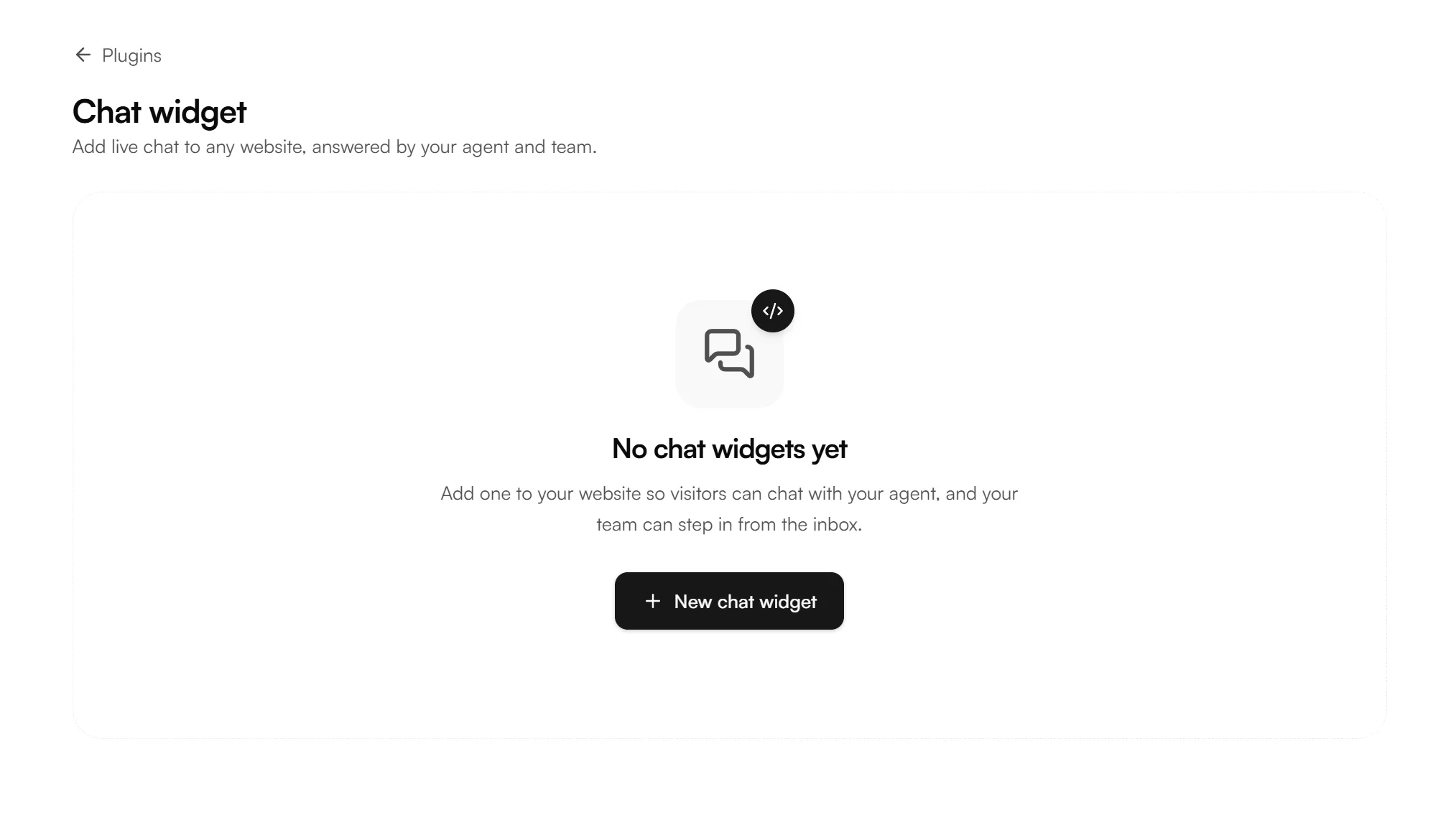
Creating a widget
Open Plugins → Chat widget and click New chat widget. Setup runs through five steps, with a live preview beside them the whole way.
Step 1: Setup
Field | Description |
|---|---|
Name | A label to recognize this widget later not shown to visitors |
Agent | The agent that answers chats on this widget |
Display name | An optional label shown in your inbox, so your team can tell this widget apart. Visitors don't see it |
Auto-close conversations after | How long a conversation stays open once the visitor goes quiet. Default: 2 hours |
Bot replies per chat | After this many agent replies, the chat goes to your team or closes if no one can take it. Default: 40 |
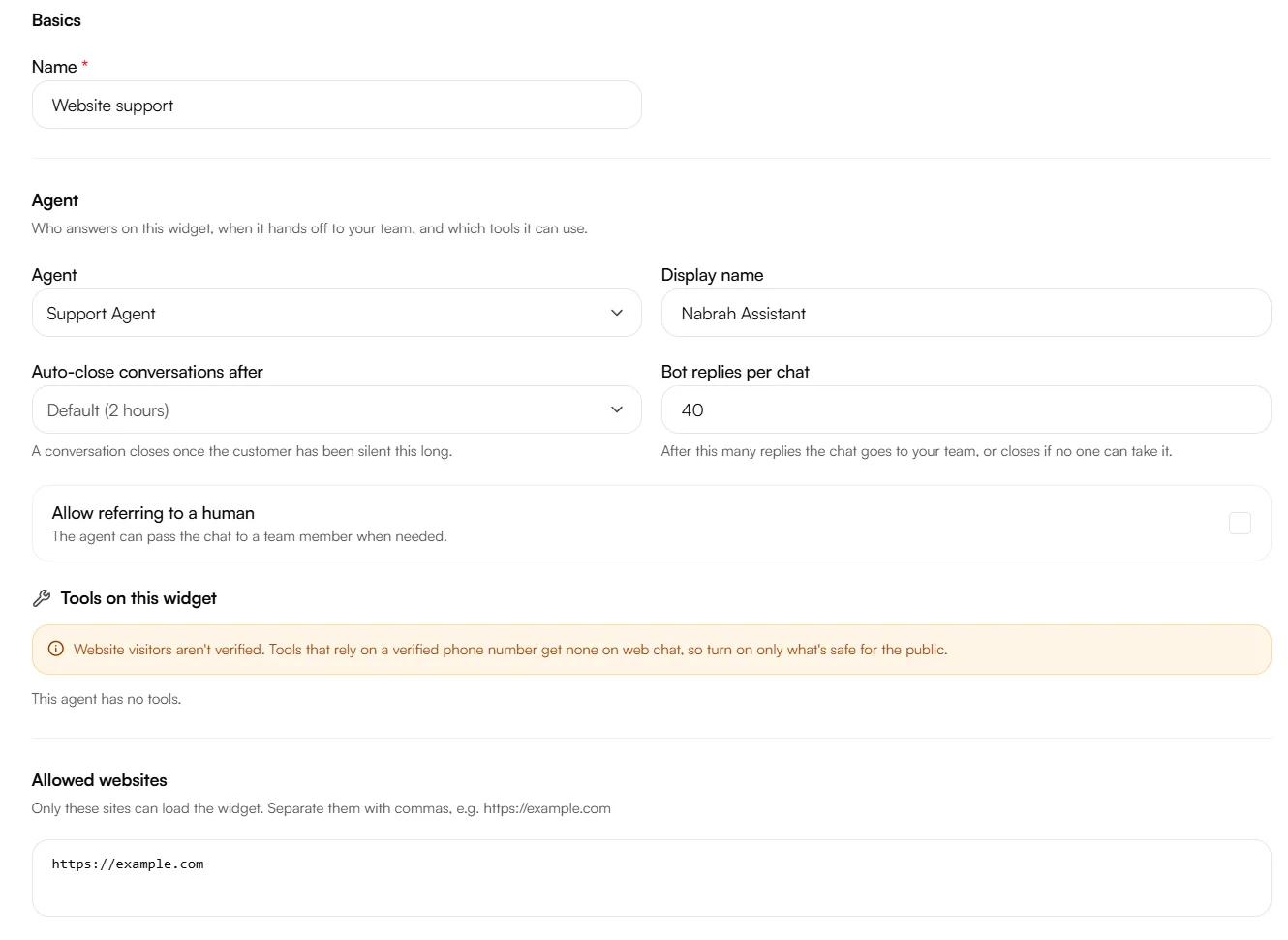
Tools on this widget
The agent's tools are listed here, each with its own switch. Pick an agent first — the list is empty until you do.
Website visitors aren't verified. Tools that rely on a verified phone number get none on web chat, so turn on only what's safe for the public.
Allowed websites
Only the sites you list can load the widget. Separate them with commas, for example https://example.com, https://www.example.com.
Set this before you go live. The embed code is public on your page. If the list is empty, anyone can copy your snippet and run your widget and spend your usage on their own site.
Handing off to your team
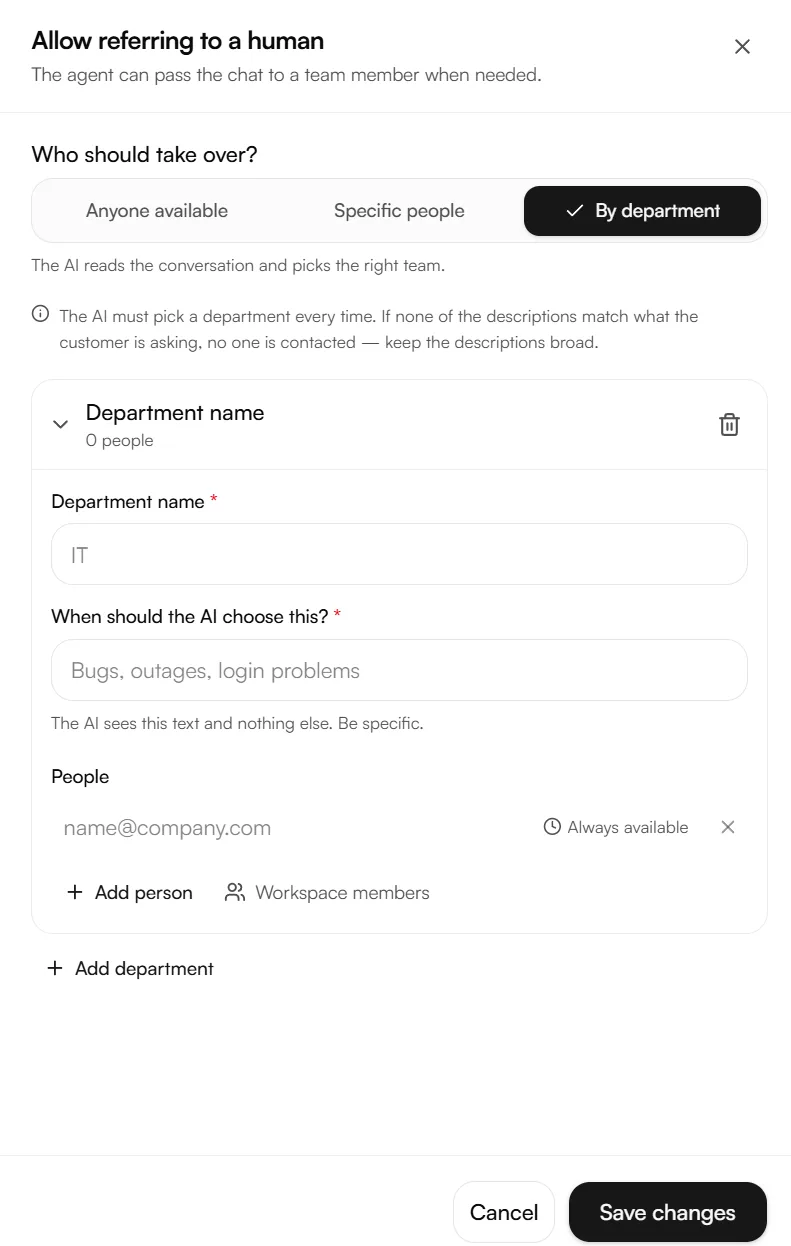
Turn on Allow referring to a human and choose who takes over.
Mode | What happens |
|---|---|
Anyone available | Any teammate connected to this inbox |
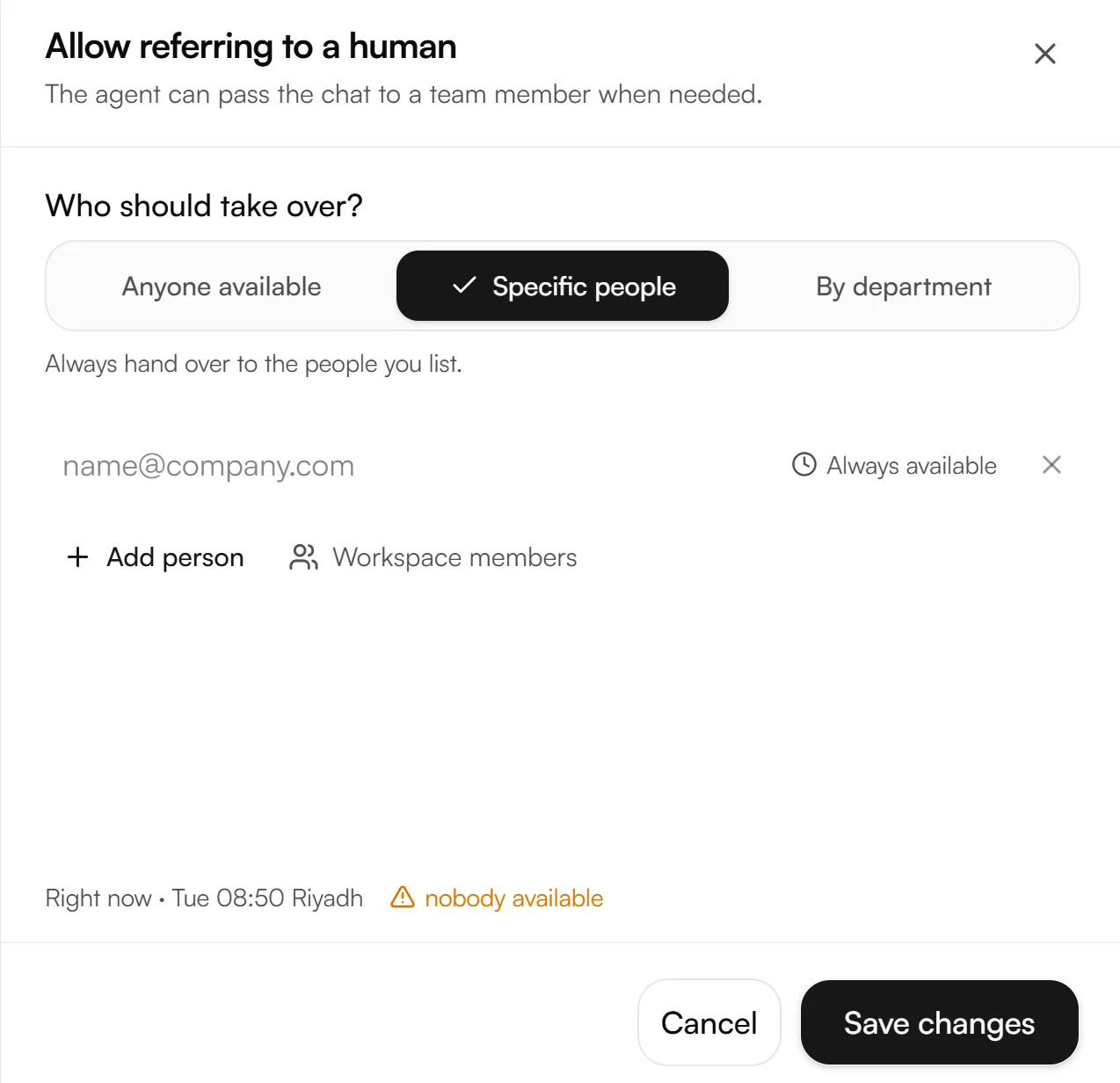
Specific people | Always hands over to the people you list |
By department | The agent reads the conversation and picks the right team |
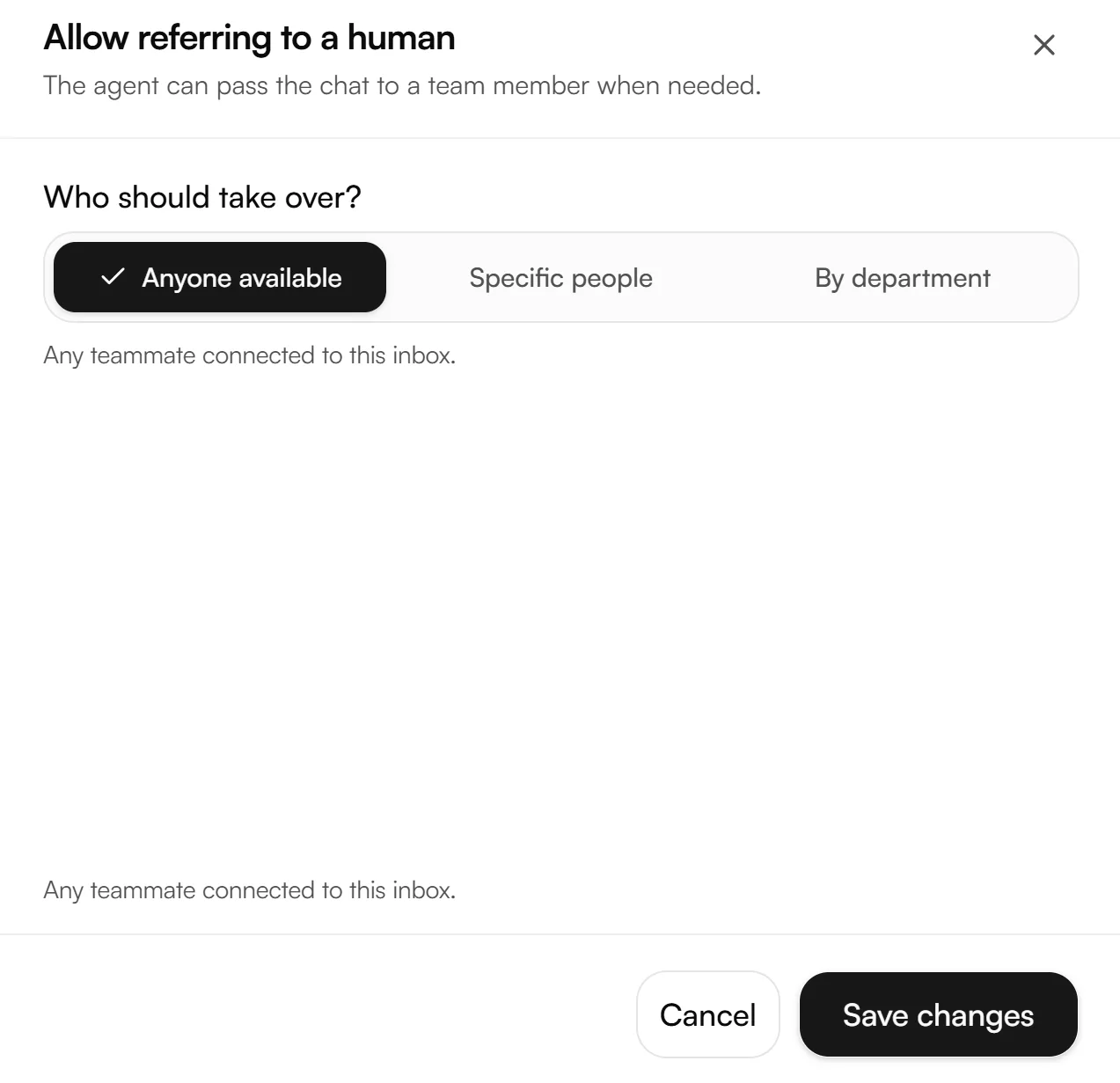
For Specific people and By department, each person has their own availability hours. A live line at the bottom of the panel shows the current time and whether anyone is reachable right now, so you can see at a glance whether a handoff would reach someone.
If you use departments, keep the descriptions broad. The agent must pick a department every time, and it sees only the text in When should the AI choose this? nothing else. If no description matches what the visitor is asking, nobody is contacted.
Step 2: Design
Start from a template, then adjust whatever you want. Your texts are kept when you switch templates.
Templates — eight ready-made styles: Help Center, Messenger, Islands, Clay, Assistant, Pastel, Wave, and Noir.
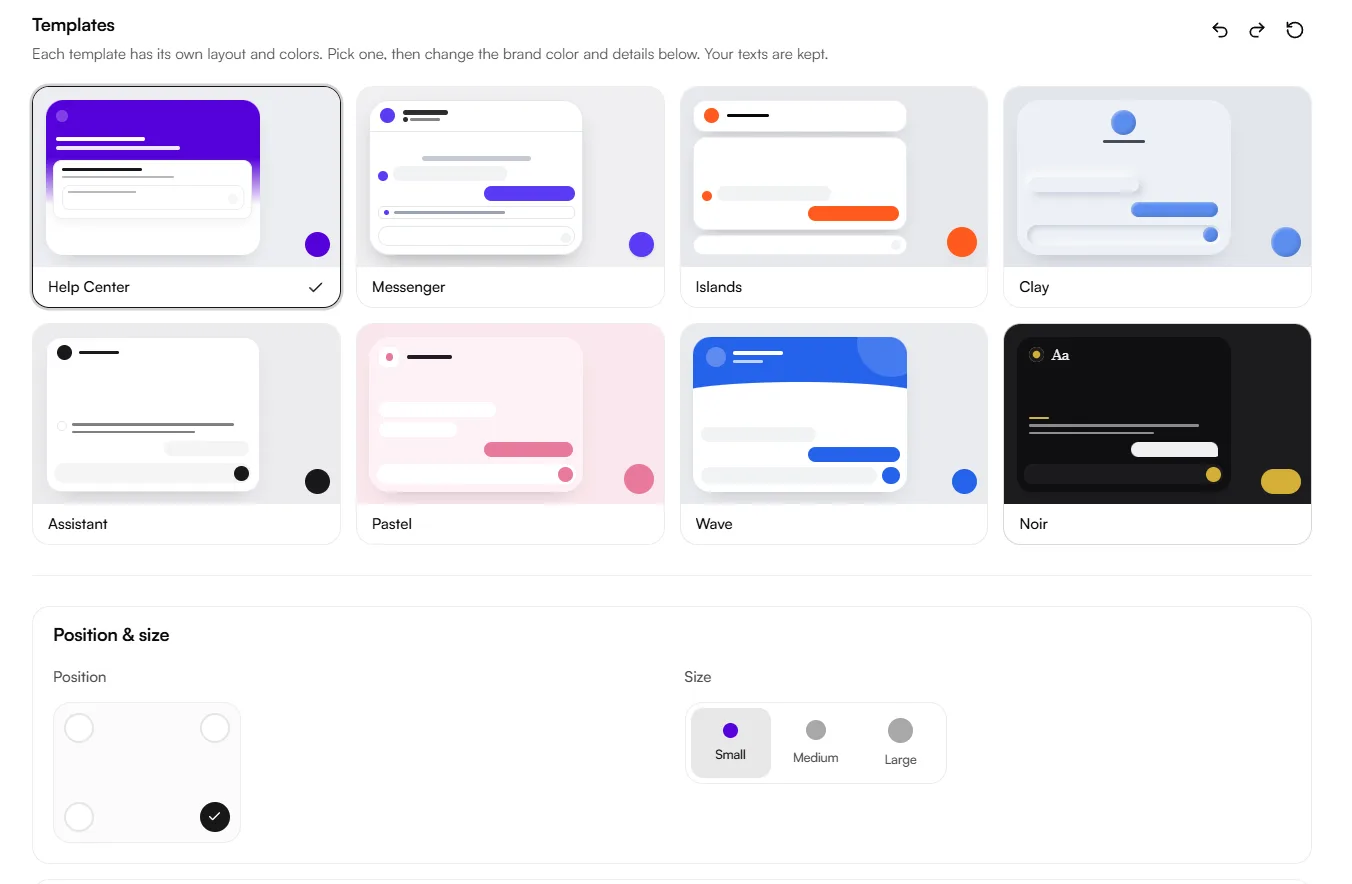
Position & size — which corner the launcher sits in, and how big it is.
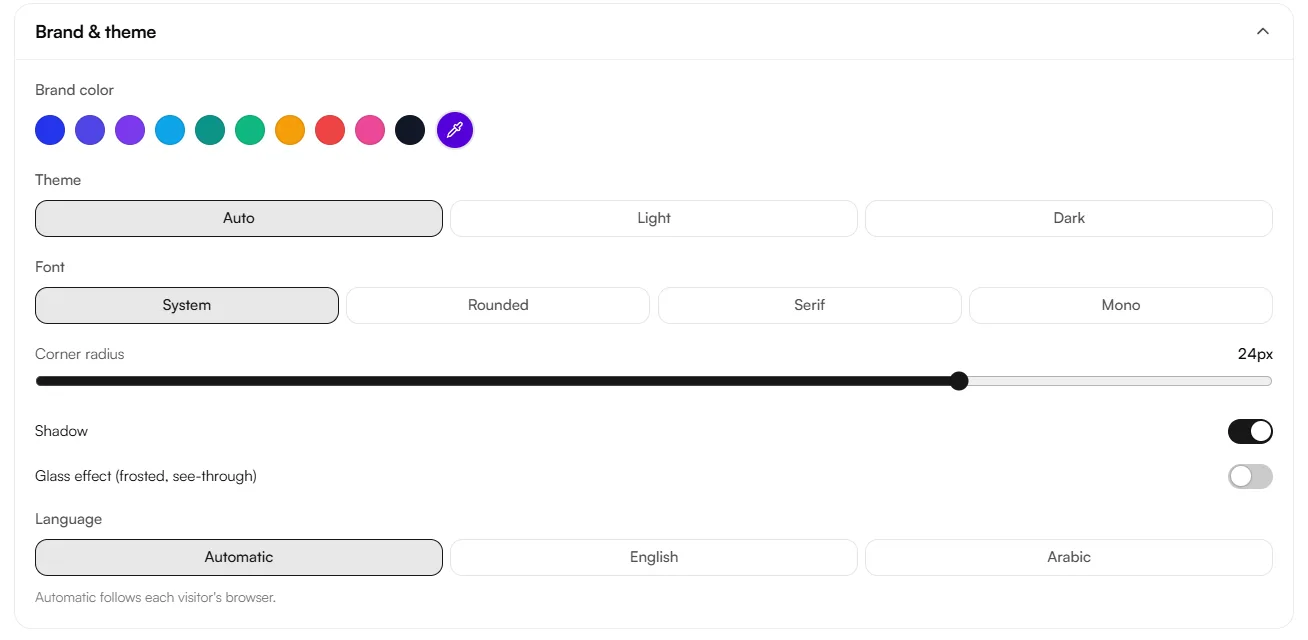
Brand & theme — brand color, theme (Auto, Light, Dark), font, corner radius, shadow, and a frosted glass effect. Language can be fixed to English or Arabic, or left on Automatic to follow each visitor's browser.
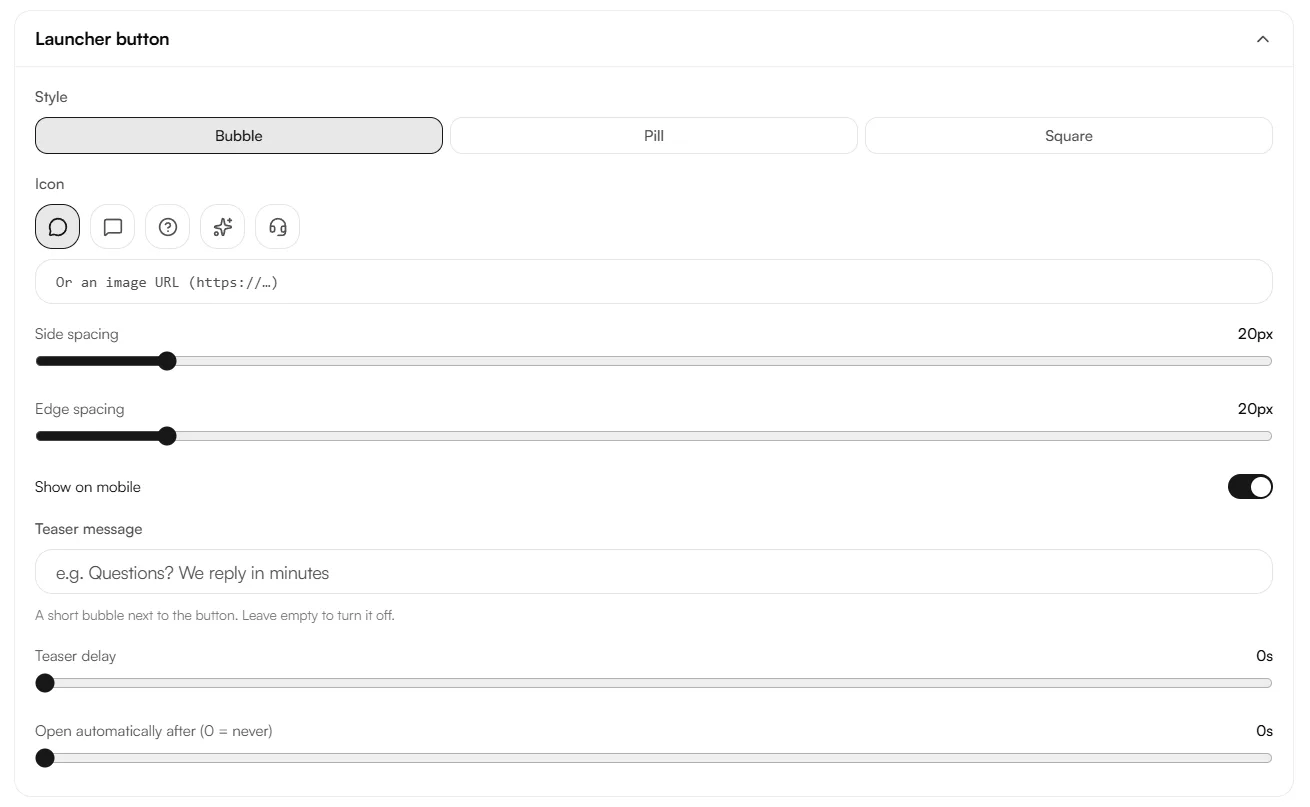
Launcher button — shape, icon or image URL, spacing, and whether it shows on mobile. A Teaser message puts a short bubble beside the button after a delay you set, and the widget can open on its own after a number of seconds (0 means never).
Chat window — width, height, and full screen on mobile.
Header — style, title, subtitle, status text and icon, avatar, and whether to show the team member's name after a handoff.
Messages — chat background, bubble shape, separate colors for visitor and reply bubbles and text, avatars, timestamps, and how the welcome message and notices are displayed.
Message box — bar or card style, send button, and whether visitors can send voice messages.
Hiding Powered by Nabrah.Ai is available on Enterprise plans.
Undo, redo and reset buttons sit at the top of the step.
Step 3: Texts
Six pieces of text visitors read, each with an English and an Arabic field side by side:
- Welcome message
- When no one is available
- When a chat ends
- Pre-chat intro
- Message box placeholder
- New chat button

Leave a field empty to use the default shown. Which language a visitor sees follows the Language setting in Design, or their browser when that is set to Automatic.
These texts are the widget's own wording. What your agent says comes from the agent itself, so if the widget is in Arabic but the agent replies in English, visitors see both. Set the agent's language to match.
Step 4: Pre-chat
Ask visitors for their details before their first message.
Turn on Show the pre-chat form, then set Name, Email and Phone to Hidden, Optional or Required. Consent text adds a checkbox visitors must tick before they can start.
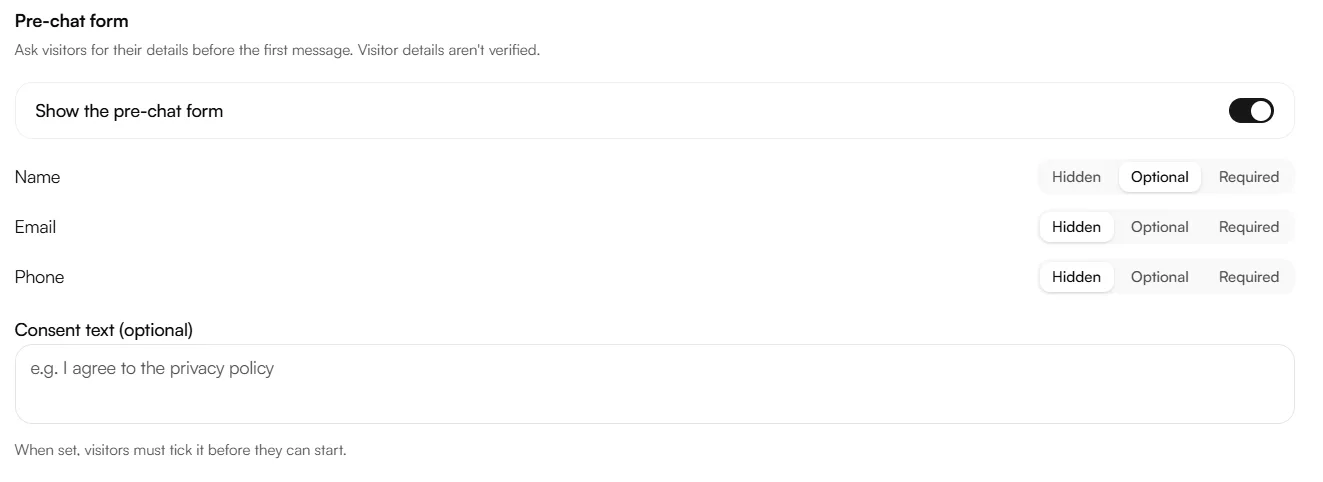
Visitor details aren't verified. A visitor can type any name, any email, any number. Treat these as a way to reach someone back, never as proof of who they are.
Asking for an email or phone number means collecting personal data. Fill in the consent text and point it at your privacy policy before you turn those fields on.
Step 5: Voice
Let visitors call the agent adds an AI orb to the chat. Visitors tap it to start a voice call without leaving the widget.
- The same agent answers chats and calls
- Calls work exactly like the Web-call widget
- Calls use your call minutes
Show the call screen adds a Call state to the preview so you can see what visitors get.
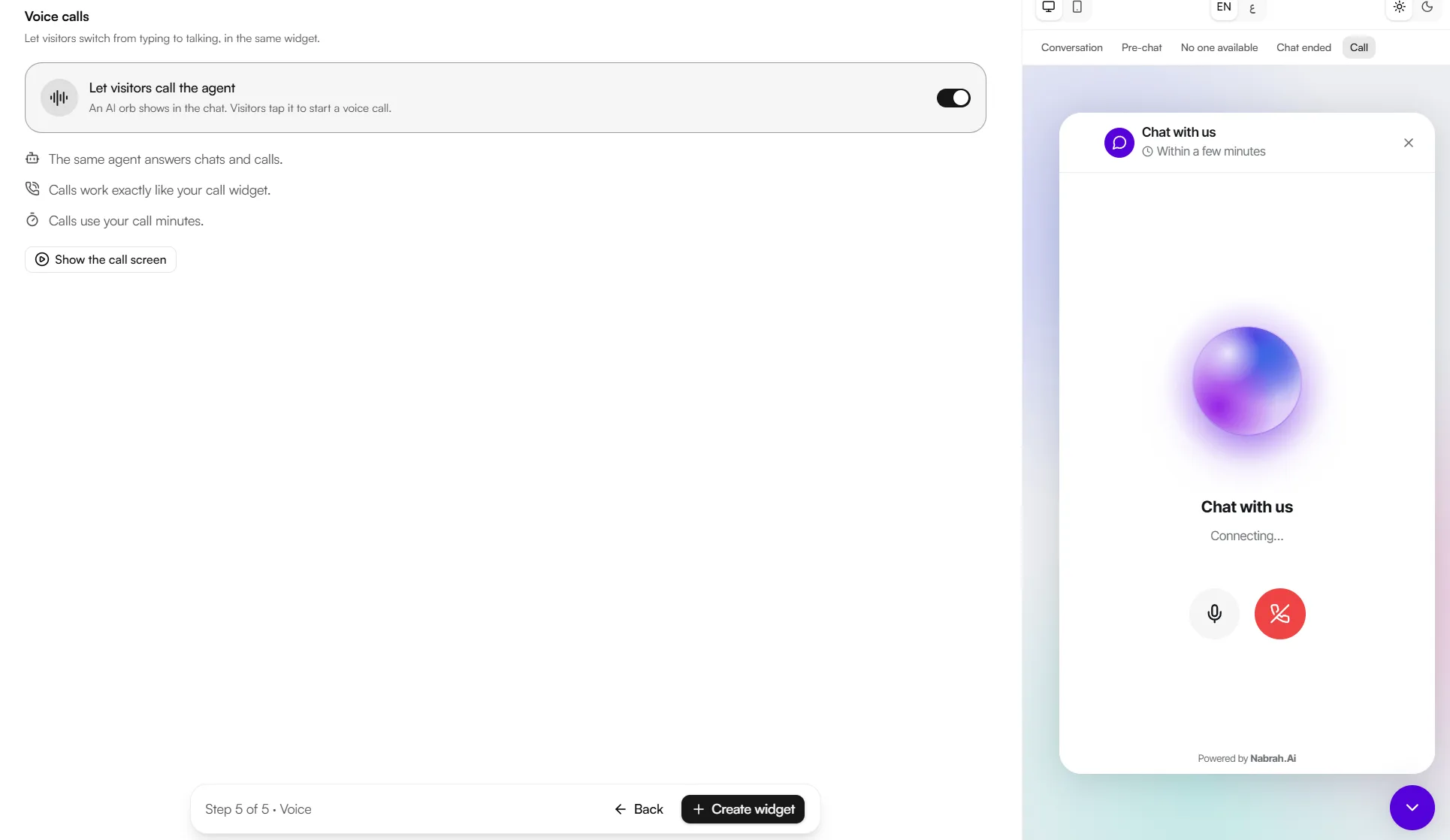
Click Create widget when you're done.
The live preview
The panel beside every step shows the widget exactly as visitors will see it, updating as you type. Switch between:
- Conversation, Pre-chat, No one available, Chat ended — and Call when voice is on
- English and Arabic
- Light and dark
- Desktop and mobile
The offline and chat-ended states are the hardest to test on a live site, so check them here before you publish.
Adding the widget to your site
Once the widget is created, an Install tab appears.
<script
  src="https://app.nabrah.ai/webchat/v1.js"
  data-widget-id="wch_xxxxxxxxxxxxxxxxxxxxxx"
  data-api-base="https://api.nabrah.ai"
  async
></script>
1. Copy the code.
2. Paste it just before the closing </body> tag on every page where the chat should appear.
3. Add your site to Allowed websites, then open your site to check it.
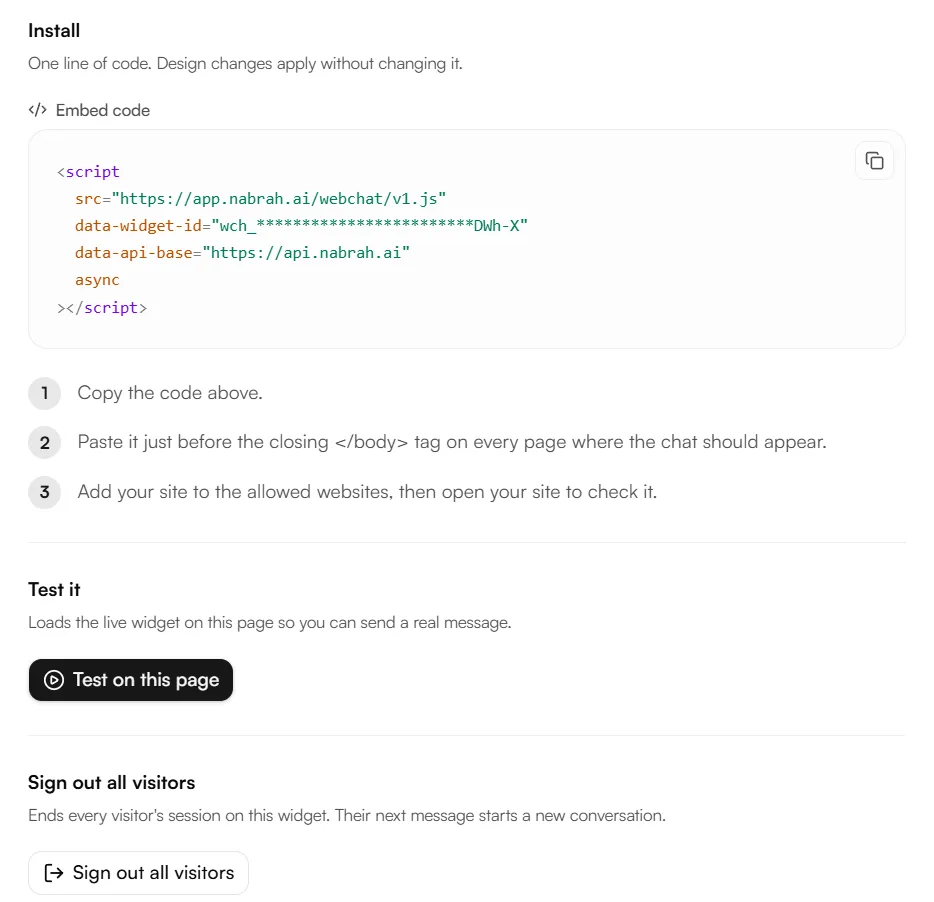
Design changes don't need a new snippet. The appearance is served from Nabrah, so edits apply to your live site as soon as you save. (The Web-call widget works differently its settings are encoded in the snippet itself.)
Test on this page loads the live widget inside Nabrah so you can send a real message. Add https://app.nabrah.ai to your allowed websites first.
Sign out all visitors ends every visitor's session on this widget. Their next message starts a new conversation useful after a change you want everyone to see fresh.
Handling conversations
Chats appear in your inbox under Web chat, where your team reads and replies. A chat reaches them when the agent hands off, when it hits the Bot replies per chat limit, or when a visitor asks for a person.
Troubleshooting
Symptom | Cause | Fix |
|---|---|---|
The widget doesn't appear | The snippet is missing, or the site isn't in Allowed websites | Check the snippet sits before |
Test on this page does nothing |
| Add it, then test again |
The agent doesn't reply | No agent is selected in Setup | Pick one |
Chats never reach the team | Allow referring to a human is off, or nobody is available | Turn it on, and check the availability line in the handoff panel |
A department handoff contacts nobody | No department description matched the conversation | Broaden the descriptions in When should the AI choose this? |
The widget is in Arabic but replies come in English | The agent's language doesn't match the widget's | Set the agent's language, or fix Language in Design |
A tool returns nothing on web chat | It relies on a verified phone number | Web chat has no caller number to check turn the tool off here |