

Build
Agents
On this page
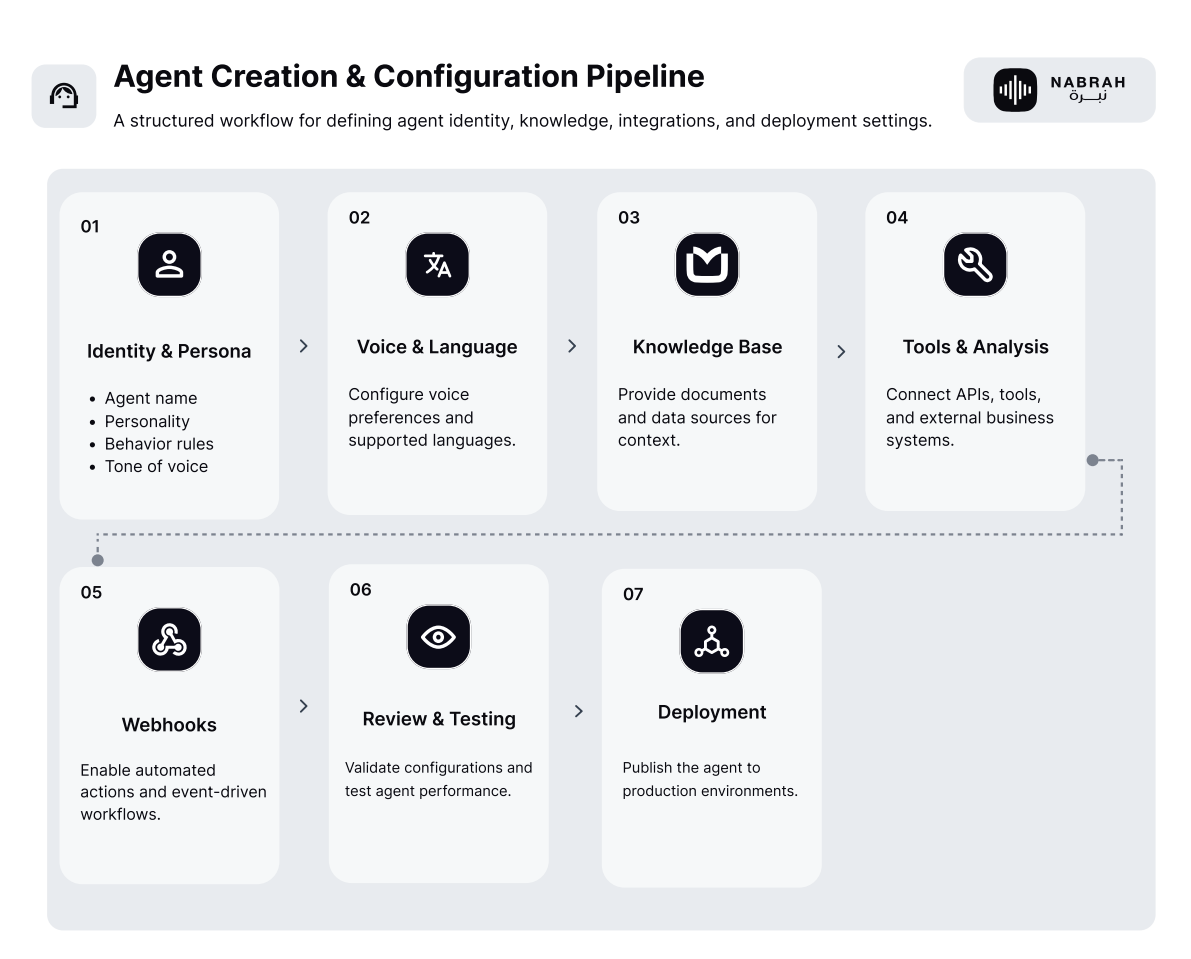
An agent is an AI voice assistant configured to handle a specific business task. Creating an agent follows a structured seven-section setup that you can complete in order or revisit at any point before going live.
Section 1: Identity & persona
Defines who the agent is, how it sounds, and how it opens every conversation.
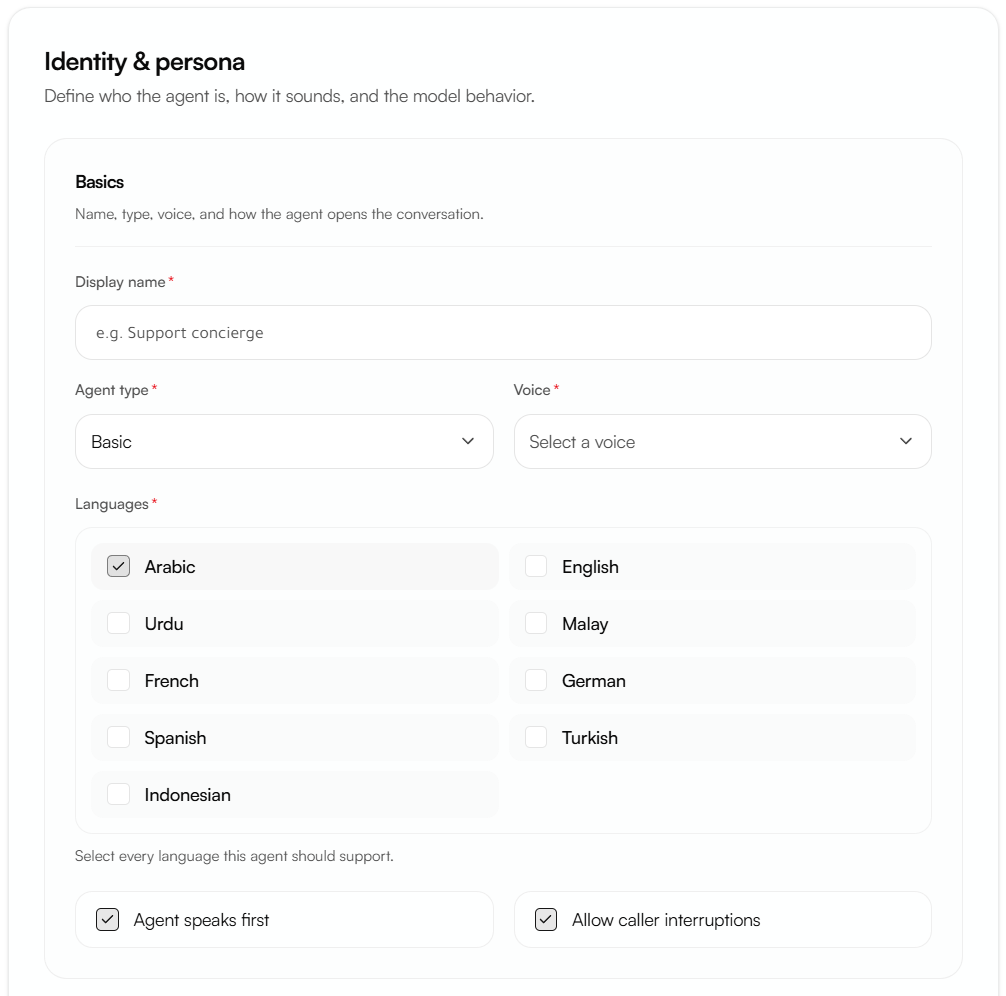
Basics
Display name the internal name used to identify this agent across the dashboard, analytics, and call logs.
Agent type defines the operational mode of the agent. The default is Basic.
Voice the voice profile the agent uses when speaking. Browse the voice library to select the profile that best matches your brand identity. See Voices.
Languages select every language this agent should support. Arabic is enabled by default. How the agent determines which language to use at the start of each call is configured in Section 2.
Agent speaks first when enabled, the agent delivers its opening greeting immediately upon connection. When disabled, the agent waits for the caller to speak first.
Tip: Disable Agent speaks first for warm transfer scenarios where a human agent introduces the AI.
Allow caller interruptions when enabled, the agent stops speaking the moment it detects the caller's voice. When disabled, the agent completes its current statement regardless of caller input.
Tip: Disable Allow caller interruptions when the agent must deliver critical information that must be heard in full.
Persona & script
First sentence the exact opening statement delivered upon call connection. This segment is uninterruptible.
Tip: Keep the first sentence concise to maintain a natural conversational tone. If Agent speaks first is disabled, enter only one or two neutral words.
Who you are defines the agent's name, professional tone, and the organization it represents. Include the agent's role and authority level to ensure consistent and appropriate responses throughout every interaction.
Goal the agent's primary objectives and functional boundaries. Define the core tasks the agent must complete and explicitly list prohibited topics such as internal codes, pricing details, or proprietary data.
Steps / flow the full sequence of the conversation. A complete flow defines three elements:
Initiation how the agent begins the interaction and determines the appropriate conversational path.
Logic paths the routes a conversation can take based on caller responses, including the data points to collect and the order of questions.
Termination the conditions and closing phrases that end the call gracefully once objectives are achieved.
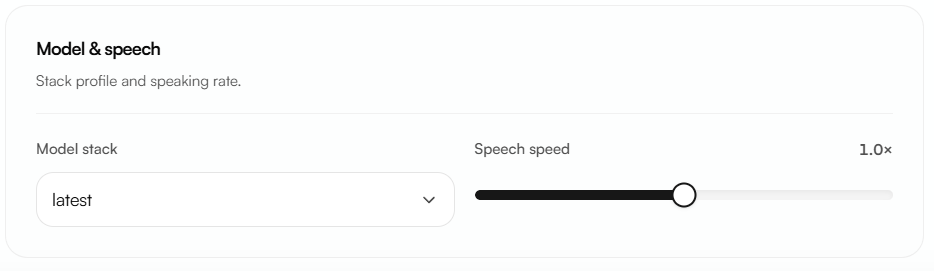
Model & speech
Model stack the AI model powering the agent's responses. The default is Latest.
Speech speed controls vocal cadence using a slider from 0.7x to 1.3x. The default is 1.0x, which delivers the most natural listening experience.
Section 2: Audio & language
Fine-tunes the agent's audio environment and language handling.
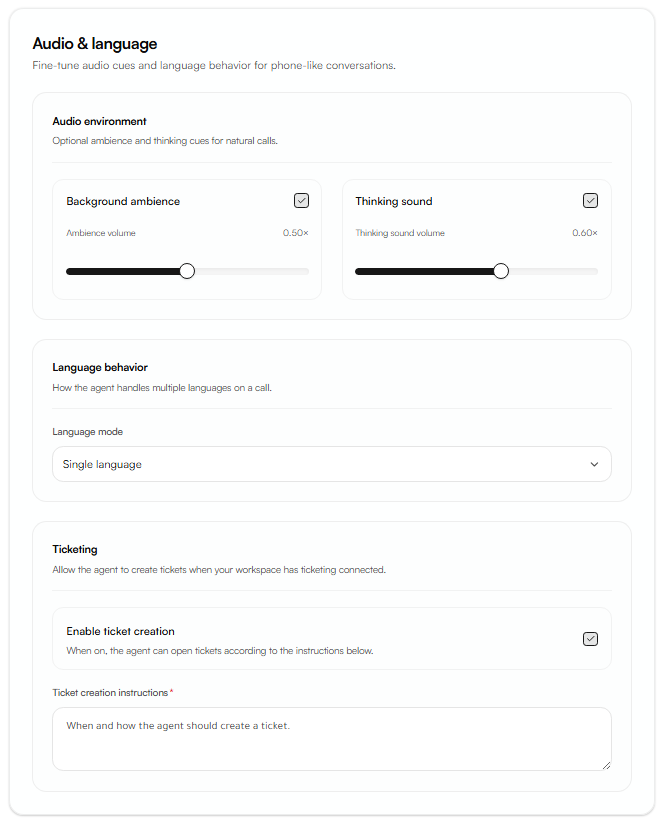
Background ambience enables a subtle background soundscape to make the agent sound more natural. Use the volume slider to balance the level.
Thinking sound enables subtle audio cues during processing pauses, signaling to callers that the agent is still active. Use the volume slider to balance the level.
Tip: Keep the thinking sound slightly louder than the background ambience so callers clearly perceive the agent's activity.
Language mode determines how the agent selects a language at the start of each call:
Single language the agent operates in one fixed language.
Auto-detect the agent detects the caller's language from their opening phrase and switches automatically.
DTMF selection the caller presses a keypad number to choose their language. This is the most reliable option for multilingual environments.
Enable ticket creation when enabled, the agent automatically creates a support ticket after the call based on defined instructions. Requires the workspace ticketing system to be connected. See Ticketing.
Section 3: Tags
Optional structured labels assigned by the agent at the end of each call for analytics and filtering.
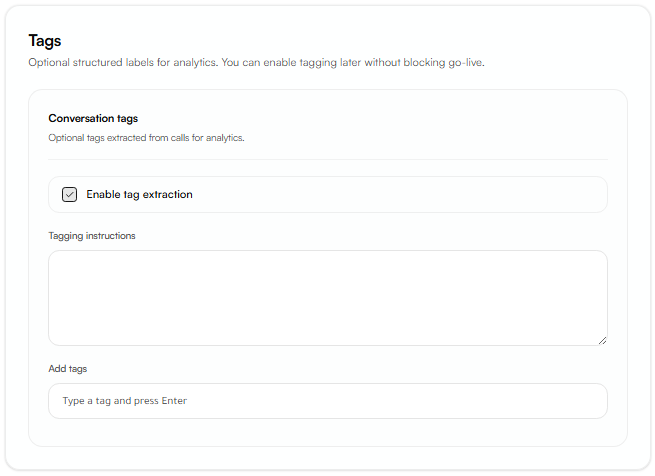
Enable tag extraction when enabled, the agent reviews the call transcript and assigns the appropriate tag based on the instructions below.
Tagging instructions describes the criteria for each tag. A few lines per tag are sufficient.
Add tags type a tag name and press Enter. Tag names must not contain spaces use underscores, for example billing_issue.
Note: Tags can be added or modified after the agent goes live without interrupting active operations.
Section 4: Tools & analysis
Connects the agent to external systems and post-call analysis pipelines.
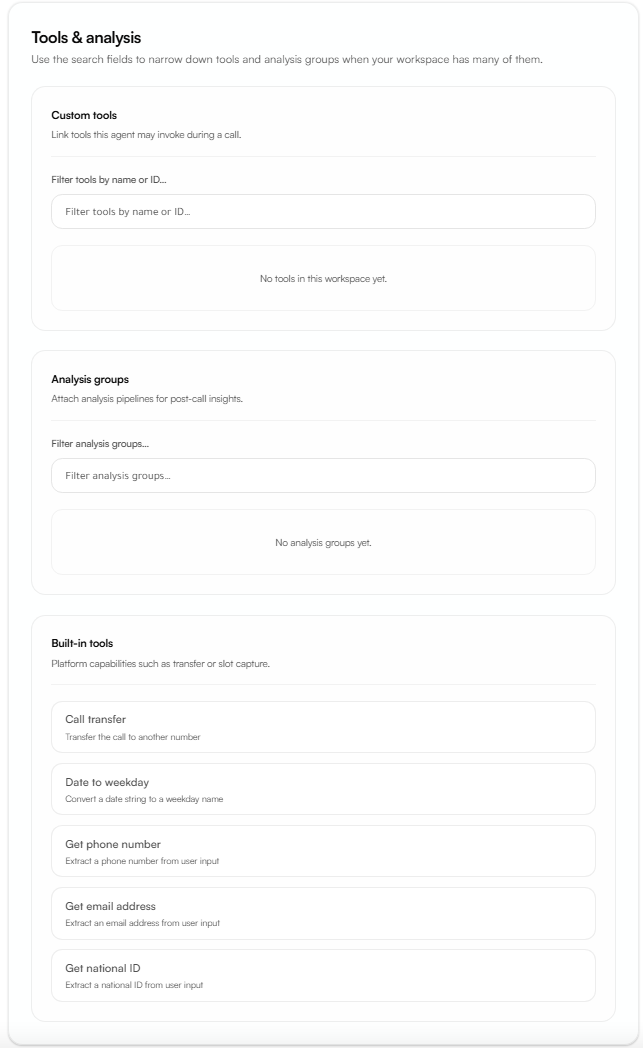
Custom tools link tools created in Build → Custom tools to enable the agent to call external APIs during conversations. See Custom tools.
Analysis groups link analysis groups to activate structured post-call data extraction. See Analysis groups.
Built-in Tools
Tool | What It Does |
|---|---|
Call transfer | Transfers the active call to a specified phone number |
Date to weekday | Converts a date string to the corresponding weekday name |
Get phone number | Extracts a phone number from the caller's spoken input |
Get email address | Extracts an email address from the caller's spoken input |
Get national ID | Extracts a national ID number from the caller's spoken input |
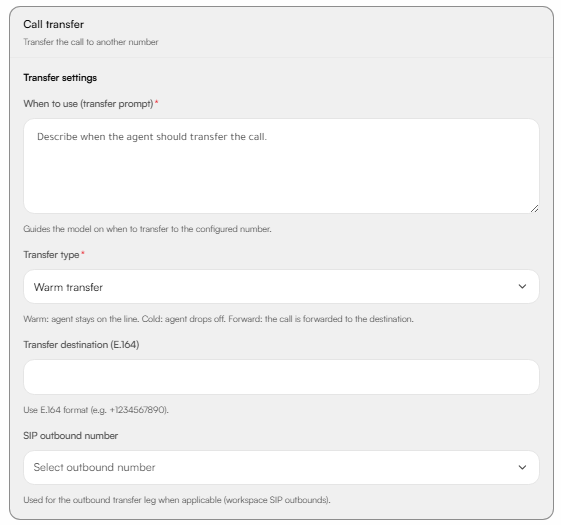
Transfer settings
When to use describes the conditions under which the agent should initiate a transfer.
Transfer type how the transfer is executed:
Warm Agent stays on the line during the handoff. (default)
Cold Agent drops off; caller is connected directly to the destination.
Forward the call is forwarded to the destination number
Transfer destination the phone number in E.164 format (e.g. +9665XXXXXXXX).
SIP outbound number the outbound SIP number used for the transfer leg when applicable.
Section 5: Knowledge
Provides the agent with reference material used to answer caller questions accurately.
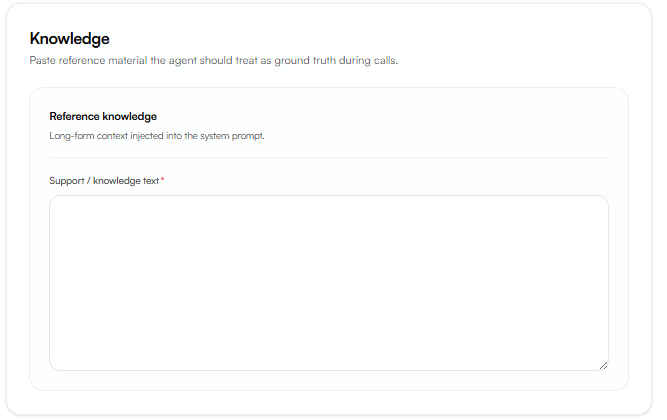
Reference knowledge a text field where all supporting information is entered. This content is injected into the agent's system prompt and treated as ground truth during every call. Include product details, policies, FAQs, and any information required for accurate responses.
Tip: Use headers and categorized lists to organize the knowledge. A well-structured knowledge base allows the agent to navigate complex information faster and reduces inaccurate responses.
Section 6: Webhooks
Sends automated HTTP requests to external systems at defined points before, during, and after a call. Use webhooks to personalize calls with live data, sync results to your CRM, or trigger downstream workflows.
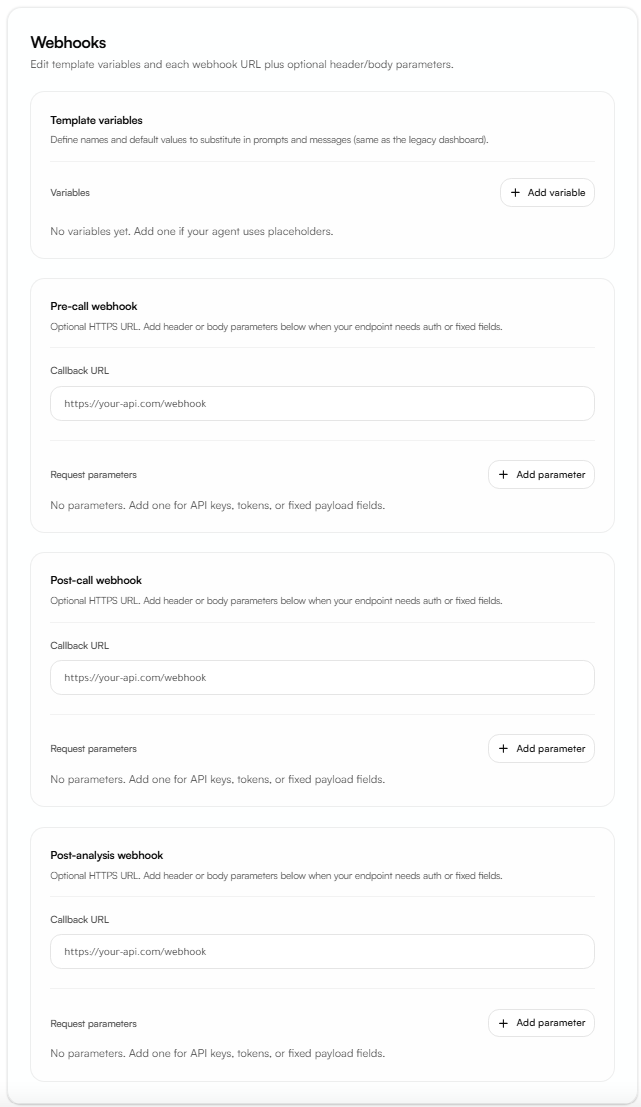
Template variables
Named placeholders inserted into agent fields using the syntax {{variable_name}}, replaced with actual values at runtime.
Each variable has:
Name the placeholder key, referenced as {{name}} in agent fields such as the first sentence, persona, or steps (e.g. customer_name).
Type the value's data type.
Default value the fallback used when no value is supplied for that call.
Example: Define a variable customer_name. In the first sentence, write Hello, {{customer_name}}!. The agent greets each caller by name when the value is passed at call initiation. If no value is provided, the Default value is used instead.
Tip: Values are supplied per call passed when the call is started via the API or an outbound campaign, or fetched by the Pre-call webhook.
Webhook types
Webhook | When it fires | Typical use |
|---|---|---|
Pre-call webhook | Before the call begins | Fetch caller data or load personalization variables for {{template variables}}. |
Post-call webhook | After the call ends | Update CRM records or trigger downstream workflows. |
Post-analysis webhook | After post-call analysis completes | Reporting, QA, or scoring workflows. |
Configuring a webhook
Each webhook is configured with:
Callback URL an HTTPS endpoint that receives the request. Leave blank to disable that webhook.
Request parameters optional fields added to the request for authentication or fixed payload values. Each parameter has:
Location whether it is sent as a Header (e.g. an Authorization token or API key) or in the Body (a fixed field).
Name the header or body key.
Value the static value sent with every request.
Request payload
The Post-call and Post-analysis webhooks send a POST request whose JSON body contains the full call record under call_details (caller/callee numbers, timestamps, transcript, tags, and analysis results), along with any Body parameters you configured. Configured Header parameters are attached as request headers. Requests time out after 30 seconds.
Note: Use Header parameters for secrets such as API keys or bearer tokens, and Body parameters for fixed fields your endpoint expects on every call.
Section 7: Review
A read-only summary of the full agent configuration. All sections are listed and can be expanded to verify every setting before publishing.
Once verified, click Continue to publish the agent.