
Telephony
Outbound services
An outbound service registers the SIP trunk Nabrah uses to send calls to a client PBX or carrier. Once created, you can place calls from the dashboard or the API, or dial a whole list on a schedule with Campaigns. Every call routes through this trunk.
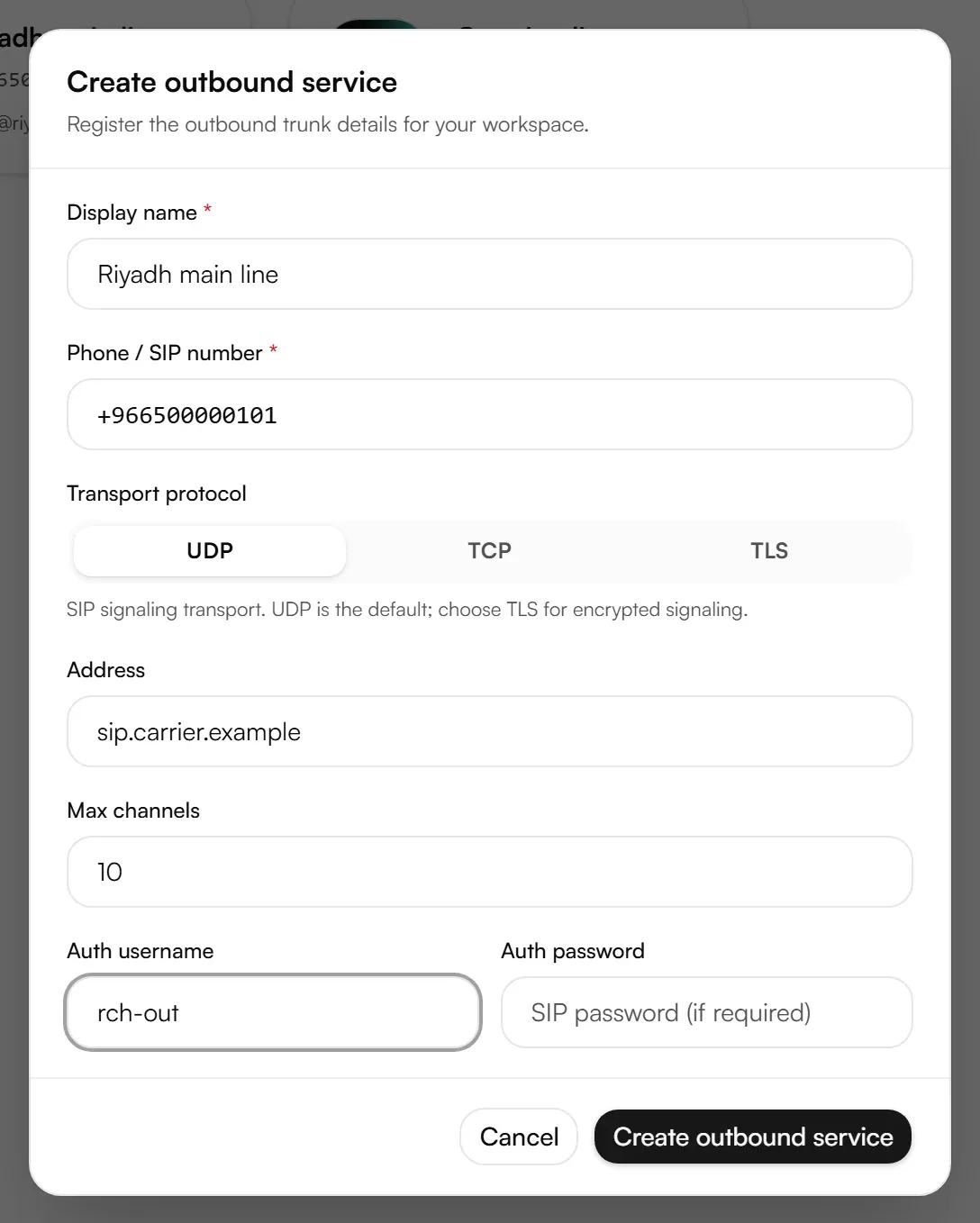
Creating an outbound service
Open Agents → Telephony → Outbound services and click New outbound.
Field | Description |
|---|---|
Display name | A label to identify this trunk in the dashboard, for example Riyadh sales line. Required |
Phone / SIP number | The number or SIP identifier associated with this trunk. Required |
Transport protocol | The SIP signaling transport: UDP, TCP, or TLS. UDP is the default; choose TLS for encrypted signaling |
Address | The destination IP or domain supplied by the provider. Use |
Max channels | The concurrent call limit. Set this according to your provider contract or commercial limit to avoid exceeding capacity |
Auth username / Auth password | Required when the provider uses username/password authentication. For IP authentication instead, confirm that the provider has whitelisted |
Click Create outbound service, then run a test call before going live.
Click a service in the list to open its Service details panel. It shows the phone number, transport, IP address, max channels, auth username, and who created it, with Make call, Create campaign, and Delete service.
Information to gather before provisioning
Before creating the service, collect this information from the client/provider. Share passwords over a secure channel, never by plain email.
General request information
Customer / company name
Technical contact name and email/phone
Environment Production, Staging, or Test
Preferred service display name, for example CustomerName-Outbound-Prod
Phone / SIP number(s) / DID list, in country code format where possible, for example 96651234567
Required codecs, for example PCMU, PCMA
Planned go-live date and time zone
Outbound-specific information
Destination PBX/provider IP or domain required for all auth types. Example: 203.0.113.10 or
sip.provider.com.Destination SIP port required for all auth types. Default is 5060 unless the provider uses another port.
Transport required by destination UDP, TCP or TLS.
Authentication type expected by provider IP only, username/password only, or both.
Auth username Nabrah must use required for username/password or both. Provider-supplied SIP username.
Auth password delivery method required for username/password or both. Use a secure portal or secret manager. Never share it in plain documents unless approved.
Provider realm/domain (if required) needed by some SIP Digest providers.
Maximum concurrent channels required for all auth types. Must match the commercial/provider limit.
Allowed caller ID / CLI format required for all auth types. Confirm which caller IDs the provider accepts.
Destination number format required for all auth types. Example: 00 + country code, E.164, or national format.
Failover destination IP/domain optional, only if the provider supports failover.
Client/provider whitelist requirement required for IP-only or both. Whitelist Nabrah's SBC/PBX: pbx.nabrah.ai:5060. Nabrah can confirm its current public IP if the provider requires an IP instead of DNS.
Do not create the trunk in production until this information is complete and the authentication type is clear. Missing destination details, wrong ports, or wrong number formats are the most common causes of SIP 403, 404, and timeout errors.
Authentication type
IP only the provider accepts calls only from Nabrah's whitelisted source IP/domain. Best for carrier interconnects with fixed public IPs and no Digest requirement.
Username / password only Nabrah authenticates to the provider using SIP Digest credentials. Best when the provider requires auth or Nabrah's source IP can change.
Both the provider whitelists Nabrah and still requires Digest credentials. Recommended for production whenever the provider supports it.
Using both methods reduces fraud risk. An attacker would need both the correct source path and the correct credentials.
Field format rules
203.0.113.10 host with no port; the default SIP port (5060) is used.
203.0.113.10:5060 host with an explicit default port.
sip.provider.com:5061 domain with a custom port.
No spaces before or after an IP, domain, or port.
Valid ports range from 1 to 65535. Nabrah's default is 5060.
Use a public IP for IP authentication unless a VPN or private link is in place.
If a domain is used instead of an IP, confirm how DNS updates are handled with the provider.
Use digits only for phone/SIP numbers: country code plus number, with no +, spaces, or dashes.
Outbound caller ID must be pre-approved by the provider. Unapproved caller IDs may be rejected or blocked.
Make a call
Use Make call for a quick test or a short list. For large lists, scheduling, and retries, use a campaign.
Open a service's Service details panel and click Make call. The Make outbound call dialog opens with the service's number as From number.
Choose the Agent that makes the calls.
Under Add numbers manually, enter each number and click Add number. You can call up to 200 numbers per request.
Optionally add Tags and adjust the agent's Default variables.
Click Review details, check the summary, and click Make call.
The calls appear in Call logs.
Campaigns
A campaign dials a list of numbers with one agent, inside a daily calling window, with automatic retries and live progress.
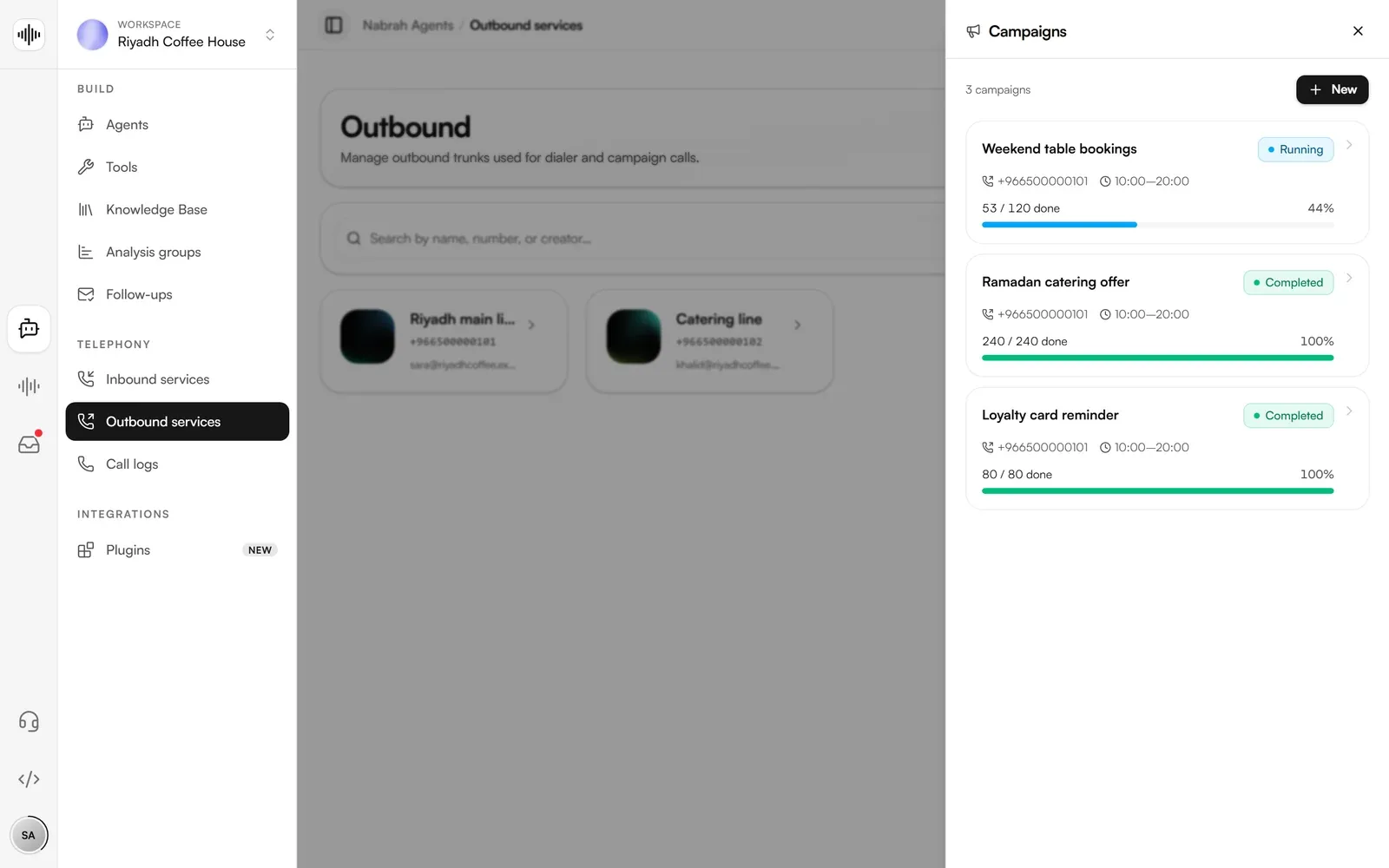
Before you start
Requirement | Why |
|---|---|
An outbound service | Its number is the campaign's From number |
An agent | The agent makes every call. It can't be changed once the campaign starts |
An analysis group linked to the agent (recommended) | Without one, the campaign's Outcomes can't show answers such as interest. See Analysis groups |
A plan that includes campaigns | Your plan sets how many campaigns you can run each month and how many numbers each one can hold |
Create a campaign
Open Agents → Telephony → Outbound services and click Campaigns. The panel lists your campaigns with their status and progress.
Click New. You can also click Create campaign in a service's panel to start with that number selected.
Fill in the form and click Create & launch, or Save draft to finish later.
The top of the form shows your plan's limits, for example Up to 20 campaigns/month · 5000 calls each.
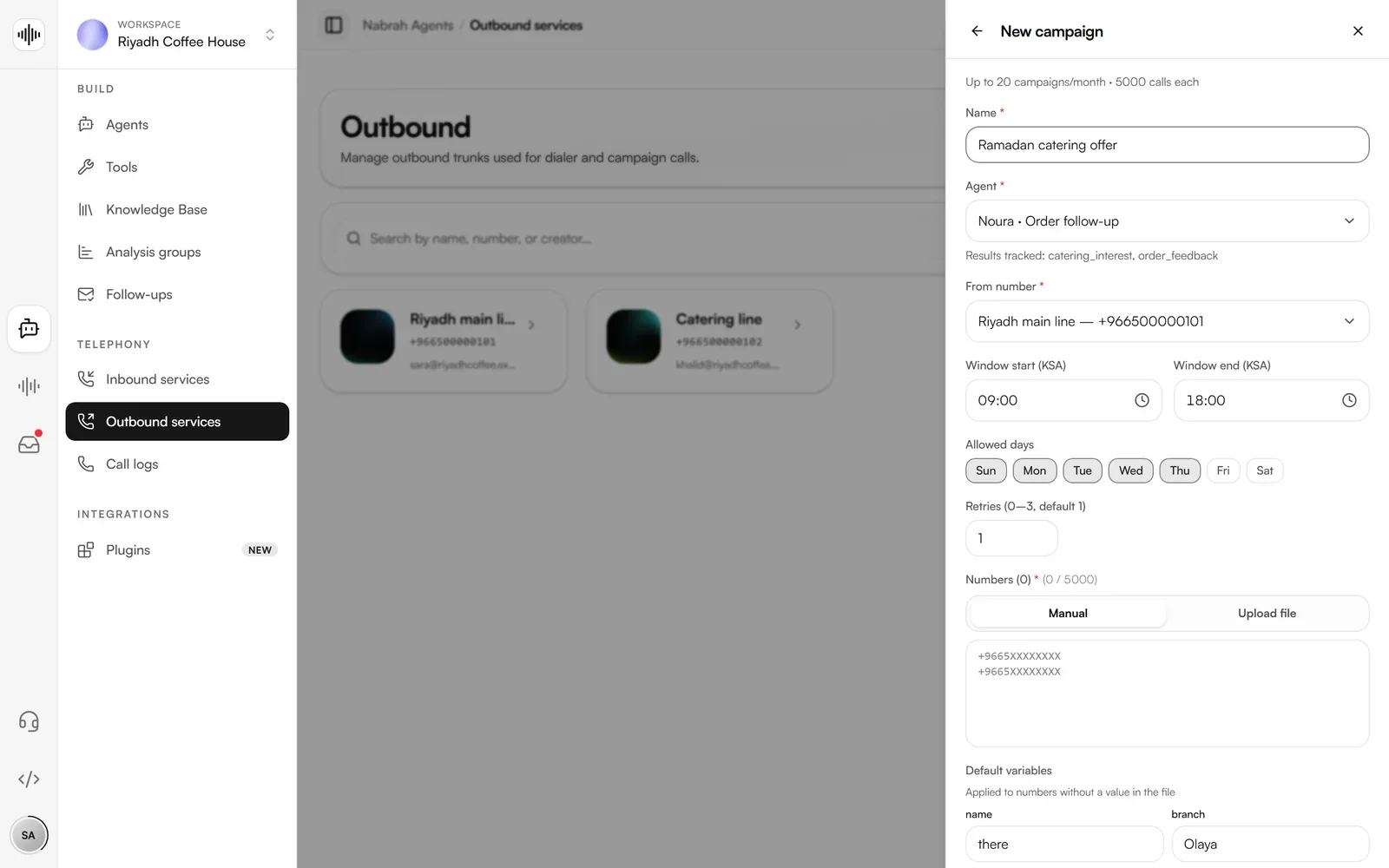
Field | Description |
|---|---|
Name | A name to recognize the campaign, for example Ramadan catering offer. Required |
Agent | The agent that makes the calls. Required to launch. Below it, Results tracked lists the agent's analysis groups. If it has none, the hint reads This agent has no analysis groups, so answers like interest won't be tracked, with a link to Add one to the agent |
From number | The outbound service number the calls come from. Required |
Window start (KSA) / Window end (KSA) | The daily calling window, in Saudi time. Default: 09:00 to 18:00 |
Allowed days | The days calls can be placed. Default: Sunday to Thursday |
Retries (0–3, default 1) | How many more times Nabrah tries a number that didn't connect |
Numbers | The numbers to call, on the Manual or Upload file tab (see below). The counter shows how many you added against your plan's limit |
Default variables | Values for the agent's template variables. They apply to numbers without a value in the file |
Tags (optional) | Tags added to every call, for example refund_followup. Use letters, numbers, and underscores only |
Adding numbers
Manual: type or paste numbers, one per line or separated by commas, for example +9665XXXXXXXX.
Upload file: select the agent first, then click Download template. The template has a column for each of the agent's variables. Fill it in and click Upload CSV/XLSX. Template columns lists the columns Nabrah reads.
Add a name column to your file. When you filter the campaign's calls by an answer, the Name column shows each lead's name value, or the first text value in the row if there is no name.Numbers that aren't valid are skipped, and Nabrah tells you how many.
Launch and queue
Click Create & launch to open Start this campaign?. It summarizes the Name, Agent, From, Window, Days, Retries, and Numbers. Once started, the agent can't be changed. Click Start campaign.
Only one campaign runs at a time in a workspace. If another campaign is active, the button reads Queue campaign: the new campaign waits in the queue and starts automatically when the active one finishes. A queued campaign shows its position in the queue.
To start a draft, open it in the Campaigns panel and click Launch.
Campaign status
Status | Meaning |
|---|---|
Draft | Saved but not started |
Queued | Waiting for the active campaign to finish |
Running | Dialing. Outside the calling window, the card shows when it resumes |
Paused | Paused by you, or paused because the account ran out of credit |
Completed | Every number was called |
Canceled | Stopped before it finished |
Keep credit on the account during a campaign. When credit runs out, the campaign pauses with Paused — insufficient credit. It resumes automatically once you top up, so you don't need to restart it.
Manage a campaign
Click a campaign in the Campaigns panel to see its progress (Total, Remaining, Dialing now, Success rate) and its Configuration (Retries, Retry on, Timezone, Avg call).
Action | When it's available |
|---|---|
Launch | Draft campaigns |
Pause | Running campaigns |
Resume | Campaigns you paused |
Stop | Running, queued, or paused campaigns. Confirm with Yes, stop. If another campaign is queued, it starts next |
Click More details to open the campaign's details page.
Campaign details page
The details page shows the campaign name and status, the From number and calling window, and its Progress (answered, dialing now, remaining). Below that:
Tiles for Total, Answered, Success rate, Avg duration, No answer, and Failed
Outcomes: what customers said on answered calls (see below)
Progress over time: calls per hour, split by result
Call log: every number with its Status, Answered, Attempts, Started, Ended, and Duration
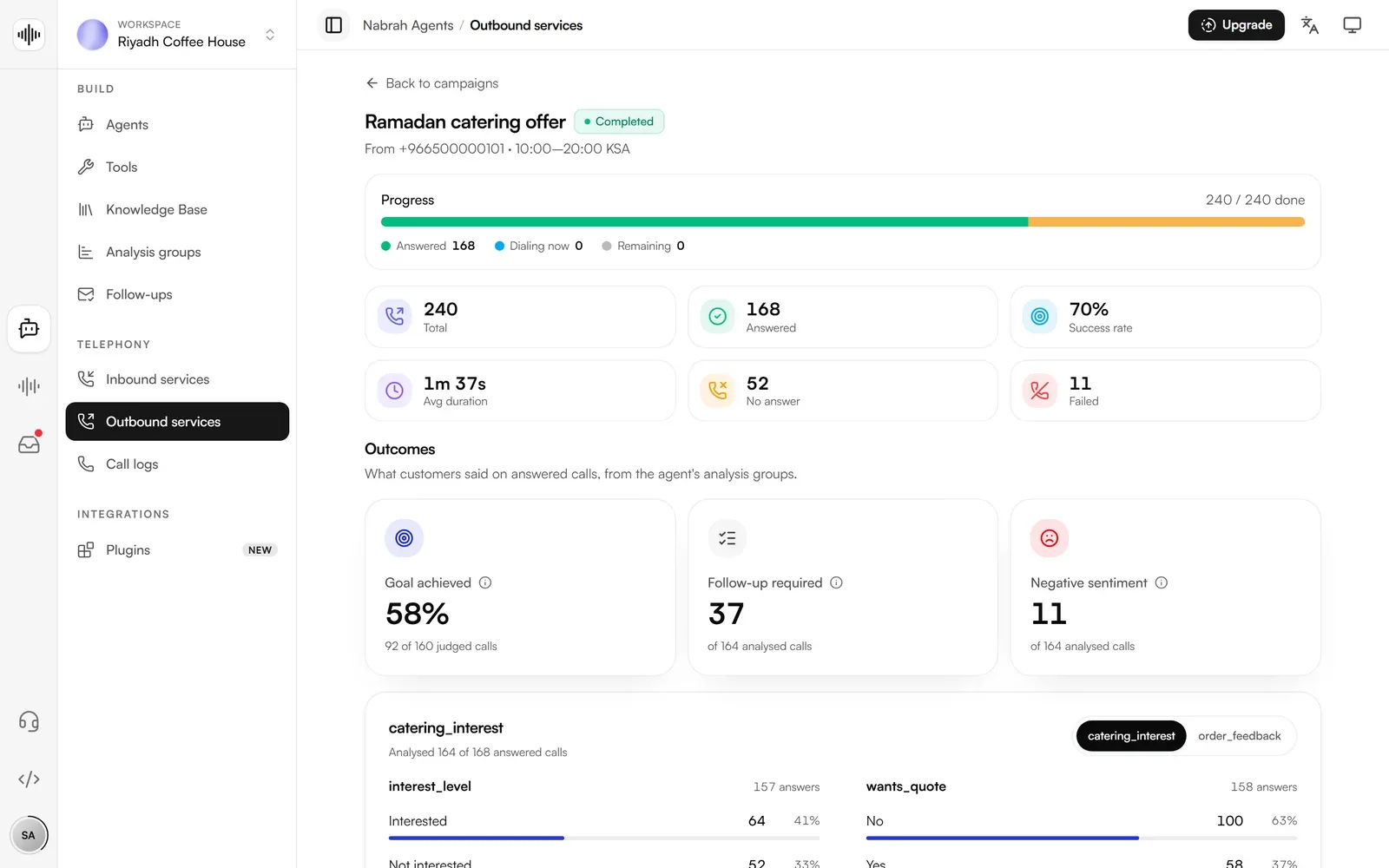
Filter the call log by Period (Today, Last 7 days, Last 30 days, All time, or Custom) and by status. Click a number to open its call in Call logs. While a campaign is running, the page updates on its own.
Campaign outcomes
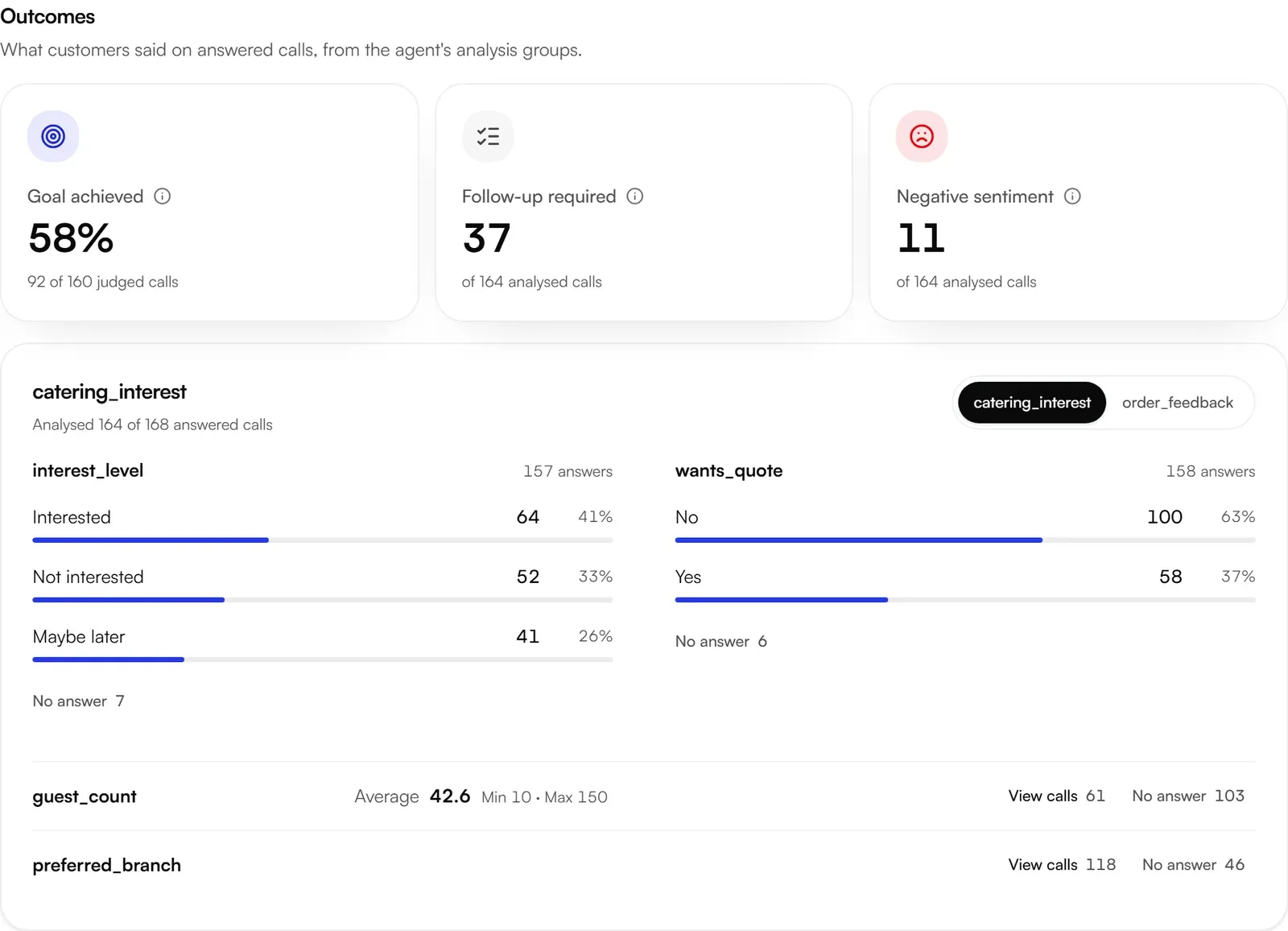
Outcomes shows what customers said on answered calls, from the agent's analysis groups. Use it to see who is interested and to pull those leads out as a list.
Headline tiles
Tile | What it shows |
|---|---|
Goal achieved | The share of answered calls where the call analysis judged that the agent's goal was met, for example 92 of 160 judged calls |
Follow-up required | Answered calls where the call analysis says someone should follow up, out of all analysed calls |
Negative sentiment | Answered calls where the customer's sentiment was negative or highly negative, out of all analysed calls |
Click a tile to list those calls in the call log.
Analysis group cards
Each analysis group linked to the agent gets a card. If the agent has more than one, switch between them with the buttons at the top right of the card. The card subtitle shows how many answered calls were analysed, for example Analysed 164 of 168 answered calls.
Choice fields (enum and yes/no) show each answer as a bar with its count and share, and how many answers the field got in total. Other groups the remaining answers.
Number fields show the Average and the range (Min · Max).
Text fields show how many calls have a value.
No answer counts analysed calls where the field was left empty.
Not analysed counts answered calls analysed before the field was added to the group.
A group that is no longer linked to the agent is marked No longer linked to this agent. After you rename a field, older answers appear under Previous field.
Filter calls by answer
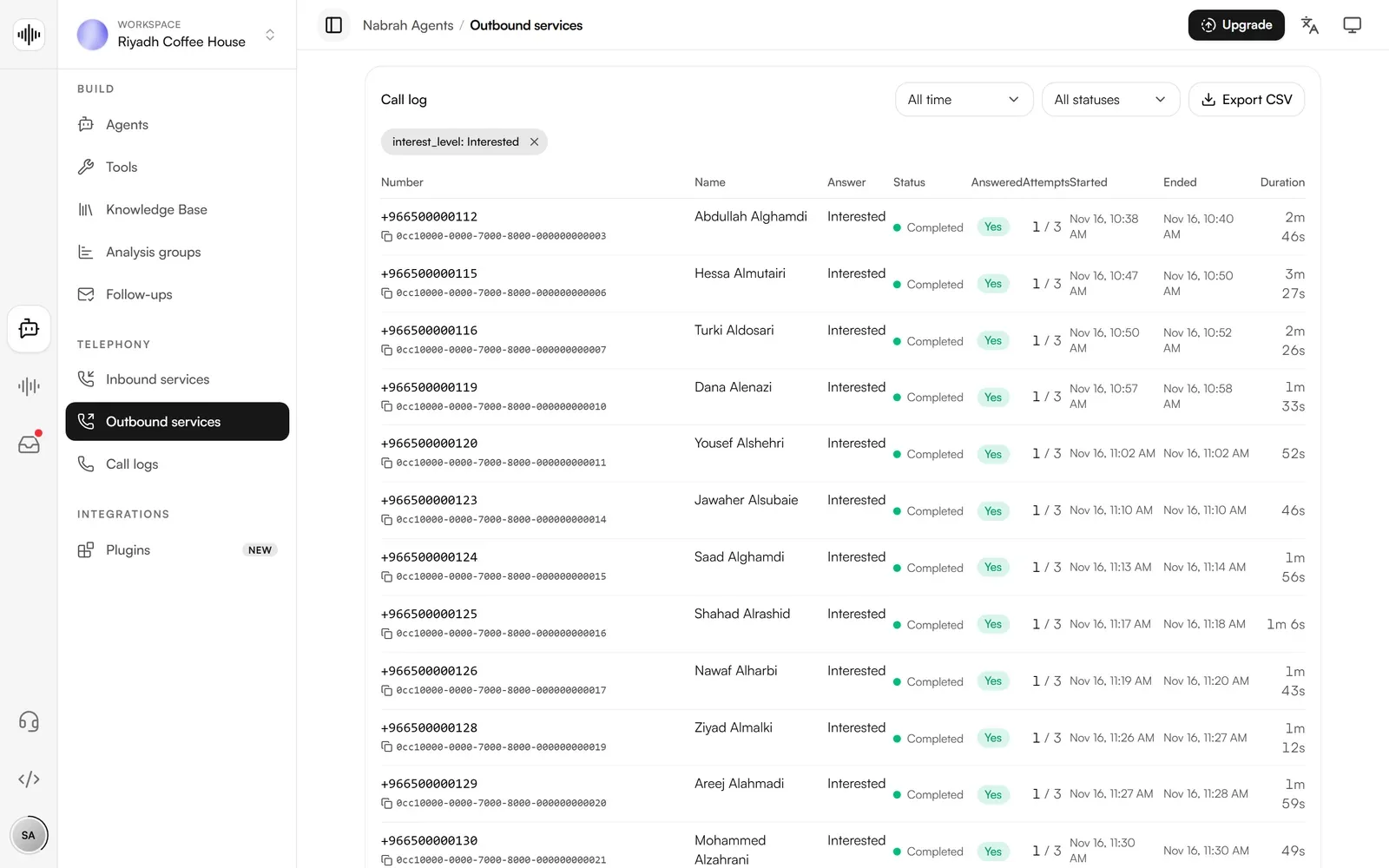
Click any answer bar, View calls, or No answer to filter the call log to those calls. The page scrolls to the call log, a chip shows the filter (for example interest_level: Interested), and two columns appear: Name and Answer. Click the × on the chip to clear the filter.
Export leads
Click Export CSV above the call log. Without filters, the file downloads straight away. With a filter on, choose All calls or Current filter, which shows how many calls it holds.
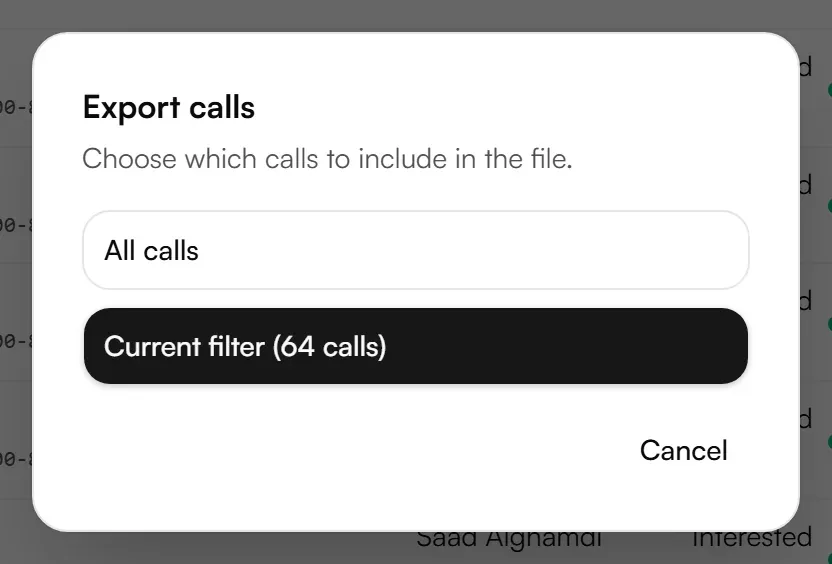
For example, to export everyone who said they're interested: click Interested in the outcomes, then Export CSV → Current filter.
Empty states
What you see | Why | What to do |
|---|---|---|
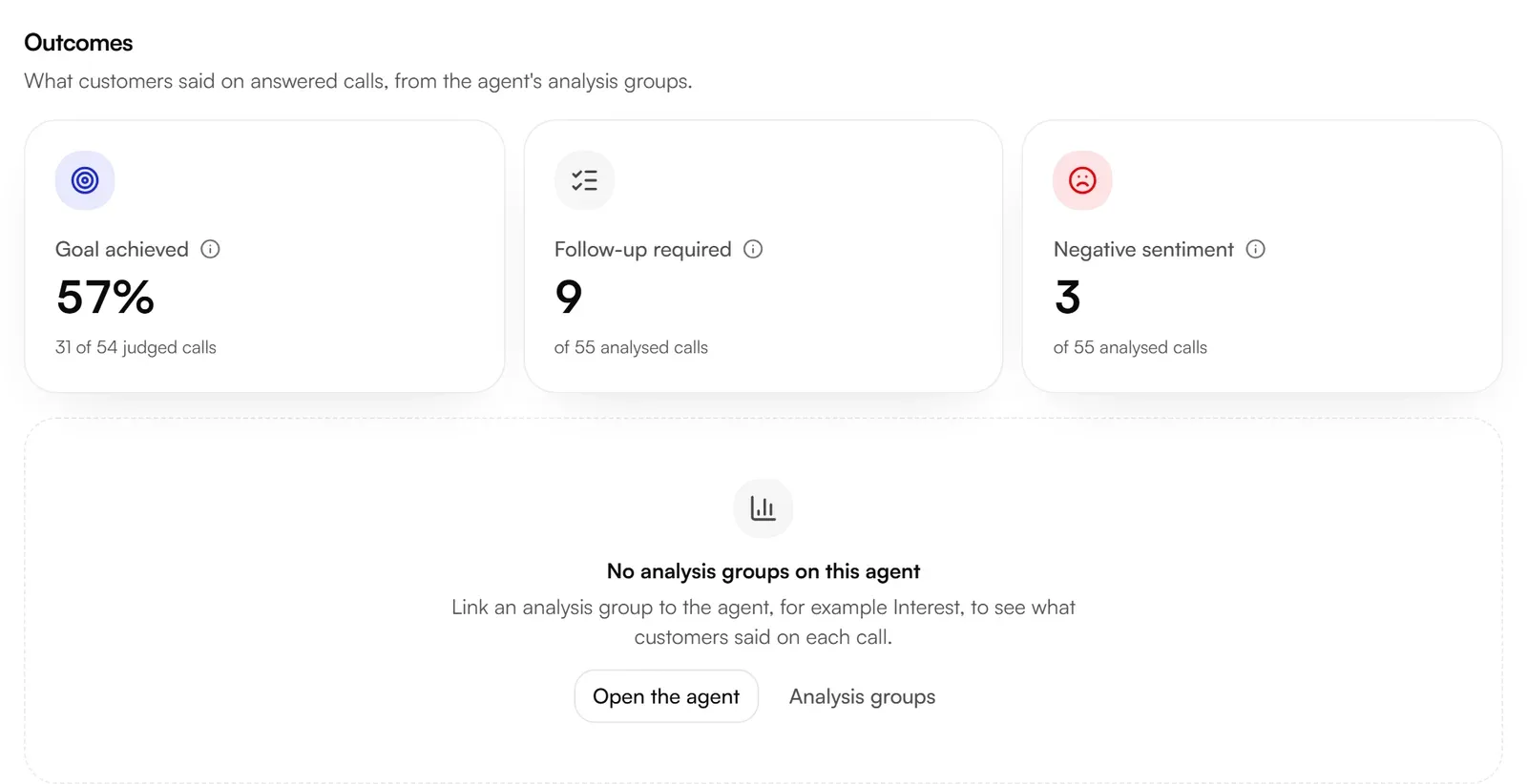
No analysis groups on this agent | The campaign's agent has no analysis group | Click Open the agent and link one in Tools & analysis, or open Analysis groups to create one. Only calls analysed after the link show answers |
No answered calls yet. Outcomes appear here once customers pick up. | Nobody has answered yet | Wait for the campaign to reach customers |
Troubleshooting
SIP
These SIP message elements are the most useful when diagnosing a call that isn't connecting correctly.
Request-URI identifies the called service/number. A 404 Not Found usually means the number format is wrong.
Via / received / rport shows the real source IP and NAT behavior. A 403 Forbidden usually means the source IP differs from what's whitelisted.
Authorization appears after a 401/407 challenge for Digest auth. A 401/407 loop usually means the username, password, or realm is wrong.
Contact used for future requests; can expose private IPs. An unreachable Contact can cause ACK/BYE routing failures.
SDP
c=andm=shows media IP and RTP ports. Wrong values here cause one-way or no audio.
Common issues
403 Forbidden wrong source IP, trunk disabled, or auth blocked. Compare the real source IP in Via/received with what's whitelisted.
401/407 loop Digest username, password, or realm mismatch. Verify username, auth username, password, and provider realm.
404 Not Found phone/SIP number doesn't match a route. Check the Request-URI and To header.
408 Timeout wrong address/port, firewall, or the provider is down. Check the destination address, port, and firewall rules.
488 / 415 codec or SDP mismatch. Check the offered codecs and media policy.
One-way audio RTP/NAT path issue. Check SDP c= IP, RTP ports, and the media path.
Max channels reached the concurrent call limit is full. Check Max channels against active calls.
Campaigns
Symptom | Cause | Fix |
|---|---|---|
The campaign stays Queued | Another campaign is running. Only one runs at a time | Wait for it to finish, or Stop it to start the next one |
A running campaign isn't dialing | It's outside the calling window or allowed days | Check the window and days. The card shows when it resumes |
Paused — insufficient credit | The account ran out of credit | Top up. The campaign resumes automatically |
Your current plan doesn't allow creating campaigns. | Campaigns aren't part of your plan | Upgrade your plan |
Your plan allows up to … numbers per campaign | The list is larger than your plan allows | Split the list into several campaigns, or upgrade |
Fewer numbers than you uploaded | Numbers that aren't valid are skipped | Use full international numbers, for example +9665XXXXXXXX |
Outcomes show no answers | The agent has no analysis group, or it was linked after the calls | Link an analysis group to the agent before you launch |
The Name column shows a number or another value | The upload file has no | Add a |
Test plan
Verify the collected information: destination address, port, transport, number format, authentication type, and max channels.
Confirm firewall rules for SIP signaling and RTP media.
Run one outbound test call.
Confirm the response code and, if applicable, the Authorization header.
Confirm two-way audio, and record the test call time, caller, called number, and trunk name.
Security checklist
Prefer Both authentication for production trunks when supported.
Use unique SIP credentials per customer/trunk.
Never send SIP passwords by plain email. Use a secure channel.
Whitelist only the IPs actually required, and remove old IPs after migration.
Keep Max channels aligned with the commercial and fraud-risk limit.
Delete inactive trunks and review trunk usage regularly.
Frequently asked questions
Can I change the agent after a campaign starts? No. Once started, the agent can't be changed. Create a new campaign with the other agent.
Can two campaigns run at the same time? No. Only one campaign runs at a time in a workspace. Others wait in the queue and start automatically.
What calling hours does a campaign use? The Window start (KSA) and Window end (KSA) you set, on the Allowed days. Default: 09:00 to 18:00, Sunday to Thursday.
How do I get a list of interested customers? Click the answer in Outcomes, for example Interested, then Export CSV → Current filter.
Where are campaign calls recorded? In the campaign's call log and in Call logs, with the full transcript and analysis.