

Build
Custom tools
On this page
Custom tools let an agent call external APIs during a live conversation to create a ticket, look up an order, update a record, or trigger any action exposed by an HTTPS endpoint. Once created, a tool can be linked to any agent under Agents → Tools & analysis.
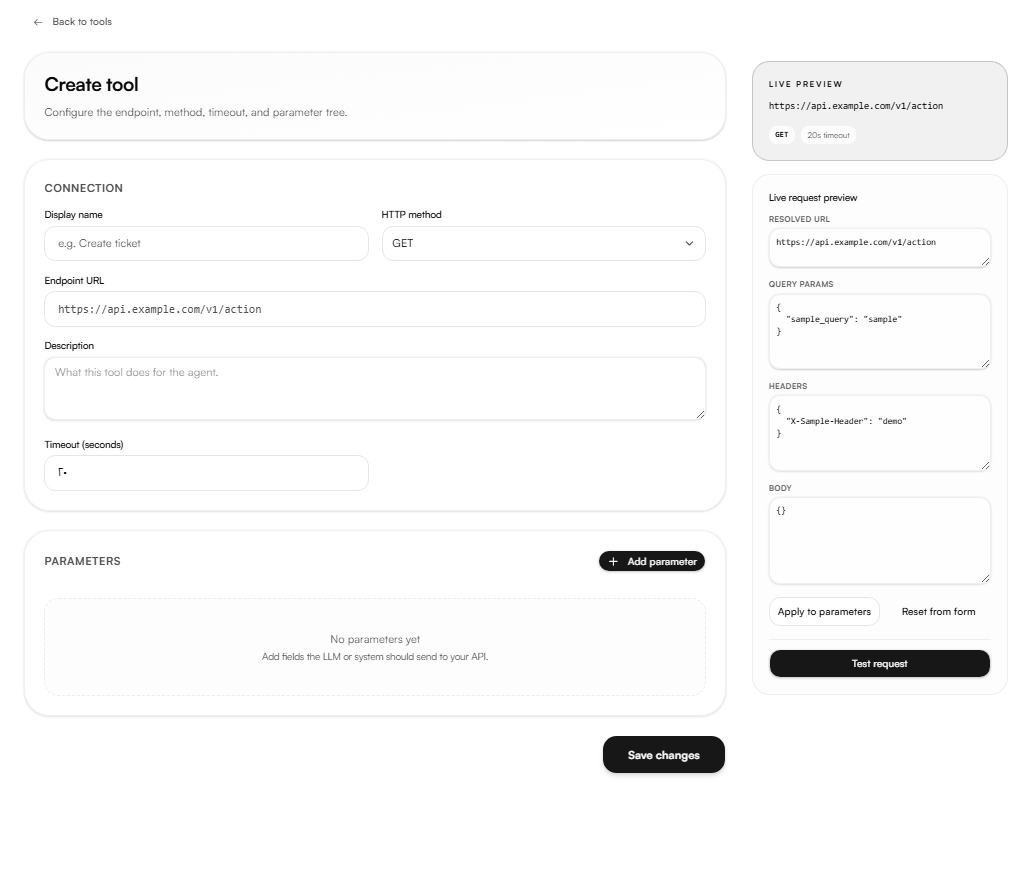
Creating a tool
Navigate to Build → Tools and click Create tool.
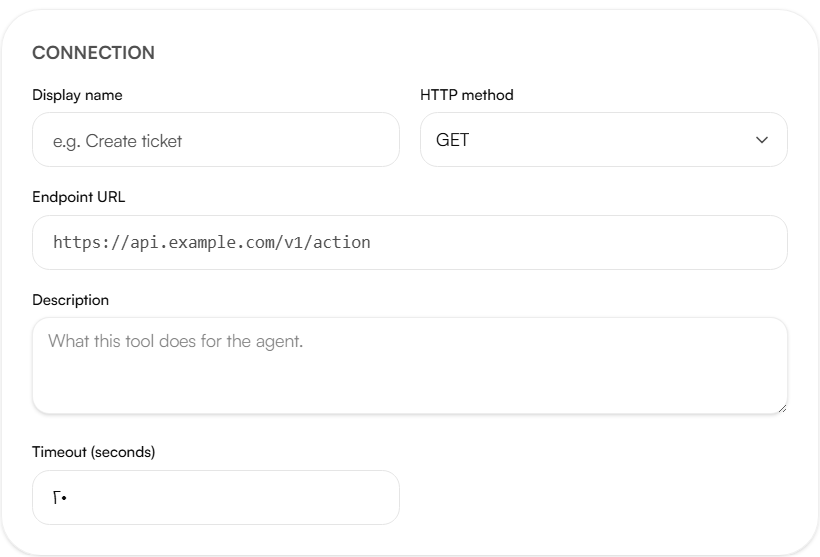
Connection
Display name : the name used to identify this tool when linking it to an agent, for example Create ticket.
Choose your HTTP method that will be the request type sent to the endpoint:
Method | Use |
|---|---|
GET | Retrieve data |
POST | Create a new record |
PUT | Replace an existing record |
PATCH | Partially update a record |
DELETE | Remove a record |
Endpoint URL the full HTTPS address the tool calls, for example https://api.example.com/v1/action.
Description explains what this tool does for the agent. The agent uses this description to decide when to call the tool during a conversation. Write it clearly a vague description leads to missed or incorrect tool calls.
Timeout (seconds) the maximum time the tool waits for a response before failing. Accepts a value between 1 and 300.
Parameters
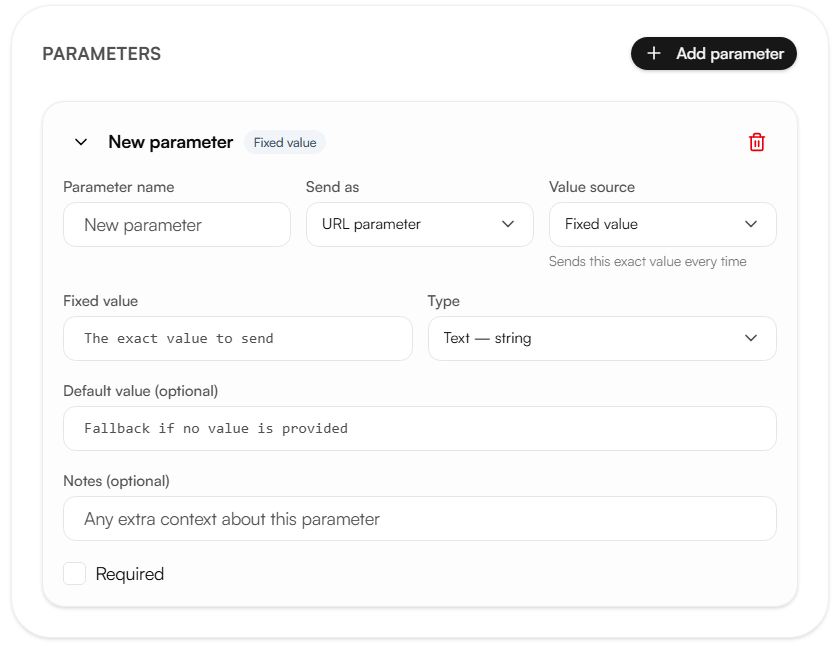
Click Add parameter to define each piece of data the tool sends with its request. Each parameter is one field in that request where it goes, where its value comes from, and its type.
Parameter name the field's key in the request (e.g. phoneNumber).
Send as where the parameter is placed in the request:
URL parameter appended to the query string
Header sent as an HTTP header
Request body included in the request payload
URL path inserted directly into the endpoint path
Value source where the parameter's value comes from:
Fixed value sends the exact same value every time
Platform variable sends a value pulled from a template variable or call context
AI decides the agent determines the value during the conversation based on caller input
Type the data type of the parameter:
Type | Format |
|---|---|
Text | string |
Number | number |
True/False | boolean |
List | array |
Group (nested fields) | object |
Default value (optional) the fallback value used when no value is provided.
Notes (optional) additional context about the parameter for future reference.
Required when checked, the agent must provide a value for this parameter before the tool can be called.
Groups (nested fields)
Set Type to Group (object) to nest fields inside a parameter. Nested fields are flattened with , so a phone field inside a customer group is sent as:
{ "customer": { "phone": "..." } }
Platform variables: Nabrah vs. Custom
When Value source is set to Platform variable, the variable name typed in resolves to one of two kinds:
Nabrah variables (built-in) reserved names Nabrah fills in automatically, with no setup required. For example, nabrah_user_number resolves to the caller's phone number. Other nabrah_* variables are provided by the call runtime.
Custom variables names defined by the agent builder. Values come per call from the agent's Template/Default variables, a campaign, or the variables object passed via the API. For example, passing { "orderid": "A-1024" } makes a parameter set to order_id send A-1024.
At call time, Nabrah looks up the name (built-in or custom) and sends its value; if empty, it sends the Default. Names are exact-match and case-sensitive.
Watch out:
Default is a literal, not another variable. If Value = nabrah_user_number and Default is also set to the literal text nabrah_user_number, a call with no caller number sends the raw string "nabrah_user_number" instead of a real fallback. Leave Default blank, or set an actual fallback value.
Variable names must match exactly. Nabrah_User_Number won't resolve it falls through to the Default, since names are case-sensitive.
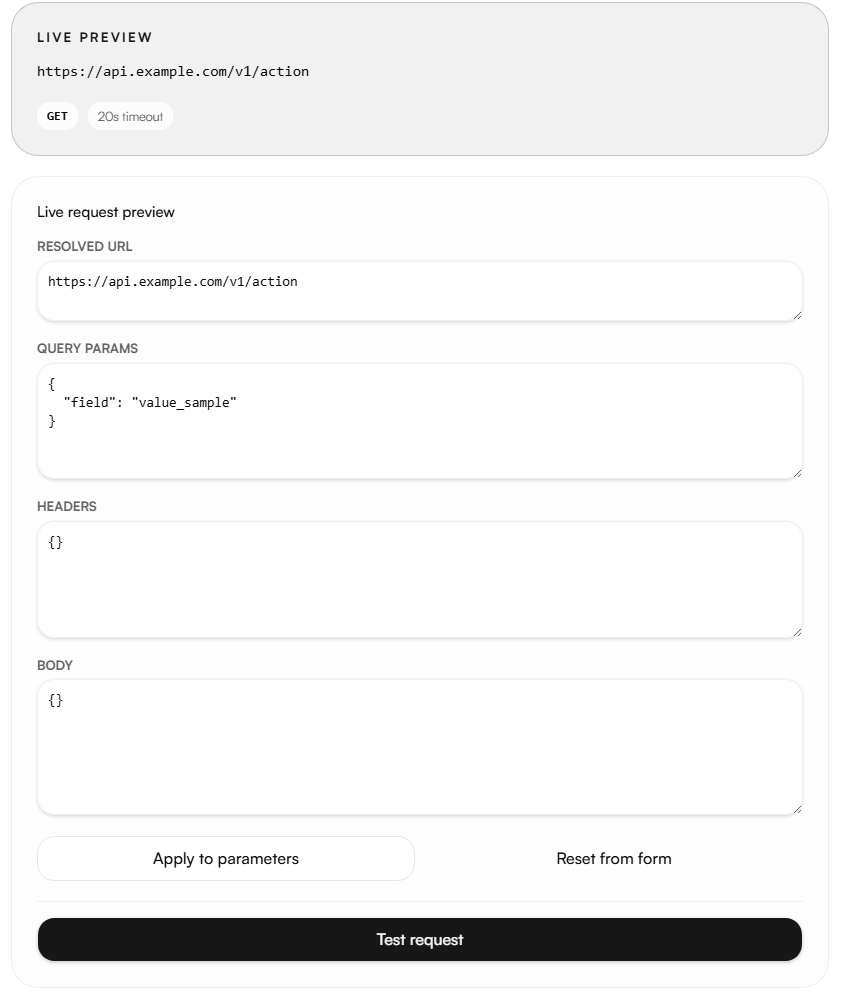
Live request preview
The Live Request Preview panel shows exactly what request the tool will send, based on the current configuration.
Resolved URL the final endpoint URL with path and query parameters applied.
Query params the parameters that will be sent in the URL query string.
Headers the headers that will be sent with the request.
Body the payload that will be sent in the request body.
Click Apply to parameters to sync changes made in the preview back into the parameter fields, or Reset from form to rebuild the preview from the current form values.
Click Test request to send a live call to the endpoint and verify the tool works as expected before linking it to an agent.
Saving the tool
Click Save changes to create the tool. Once saved, the tool becomes available to link under Agents → Tools & analysis → Custom tools.