

Workspace
WhatsApp analytics
On this page
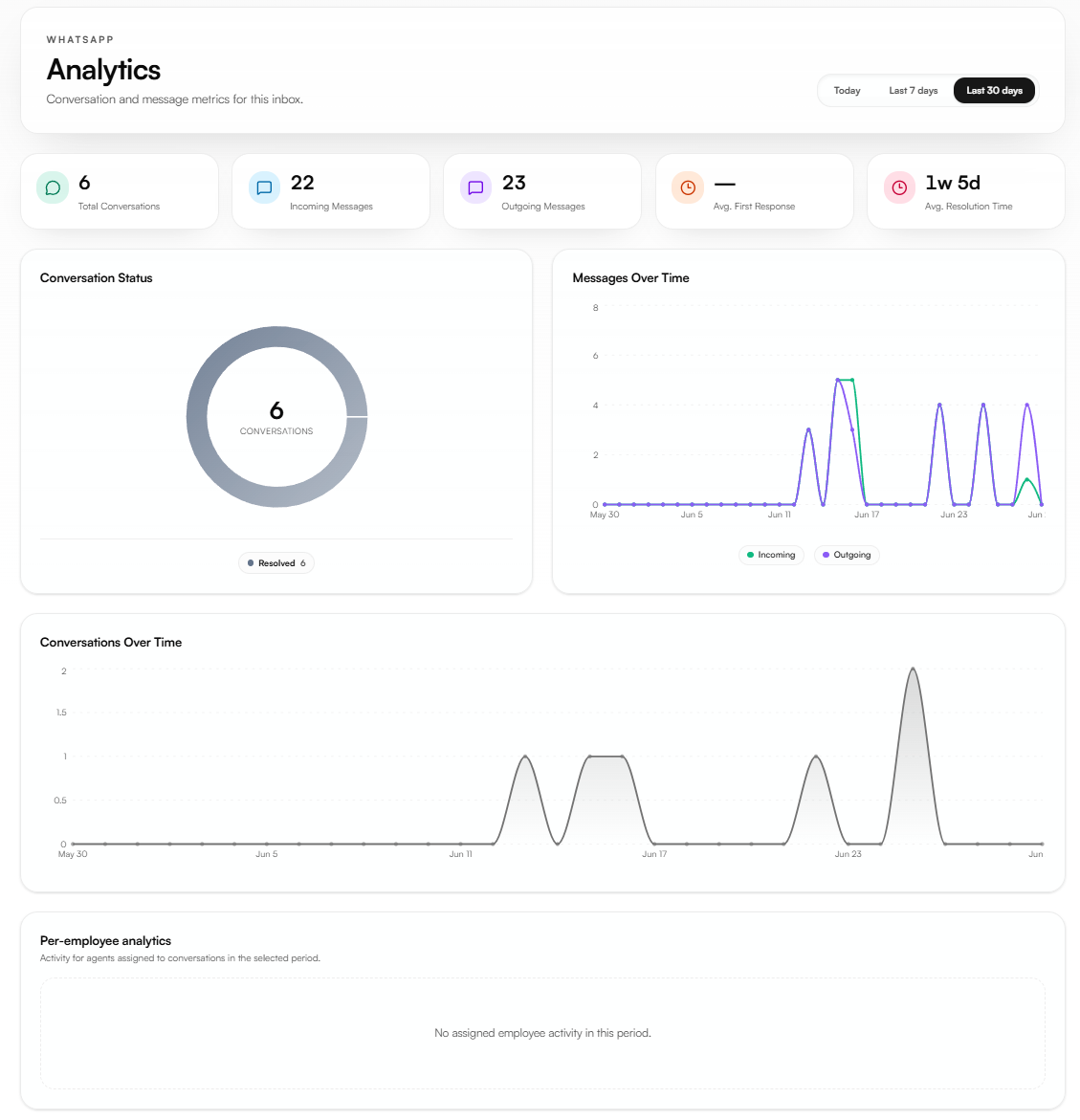
WhatsApp Analytics gives you a dedicated view of your agents' performance across WhatsApp conversations. It tracks message volume, conversation status, response times, and employee activity separately from your voice call data.
Filters
Three time period options appear at the top right of the page:
Today : data for the current day only
Last 7 days : data for the past seven days
Last 30 days : data for the past thirty days
All metrics and charts update immediately when you change the selected period.
Metrics
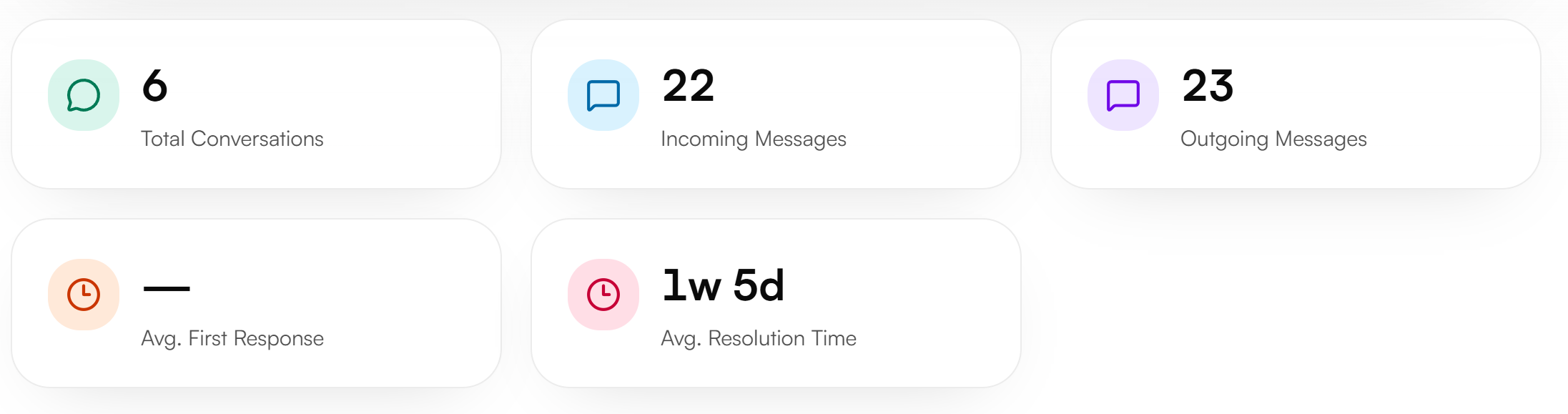
Five metrics appear at the top of the page.
Metric | What It Measures |
|---|---|
Total Conversations | The total number of WhatsApp conversations in the selected period |
Incoming Messages | The total number of messages received from customers |
Outgoing Messages | The total number of messages sent by the agent |
Avg. First Response | The average time between a customer's first message and the agent's first reply |
Avg. Resolution Time | The average time from conversation start to resolution |
Charts
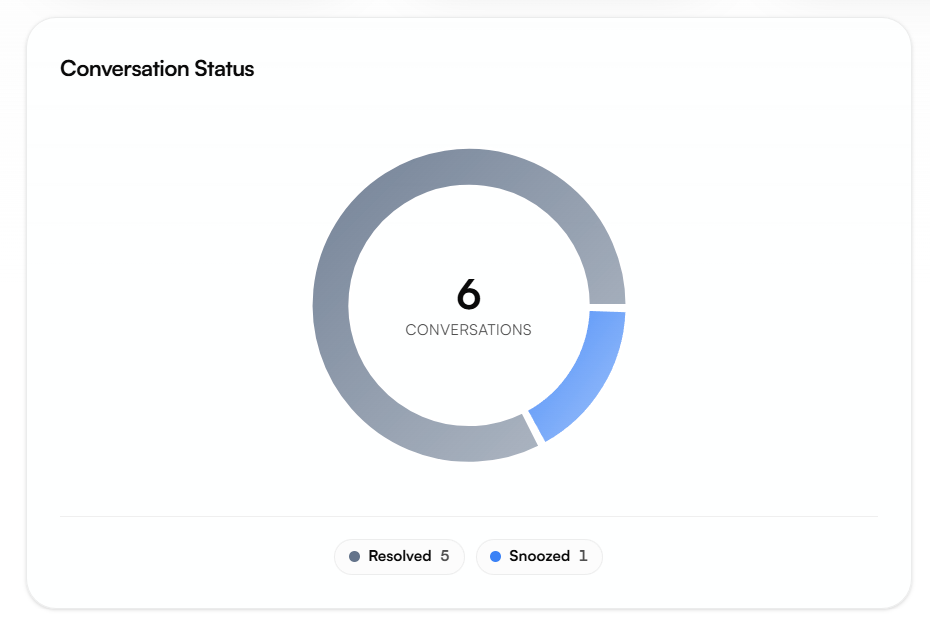
Conversation Status
A donut chart showing the status breakdown of all conversations in the selected period. Four statuses are tracked: Open, Pending, Resolved, and Snoozed.
Messages Over Time
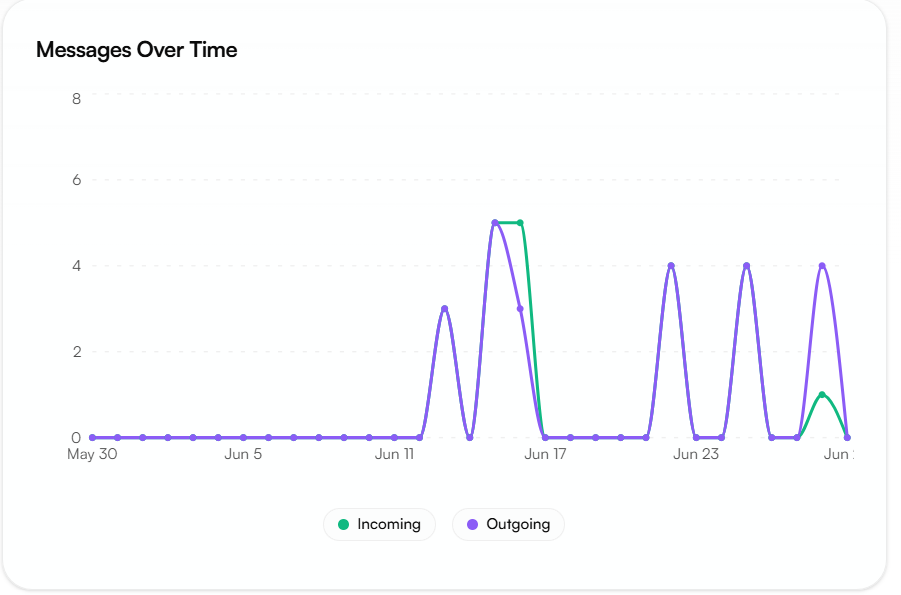
A line chart plotting incoming and outgoing message volume day by day over the selected period. Two lines are shown:
Incoming messages received from customers
Outgoing messages sent by the agent
Use this chart to understand messaging patterns and identify days with unusually high or low activity.
Per-employee analytics
The Per-Employee Analytics section shows activity broken down by the team members assigned to WhatsApp conversations in the selected period. Use this to track individual response performance and workload distribution across your team.
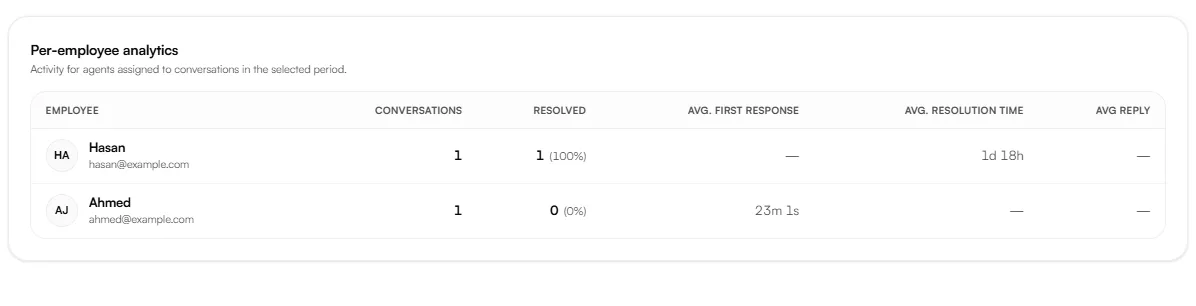
Column | What It Shows |
|---|---|
Employee | The team member's name and email |
Conversations | Total conversations assigned to this employee in the selected period |
Resolved | Number and percentage of assigned conversations marked resolved |
Avg. First Response | Average time between a customer's first message and this employee's first reply |
Avg. Resolution Time | Average time from conversation start to resolution, for this employee's conversations |
Avg Reply | Average time between messages during an ongoing conversation |