

Engagement
Ticketing
On this page
Jump to a section
The Ticket Inbox bridges Nabrah's AI agents and your human support team. It centralizes customer requests captured during live interactions, creating a structured layer that ensures no task gets lost in handoff transforming conversational data into actionable, trackable tickets within the platform.
Creating a ticket inbox
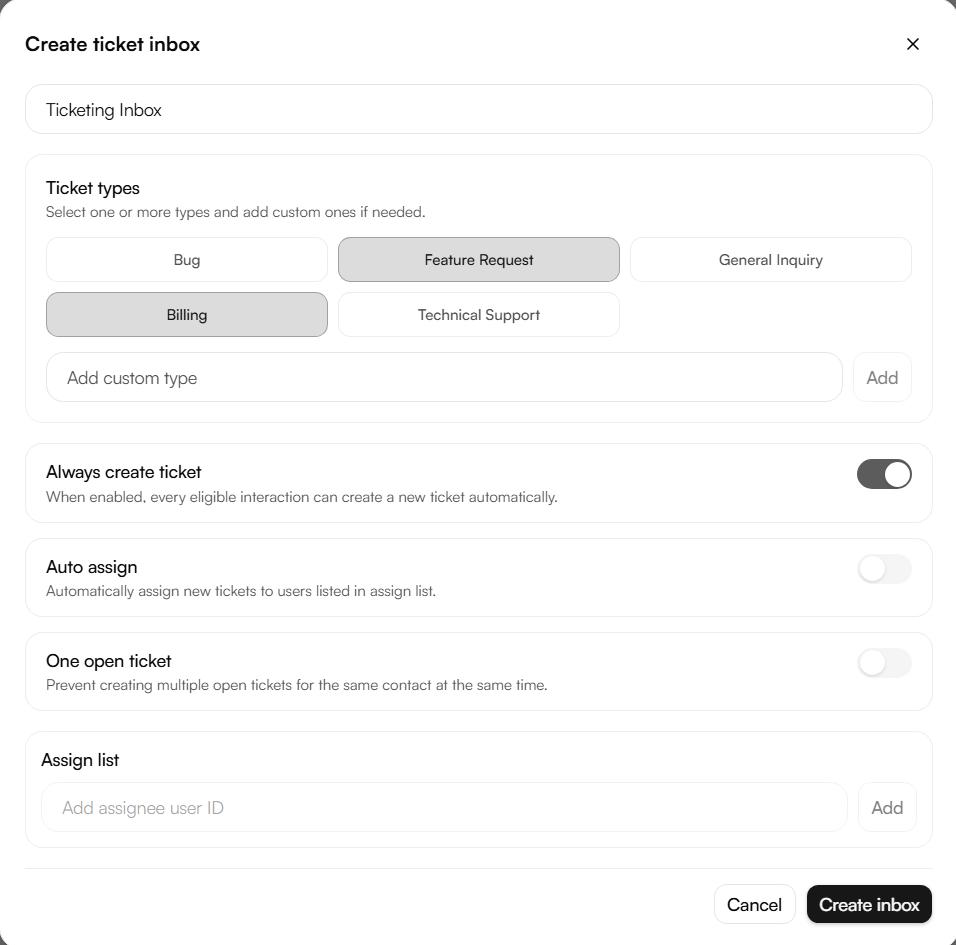
Navigate to Engagement → Ticketing and click Create inbox.
Each inbox acts as a dedicated queue for a specific team or use case. Every inbox requires a unique name used throughout the platform to distinguish between different support queues.
Ticket types select one or more from Bug, Feature Request, General Inquiry, Billing, and Technical Support. You can also add custom types tailored to specific business processes.
Always create ticket - when enabled, every eligible interaction creates a ticket automatically. This includes calls the agent successfully resolves, allowing teams to monitor agent performance or collect comprehensive data on request types even when manual intervention is not required.
Auto assign automatically routes new tickets to users listed in the assign list, ensuring every ticket reaches the right person immediately.
One open ticket prevents duplicate requests from cluttering the inbox. When enabled, the agent will not create a new ticket for a contact who already has an unresolved one. A new ticket is only generated once the previous one is marked as Resolved.
Assign list the team members who receive auto-assigned tickets.
Once created, link the inbox to an agent under Build → Agents → Section 2: Audio & language → Enable ticket creation.
Ticket dashboard
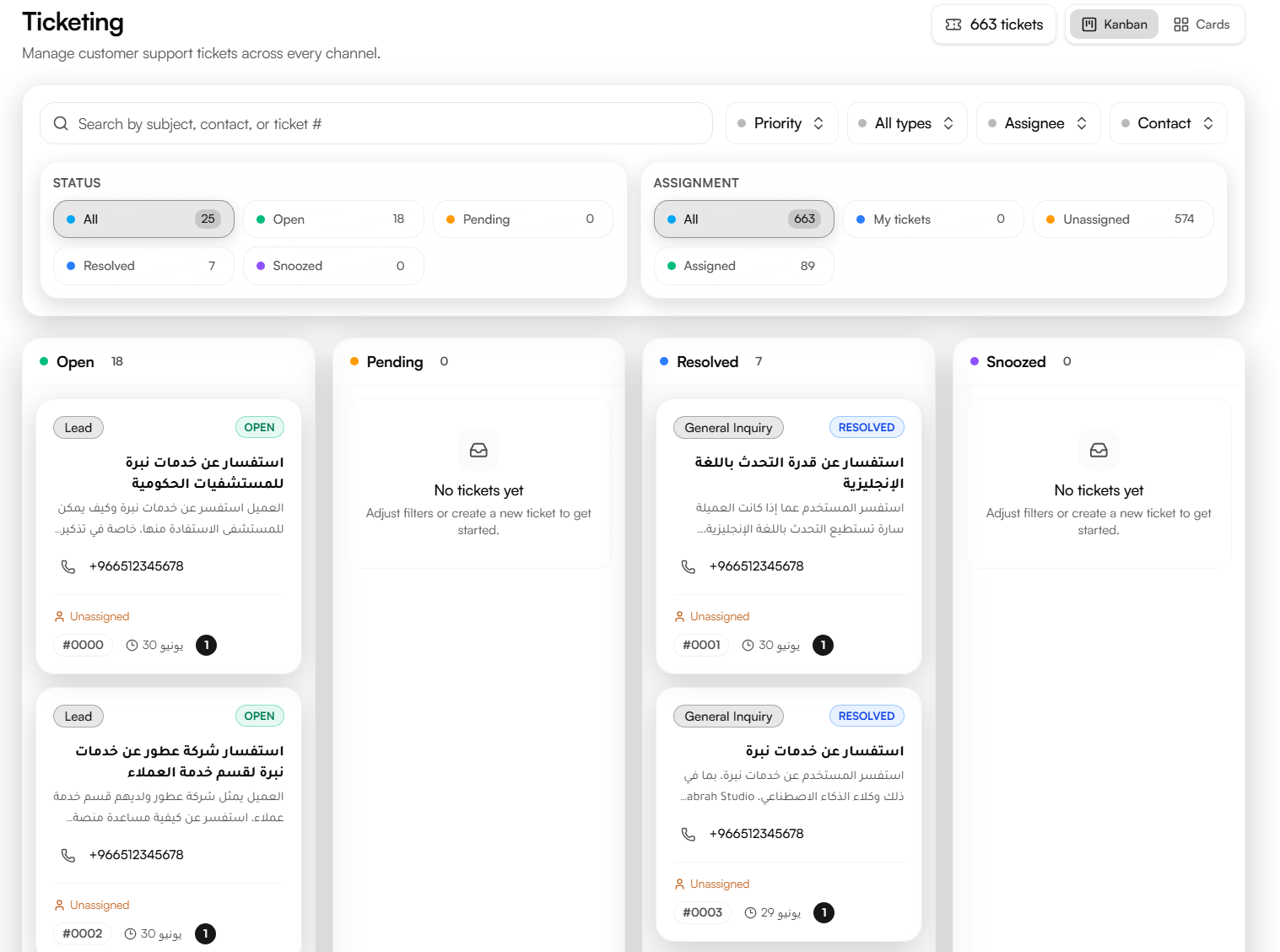
The ticket dashboard is the primary command center for viewing and addressing customer requests. Two view modes are available Kanban and Cards.
Filter tickets by:
Filter | Options |
|---|---|
Status | All, Open, Pending, Resolved, Snoozed |
Assignment | All, My tickets, Assigned, Unassigned |
Priority | Urgent, High, Medium, Low, None |
Type | Bug, Feature Request, General Inquiry, Billing, Technical Support, and custom types |
Assignee | Any team member |
Contact | Any contact in the workspace |
Search by subject, contact name, or ticket number.
You can also create tickets manually. A Subject and Description are required.
Type and Customer phone are optional.
Per-ticket record
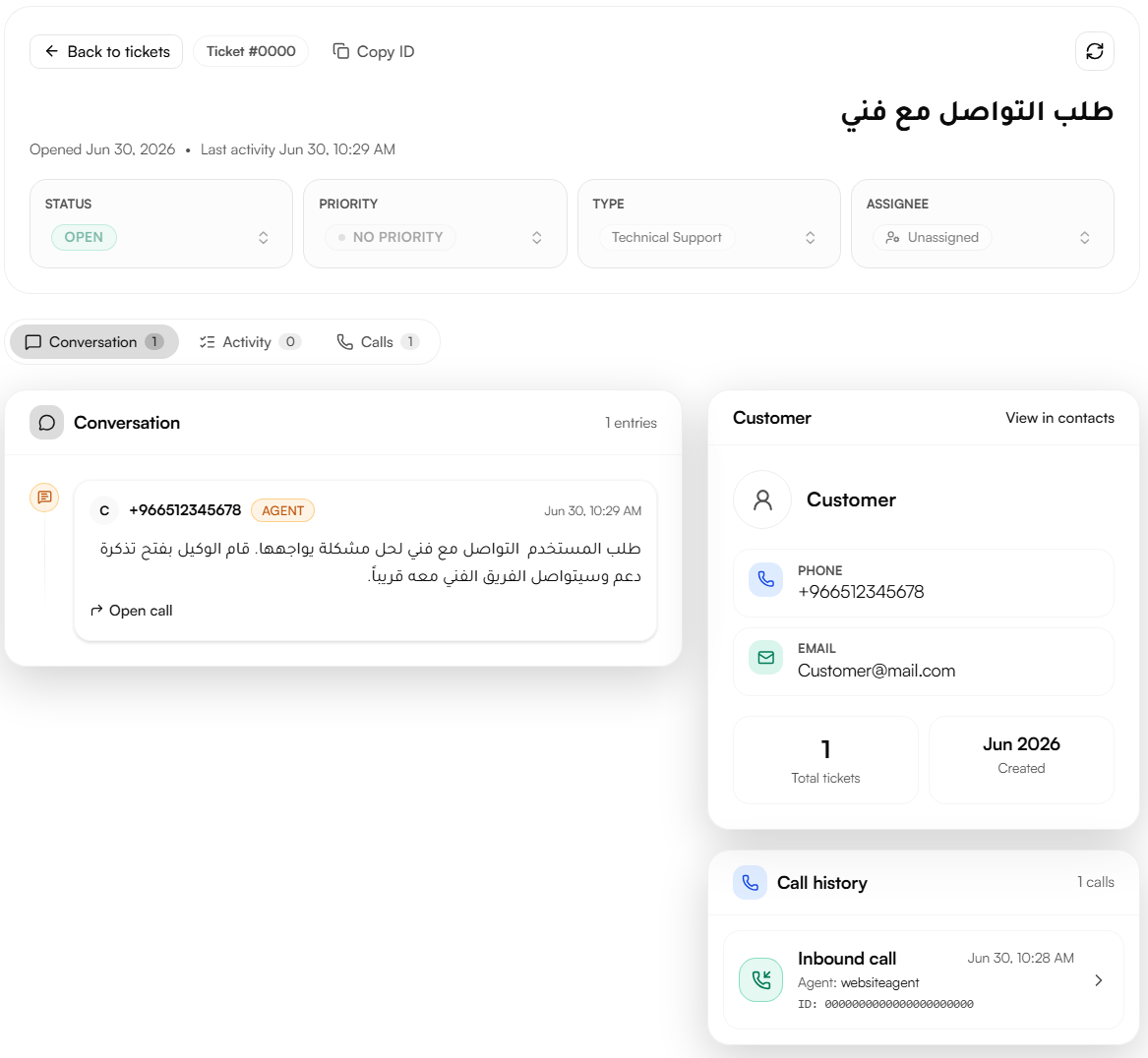
Each ticket displays its Status, Priority, Type, and Assignee, populated automatically by the AI agent based on the context of the call and editable by the team at any time.
Note: Priority is the exception it is set and updated exclusively by team members to ensure human oversight over urgency.
Three tabs are available inside each ticket:
Conversation the AI-generated summary of the interaction that triggered the ticket, with a direct link to the original call record.
Activity a full log of every change made to the ticket since it was opened.
Calls the call history associated with the ticket's contact.
The right panel shows the customer's phone, email, total tickets, and linked call history, with a shortcut to view the full contact profile.
Internal discussion
Each ticket includes an internal discussion area where team members can leave comments, share context, or coordinate next steps. These notes remain invisible to the customer, providing a secure space for teams to collaborate without affecting the customer-facing conversation.