

Build
Follow-ups
On this page
Follow-ups send an automated Email or WhatsApp message after a call ends. They are configured per agent and triggered by the outcome of the call's analysis letting you reach customers automatically based on what happened during the conversation.
How it works
A call ends, and the transcript is analyzed extracting the boolean fields, scores, and outcomes defined in the agent's analysis group.
This triggers a post-analysis callback to the follow-up endpoint. Saving a follow-up template auto-wires the agent's callback URL no separate webhook setup is needed.
The endpoint checks each template's trigger conditions against the analysis results.
If the conditions match, the message is sent with its placeholders filled in call details, agent variables, and analysis results.
Email follow-up
Agent : selecting an agent loads its available variables and analysis fields.
Recipient / CC : the email address or addresses to send the follow-up to.
Subject : the email subject line. Supports placeholders for call details.
Body : the email content. Supports inserted placeholders for call details (Duration, Call From, Call To, Call Type, Status, Agent Name) and any variables defined for the selected agent.
WhatsApp follow-up
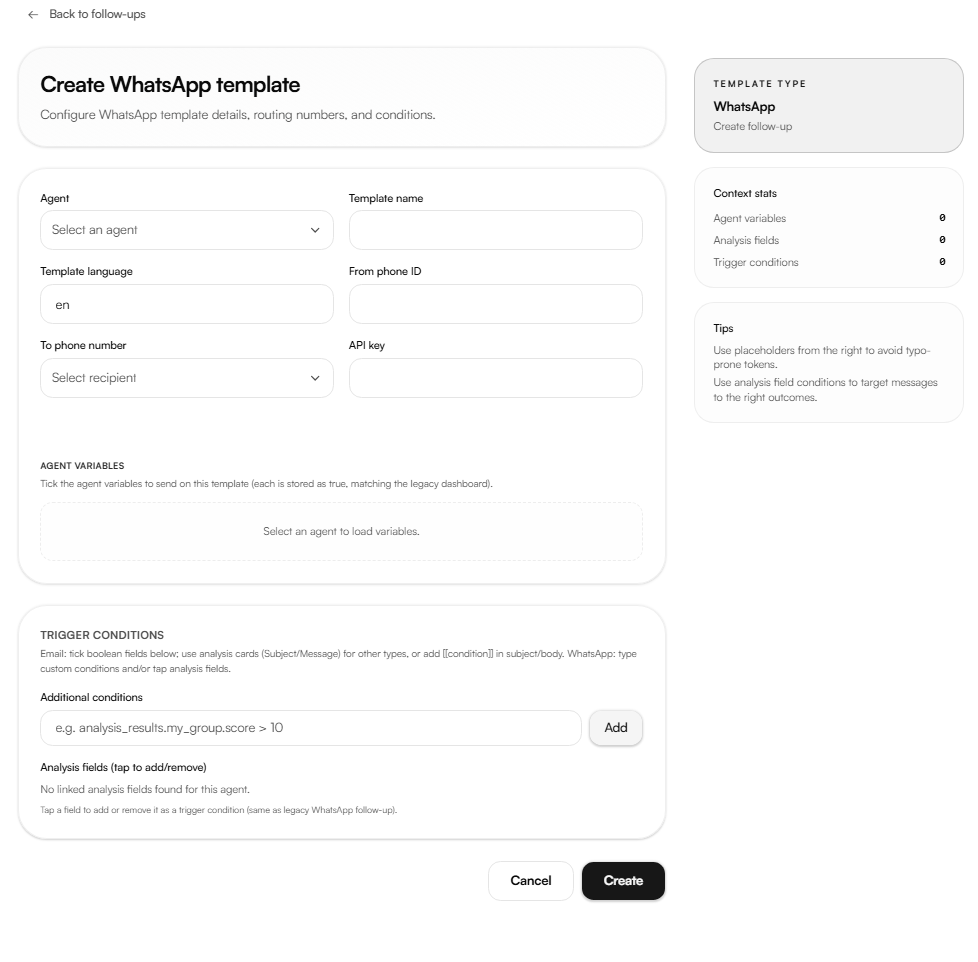
Template name / language must reference an approved WhatsApp template.
From phone ID / To number (or contact) your WhatsApp Business API phone ID and the recipient's number or contact.
Agent variables each ticked variable is sent with the template.
Trigger conditions
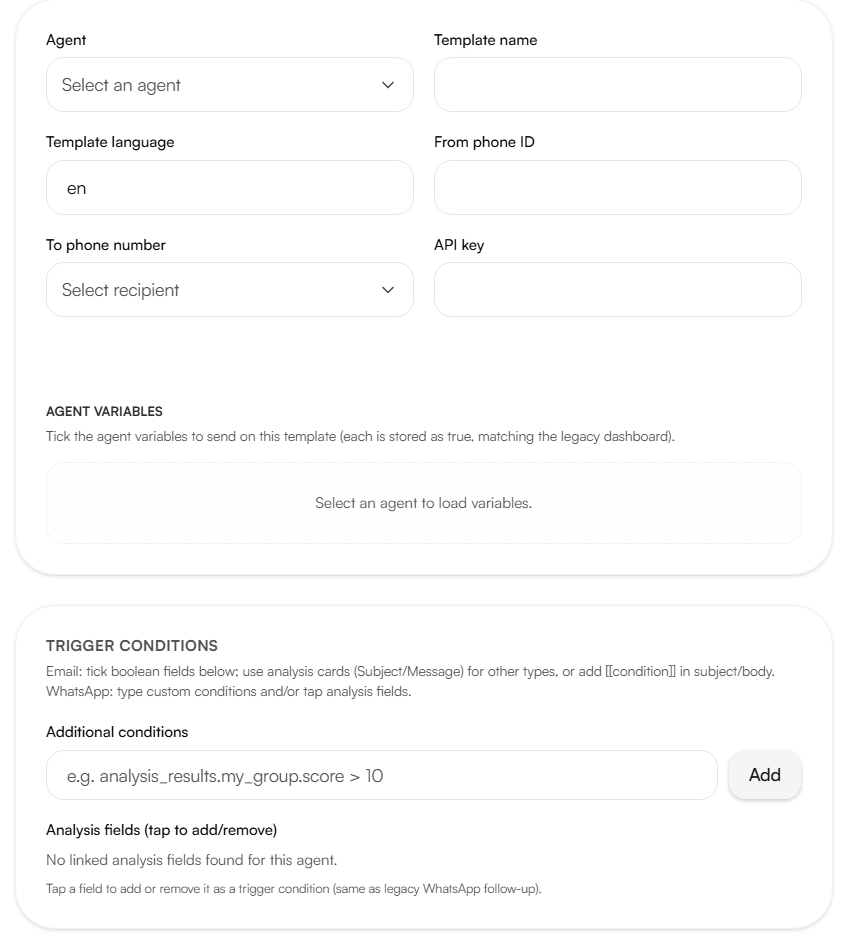
With no conditions set, the follow-up sends after every call. To restrict it to specific outcomes:
Tick a boolean analysis field - the follow-up fires only when that field is true.
Write an expression, for example analysis_results.my_group.score > 10.
Note: If no analysis group is linked to the selected agent, no fields are available to use as triggers. Link one under Build → Agents → Tools & analysis first.
Typical scenarios
Scenario | Follow-up |
|---|---|
Lead qualified | Email or WhatsApp with a brochure or booking link |
Meeting booked | Confirmation message with the booking details |
Complaint or unresolved issue | Follow-up to the customer, alongside a human-handoff flag |
Order status or quote requested | Recap message sent after the call |