

Voice tools
Text to speech
On this page
Jump to a section
Nabrah's Text to Speech converts written Arabic text into natural-sounding audio using voice models purpose-built for the Saudi dialect. Use it to produce voiceovers, podcast intros, booking confirmations, marketing content, or any audio that needs a consistent, professional Arabic voice.
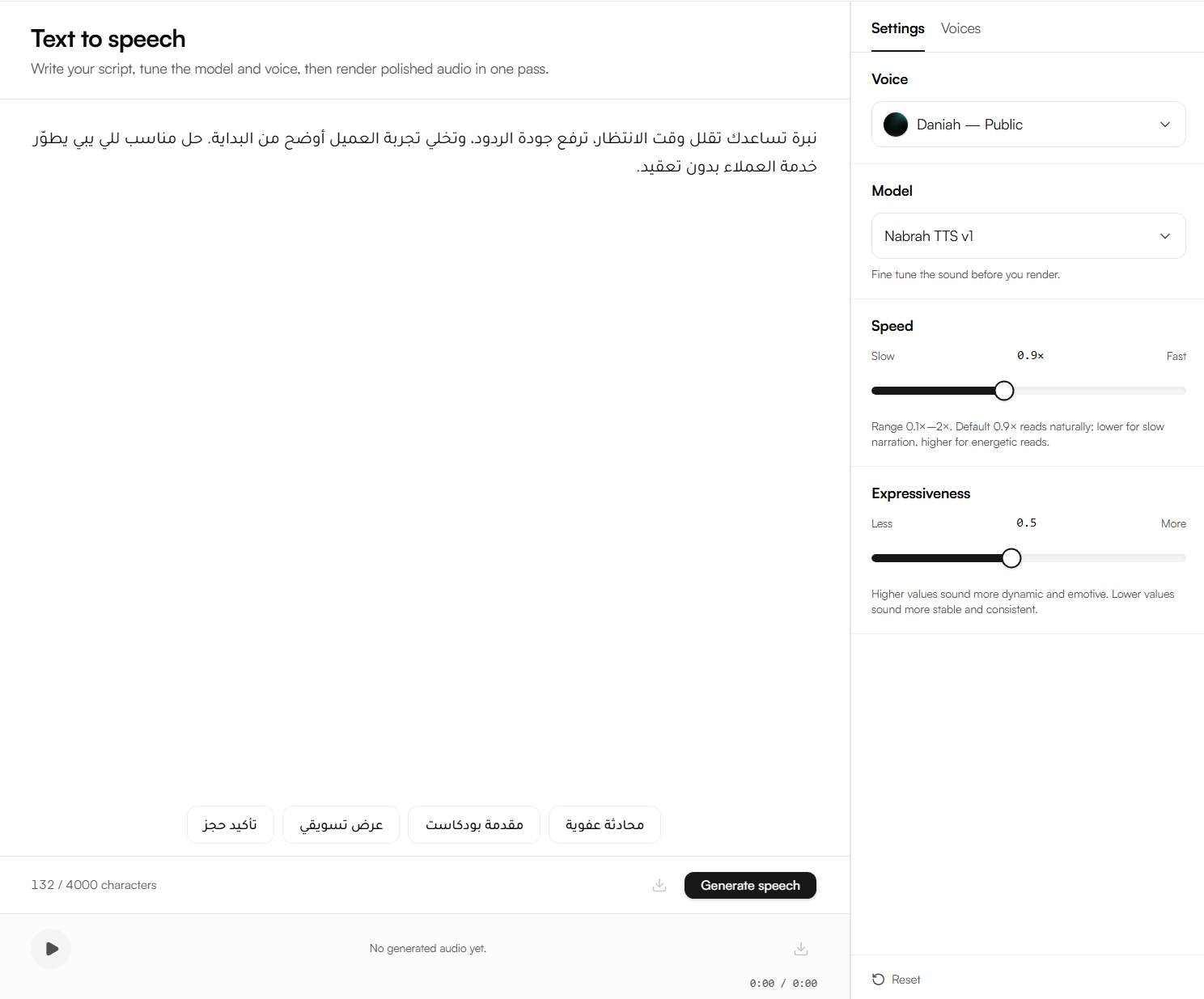
Guide
Follow these four steps to generate audio.
1. Text input
Type or paste your text into the input field. The limit is 4,000 characters per generation. Sample prompts appear below the input field if you need a starting point.
Tip: Use proper Arabic punctuation and spacing. Well-punctuated text produces more natural pauses and phrasing in the output audio.
2. Voice selection
Open the Voices tab on the right panel to browse available voices. Each voice can be previewed before selection.
Public voices provided by Nabrah, available to all workspaces.
Private voices cloned voices created within your workspace, visible only to you.
3. Adjust settings
Open the Settings tab to fine-tune the output before generating.
Setting | What it controls |
|---|---|
Model | The voice model used for synthesis affects naturalness and expressiveness |
Speed | The speaking pace from slow to fast |
Expressiveness | The emotional range and energy level of the delivery |
4. Generate
Click Generate speech to render the audio. Once generated, the audio player appears at the bottom of the page. Play the audio to review it, or click Download to save the file.