

Voice tools
Voice cloning
On this page
Jump to a section
Voice cloning creates a synthetic replica of any voice from a short audio sample and saves it as a private workspace voice. Once created, the cloned voice is available for use in Text to Speech and Nabrah Agents.
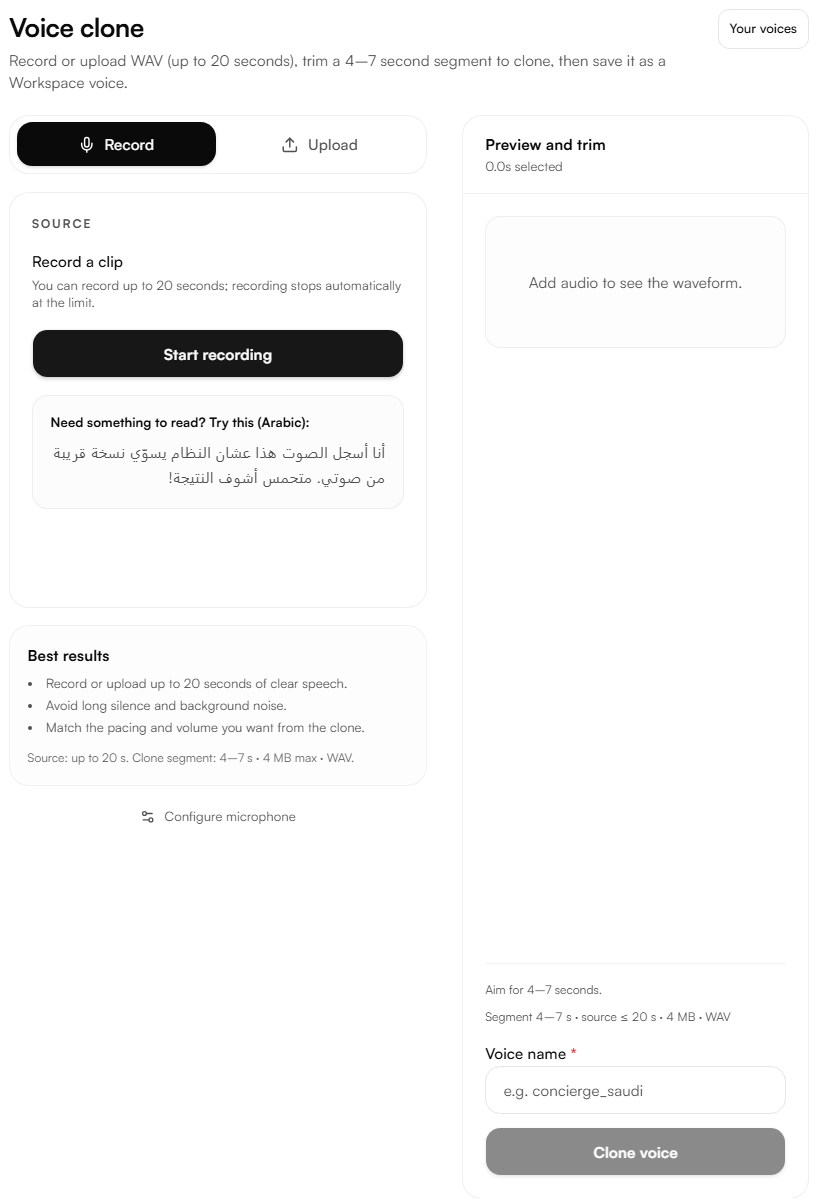
Guide
1. Provide audio
Two input methods are available:
Record record directly in the browser. Recording stops automatically at 20 seconds. A sample Arabic sentence is provided on screen to read aloud if needed.
Upload drop a WAV file or click to browse. Maximum file size is 4 MB and maximum duration is 20 seconds.
2. Preview and trim
Once audio is added, the waveform appears in the preview panel on the right. Trim a 4–7 second segment from the recording to use as the clone source. Aim for a segment with clear, natural speech and no silence or background noise at the edges.
3. Name and clone
Enter a voice name, then click Clone voice. The cloned voice is saved to the workspace and available immediately under Voices and in the Text to Speech voice selector.
Best results
Record or upload up to 20 seconds of clear speech.
Avoid long silences and background noise.
Match the pacing and volume intended for the final output the clone reflects the characteristics of the source recording.