
Insights
Email insights
Email insights shows how the emails sent to your connected mailboxes were received, answered and routed. Use it to see how much the assistant answers on its own, how fast replies go out, and why emails were left for your team or blocked.
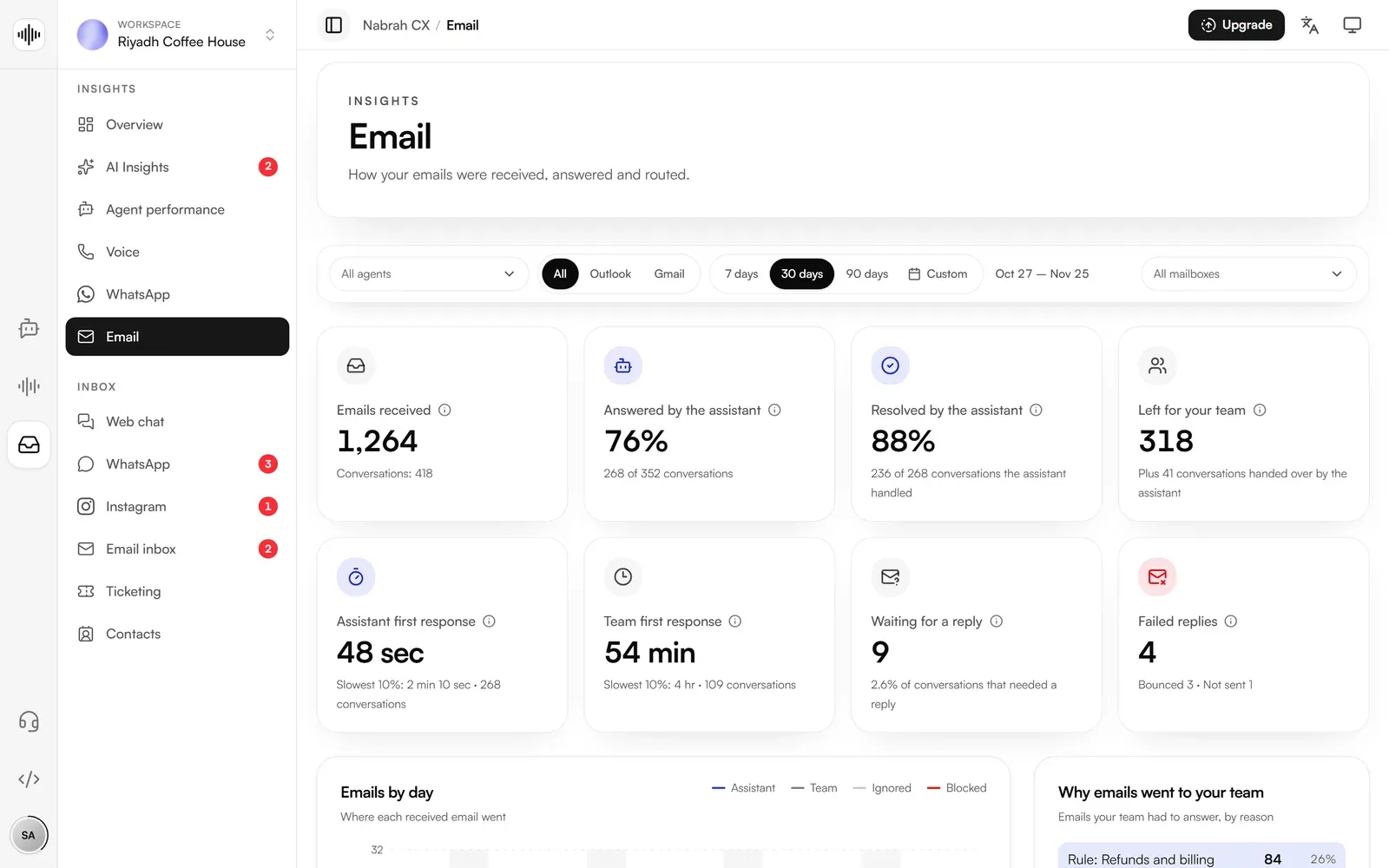
Before you start
Requirement | Why it matters |
|---|---|
A connected mailbox | Without one, the page shows "No mailbox connected". See Email inbox |
Analytics access at View | Needed to open any Insights page. See Insights overview |
Open CX → Insights → Email.
Filters
Filter | Description |
|---|---|
Agent | All agents, or one agent. Only agents linked to a mailbox are listed |
Provider | All, Outlook or Gmail. Shown when the workspace has both Outlook and Gmail mailboxes |
Period | 7 days, 30 days or 90 days, each ending today, or Custom for any range up to 366 days. Default: 30 days |
Mailbox | All mailboxes, or one mailbox. Shown at the right of the filter bar when there's more than one mailbox to choose from |
All cards update as soon as you change a filter. Days and hours are counted in your browser's time zone.
Metrics
Card | What it measures |
|---|---|
Emails received | Every email that reached the mailbox in this period, including ignored and blocked ones. The line below shows how many conversations they belong to |
Answered by the assistant | Share of conversations that needed a reply where the assistant sent one |
Resolved by the assistant | Share of the assistant's conversations that closed with no further customer email before auto-close |
Left for your team | Emails that went to your team without an assistant reply, for example because of a rule, a topic the assistant doesn't answer, the assistant being off or a reply limit. The line below adds the conversations the assistant handed over |
Assistant first response | Median time from the customer's first email in this period to the assistant's first reply, with the slowest 10% below |
Team first response | Median time from the customer's first email in this period to your team's first reply |
Waiting for a reply | Conversations that needed a reply and haven't had one from the assistant or your team yet |
Failed replies | Replies to emails received in this period that bounced or couldn't be sent, split into Bounced and Not sent |
Check Waiting for a reply every day. These customers have had no answer from anyone. Open CX → Inbox → Email inbox and reply, or adjust the rules that keep these emails from the assistant.
Charts and tables
Emails by day
Where each received email went, per day:
Outcome | What it means |
|---|---|
Assistant | The assistant answered the email |
Team | The email was left for your team |
Ignored | A rule, or the mailbox's default, set the email aside without a reply |
Blocked | The assistant didn't answer it for one of the safety reasons below |
Why emails went to your team
Emails your team had to answer, by reason, most common first. Smaller reasons are grouped under Other reasons.
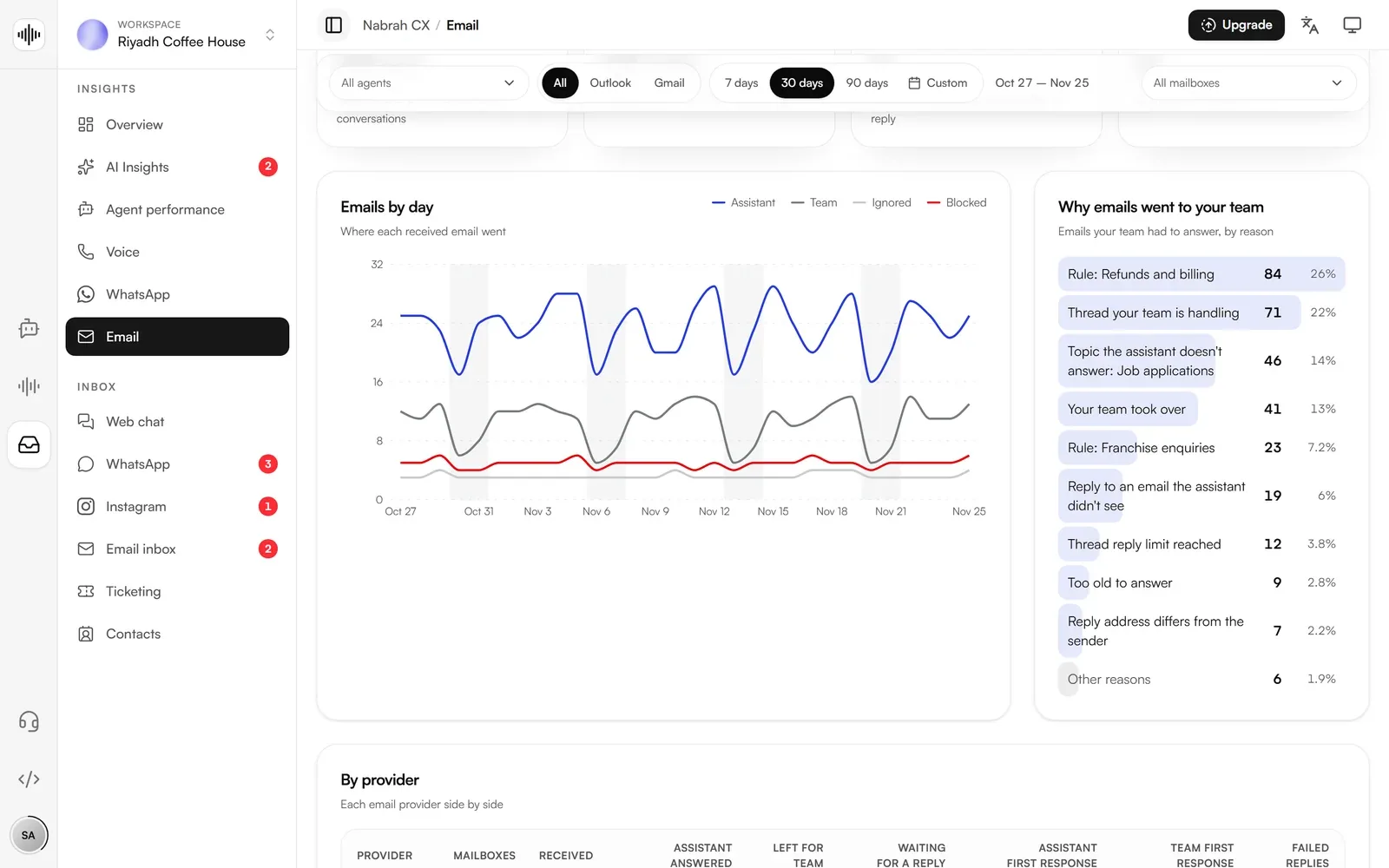
Reason | What it means |
|---|---|
Rule: {name} | One of your answer rules sends these emails to your team |
Topic the assistant doesn't answer: {topic} | The email is about a topic you told the assistant not to answer |
Mailbox sends to your team by default | No rule matched, and the mailbox leaves unmatched emails for your team |
Assistant off or no agent linked | The assistant is switched off for the mailbox, or no agent is linked to it |
Mailbox can't send replies | The mailbox doesn't allow sending. Reconnect it with send permission |
Thread your team is handling | The conversation is already with your team |
Your team took over | A team member took over the conversation |
Reply to an email the assistant didn't see | The customer replied to an email the assistant has no record of |
Reply address differs from the sender | The email asks for replies to go to a different address than the sender's, so it's left for a person to check |
Too old to answer | The email was more than 24 hours old when the assistant got to it |
Couldn't be read | The email's content couldn't be read |
Thread reply limit reached | The assistant already sent the most replies it can in this conversation |
Daily reply limit reached | The assistant sent 500 replies from this mailbox today (counted from midnight UTC) |
Emails stopped by a reply limit count as Blocked in Emails by day, and also as Left for your team, because they wait in the inbox for a person.
By provider
Outlook and Gmail side by side, with the number of mailboxes for each. Shown when the workspace has both. The columns are the same as in Mailboxes.
Mailboxes
Volume, assistant answers and reply times for each mailbox.
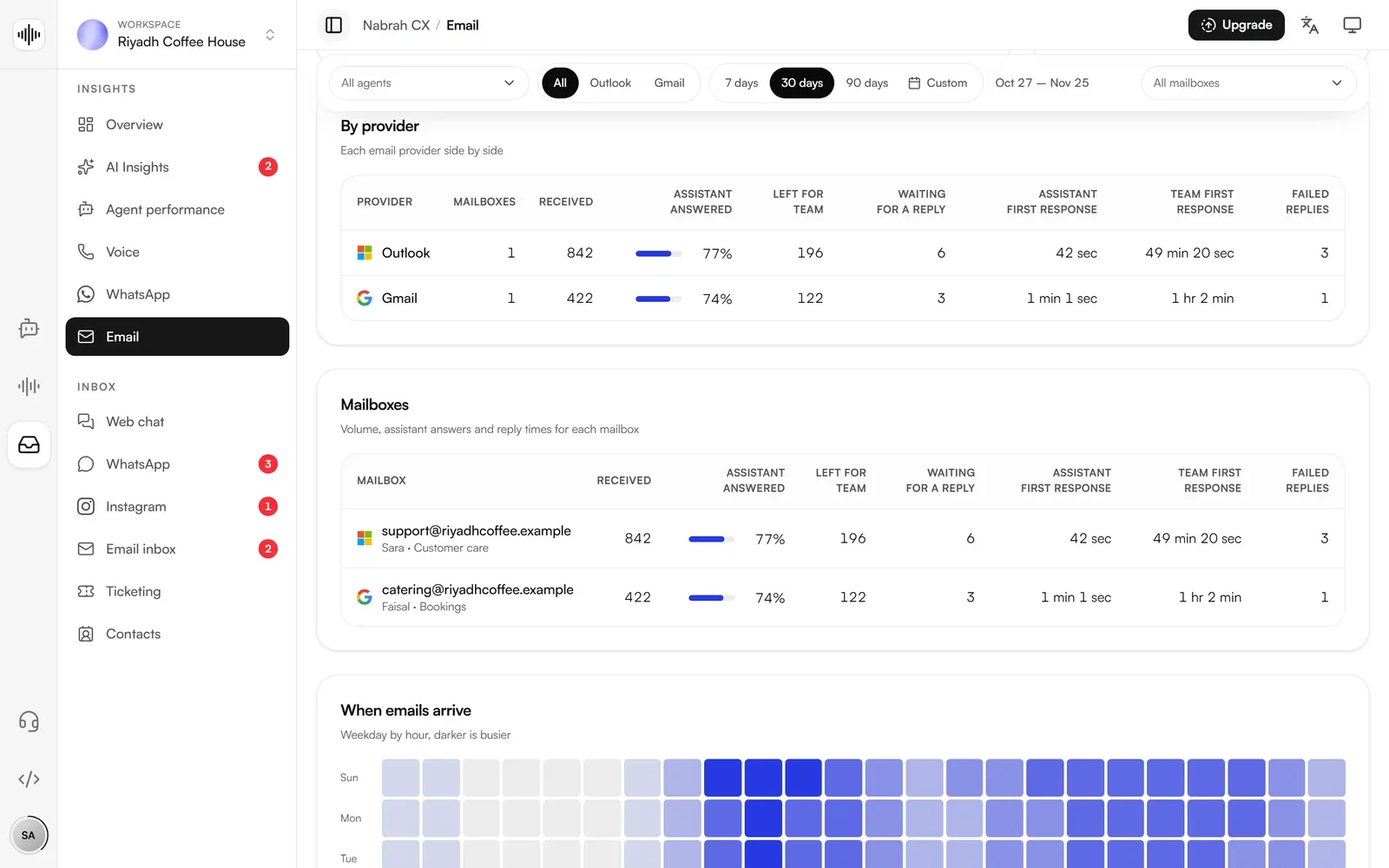
Column | Description |
|---|---|
Mailbox | The address, its provider and the linked agent, or "No agent linked" |
Received | Emails received |
Assistant answered | Share of conversations that needed a reply where the assistant sent one |
Left for team | Emails left for your team |
Waiting for a reply | Conversations still waiting for a first reply |
Assistant first response | Median time to the assistant's first reply |
Team first response | Median time to your team's first reply |
Failed replies | Replies that bounced or couldn't be sent. Hover the number to see the split |
When emails arrive
A weekday-by-hour grid, Sunday first. Darker is busier. The line under the grid names the busiest slot. Hover a slot to see its emails and its share of that day's emails.
Answer rules
How many emails each rule matched, split into Assistant, Team, Ignored and Blocked. If no email matched a rule, the card says "No emails matched a rule in this period."
Why emails were blocked
Emails the assistant didn't answer, by reason.
Reason | What it means |
|---|---|
Automatic reply | An out-of-office or other automatic reply |
Delivery failure notice | A message saying an email couldn't be delivered |
Mailing list | Newsletters and other bulk mail |
No-reply sender | The sender is a no-reply address |
Sent from this mailbox | The email came from the mailbox's own address |
Too many emails from one sender | More than 20 emails from the same sender within an hour |
No sender address | The email has no sender address |
Thread reply limit reached | The assistant already sent the most replies it can in this conversation |
Daily reply limit reached | The assistant sent 500 replies from this mailbox today (counted from midnight UTC) |
Blocked emails protect you from reply loops. Without these checks, the assistant could answer an auto-reply that answers it back, again and again.
Troubleshooting
Symptom | Cause | Fix |
|---|---|---|
"No mailbox connected" | No mailbox is connected in this workspace | Click Go to Email inbox and connect one |
Email is missing from the tabs on a small screen | No mailbox is connected | Connect a mailbox first |
The Provider filter is missing | All mailboxes use the same provider | No action needed |
Answered by the assistant says "No conversation needed a reply" | Every email in the period was ignored, blocked or left for the team | Pick a longer period, or review your answer rules |
Many emails under Mailbox can't send replies | The mailbox was connected without permission to send | Reconnect the mailbox in CX → Inbox → Email inbox |
Many emails under Assistant off or no agent linked | The assistant is off, or no agent is linked to the mailbox | Link an agent and turn the assistant on for the mailbox |
Many emails under Too old to answer | The mailbox was disconnected for a while, so emails arrived late | Keep the mailbox connected. Your team answers the backlog |
Frequently asked questions
What's the difference between Left for your team and handed over by the assistant? Left for your team counts emails that went to your team without any assistant reply. Conversations the assistant answered first and then passed to your team are shown separately, on the line below the number.
Why is Resolved by the assistant higher than Answered by the assistant? They measure different things. Answered is the share of conversations that needed a reply where the assistant replied. Resolved is the share of the assistant's own conversations that closed without another customer email.
Where do I change the rules and topics? In the mailbox settings in CX → Inbox → Email inbox. See Email inbox.