
Nabrah CX
Nabrah CX overview
Nabrah CX brings every customer conversation and the numbers behind them into one place. Your AI agents answer calls, WhatsApp messages, emails, website chats and Instagram messages; CX is where your team follows those conversations, steps in when needed, and sees how well customers are being served.
Open CX from the app rail on the left. Its side panel has two sections: Insights and Inbox.
Insights
Insights turns your calls and conversations into a clear picture of what customers need and how your agents are doing.
Page | What it shows |
|---|---|
Conversations across calls, WhatsApp and email, how they ended, why customers reached out, credit usage and health | |
Recurring issues that are spiking, tag trends, findings and next steps, written from your calls | |
Each agent's conversations, resolution, accuracy and tool calls | |
Call volume, connection, duration, who ended the call and peak times | |
WhatsApp conversations, response times, numbers, your team and templates | |
Emails received, answered by the assistant or left for your team, and why |
Inbox
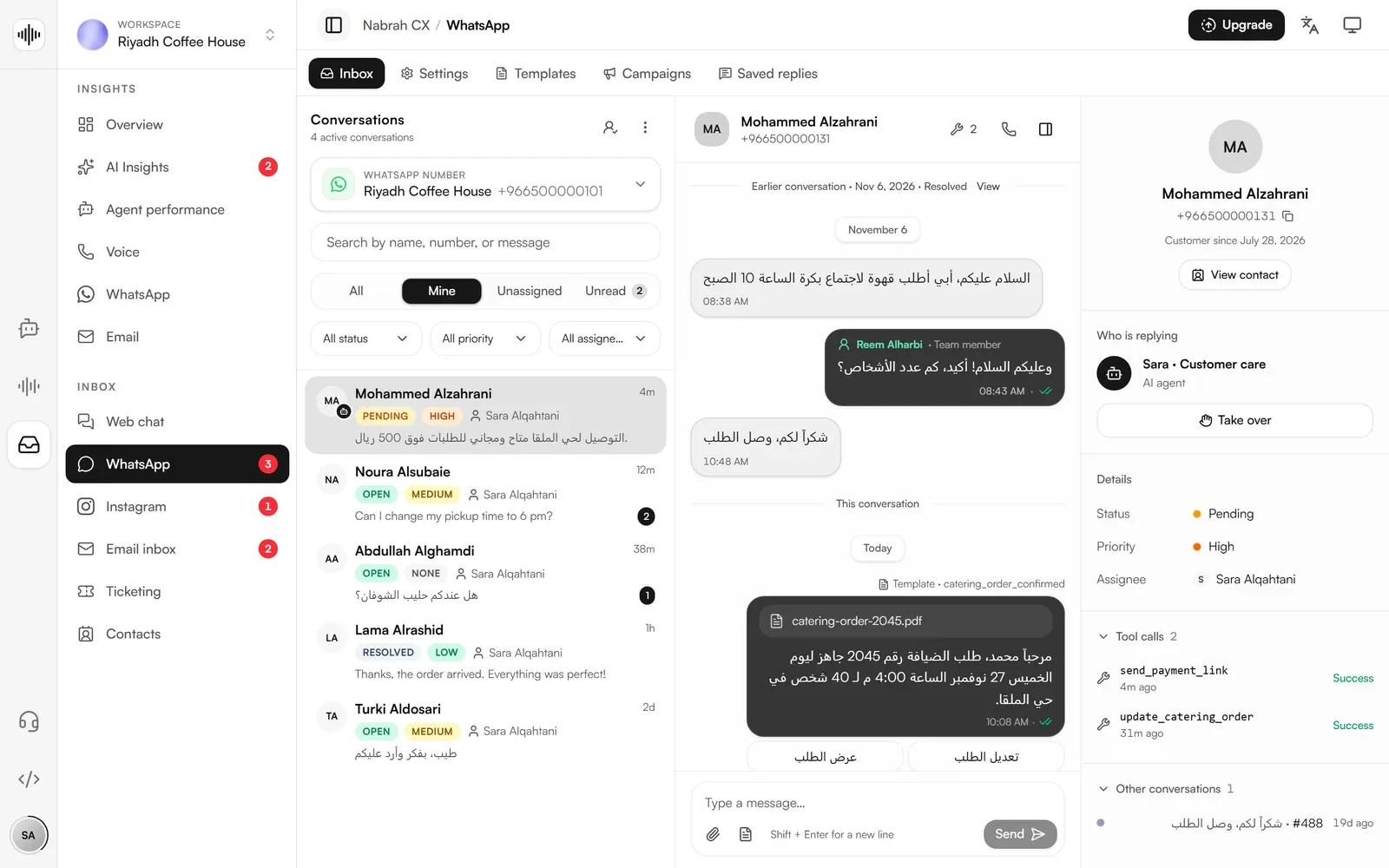
The inbox is where your team reads and replies to conversations. Each channel has its own page.
Page | What it's for |
|---|---|
Web chat | Chats from the chat widget on your website. See Chat widget |
Direct messages to your Instagram account | |
Email from connected Microsoft 365 and Google mailboxes | |
Tickets your agents open from calls and chats | |
Everyone your agents and team have talked to |
Every chat inbox works the same way:
Your AI agent answers first. When it hands over, or when you take over, the conversation moves to your team.
Conversations have a status, a priority and an assignee, so the team knows what's waiting and who's on it.
Type
/in the reply box to insert a saved reply.Each channel's Settings tab links an agent, sets when conversations close on their own, and decides who a conversation goes to when the agent refers it to a person.
Who can use CX
Access is set for each member: open My Workspaces, click Members on the workspace, and edit the member's access. Each inbox (WhatsApp, Web chat, Instagram, Email, Ticketing, Contacts) can be set to None, View or Edit, and WhatsApp numbers, mailboxes and Instagram accounts can be limited to selected ones. Insights pages need access to Analytics. See Workspace & teams.
The CX icon appears on the rail once a member can open at least one inbox.