
Voice tools
Pronunciation dictionaries
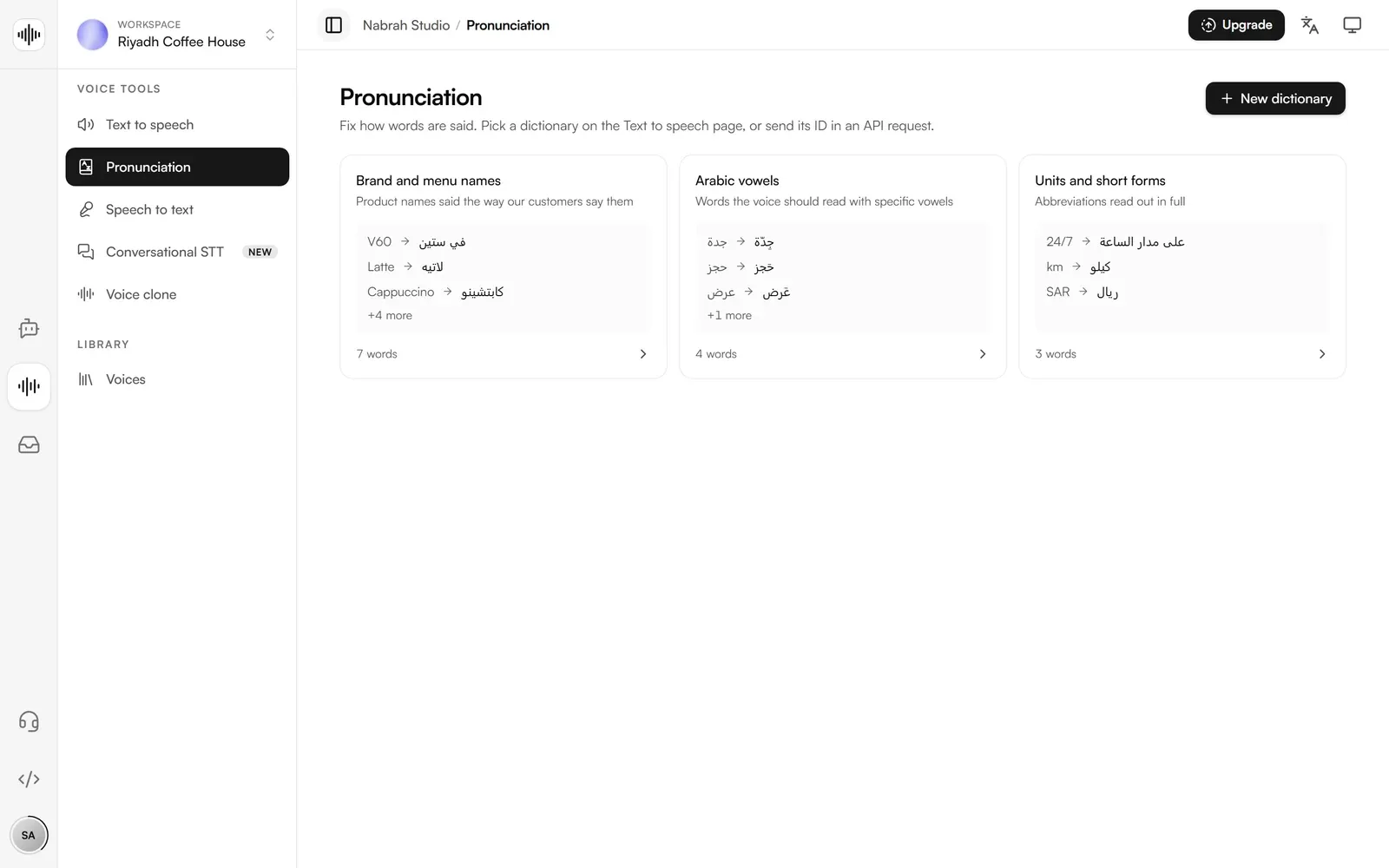
Pronunciation dictionaries fix how the voice says specific words. You add a word and how it should be said, and Nabrah swaps it in just before the text becomes audio. Your script stays exactly as you typed it.
Use them for brand and menu names, English words inside Arabic scripts, abbreviations, and Arabic words that need specific vowels, for example مثل → مُثل.
How dictionaries work
A dictionary is a named list of words. Each word has the text to look for and how it should be said.
A dictionary applies only when you pick it: on the Text to speech page, or by sending its ID in an API request. Text sent without a dictionary is read as typed.
Every word is replaced in one pass, so a replacement is never replaced again.
Credits count the text after the replacements.
Create a dictionary
Open Studio → Pronunciation and click New dictionary.
Enter a Name, up to 80 characters, for example Brand names.
Add an optional Description, up to 300 characters.
Click Create. The new dictionary opens, ready for words.
Add words
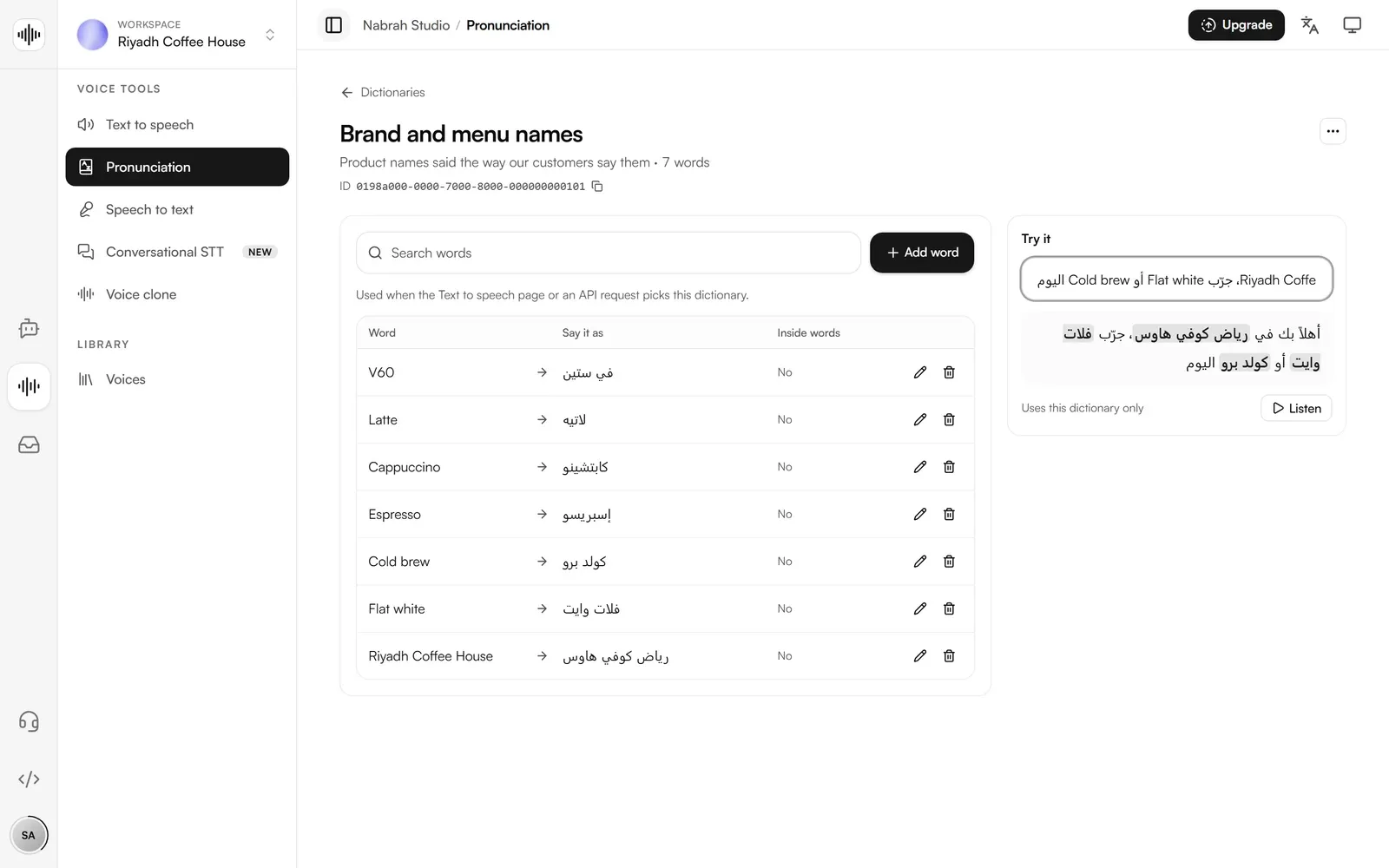
Click Add word and fill in the row.
Field | Description |
|---|---|
Word in the script | The text to look for, up to 100 characters |
How it should be said | What the voice reads instead, up to 300 characters. Write it the way it should sound: Arabic spelling for an English name, added vowel marks, or a number written out in words |
Also match inside longer words | Off by default. Turn it on to replace the word even when it's part of a longer word |
Press Enter or click Save. Press Esc to cancel. To change a word, click its pencil icon. The trash icon deletes it straight away.
How words are matched
Rule | Example |
|---|---|
Whole words only, unless Also match inside longer words is on | مثل is replaced in «مثل هذا» but not in «الأمثل» |
English ignores letter case | Latte also matches latte and LATTE |
Arabic vowel marks count | A script word written with marks, such as مَثل, only matches an entry written with the same marks |
The longest match wins | Flat white is replaced as one phrase before a separate entry for white |
Each word is replaced once | A replacement is never replaced again, so entries can't loop |
Add each spelling your scripts use. Arabic letters are matched as written, so أ and ا count as different letters. If your scripts use both, add both.
Try it
Type a sentence in Try it to see the text that will be sent, with every replaced word highlighted. It uses this dictionary only. Click Listen to hear it with the workspace's default voice.
Use a dictionary
On the Text to speech page
Open the Dictionaries tab in the right panel and click Use next to a dictionary. You can also pick it in the Settings tab under Pronunciation.
When your script contains words from the dictionary, a line under the script shows how many will change. Open it to see Will be sent as, with the replaced words highlighted. The script itself never changes.
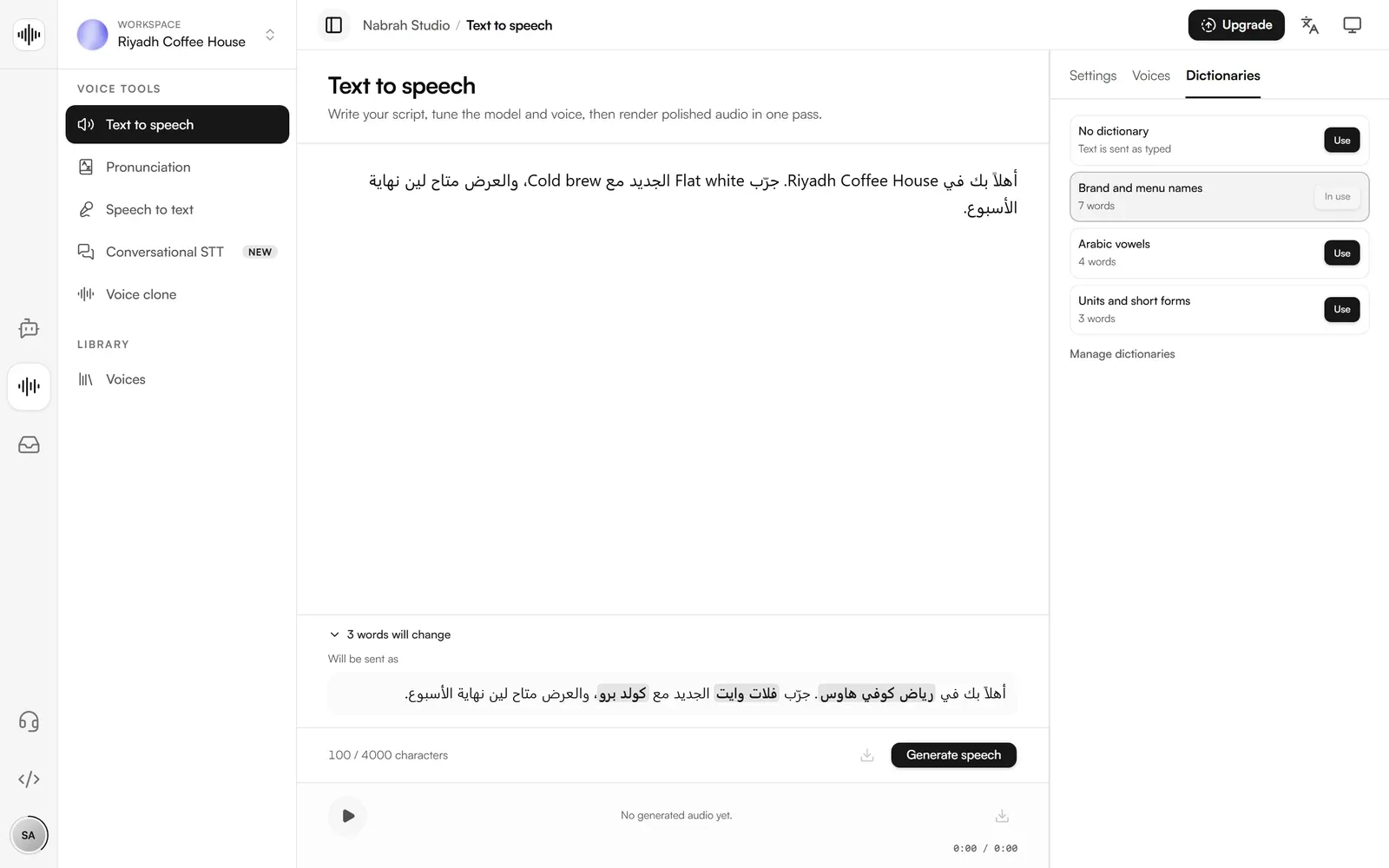
The page starts on No dictionary each time you open it, so pick the dictionary again before you generate.
In API requests
At the top of the dictionary page, click the copy icon next to the ID. Send that ID as pronunciation_dictionary_id in your text-to-speech request:
{
  "input": "أهلاً بك في Riyadh Coffee House",
  "voice": "<voice id>",
  "pronunciation_dictionary_id": "<dictionary id>"
}
Leave the field out to send the text as typed. Streamed and non-streamed requests both support it.
Import and export
Open the ⋯ menu on a dictionary page.
Action | What it does |
|---|---|
Import CSV | Adds words from a CSV file. Words already in the dictionary are updated |
Export CSV | Downloads every word in the same three-column format |
Duplicate | Makes a copy named (copy) with all its words |
Rename | Changes the name and description |
Delete dictionary | Deletes the dictionary and its words. This can't be undone |
The CSV has three columns: the word, how it should be said, and an optional yes or no for matching inside longer words. The header row is optional.
word,replacement,match_inside
مثل,مُثل,no
Riyadh Coffee House,رياض كوفي هاوس,
Save the file as UTF-8. After an import, Nabrah shows how many words were added and updated, and lists any skipped rows with the reason.
Limits
Item | Limit |
|---|---|
Dictionaries per workspace | 50 |
Words per dictionary | 2,000 |
Words across the workspace | 10,000 |
Word in the script | 100 characters |
How it should be said | 300 characters |
CSV import | 2,000 rows, 2 MB, UTF-8 |
Troubleshooting
Symptom | Cause | Fix |
|---|---|---|
A word isn't replaced | The script spells it differently, with other letter forms or vowel marks, or it's part of a longer word | Add that spelling as its own word, or turn on Also match inside longer words |
Too long, pronunciation won't be applied | The text after replacements is over the length limit | Shorten the script or split it into two generations |
That dictionary no longer exists | The dictionary was deleted after you picked it | Pick another dictionary, or No dictionary |
The API returns Pronunciation dictionary not found | The ID is mistyped or belongs to another workspace | Copy the ID again from the dictionary page |
Rows are skipped on import | A row is missing a column, the third column isn't yes or no, or the word repeats later in the file | Fix the listed rows and import the file again |
Upload a CSV file saved as UTF-8 | The file was saved in another encoding | Save it again as CSV UTF-8 and re-upload |
Frequently asked questions
Does a dictionary change my voice agents? No. Dictionaries apply to the Text to speech page and to API requests that send a dictionary ID.
Who can change dictionaries? Members with edit access to Text to speech. Members with view access can open dictionaries, try them and export them, but not change them.
Can I use more than one dictionary at once? No. Each generation uses one dictionary. Put words you always need together in the same dictionary, or duplicate one and add to the copy.