
Build
Knowledge base
A knowledge base is a set of documents or a data sheet your agents can search. Agents use knowledge bases when they answer in WhatsApp chat; for facts every call needs, add them to the agent's Reference knowledge. Use a knowledge base for material that's too long or changes too often to paste into an agent's reference knowledge: menus, price lists, policies, or a table of branches.
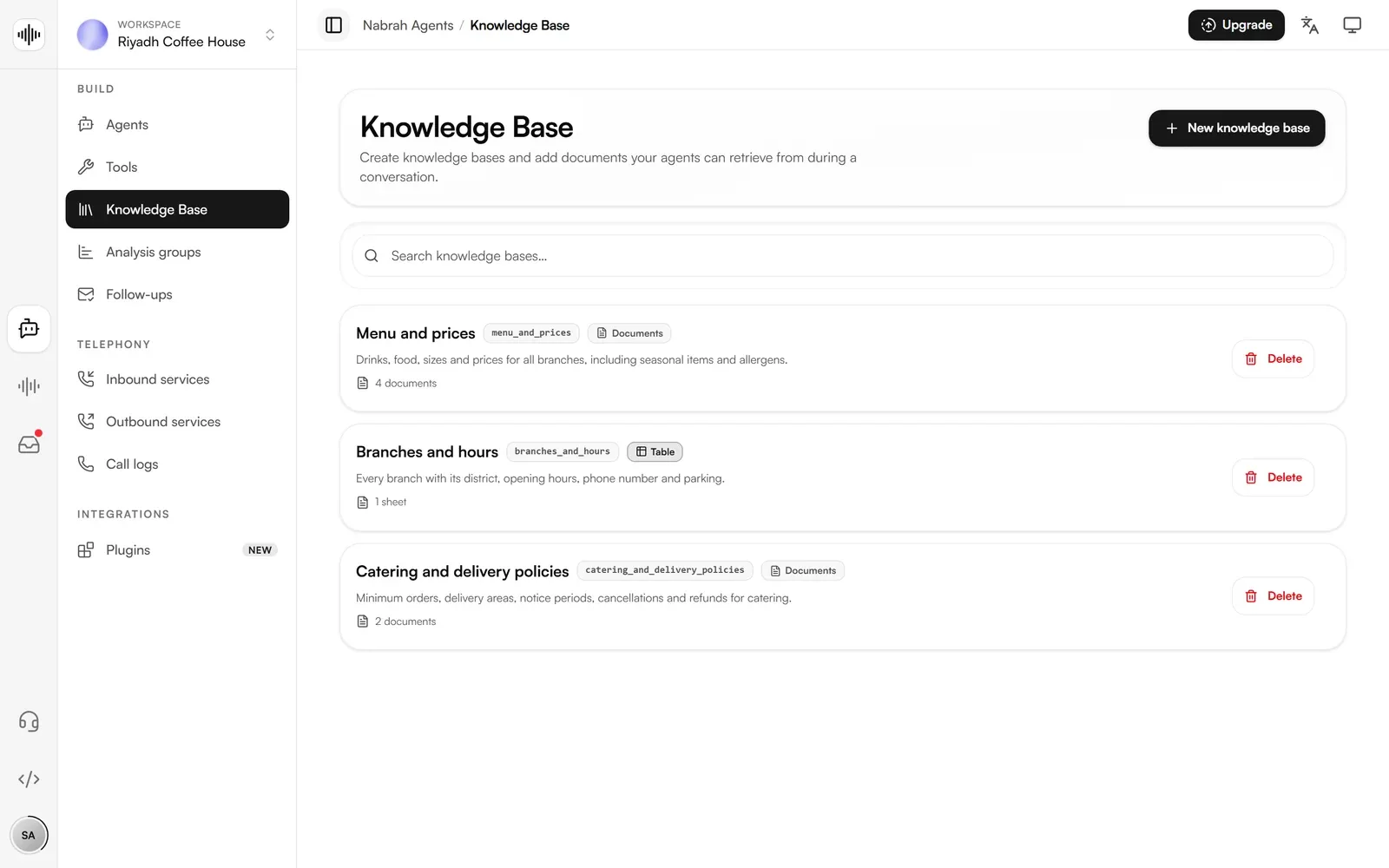
Knowledge base types
Choose the type when you create a knowledge base. It can't be changed afterwards.
Type | What it holds | How the agent uses it |
|---|---|---|
Documents | PDF files and text notes | Searches them by meaning |
Table | One CSV or Excel (.xlsx/.xls) sheet | Looks up rows by column |
Use Documents for written material, such as a menu or a refund policy. Use Table for structured rows, such as branches with their district, opening hours, and phone number.
Limits
Item | Limit |
|---|---|
PDF file | PDF only, up to 20 MB |
Sheet | CSV, XLSX, or XLS, up to 2 MB and 10,000 rows |
Sheets per Table knowledge base | 1 |
Create a knowledge base
Open Agents → Build → Knowledge Base and click New knowledge base.
Choose the Type: Documents or Table.
Enter a Name, for example Seasonal specials. Nabrah creates a key from the name and shows it under the field, for example Key: seasonal_specials.
Enter a Description, for example Limited-time drinks and desserts, with the dates they are available and their prices. The agent reads it to decide when to search this knowledge base.
Click Create.
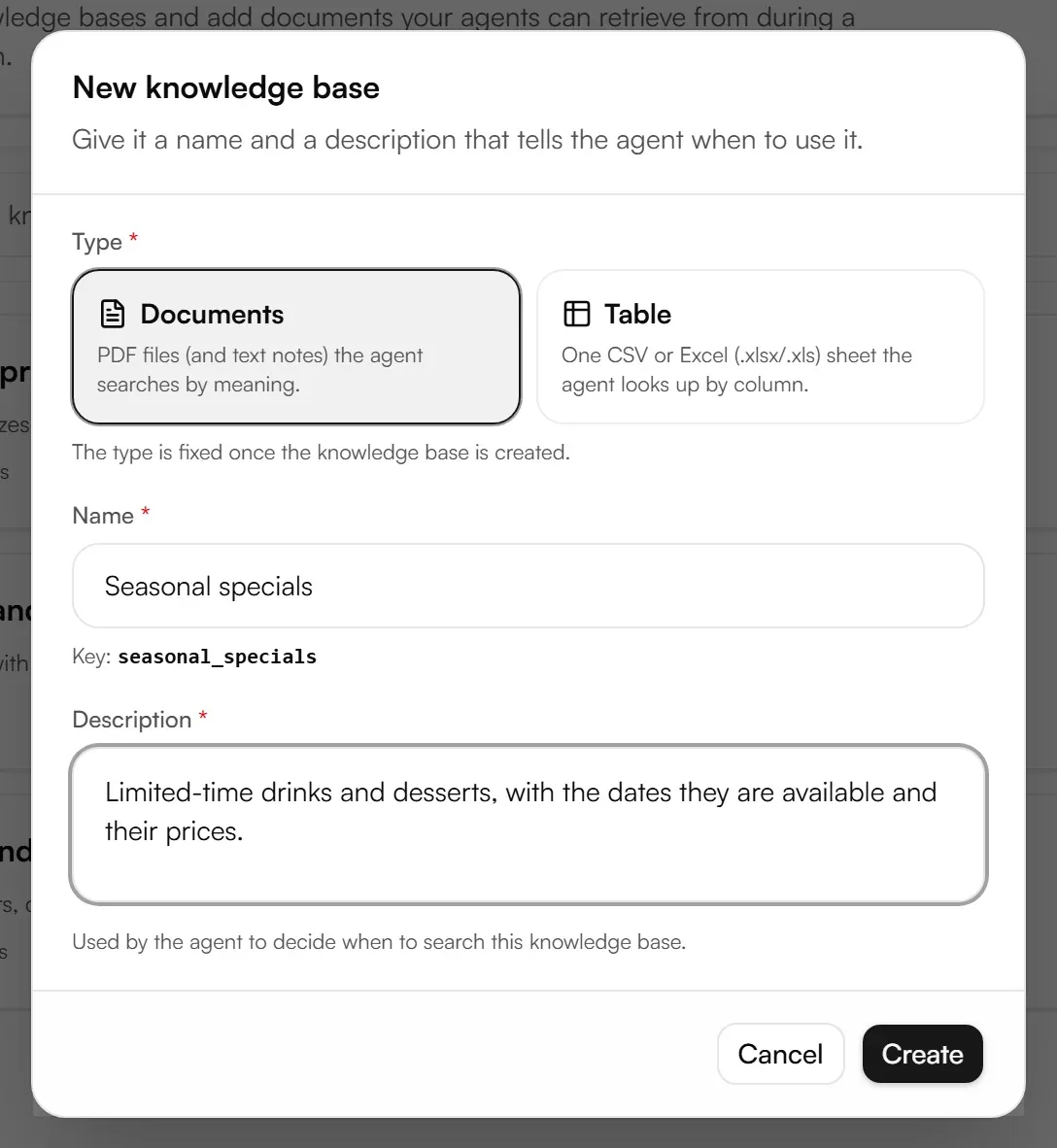
Write the description for the agent. The agent uses the description to decide when to search the knowledge base. Say what's inside and what kind of question it answers, for example Answers about product features, pricing, plans and returns.
The key uses letters, numbers, and underscores only and can't start with a number. If a key is already taken, Nabrah adds a number to it, for example menu_and_prices_2. Names written in Arabic get a generic key such as kb.
Add documents
Open a Documents knowledge base from the list.
Upload PDF: drop a PDF on the box, or click to browse.
Add text: enter an optional title and paste or type the text, then click Add as document. Nabrah saves the text as a PDF document and processes it like any file. A note without a title is called Note.
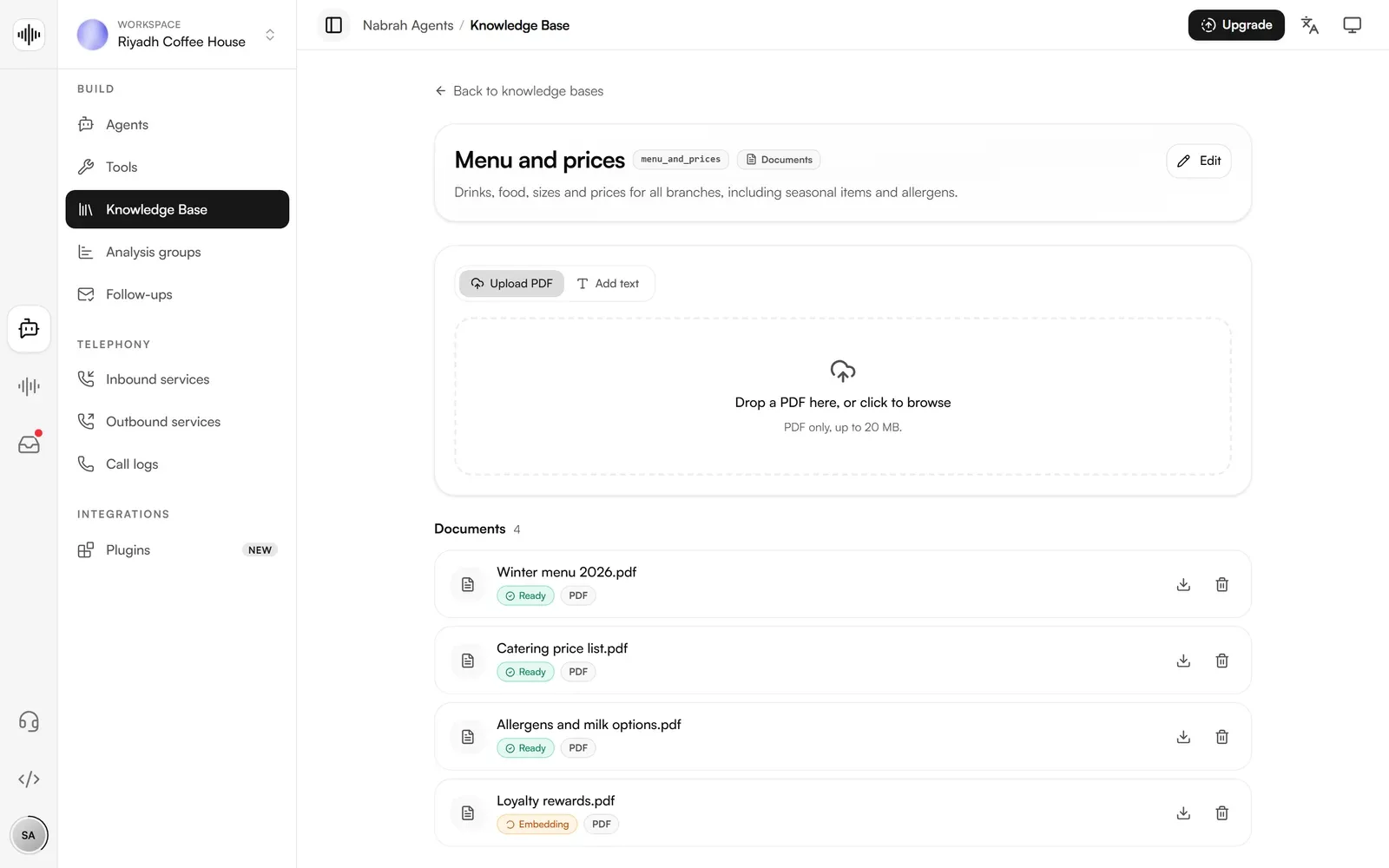
Each document shows its status. The list updates on its own while a document is processing.
Status | Meaning |
|---|---|
Queued | Waiting to be processed |
Extracting | Reading the text from the file |
Chunking | Splitting the text into searchable parts |
Embedding | Preparing the parts for search by meaning |
Indexing | Adding the parts to the search index |
Ready | The agent can search the document |
Failed | The document couldn't be processed |
Click the download icon (Open file) to open the original file, or the trash icon to remove a document.
Add a sheet
Open a Table knowledge base from the list.
Under Upload a sheet, drop a CSV or Excel file on the box, or click to browse.
Optionally fill in Sheet description: what the columns mean and how people ask about this data.
Optionally list Searchable columns, separated by commas, for example Branch, District, Phone. The agent can filter by these columns. Leave it empty to allow all columns.
Click Upload sheet.
To update the data, use Replace the sheet and click Replace sheet. You can replace a sheet once it's Ready or Failed.
Link a knowledge base to an agent
Open the agent under Agents → Build → Agents and click Edit.
Go to the Knowledge section.
Under Knowledge bases, select the knowledge bases the agent can use, then save the agent.
The Knowledge bases panel reads: Let this agent retrieve answers from selected knowledge bases (used by WhatsApp chat). For facts every call needs, such as opening hours, also add them to the agent's Reference knowledge in the same section. See Agents.
Edit or delete a knowledge base
To change the name or description, open the knowledge base and click Edit, then Save changes. The type can't be changed.
To delete it, click Delete in the list and confirm. Deleting removes the knowledge base and all of its documents. This can't be undone.
Troubleshooting
Symptom | Cause | Fix |
|---|---|---|
Only PDF files are supported. | You uploaded another file type to a Documents knowledge base | Save the file as PDF, or paste its text with Add text |
The file exceeds the 20 MB limit. | The PDF is larger than 20 MB | Split it into smaller PDFs |
The sheet exceeds the 2 MB limit. | The sheet is larger than 2 MB | Remove unused columns or rows, or split it across knowledge bases |
A document stays Failed | The file couldn't be processed | Check that the PDF opens and contains selectable text, then upload it again, or add the content with Add text |
You can't replace a sheet | The current sheet is still processing | Wait until it's Ready or Failed |
The agent doesn't use the knowledge base | It isn't linked to the agent, or the description doesn't match the question | Link it in the agent's Knowledge section, and make the description specific |
Frequently asked questions
What's the difference between a knowledge base and reference knowledge? Reference knowledge is text in the agent's own setup, added to its instructions for every conversation. A knowledge base holds files or a sheet that the agent searches when a question needs them.
Can one knowledge base be used by several agents? Yes. Select it in the Knowledge section of each agent.
Can I put several sheets in one Table knowledge base? No. A Table knowledge base holds one sheet. Create one knowledge base per sheet.
Can I change a knowledge base from Documents to Table? No. The type is fixed once the knowledge base is created. Create a new one with the other type.
How do I update a document? Remove the old document and upload the new version. For a sheet, use Replace sheet.