
صندوق الوارد
Saved replies
Saved replies are answers you send often, such as opening hours, delivery areas or a refund message, that you insert into any chat or email by typing /. Variables fill in the customer's name and other details, and a reply can carry files too.
Where saved replies work
Inbox | Where to manage them |
|---|---|
CX → Inbox → WhatsApp → Saved replies | |
Web chat | CX → Inbox → Web chat → Saved replies |
CX → Inbox → Instagram → Saved replies | |
CX → Inbox → Email inbox → Saved replies |
Every Saved replies tab shows the same replies. A reply works only in the inboxes you choose for it.
Insert a reply with /
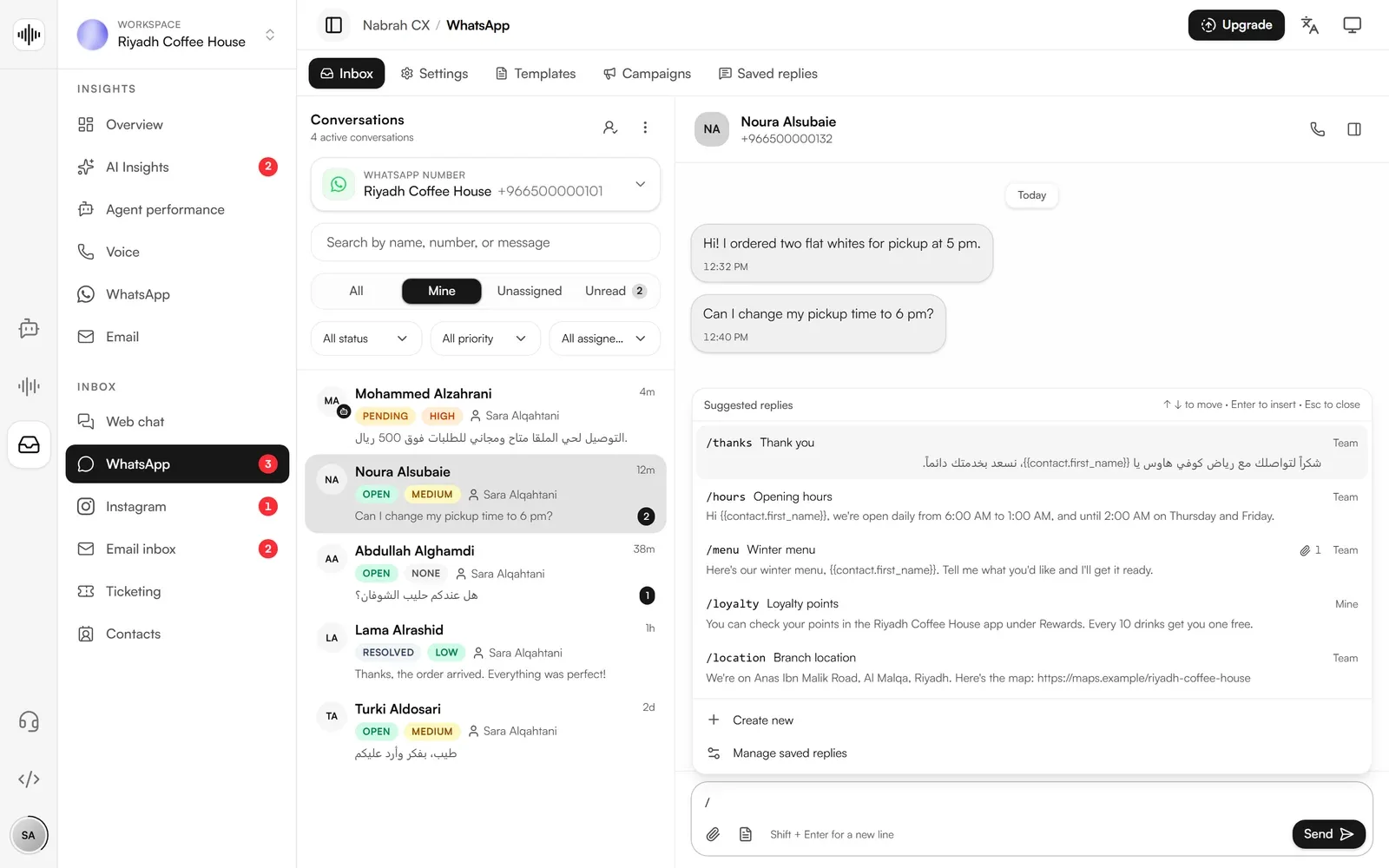
In the message box of a conversation, type
/at the start of the message or after a space.The menu opens with Suggested replies: up to 4 replies you used in the last 30 days, then the newest replies, 5 in total.
Keep typing to search, for example
/ho. Matches for /ho lists replies whose shortcut starts with what you typed first, then replies whose title or text contains it, up to 8.Press Enter (or Tab) or click a reply to insert it.
Key | What it does |
|---|---|
↑ ↓ | Move through the list |
Enter or Tab | Insert the selected reply |
Esc | Close the menu |
Each row shows the shortcut, title, the start of the text, the number of files, and Team or Mine. The bottom of the menu has Create new and Manage saved replies.
When you insert a reply:
Variables are filled from the open conversation, for example
{{contact.first_name}}becomes Noura. A variable with no value stays as its placeholder and is selected, so you can type over it.The text goes into the message box. Check or change it, then send.
In chats, the reply's files are sent with it, one message per file. In email, they're attached to the email.
The menu needs a reply-ready conversation. On WhatsApp, / doesn't open while the 24-hour reply window is closed, because only templates can be sent. See WhatsApp.Create a reply from the menu
Type / and the shortcut you want, then click Create new. A short form opens with the shortcut filled in: add a Title, the Reply text and any files, then Save. The reply is inserted straight away. Replies made this way are Only me and work in every inbox of that type. Open the Saved replies tab to share them with your team or limit where they work.
The Saved replies tab
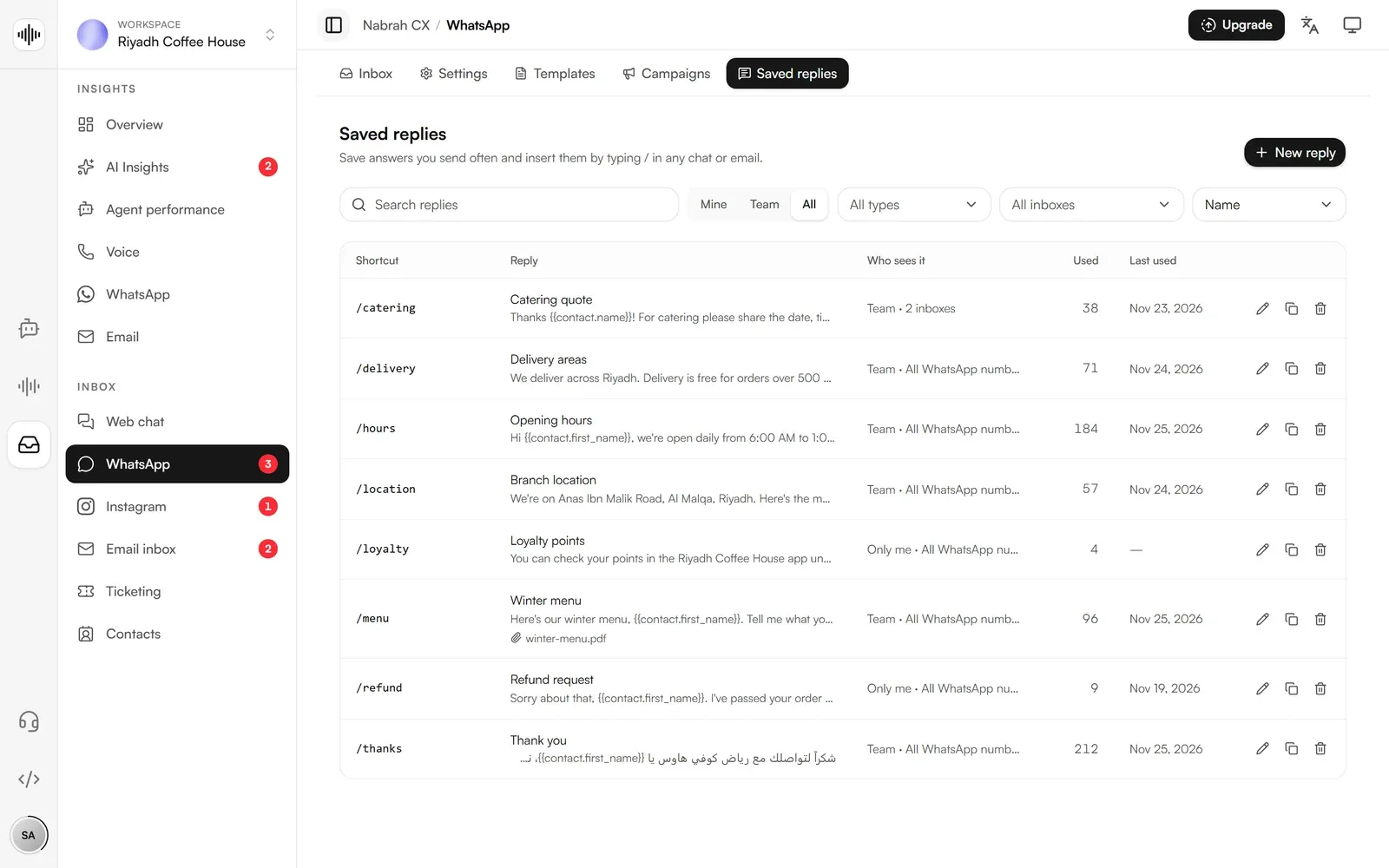
Control | What it does |
|---|---|
Search replies | Searches shortcuts, titles and text |
Mine / Team / All | Your personal replies, team replies, or both. Default: All |
All types | One inbox type: WhatsApp, Web chat, Instagram or Email |
All inboxes | One inbox |
Sort | Name (default), Most used or Recently used |
Column | Shows |
|---|---|
Shortcut | What you type after |
Reply | Title, the start of the text, and attached files |
Who sees it | Team or Only me, and where it works, for example Team · 2 inboxes |
Used | How many times it was inserted |
Last used | When it was last inserted |
Actions | Edit, Duplicate and Delete |
Duplicate makes a copy with the next free shortcut, for example Copied as /hours-2. If you can't edit the original team reply, the copy is yours, set to Only me. Delete asks first: the shortcut stops working in chats, and you can reuse it later. The list shows 50 replies per page.
Create or edit a reply
Click New reply, or Edit on a row.
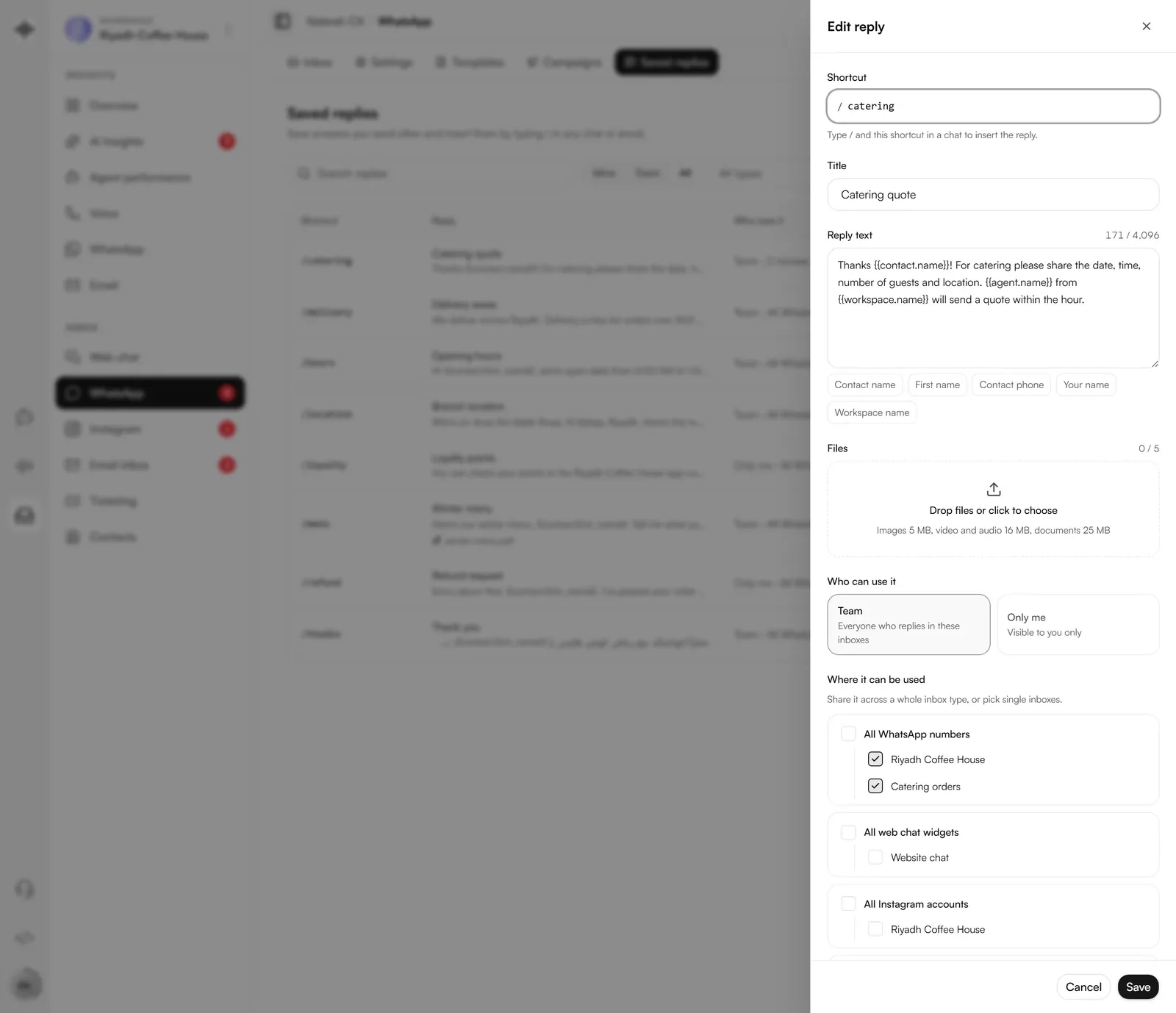
Field | Description |
|---|---|
Shortcut | 2 to 32 characters: lowercase letters, numbers, |
Title | A short name, up to 120 characters |
Reply text | Up to 4,096 characters. Click a chip under Insert a variable to add a variable at the cursor |
Files | Up to 5 files. Drop them or click to choose |
Who can use it | Team: everyone who replies in the chosen inboxes. Only me: visible to you only |
Where it can be used | Tick a whole inbox type, such as All WhatsApp numbers, All web chat widgets, All Instagram accounts or All mailboxes, or tick single inboxes under it |
A reply needs text or at least one file. Preview shows the reply with sample values, such as Sara Alqahtani for the contact name.
Variables
Variable | Chip | Filled with |
|---|---|---|
| Contact name | The contact's full name |
| First name | The first word of the contact's name |
| Contact phone | The contact's phone number |
| Your name | Your name in the workspace |
| Workspace name | The workspace's name |
Files
Kind | Types | Size |
|---|---|---|
Image | JPG, JPEG, PNG | Up to 5 MB |
Video | MP4, 3GP | Up to 16 MB |
Audio | AAC, M4A, MP3, AMR, OGG | Up to 16 MB |
Document | PDF, DOC, DOCX, XLS, XLSX, PPT, PPTX, TXT | Up to 25 MB |
These are the types and sizes WhatsApp accepts, so a file that works in one inbox works in all of them.
Share team replies only where everyone can use them. A team reply for a whole inbox type, such as All WhatsApp numbers, needs access to every inbox of that type. If your access covers only some of them, pick the inboxes one by one.
Limits
Item | Limit |
|---|---|
Shortcut | 2 to 32 characters: lowercase letters, numbers, |
Title | 120 characters |
Reply text | 4,096 characters |
Files per reply | 5 |
Saved replies per workspace | 1,000 |
Personal (Only me) replies per member | 200 |
Team shortcuts are unique across the workspace's team replies. Your personal shortcuts are unique among your own replies.
Who can use saved replies
Saved replies are for members with Edit access to at least one inbox type: WhatsApp, Web chat, Instagram or Email. Others see Saved replies are for teammates who can reply in an inbox.
The
/menu lists the team replies and your own Only me replies that are set up for the open inbox.You can change a personal reply only if it's yours, and a team reply only if your access covers all of its inboxes.
Members limited to selected WhatsApp numbers, Instagram accounts or mailboxes can only pick those inboxes in Where it can be used.
See Workspace & teams.
Troubleshooting
Symptom | Cause | Fix |
|---|---|---|
Typing | The | Type a space before |
A reply is missing from the menu | It isn't set up for this inbox | Edit it and add the inbox under Where it can be used |
A variable stays as | The contact has no name saved | Type over the selected placeholder, or save the contact's name |
This shortcut is already used | Another team reply, or another of your own replies, has it | Pick a different shortcut |
Use 2 to 32 lowercase letters, numbers, - or _ | The shortcut has other characters or is too short | Use only lowercase letters, numbers, |
{name} can't be sent on WhatsApp | The file type isn't supported | Use one of the types in the Files table |
{name} is larger than WhatsApp allows | The file is over the size limit for its kind | Compress the file or send a link instead |
Up to 5 files per reply | The reply already has 5 files | Remove a file first |
Your access covers only some of these inboxes, so pick them one by one | A team reply was set for a whole inbox type you can't fully access | Tick single inboxes instead |
This workspace has reached its limit of saved replies | 1,000 replies in the workspace | Delete replies you no longer use |
You've reached your limit of personal saved replies | 200 Only me replies | Delete some, or share useful ones as Team replies |
Frequently asked questions
Can I use the same reply in WhatsApp and email? Yes. Tick both inbox types under Where it can be used. In email the files are attached; in chats each file is sent as its own message.
Do customers see the variable names? No, as long as the value exists. Variables are replaced before you send, and any left unfilled are selected so you notice them.
Who sees my Only me replies? Only you. Switch Who can use it to Team to share one.
Does editing a reply change messages already sent? No. It changes what is inserted from then on.