
صندوق الوارد
WhatsApp campaigns
A campaign sends one approved WhatsApp template to many people, personalised for each person, during the hours you choose. Your AI agent can answer the people who reply, and the campaign page shows what happened: delivery, reads, replies, button taps, and an AI summary of what people said.
Before you start
Requirement | How to check |
|---|---|
A connected WhatsApp number | See WhatsApp |
An approved Marketing or Utility template on that number's account | See WhatsApp templates. Authentication templates can't be used in campaigns |
People who agreed to get WhatsApp messages from you | You confirm this before sending. WhatsApp can limit numbers that message people without consent |
Edit access to WhatsApp, with access to the number | Members with View access can see campaigns and their results |
Optional: an agent on the number | Needed if the AI agent should answer replies. Set it in Settings → Chatbot |
Optional: analysis groups | Your own questions for the AI to answer about each reply |
The campaigns list
Open CX → Inbox → WhatsApp and click the Campaigns tab. You can also click ⋮ → New campaign in the conversation list.
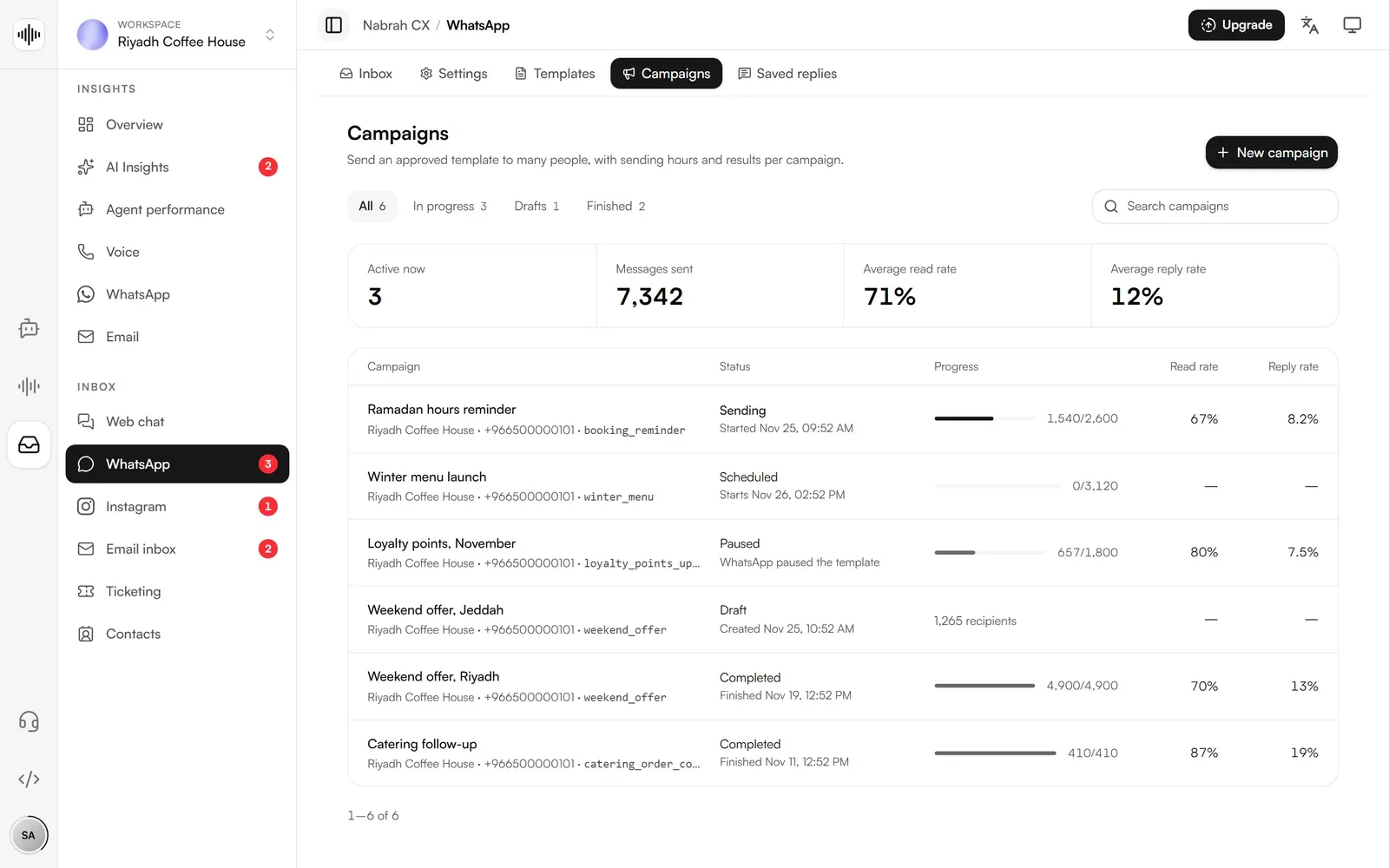
The tabs All, In progress, Drafts and Finished show how many campaigns are in each. Search with Search campaigns.
The cards show Active now, Messages sent, Average read rate and Average reply rate across your campaigns.
Each row shows the campaign's number and template, its Status with a short note (for example Started, Starts, a pause reason, or Waiting for sending hours, resumes …), Progress, Read rate and Reply rate.
Click a draft to continue setting it up. Click any other campaign to open its results.
Create a campaign
Click New campaign. The wizard has four steps: Setup, Audience, Personalize and Review. Your work is saved as a draft as you go, and Save draft saves it at any time. You can jump back to a step you've reached from the step bar.
Setup
Field | Description |
|---|---|
Campaign name | Up to 200 characters, for example Weekend offer, Riyadh |
Send from | The number the messages come from. It can't change after the campaign is saved |
Template | Approved templates of this number's account. Login code templates aren't listed. Click one to see its preview |
Audience
Who gets it shows how many people you've added so far. Under Add people from, pick a source and click Add people. You can add people several times, from different sources.
Source | How it works |
|---|---|
CSV file | Up to 10,000 rows and 5 MB. Choose the Phone number column. Tick Keep for reports on the columns you want saved with each person, for personalizing and for breaking down results, up to 30. Columns the message uses are marked Used in the message |
Contacts | Search and tick contacts. Only contacts with a phone number are listed. Up to 1,000 per add |
Phone numbers | Paste one number per line, for example |
After each add, Last added shows:
Count | Meaning |
|---|---|
Added | People added to the campaign |
Duplicates removed | Numbers already in the campaign, or repeated in the file |
Invalid | Rows without a usable number. Click Download invalid rows to fix them |
Read as Saudi numbers | Numbers written without a country code, read as Saudi numbers |
Use a file with the columns your message needs. If you map a variable to a file column and a later file doesn't have that column, Nabrah refuses it: This file is missing columns the message uses. Map the values again or add the columns.
Personalize
Fill each template variable, grouped by Header, Message, Buttons, Offer and Card.
Field | Description |
|---|---|
Value from | Fixed text (the same for everyone), Contact field (Name, First name, Phone or Email), or File column (a column you kept from your CSV) |
Fallback | Used when the person has no value, for example صديقنا or there. Required when the value comes from a contact field or file column |
Link ending for … | For a Link button that ends with a variable |
Code to copy | For a Copy code button |
Offer ends | For a limited-time offer |
Under Media, choose the Header file for image, video or document headers: the template's Saved sample, an Upload, or a Link. Carousels have a file per card.
The preview on the right shows the message as a real recipient will get it. Use Previous person and Next person to check different people. A template without variables shows This template has no variables. Everyone gets the same message.
Review
Setting | Description | Default |
|---|---|---|
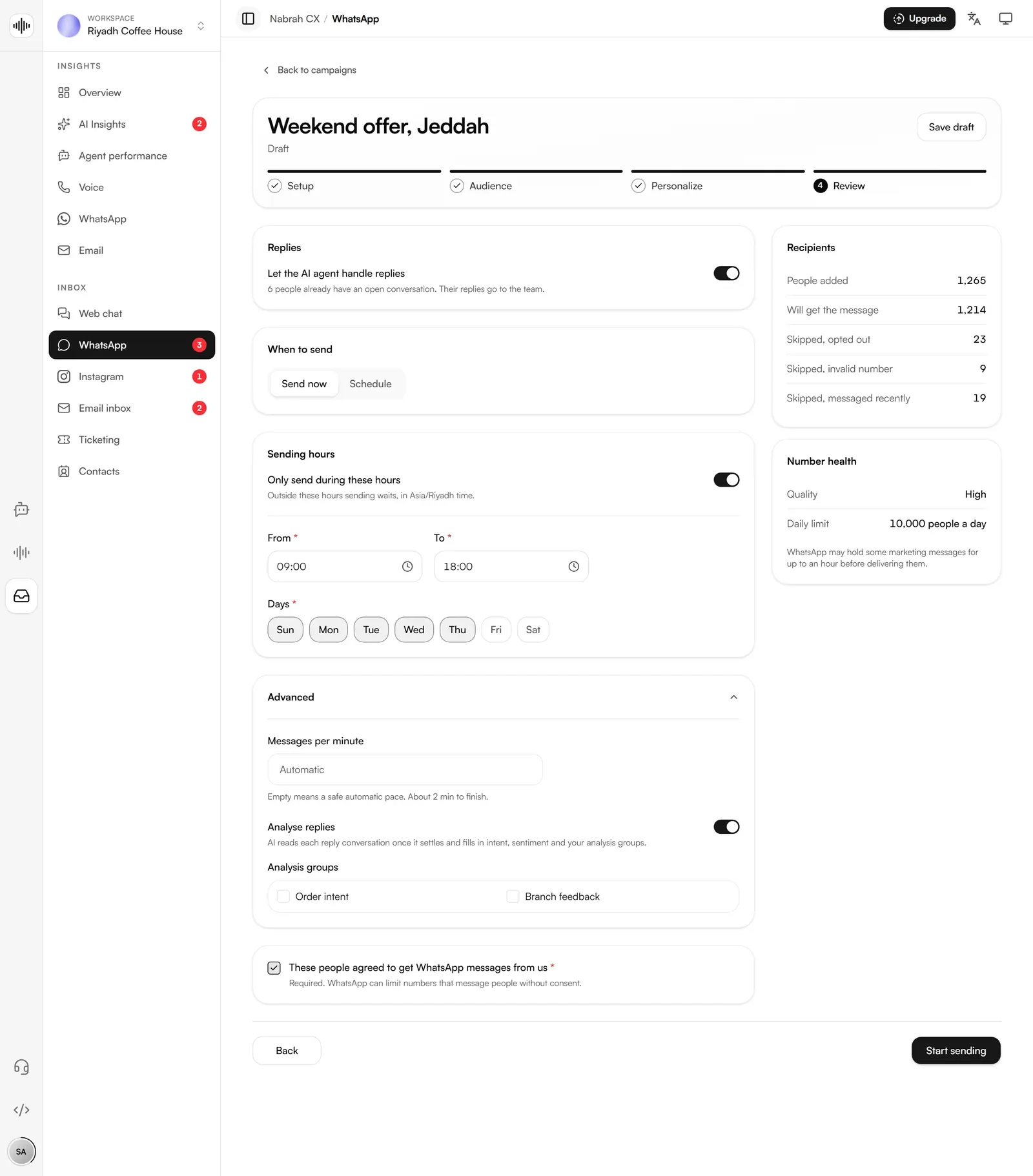
Let the AI agent handle replies | The agent linked to this number answers people who reply. People who already have an open conversation keep talking to your team. Without an agent on the number, replies go to the team | Off |
When to send | Send now, or Schedule with a Date and time and Time zone | Send now, Asia/Riyadh |
Only send during these hours | Sending pauses outside the hours (From, To) and Days you choose, in the campaign's time zone, and continues in the next window | On, 09:00 to 18:00, Sun to Thu |
Messages per minute (under Advanced) | 1 to 1,000. Leave empty for a safe automatic pace. The hint estimates how long sending takes | Automatic |
Analyse replies (under Advanced) | AI reads each reply conversation once it settles and fills in intent, sentiment and the Analysis groups you tick | Off |
These people agreed to get WhatsApp messages from us | Required. You can't start the campaign without it | Off |
The panel on the right shows:
Recipients: People added, Will get the message, and how many will be skipped, by reason.
Number health: the number's Quality and Daily limit ({n} people a day). When the campaign has more people than the daily limit, the rest are sent on the following days.
Click Start sending, or Schedule if you picked a date. WhatsApp may hold some marketing messages for up to an hour before delivering them.
Check the end time before you start. Sending hours are in the campaign's time zone, and a window that ends before it starts is refused: The end time must be after the start time.
Who gets skipped
Nabrah checks every number before sending and skips some people instead of sending:
Skip reason | Why | Applies to |
|---|---|---|
Skipped, opted out | The number is on Opted-out numbers | Marketing templates |
Skipped, invalid number | The number can't be used | All templates |
Skipped, US numbers | WhatsApp doesn't deliver marketing templates to US numbers | Marketing templates |
Skipped, messaged recently | The person got a marketing message from you in the last 24 hours | Marketing templates |
Utility templates still reach opted-out numbers. See Opted-out numbers.
Statuses
Status | Meaning |
|---|---|
Draft | Being set up. Not sent |
Preparing | Checking recipients and filling in their values |
Scheduled | Waiting for its start time |
Sending | Sending. Outside sending hours it shows Waiting for sending hours, resumes … |
Paused | Stopped by your team or by Nabrah. The reason is shown |
Completed | Every recipient was sent, skipped or failed |
Cancelled | Stopped for good. Messages not yet sent won't be sent |
Pause reasons
Nabrah pauses a campaign on its own when sending can't continue safely. Fix the cause, then click Resume.
Reason shown | What to do |
|---|---|
Paused by the team | Click Resume when ready |
Paused to map values again | Click Map values again, fix the values in Personalize, and save |
WhatsApp rejected too many values | Click Map values again. Values can't contain line breaks, tabs or more than 4 spaces in a row |
The number needs to be reconnected | Open Settings, reconnect the number, then Resume |
The number was disconnected | Reconnect the number in Settings, then Resume |
WhatsApp paused the template | Wait until WhatsApp makes the template active again, then Resume. Or Duplicate the campaign with another template |
WhatsApp disabled the template | The template can't be sent again. Duplicate the campaign and pick another template |
The template can't be sent right now | Check the template on the Templates tab, then Resume |
The template's category changed | Check the template's category on the Templates tab; pricing and who can receive it follow it. Then Resume |
The number's quality dropped to low | Give the number time to recover before you Resume. Send to people who expect your messages |
WhatsApp limited sending from this number | Wait, then Resume later |
The number can't send right now | Check the number's status in WhatsApp Manager, then Resume |
The business account can't send right now | Check the business account in Meta, including its payment method, then Resume |
Marketing messages are turned off for this account | Turn marketing messages on for the account in Meta, then Resume |
The person who started it lost access to this number | A campaign sends as the member who created it. Give them access to the number again, or Duplicate the campaign and start the copy yourself |
Campaign results
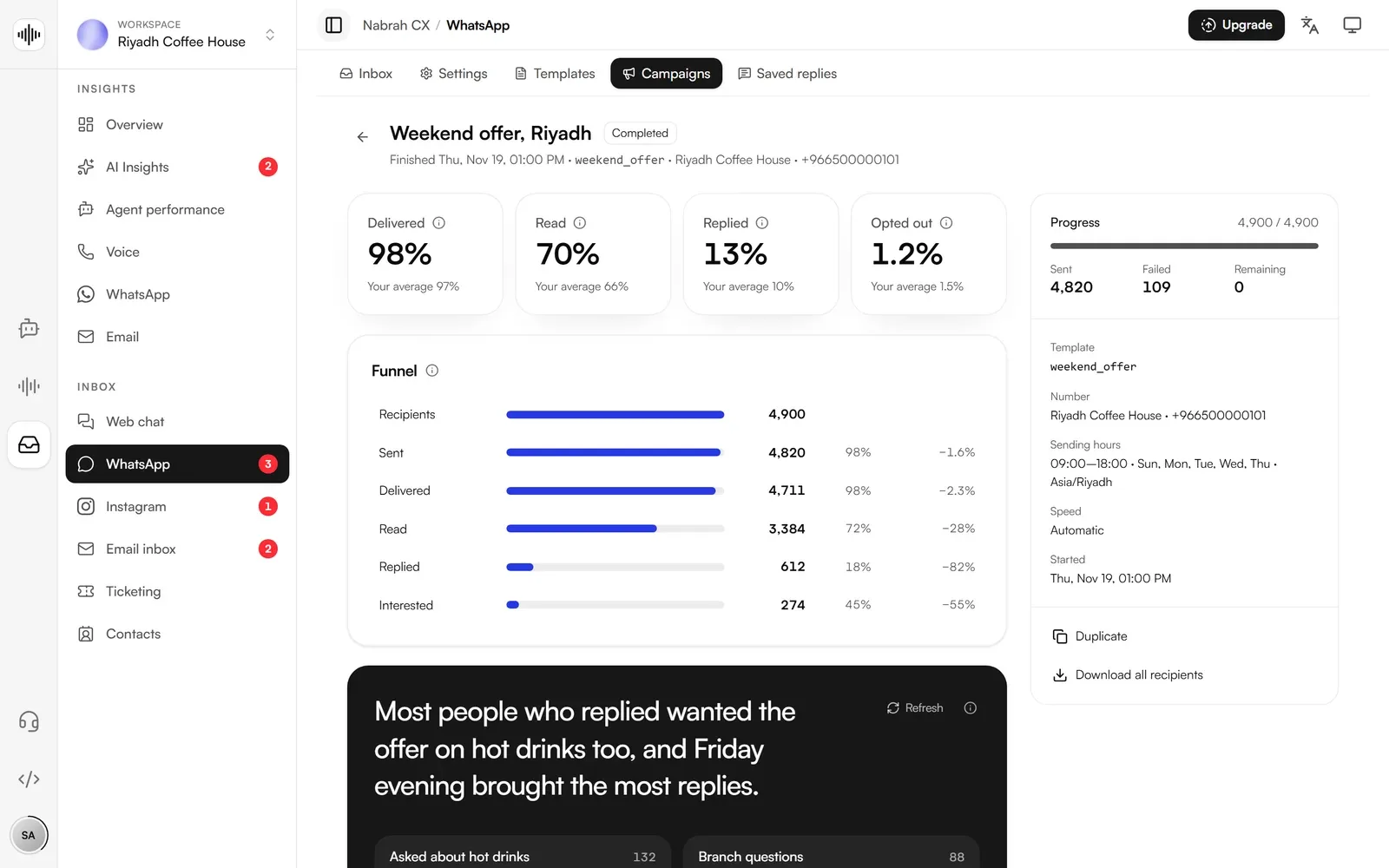
Open a campaign from the list. The page updates while the campaign sends.
The side panel shows Progress (Sent, Failed, Remaining), the template, number, sending hours, speed and start time, and the actions you can take.
KPIs
KPI | Definition |
|---|---|
Delivered | Delivered messages out of sent ones. Read messages count as delivered |
Read | Read messages out of sent ones. Only counts people who have read receipts on |
Replied | People who replied out of those the message was sent to |
Opted out | People who tapped the Opt-out button out of those the message was sent to |
Each KPI also shows Your average across your campaigns.
Funnel
Recipients → Sent → Delivered → Read → Replied → Interested. Each step counts people from the step before, with the share kept and the drop. Interested counts people who tapped the template's Interested button. Click a step to see those recipients in the table below.
What people said
An AI summary of the campaign: a headline, the main themes with example quotes, and Next steps. Names and numbers are removed from quotes.
It is written when the campaign ends and at least 10 replies are analysed.
Click Refresh to write it again with the latest replies, at most once an hour. Each refresh uses workspace credits.
Replies and analysis groups
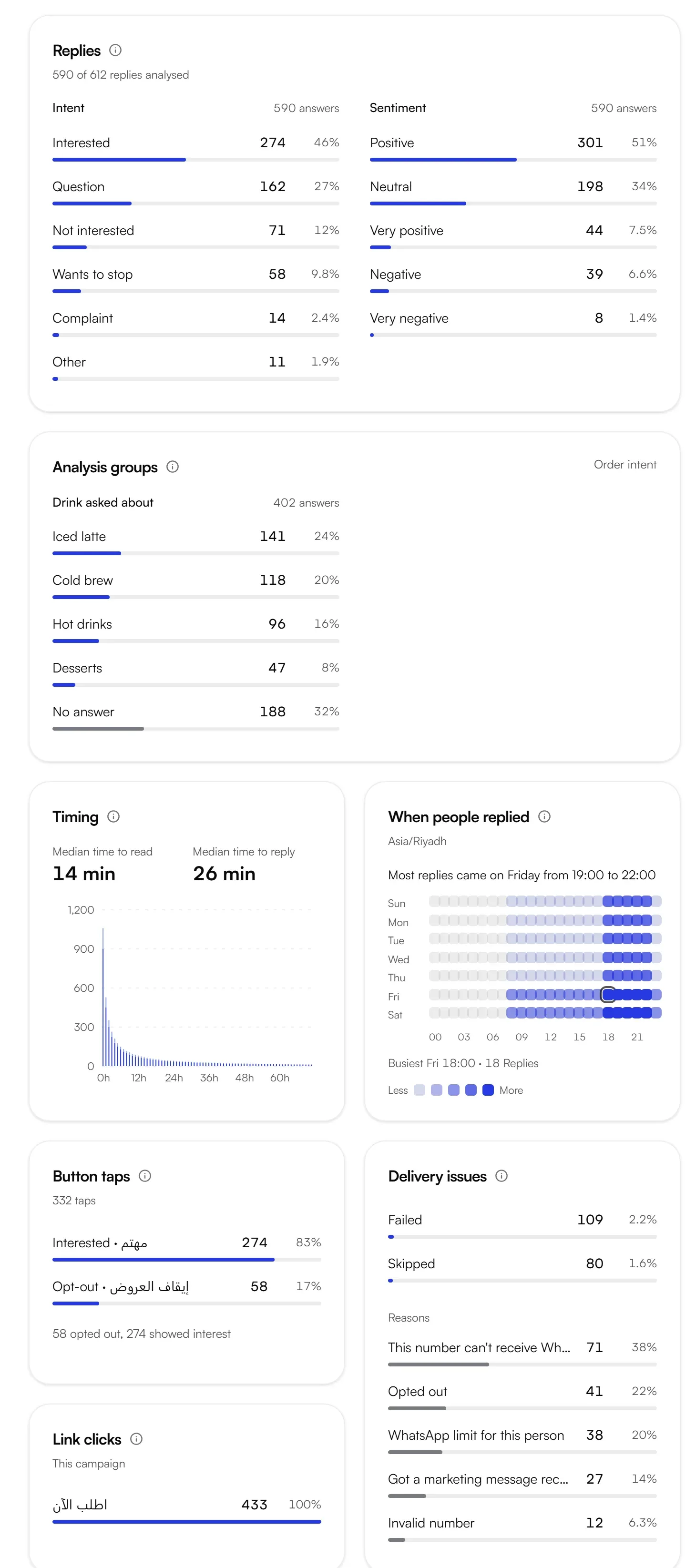
With Analyse replies on, AI reads each reply conversation once it settles: when it's resolved, 12 hours after the last reply, or 72 hours after sending.
Section | What it shows |
|---|---|
Replies | {analysed} of {replied} replies analysed, with Intent (Interested, Not interested, Question, Complaint, Wants to stop, Wrong person, Other), Sentiment (Very positive to Very negative), Interested, Needs a follow-up, Topics, Unanswered questions and AI answer quality, out of 10 |
Analysis groups | Your analysis groups, filled in for every analysed reply |
Results by group | Rates for each value of a kept column or contact field. Pick the field in Break down by. The top 20 values are shown |
If Analyse replies was off, editors see Analyse replies with a button to turn it on. When replies came in before analysis was on, {n} replies came in before analysis was on. Analyse them too? offers Include them.
Reply analysis uses workspace credits. If the workspace runs out, the page shows Some replies weren't analysed because the workspace is out of credits.
Timing, buttons, links and delivery
Section | What it shows |
|---|---|
Timing | Median time to read and Median time to reply, and reads and replies in the first 72 hours. Hours count from when each message was sent |
When people replied | Replies by weekday and hour in the campaign's time zone, with the busiest time, for example Most replies came on Friday from 19:00 to 22:00 |
Button taps | Quick-reply taps, with the Interested and Opt-out buttons marked |
Link clicks | Clicks on link buttons, for This campaign or All sends of this template. Link clicks come from WhatsApp and are kept for 7 days after sending. Needs link click data on for the account |
Delivery issues | Failed, Skipped, Held by WhatsApp and Status unknown, with the reasons |
Conversations | Replied, Answered by AI, Handed to the team, Resolved by AI, Still open and Opted out, plus the agent's Agent actions (tool calls that Succeeded or Failed) |
Common failure reasons include This number can't receive WhatsApp messages, WhatsApp limit for this person (WhatsApp limits how many marketing messages one person gets), Stopped marketing messages and The header file expired. WhatsApp asked to slow down, will retry and Request limit reached, will retry are retried automatically.
Recipients
The Recipients table lists every person with Number, Status, Sent, First reply, Button, Intent, your kept columns, and Open to jump to the conversation. Filter by All, Waiting, Sent, Failed or Skipped, or search by number or name. Export this view downloads the filtered rows.
Campaign actions
Action | When | What it does |
|---|---|---|
Continue setup | Draft | Opens the wizard |
Pause | Sending or Scheduled | Stops sending until you resume |
Resume | Paused | Continues sending from where it stopped |
Map values again | Paused | Opens Personalize to fix values. Pause the campaign before changing the message |
Retry failed | Failures exist and the campaign isn't finished | Sends failed messages again, {n} messages will be sent again. Only failures that can succeed on a second try are sent again. Resume a paused campaign first |
Duplicate | Always | Creates a draft named … (copy) with the same settings and recipients |
Download all recipients | After the campaign starts | Downloads every recipient and their result as a CSV file |
Cancel campaign | Not finished | Messages not sent yet won't be sent. This can't be undone |
The template can't change once a campaign has started. To use another template, duplicate the campaign.
Recipient details are removed after 180 days
180 days after a campaign's last activity, Nabrah removes its recipients' personal details: numbers, names, values and file columns. The campaign's results stay. The page then shows Personal details of this campaign's recipients were removed after 180 days. A paused campaign is cancelled at that point, and a draft that never started loses its list. Download the recipients before then if you need them.
Troubleshooting
Symptom | Cause | Fix |
|---|---|---|
The template isn't in Template | It isn't approved, belongs to another business account, or is an authentication template | Check its status on the Templates tab, or pick the right number |
A file can have up to 10,000 rows | The CSV has more than 10,000 rows or is over 5 MB | Split the file into several adds |
Choose the column that has the phone numbers | No phone column picked | Pick the Phone number column |
Keep up to 30 columns for reports | More than 30 columns ticked | Untick columns you don't need |
Many Invalid rows | Numbers in the wrong format | Download invalid rows, fix them, and add them again |
Add a fallback for people without this value | A contact field or file column has no fallback | Fill in Fallback |
Confirm these people agreed to get WhatsApp messages from you | The opt-in box isn't ticked | Tick it after checking consent |
Link an AI agent to this number first | Let the AI agent handle replies is on but the number has no agent | Assign an agent in Settings → Chatbot, or turn the option off |
Pause the campaign before changing the message | You tried to change values while it sends | Click Pause, then Map values again |
The campaign shows Sending but nothing goes out | It's outside sending hours | Wait for the next window, or change the hours |
Many Skipped, messaged recently | These people got a marketing message in the last 24 hours | Send later |
Fewer sends per day than recipients | The number's daily limit | The rest are sent on the following days |
Frequently asked questions
Can I send to people who never messaged us? Yes, with an approved template, as long as they agreed to get WhatsApp messages from you.
What happens when someone replies? The reply opens a conversation in the inbox. With Let the AI agent handle replies on, the number's agent answers; otherwise your team does.
Can I change a campaign after it starts? You can pause, change values, sending hours and speed, and resume. The template and number can't change; duplicate the campaign instead.
Why is the read rate lower than the real number of reads? Only people with read receipts on are counted as read.
Does a campaign stop when the template is paused by WhatsApp? Yes. It pauses with WhatsApp paused the template and resumes when you click Resume.