
صندوق الوارد
Email inbox
Email inbox brings your Outlook and Gmail mailboxes into Nabrah. Your agent answers the emails you choose, and your team handles the rest from the same place, with notes, assignees and saved replies.
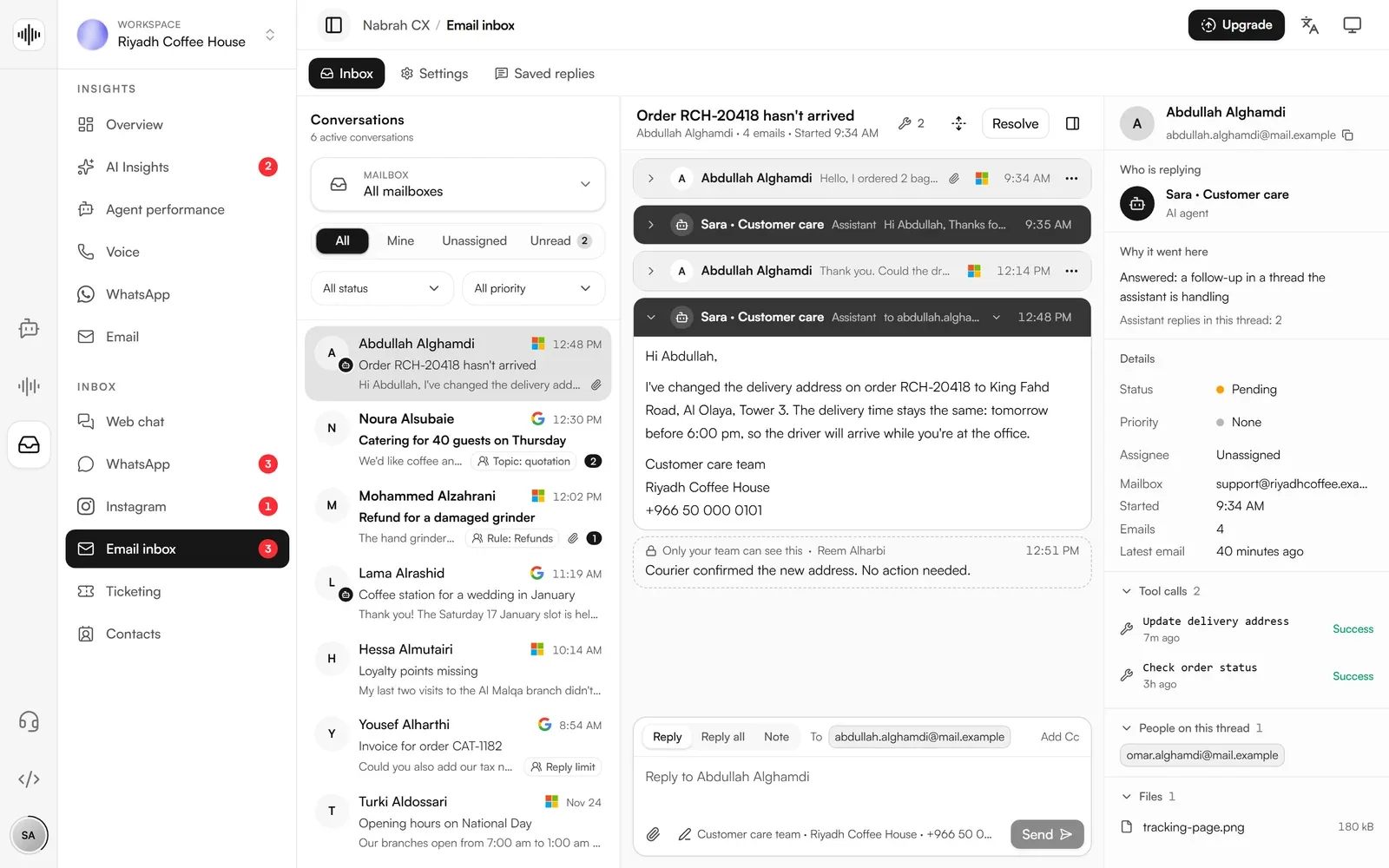
How it works
Nabrah reads and replies only in the mailbox you connect. It brings in email that arrives after you connect it, and new email usually shows up within a few minutes.
Each incoming email is answered by the assistant, left for your team, or kept out of the inbox. Answer rules, topics and safety checks decide which, and the inbox shows the reason on every email.
Replies go out from the connected mailbox, so customers see your usual address. Replies your team sends straight from Outlook or Gmail also appear in the thread.
Before you start
Requirement | Details |
|---|---|
A supported mailbox | A Microsoft 365 work or school mailbox (Outlook), or a Google Workspace or Gmail mailbox |
The right person to sign in | My mailbox: the mailbox owner. Shared mailbox (Microsoft 365): a staff member with Full Access and Send As on it. Google: someone who can sign in as the mailbox itself |
Admin approval, if your organization requires it | A Microsoft 365 or Google Workspace admin approves Nabrah once for the whole organization. See When IT needs to approve Nabrah below |
Workspace access | Edit access to Email with All mailboxes. Admins and editors have it by default |
An agent, for automatic replies | Create one in Agents → Build → Agents before Part 3 |
Room for another mailbox | Each workspace can connect one Microsoft 365 mailbox and one Google mailbox. To add more, contact support@nabrah.ai |
Part 1: Connect a Microsoft 365 mailbox
1.1 Start the connection. Open CX → Inbox → Email inbox and click Connect a mailbox. If a mailbox is already connected, open the Mailbox menu and click Add mailbox, or open the Settings tab and click Connect another mailbox.
1.2 Choose the provider. Under Where is this mailbox?, select Microsoft 365 and click Next. If an option shows Already connected, the workspace has used its mailbox for that provider.
1.3 Choose the mailbox type. Hover the info icon next to each option to see who needs to sign in.
Option | Use it for | Who signs in |
|---|---|---|
My mailbox | Your own mailbox | You, with your own Microsoft 365 account |
Shared mailbox | A team address such as support@ | A staff member who has Full Access and Send As on the shared mailbox |
For a shared mailbox, enter its address in Shared mailbox address, for example support@riyadhcoffee.example.
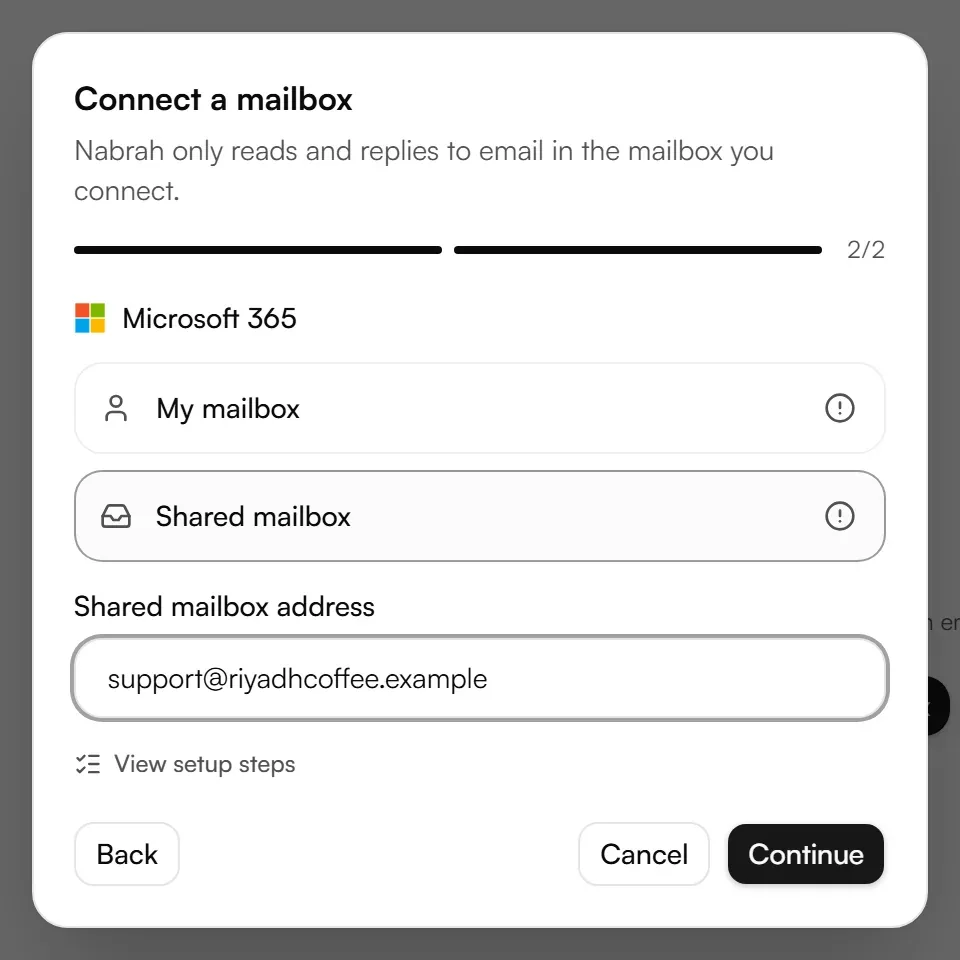
1.4 Sign in. Click Continue. A Microsoft sign-in window opens. Sign in and accept the permissions. The window closes, you see Mailbox connected, and the mailbox opens in the inbox.
Prepare a shared mailbox before you connect it. In the Exchange admin center, IT gives the staff member who connects it Full Access and Send As, and turns on the setting that copies items sent as the mailbox into its Sent Items. Without Send As, email arrives but no reply can be sent.
Click View setup steps at any time to open Setup steps for IT, the same steps your admin follows. Click Copy for IT to send them.
Part 2: Connect a Google mailbox
2.1 Start the connection. Click Connect a mailbox (or Add mailbox), select Google Workspace and click Next.
2.2 Sign in as the mailbox. Click Continue. In the Google window, pick the mailbox you are connecting, for example catering@riyadhcoffee.example, and allow Nabrah to read and send email.
Allow both read and send on the Google screen. If you clear either one, the connection stops with Nabrah needs permission to read and send email. Connect again and allow both on the Google screen.
Google mailboxes connect one account at a time: you always sign in as the mailbox itself. An address without its own Gmail, such as a group address, is refused with doesn't have Gmail. Sign in with a mailbox that has Gmail.
In Settings, a Google Workspace mailbox shows Google Workspace under its address, and a personal Gmail address shows Gmail.
When IT needs to approve Nabrah
Some organizations block new apps until an admin approves them. When that happens, the connect window changes to Your IT admin needs to approve Nabrah (Microsoft 365) or Your Google admin needs to allow Nabrah (Google Workspace) and lists Steps for IT.
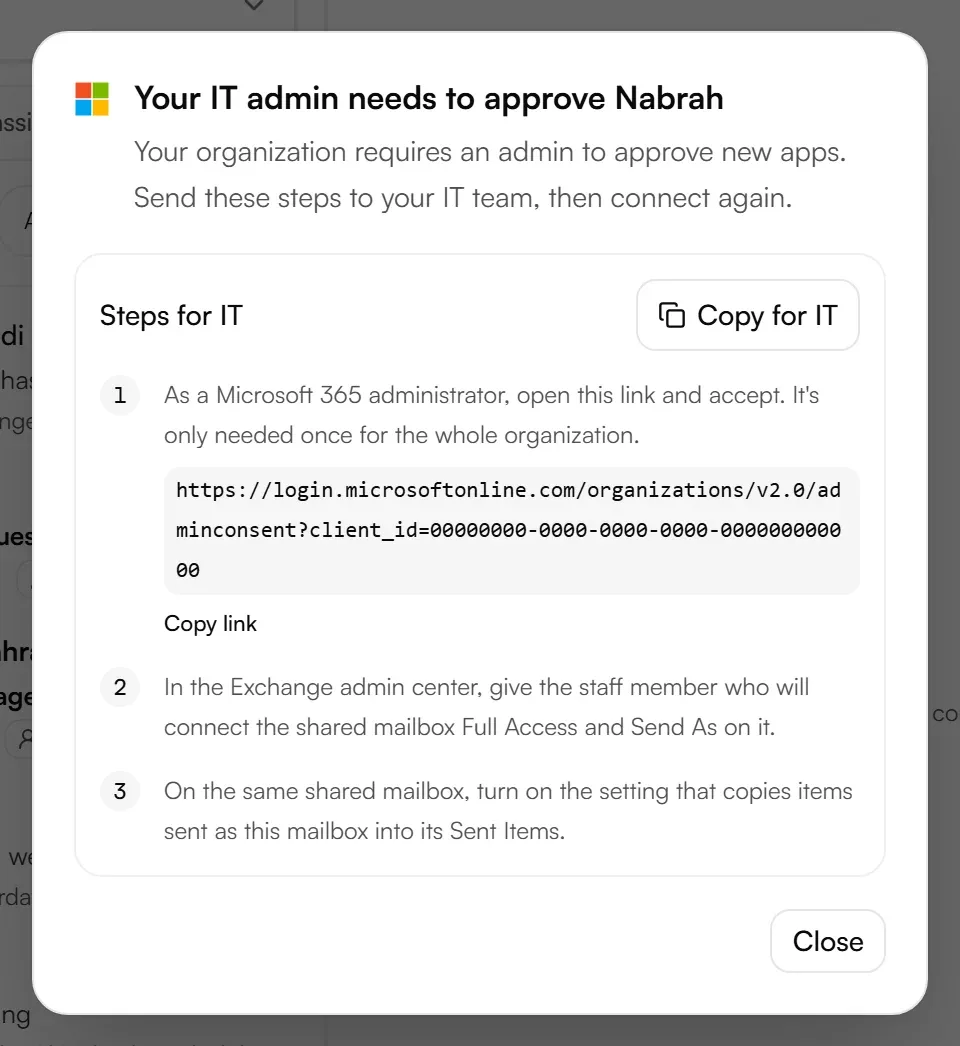
Click Copy for IT and send the text to your admin. It includes the approval link (Microsoft 365) or the client ID (Google Workspace).
Wait until your admin confirms the steps are done.
Click Connect a mailbox again.
The admin does this once for the whole organization.
Microsoft 365 steps
As a Microsoft 365 administrator, open the approval link and accept.
For a shared mailbox: in the Exchange admin center, give the staff member who will connect it Full Access and Send As.
For a shared mailbox: on the same mailbox, turn on the setting that copies items sent as this mailbox into its Sent Items.
After accepting, the admin sees Nabrah is approved: Your organization can now connect mailboxes. You can close this tab. If they see Approval wasn't completed, they should sign in as a Microsoft 365 administrator and open the approval link again.
Google Workspace steps
Sign in to admin.google.com as an administrator and open Security → Access and data control → API controls → Manage Third-Party App Access.
Choose Configure new app and search for the client ID shown in Nabrah.
Select Nabrah, choose who it applies to, set access to Trusted and save.
This lets people sign in to Nabrah with Google. Nabrah only reaches the mailboxes that sign in to it, not the rest of the organization.
Part 3: Link an agent and turn on automatic replies
Open the Settings tab, select the mailbox under Mailboxes, and open Automatic replies and agent.
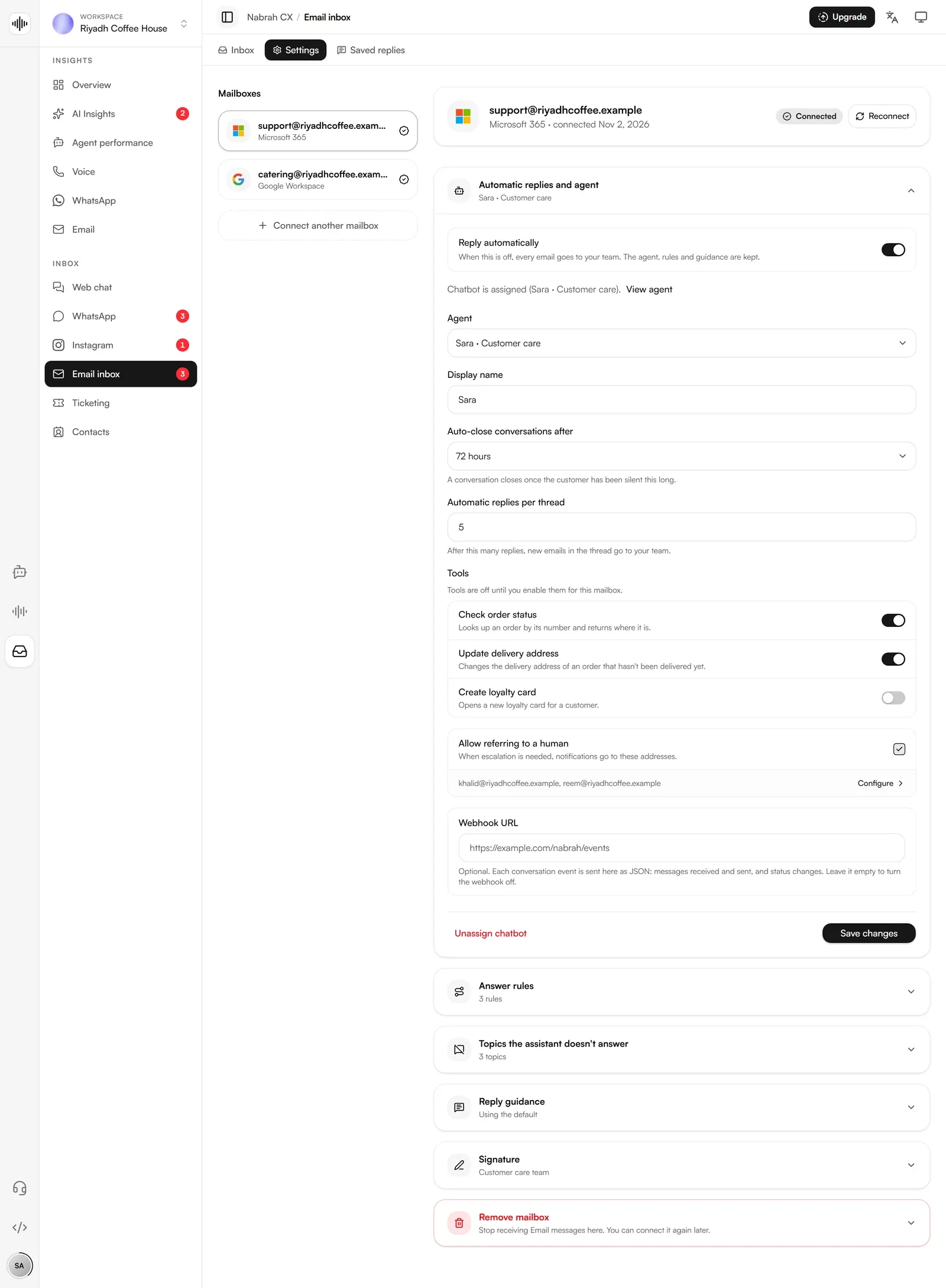
A new mailbox doesn't answer anything on its own. Reply automatically starts off, and When no rule matches (in Answer rules) starts at Leave for the team. Link an agent, turn on Reply automatically, then add answer rules or set When no rule matches to Answer with the agent.
Field | Description |
|---|---|
Reply automatically | Turns automatic replies on or off for this mailbox. Off by default, and available once an agent is linked. When it's off, every email goes to your team. The agent, rules and guidance are kept |
Agent | The agent that writes the replies |
Display name | Optional label shown in the inbox |
Auto-close conversations after | Closes a conversation once the customer has been silent this long. Default: 72 hours. Choose 1, 2, 4, 8, 12, 24, 48, 72, 120 or 168 hours |
Automatic replies per thread | 1 to 20. Default: 5. After this many replies, new emails in the thread go to your team |
Tools | Appears once you pick an agent and lists that agent's tools. Each tool stays off for this mailbox until you switch it on |
Allow referring to a human | On by default. Lets the agent hand a thread to your team. Click Configure to choose who takes over: Anyone available, Specific people or By department. Notifications go to the people you choose |
Webhook URL | Optional. Each conversation event is sent here as JSON: messages received and sent, and status changes. Leave it empty to turn the webhook off |
Signing secret (HMAC) | Optional. Appears once you enter a webhook URL. Every request then carries |
Click Assign chatbot the first time, then Save changes after later edits. Unassign chatbot removes the agent from this mailbox.
If you pick a different agent, Nabrah warns that the current agent will be replaced and that ongoing threads restart with the new one. An agent can answer several mailboxes, and each mailbox keeps its own settings.
Answer rules
Answer rules decide what happens to each incoming email. Open Settings → Answer rules.
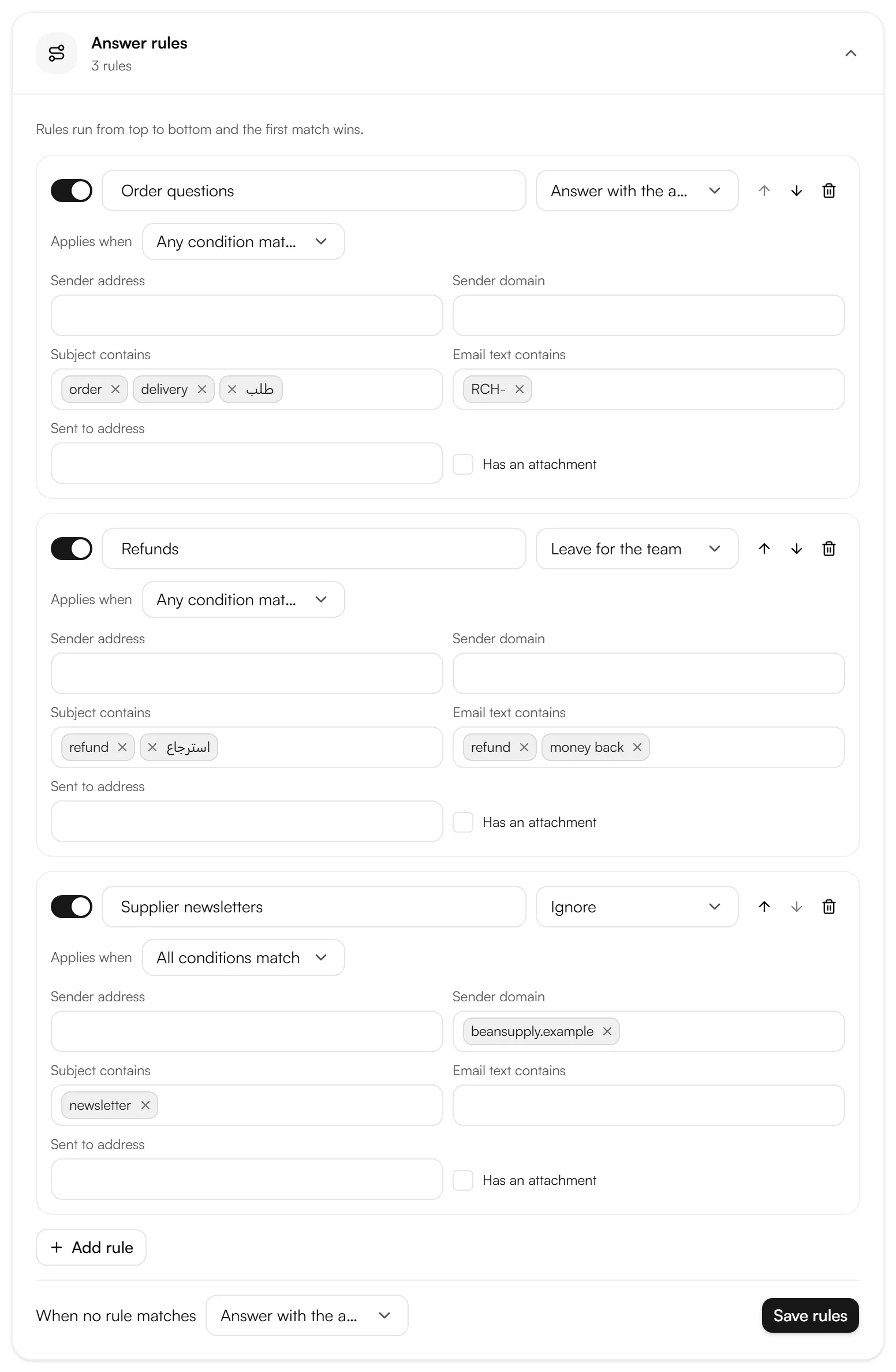
Rules run from top to bottom and the first match wins. Use the arrows to change the order.
Each rule has an on/off switch, a name (up to 100 characters), an Action and Applies when:
Action | What happens |
|---|---|
Answer with the agent | The assistant replies, unless one of the checks under Which emails the assistant doesn't answer sends it to your team |
Leave for the team | The email appears in the inbox for your team. The assistant doesn't reply |
Ignore | The email stays in your mailbox but doesn't appear in Email inbox |
Applies when is either Any condition matches or All conditions match. Add at least one condition:
Condition | Matches when |
|---|---|
Sender address | The email comes from one of these addresses |
Sender domain | The sender's address ends in one of these domains |
Subject contains | The subject contains one of these words or phrases |
Email text contains | The body contains one of these words or phrases |
Sent to address | The email was sent to one of these addresses |
Has an attachment | The email has at least one file |
Type a value and press Enter or a comma to add it. Each condition takes up to 100 values. You can add up to 50 rules.
At the bottom, When no rule matches sets the action for every other email. Default: Leave for the team. Click Save rules.
Use Ignore only for mail nobody needs to see. Ignored emails never reach the inbox, so nobody on your team is told about them. Use it for newsletters and system notifications, not for customer email.
Topics the assistant doesn't answer
Open Settings → Topics the assistant doesn't answer. Emails about these topics go straight to your team, and the assistant never replies to them, even when a rule says Answer with the agent.
Type a topic, for example quotation, and click Add.
Write each topic in the singular. Plurals match too, and the assistant also recognises the same topic in other words, like a price offer for a quotation. If you type a plural, Nabrah suggests the singular under Use the singular so both forms match:.
Click Save topics.
You can add up to 30 topics, each up to 100 characters. In the inbox, these emails carry the label Topic: followed by the topic.
Reply guidance
Reply guidance tells the agent how to write its emails. Open Settings → Reply guidance. With nothing saved, the agent uses the default guidance:
Write a clear, polite, professional reply to this email.
Open with a short greeting that uses the customer's name when you know it.
Answer every question in the email directly, in short paragraphs. Use numbered steps only when the customer has to follow a process.
Keep it focused: usually under 180 words, longer only when the answer needs it.
If something is missing, ask for everything you need in this one reply.
When the customer writes in Arabic, use clear Modern Standard Arabic without diacritics.
Close with one short line. If a signature is added for this mailbox, do not write your own name or company name.
Click Show default to read it and Customize to start your own version from it. Your guidance can be up to 4,000 characters. Click Save guidance. Reset to default removes your version. The section shows Custom guidance or Using the default.
Signature
Open Settings → Signature. The signature is added to the end of every reply sent from Nabrah, by the assistant or by your team.
Format | Limit | Notes |
|---|---|---|
Plain text | Up to 1,000 characters | Line breaks are kept |
HTML | Up to 10,000 characters after cleaning | Paste the HTML of your email signature. Images need https links. Anything unsafe is removed when you save |
Click Preview to see In the email, the end of a sample reply as the customer sees it, and Plain-text version, which some email apps show instead. Then click Save signature.
If nothing in an HTML signature can be sent, saving fails with Nothing in this signature can be sent. Unsafe parts are removed, and images need https links.
Keep names out of your reply guidance when you use a signature. The default guidance already tells the agent not to sign with its own name or company name, so the signature isn't repeated.
When you reply from the inbox, the signature shows as a chip under your text. Click it to switch Include signature off for that reply.
Use the inbox
Mailboxes and the conversation list
The Mailbox menu at the top of the list switches between mailboxes. With more than one mailbox, choose All mailboxes to see every mailbox in one list. Nabrah remembers your choice.
Filter the list with All, Mine, Unassigned and Unread, and with All status and All priority.
In each row | Meaning |
|---|---|
Initial and bot badge | The sender. The bot badge means the assistant is handling the conversation |
Provider logo | In All mailboxes, which mailbox the email arrived in. Hover it to see the address |
Subject and preview | The subject, or (no subject), and the start of the latest email |
Team label | Why the latest email went to your team (exceptions only) |
Paperclip | The conversation has attachments |
Count | Unread emails, up to 9+ |
Each email that went to your team carries a short label. Hover a label to see the full reason.
Label | Meaning |
|---|---|
Rule: name | A rule set to Leave for the team matched |
Topic: topic | It's about a topic the assistant doesn't answer |
No rule matched | No rule matched, and When no rule matches is Leave for the team |
Replies off | Reply automatically is off |
Can't send | The mailbox can't send right now |
Reply limit | The thread reached Automatic replies per thread, or the mailbox reached its daily limit |
With your team | Your team is handling the thread, or a person took over |
For your team | Another reason, for example the email is too old to answer automatically |
Read a thread
The thread header shows the subject, the sender, the number of emails and when the thread started. From the header you can:
Click the wrench to open Tool calls: each tool the agent called, with its result. It shows only when the agent used a tool.
Click Collapse all or Expand all to fold older emails. Click any email header to fold or open it.
Click Resolve to close the conversation, or Reopen.
Click the panel icon to open Customer details.
In the thread, emails from the assistant are marked Assistant. Replies your team sent from Outlook or Gmail are marked via Outlook or via Gmail. In All mailboxes, each received email shows the logo of the mailbox it arrived in.
Click the to line under a sender to see From, To, Cc, Date, Subject and Routing, the reason the email went to the assistant or your team.
Image attachments show as previews. Click one to open it full size. Other files show their type and size; click to download.
To see an email as it was sent, open the ⋯ menu on the email and click View original. Images and links are turned off in this view. Click Back to text to return.
Notes appear as dashed cards marked Only your team can see this, with the author's name.
Reply, reply all and add a note
The reply box at the bottom of the thread has three modes:
Mode | What it does |
|---|---|
Reply | Replies to the sender of the latest email |
Reply all | Replies to the sender and fills Cc with everyone else on that email. Unavailable when nobody else was on it |
Note | Adds a note that only your team can see. Nothing is sent to the customer |
Click Add Cc to copy more people.
Click the paperclip to attach files. Up to 10 files and 3 MB in total per reply. The counter shows how much you've used.
Type
/to insert a saved reply.Press Ctrl + Enter or click Send.
Send large files from Outlook or Gmail. Replies from Nabrah can carry up to 3 MB of files. Over the limit, the reply box shows Files are over the 3 MB limit. Send large files from Outlook. (or Gmail).
If a reply can't be sent, your text stays in the box: Couldn't send. Your text is still here.
After you send, a line under your email shows its delivery status:
Message | What to do |
|---|---|
Sending | Nothing. It changes once the email is out |
Not delivered: this email bounced back. Check the address. | Check the customer's address and send again |
Not sent: the files are over the 3 MB limit. | Send it from Outlook or Gmail |
We couldn't confirm this email went out. | Check the Sent folder in Outlook or Gmail before you send it again |
Not sent: this mailbox isn't allowed to send. | Microsoft 365: ask IT to restore Send As. Google: reconnect and allow sending on the Google screen |
Not sent: this mailbox needs to be reconnected. | Reconnect the mailbox in Settings |
Not sent: this thread is with your team. | Shown on an assistant reply that was held back because your team took over the thread. Reply yourself if the customer still needs an answer |
Customer details
Click the panel icon in the thread header to open Customer details:
Section | Shows |
|---|---|
Name and address | Click the address to copy it |
Who is replying | The agent, or the assigned team member |
Why it went here | The routing reason for the latest email, and Assistant replies in this thread |
Details | Status, Priority and Assignee, which you can change here, plus Mailbox, Started, Emails and Latest email |
Tool calls | The latest tool calls. Click View all for the full list |
People on this thread | Everyone else in To and Cc |
Files | Every file in the thread |
Which emails the assistant doesn't answer
Kept out of the inbox
These emails stay in your mailbox but never appear in Email inbox. You can see how many there were in Email insights: emails a rule ignored under Ignored in Emails by day, the rest under Why emails were blocked.
Automatic replies and out-of-office messages
Delivery failure notices
Mailing list and bulk email
Email from no-reply addresses
Email sent from the connected mailbox itself
Email with no sender address
More than 20 emails in one hour from the same sender
Email that a rule set to Ignore
Left for your team
These emails appear in the inbox, but the assistant doesn't reply. The label on each email tells you which reason applied.
Reason | Label |
|---|---|
A rule set to Leave for the team matched | Rule: name |
No rule matched and When no rule matches is Leave for the team | No rule matched |
The email is about a topic the assistant doesn't answer | Topic: topic |
Reply automatically is off, or no agent is linked | Replies off |
The mailbox can't send | Can't send |
The thread reached Automatic replies per thread | Reply limit |
The mailbox sent 500 automatic replies today (counted from midnight UTC) | Reply limit |
Your team is already handling the thread, or a person took over | With your team |
The email is more than 24 hours old | For your team |
The reply address is different from the sender | For your team |
It replies to an email sent from outside this inbox | For your team |
The email couldn't be loaded | For your team |
Remove a mailbox
Open Settings, select the mailbox and open Remove mailbox.
Click Remove mailbox, then confirm with Remove mailbox.
Its conversations and customer contacts are deleted from Nabrah and the agent stops replying. Nothing changes in the mailbox itself. You can connect it again later.
Roles and access
Access to Email inbox is set per member in Email (None, View or Edit) and Mailboxes (All mailboxes or Only selected). See Workspace & teams.
Access | What the member can do |
|---|---|
None | Email inbox is hidden |
View | Read conversations and see mailbox status. The reply box shows You can read this mailbox but not reply from it. Viewers have View by default |
Edit | Reply, add notes, assign, resolve, use saved replies, change mailbox settings and reconnect. Admins and editors have Edit by default |
Edit with All mailboxes | Also connect and remove mailboxes |
Members with Only selected see only the mailboxes they were given.
Troubleshooting
Symptom | Cause | Fix |
|---|---|---|
The sign-in for this mailbox expired. | The Microsoft sign-in expired | Click Reconnect and sign in again |
Access to this mailbox was withdrawn. | Someone removed Nabrah's access in Microsoft 365 | Click Reconnect and sign in again |
The account that connected this mailbox no longer has access to it. | Full Access on the shared mailbox was removed | Ask IT to restore Full Access, then reconnect |
Email is arriving, but this mailbox can't send. (Microsoft 365) | Send As was removed | Ask IT to restore Send As, then reconnect |
This mailbox can't be found any more. | The mailbox was deleted or renamed | Check with IT that it still exists, then reconnect |
The Google sign-in for this mailbox expired or was withdrawn. | The Google sign-in expired or was revoked | Click Reconnect and sign in as the mailbox |
Your Google admin blocked Nabrah or access was withdrawn. | Your Google admin no longer allows Nabrah | Ask them to allow Nabrah again with the Google Workspace steps above, then reconnect |
Nabrah can't open this mailbox any more. | The Google sign-in no longer covers this mailbox | Reconnect by signing in as the mailbox |
Email is arriving, but this mailbox can't send. (Google) | Sending wasn't allowed on the Google screen | Reconnect and allow sending on the Google screen |
This Gmail mailbox can't be found any more. | The Google mailbox was deleted | Check with your Google admin that it still exists, then reconnect |
The connect window shows Your IT admin needs to approve Nabrah | Your organization requires admin approval for new apps | Send the Steps for IT to your admin, then connect again |
A provider shows Already connected, or You've reached your mailbox limit | The workspace has used its mailbox for that provider | Remove a mailbox, or contact support@nabrah.ai to add more |
Older emails are missing | Nabrah only brings in email that arrives after you connect | Ask the customer to reply, or answer from Outlook or Gmail |
The assistant never replies | Reply automatically is off, or When no rule matches is Leave for the team | Turn on Reply automatically and add an answer rule or change When no rule matches |
An email never appears in the inbox | A rule set to Ignore matched, or it was an automatic reply, bounce or bulk email | Check your rules. See Kept out of the inbox above |
A reply is marked Not delivered | The customer's address bounced | Check the address and send again |
Frequently asked questions
Does Nabrah change anything in my mailbox? Nabrah reads incoming email and sends replies from the mailbox. Removing the mailbox from Nabrah doesn't change the mailbox itself.
Can my team keep using Outlook or Gmail? Yes. Replies sent from the mail app appear in the thread, marked via Outlook or via Gmail.
How quickly do new emails appear? Usually within a few minutes of arriving in the mailbox.
Can I bring in email from before I connected? No. Nabrah starts with the email that arrives after you connect the mailbox.
Can I connect more mailboxes? Each workspace can connect one Microsoft 365 mailbox and one Google mailbox. Contact support@nabrah.ai to add more.
Where do I see how the assistant performs on email? In CX → Insights → Email. See Email insights.