
صندوق الوارد
Connect your Instagram account to answer direct messages in Nabrah. Your agent replies to customers right away, and your team picks up anything that needs a person, all from CX → Inbox → Instagram.
Before you start
Requirement | Details |
|---|---|
An Instagram professional account | Nabrah connects through Instagram's sign-in for business messaging, which is meant for professional accounts (Business or Creator). If your account is personal, switch it to professional in the Instagram app first |
Sign-in details for the account | You sign in to Instagram during the connection, so you need its username and password, or access to it in your browser |
Workspace access | Edit access to Instagram with All accounts. Admins and editors have it by default |
An agent, for automatic replies | Optional. Create one in Agents → Build → Agents |
Room for another account | Each workspace can connect one Instagram account. To add more, contact support@nabrah.ai |
Connect your account
Open CX → Inbox → Instagram and click Connect Instagram.
An Instagram sign-in window opens. Sign in to the account you want to connect and allow the permissions Nabrah asks for.
The window shows Account connected. You can close this window. and closes. You see Instagram account connected, and the account's conversations open in the inbox.
New direct messages appear in the inbox as customers send them.
To connect another account, open the Instagram account menu at the top of the conversation list and click Add account, or open the Settings tab and click Connect another account. When the workspace is at its limit, Nabrah shows You've reached your account limit: This workspace is using all of its Instagram accounts. To add more, contact us at support@nabrah.ai.
Sign in with the account you mean to connect. If your browser is already signed in to a different Instagram account, sign out of it in the sign-in window first. An account that is already connected is refused with This account is already connected.
Link an agent
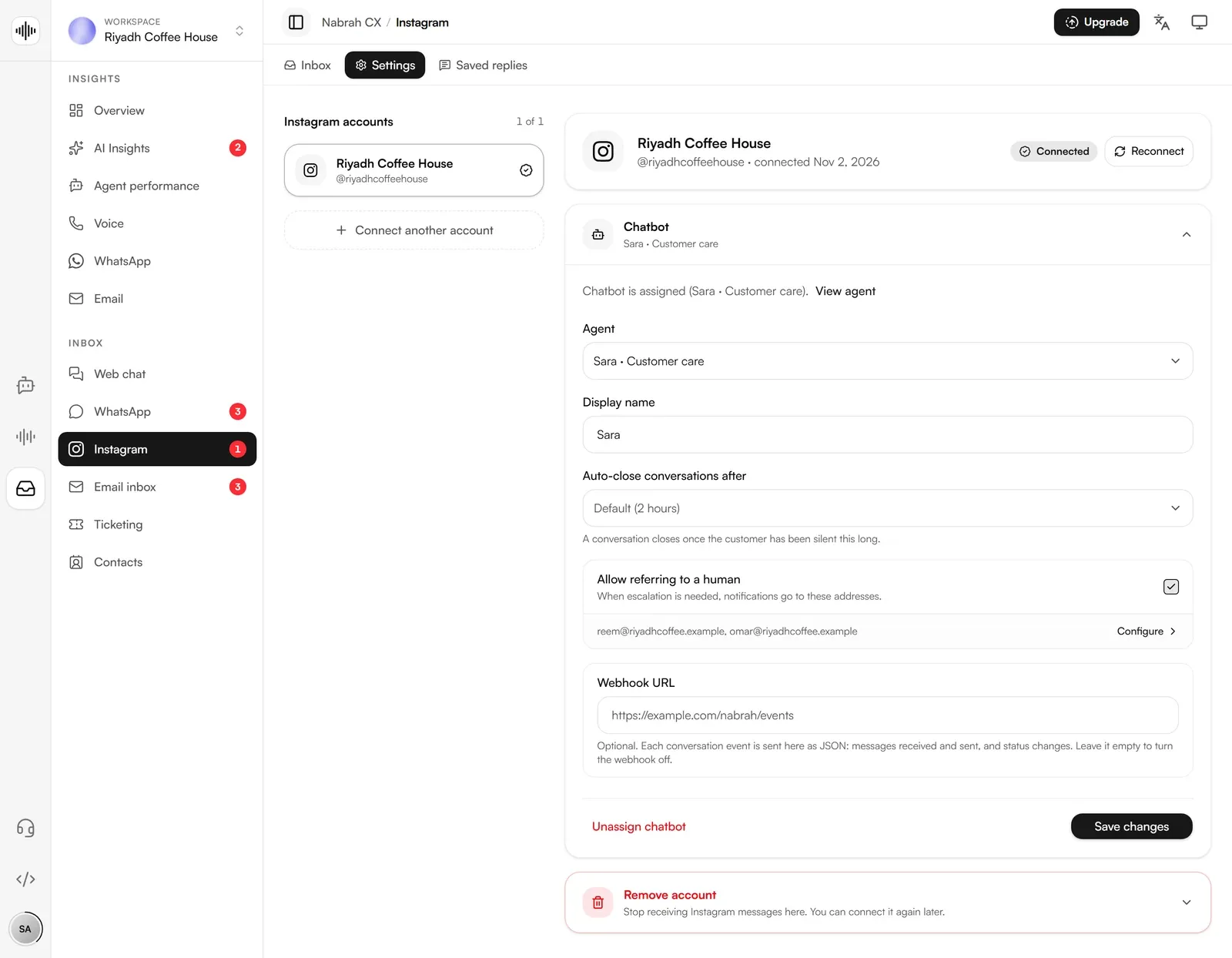
Open the Settings tab, select the account under Instagram accounts, and open Chatbot.
Field | Description |
|---|---|
Agent | The agent that answers direct messages on this account |
Display name | Optional label shown in the inbox |
Auto-close conversations after | Closes a conversation once the customer has been silent this long. Default: 2 hours. Choose 1, 2, 3, 4, 6, 8, 12 or 24 hours |
Allow referring to a human | Off by default. Lets the agent hand the conversation to your team. Click Configure to choose who takes over |
Webhook URL | Optional. Each conversation event is sent here as JSON: messages received and sent, and status changes. Leave it empty to turn the webhook off |
Signing secret (HMAC) | Optional. Appears once you enter a webhook URL. Every request then carries |
Click Assign chatbot the first time, then Save changes after later edits. Unassign chatbot removes the agent, and your team answers every message.
If you pick a different agent, Nabrah warns that the current agent will be replaced and that ongoing conversations on this account restart with the new one. An agent can answer several accounts, and each account keeps its own settings.
Choose who takes over
When Allow referring to a human is on, the agent can hand a conversation to your team. Click Configure next to it, or use the Human handoff shortcut: the person icon at the top of the conversation list. The shortcut appears only when Allow referring to a human is on.
Under Who should take over?, choose one option:
Option | What happens |
|---|---|
Anyone available | Any teammate connected to this inbox |
Specific people | Always hand over to the people you list. Click Add person and pick workspace members or enter email addresses |
By department | The AI reads the conversation and picks the right team. Give each department a name and describe when the AI should choose it |
For each person, Always available is the default. Click Set hours and choose Only during these hours to limit handovers to set days and times.
Keep department descriptions broad. The AI must pick a department every time. If none of the descriptions match what the customer is asking, no one is contacted.
Click Save changes.
Use the inbox
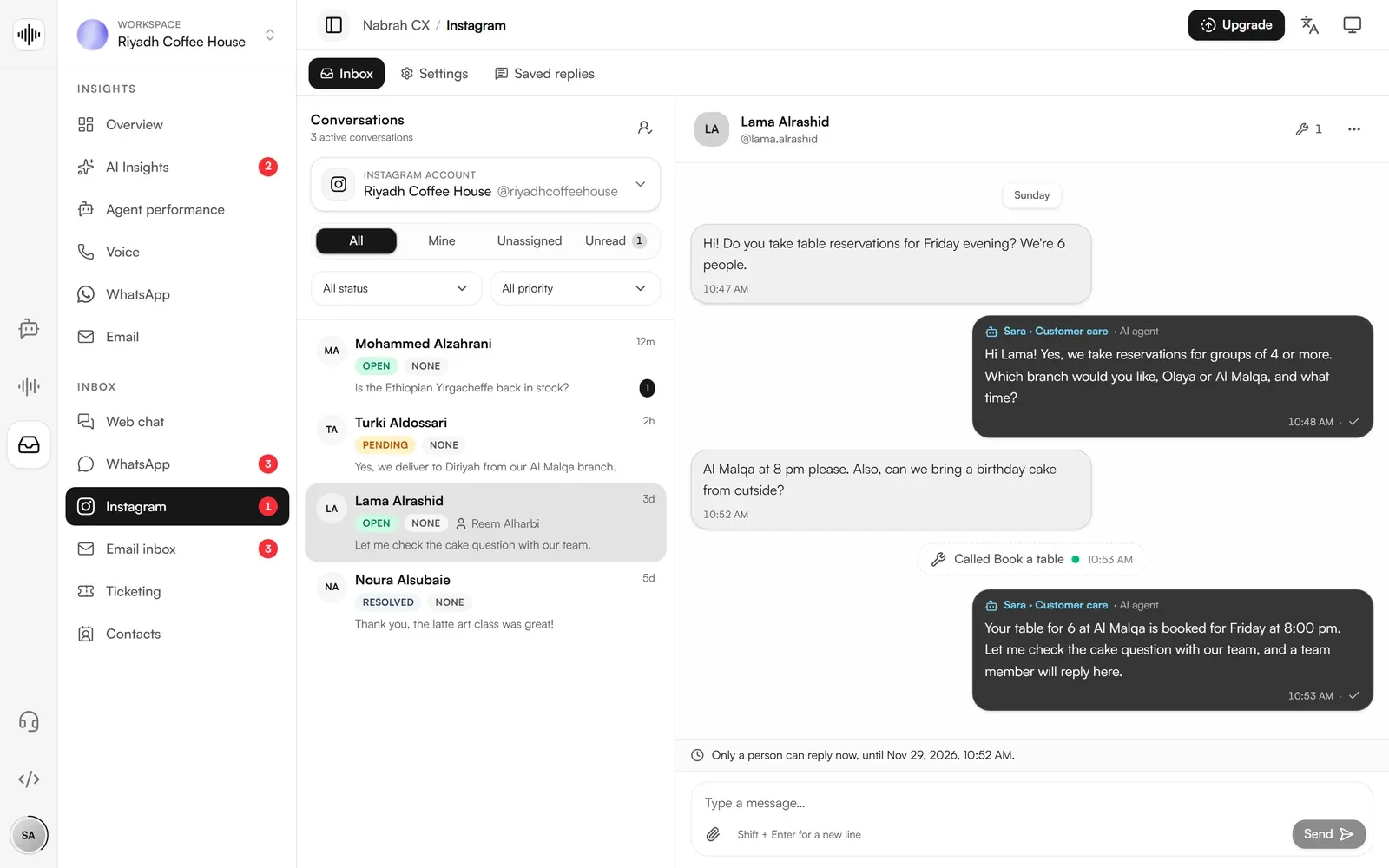
The Instagram account menu at the top of the list switches between accounts. Filter the list with All, Mine, Unassigned and Unread, and with All status and All priority.
Each row shows the customer's name or @username, the status and priority, the assignee, the latest message and the unread count.
In a conversation:
The header shows the customer's name and @username. The wrench shows how many tools the agent called. Click it to see each call and its result.
Messages from the agent show the agent's name and AI agent. Tool calls appear in the thread, for example Called Book a table.
Click ⋯ to open Conversation actions and change the Assignee, Status or Priority.
Type in Type a message… and click Send. Press Shift + Enter for a new line. Click the paperclip to attach a file, or type
/to insert a saved reply.
Reply window
Instagram limits how long after a customer's message you can reply. Nabrah shows where each conversation stands above the reply box.
Time since the customer's last message | Who can reply |
|---|---|
Up to 24 hours | Your agent and your team |
24 hours to 7 days | Only a person on your team. A line above the reply box shows Only a person can reply now, until followed by the date and time |
More than 7 days | No one. The reply box is replaced by The reply window has closed |
When the window has closed, wait for the customer to message again. A new message opens a new 24-hour window.
Hand over before the 24 hours run out. After 24 hours the agent can't reply, so a conversation that still needs an answer depends on your team replying within the 7 days.
Reconnect an account
If the account needs to be signed in again, the inbox shows This account needs to be reconnected: Replies can't be sent until you sign in with Instagram again. Click Reconnect and sign in to the same Instagram account.
You can also refresh a working connection: open Settings and click Reconnect next to the account. Sign in with the same account, or Nabrah shows Sign in with the same Instagram account.
Remove an account
Open Settings, select the account and open Remove account.
Click Remove account, then confirm with Remove account.
Its conversations and customer contacts are deleted and the agent stops replying. You can connect it again later.
Roles and access
Access to Instagram is set per member in Instagram (None, View or Edit) and Instagram accounts (All accounts or Only selected). See Workspace & teams.
Access | What the member can do |
|---|---|
None | The Instagram inbox is hidden |
View | Read conversations and see account status. There is no reply box. Viewers have View by default |
Edit | Reply, assign, change status and priority, use saved replies, link the agent, configure handoff and reconnect. Admins and editors have Edit by default |
Edit with All accounts | Also connect and remove accounts |
Members with Only selected see only the accounts they were given.
Troubleshooting
Symptom | Cause | Fix |
|---|---|---|
Instagram isn't available yet | The channel hasn't been turned on for your workspace | Contact support@nabrah.ai |
Couldn't connect the account. Try again. | The sign-in was cancelled or failed | Connect again and allow the permissions Instagram asks for |
The connection fails for a personal account | Business messaging needs a professional account | Switch the account to Business or Creator in the Instagram app, then connect again |
This account is already connected | The account is already connected to Nabrah | Use the existing connection, or remove it first |
You've reached your account limit | The workspace already has its Instagram account | Remove an account, or contact support@nabrah.ai |
This account needs to be reconnected | The Instagram sign-in expired or was removed | Click Reconnect and sign in to the same account |
Sign in with the same Instagram account | You signed in to a different account while reconnecting | Sign out of the other account and reconnect with the original one |
The reply window for this conversation has closed. | More than 7 days have passed since the customer's last message | Wait for the customer to message again |
The agent stopped replying, but you still can | More than 24 hours have passed since the customer's last message | Reply as a person within 7 days |
No Human handoff icon in the inbox | Allow referring to a human is off, or you have View access | Turn it on in Settings → Chatbot |
Frequently asked questions
Can the agent reply after 24 hours? No. Instagram allows automatic replies for 24 hours after the customer's last message. After that, only a person on your team can reply, for up to 7 days.
Can I start a conversation with a customer? No. You can reply only after a customer messages the account.
Can I connect more than one account? Each workspace can connect one Instagram account. Contact support@nabrah.ai to add more.
Does removing the account delete anything on Instagram? No. Removing it deletes the conversations and contacts in Nabrah. Your Instagram account and its messages on Instagram aren't changed.