
صندوق الوارد
WhatsApp templates
Templates are messages approved by WhatsApp that you send to start a conversation, reopen one after the 24-hour reply window, or send to many people in a campaign. You create them in Nabrah, submit them to WhatsApp for review, and track their status and results in one library.
Before you start
Requirement | How to check |
|---|---|
A connected WhatsApp number | See WhatsApp. Without one, the builder shows Connect a WhatsApp number before creating templates. |
Edit access to WhatsApp | Needed to create, edit, delete, sync and test templates. Members with View access can browse the library |
Access to all WhatsApp numbers | Members limited to selected numbers can send templates, but can't create, change, delete or sync them, or change the opted-out list |
Templates belong to a WhatsApp business account. Every number on that account uses the same templates.
The template library
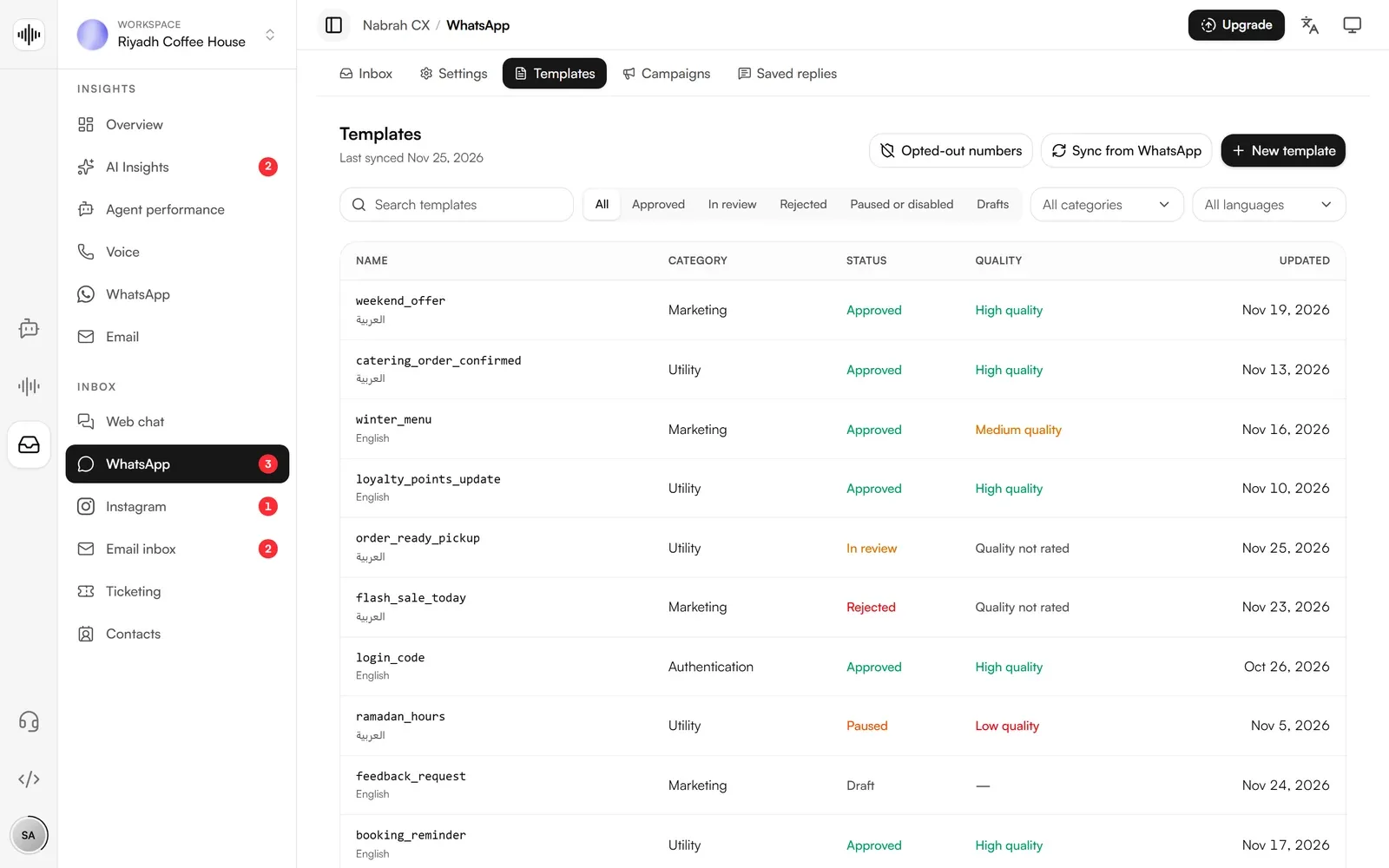
Open CX → Inbox → WhatsApp and click the Templates tab. You can also open ⋮ → Templates in the conversation list.
The first time you open it, Nabrah imports the templates you already have on WhatsApp (Importing your templates from WhatsApp). After that, WhatsApp's review decisions, quality ratings and category changes update on their own. Click Sync from WhatsApp to pull templates someone created directly in WhatsApp Manager. The subtitle shows when the library was last synced.
Control | What it does |
|---|---|
All accounts | Shows one business account's templates, when you have more than one |
Status | All, Approved, In review, Rejected, Paused or disabled, Drafts |
All categories | Marketing, Utility or Authentication |
All languages | One language only |
Search templates | Search by name |
The table shows Name (with the language), Category, Status, Quality and Updated, 50 templates per page. Click a row to open the template.
Statuses
Status | What it means |
|---|---|
Draft | Saved in Nabrah only. WhatsApp hasn't seen it yet |
In review | Submitted and waiting for WhatsApp. This usually takes up to 24 hours. Appealed templates also count as in review (In appeal) |
Approved | Ready to send from the inbox and in campaigns |
Rejected | WhatsApp turned it down. Open it to read WhatsApp's reason, change it and submit again |
Paused | WhatsApp paused it because of low quality. It can't be sent until WhatsApp makes it active again |
Disabled | WhatsApp disabled it. It can't be sent |
Limit reached | WhatsApp limited it. Shown under Paused or disabled |
You may also see Being deleted, Deleted and Archived.
Quality
WhatsApp rates approved templates from how people react to them: High quality, Medium quality, Low quality, or Quality not rated when there isn't enough data. A template with low quality can be paused. When WhatsApp flags one, its details show WhatsApp flagged this template for low quality. Improve it before it gets paused.
Link click data
When link click data is off for a business account, the library shows Link click data is off for this account. Click Turn on link click data and confirm to let WhatsApp share link clicks for that account's templates. Campaign results then show Link clicks.
This can't be turned off later. WhatsApp keeps sharing link clicks for that account once you turn it on.
Read-only accounts
If the library shows Some business accounts are read-only here, templates on those accounts can be sent but not created, changed or deleted in Nabrah.
Template details
Click a template to open its details, with a large WhatsApp preview on the right. Use the sun and moon buttons to see it in light or dark mode.
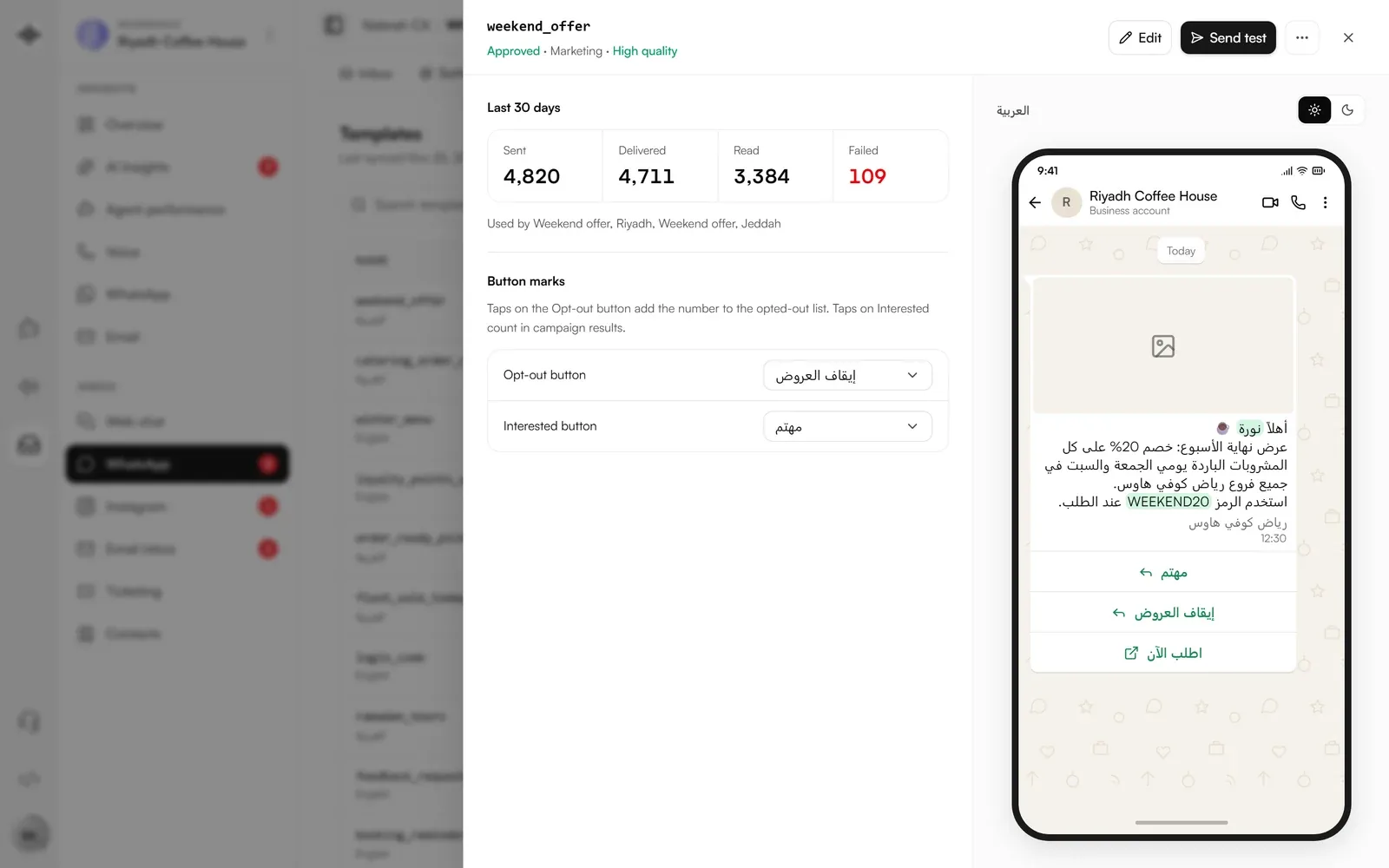
Section | What it shows |
|---|---|
Header | Name, status, category and quality |
WhatsApp's review | Review notes, such as In review, a rejection reason, or a category change by WhatsApp |
Last 30 days | Sent, Delivered, Read and Failed for this template, and Used by with the campaigns that use it |
Button marks | Which quick-reply button is the Opt-out button and which is the Interested button. Change them and click Save marks |
Actions at the top:
Action | When it's available |
|---|---|
Edit | Approved, Rejected, Paused and Draft templates |
Send test | Approved templates |
⋯ → Duplicate | Always. Opens a draft copy named |
⋯ → Add a language | When the template isn't in every language yet. Opens a draft with the same name in the language you pick |
⋯ → Delete | Every status except Disabled |
When WhatsApp changes a template's category, the details say so, for example WhatsApp changed the category from Utility to Marketing. Pricing and who can receive it follow the new category.
Create a template
Click New template. The builder shows the steps across the top and a live phone preview on the right. Variables appear in the preview with their sample values highlighted.
The steps depend on the category and message type:
Template | Steps |
|---|---|
Marketing, Standard | Setup → Content → Buttons → Review |
Marketing, Carousel | Setup → Content → Cards → Review |
Marketing, Limited-time offer | Setup → Content → Offer → Buttons → Review |
Utility | Setup → Content → Buttons → Review |
Authentication | Setup → Code settings → Review |
Click Save draft at any time to keep your work without submitting it.
Setup
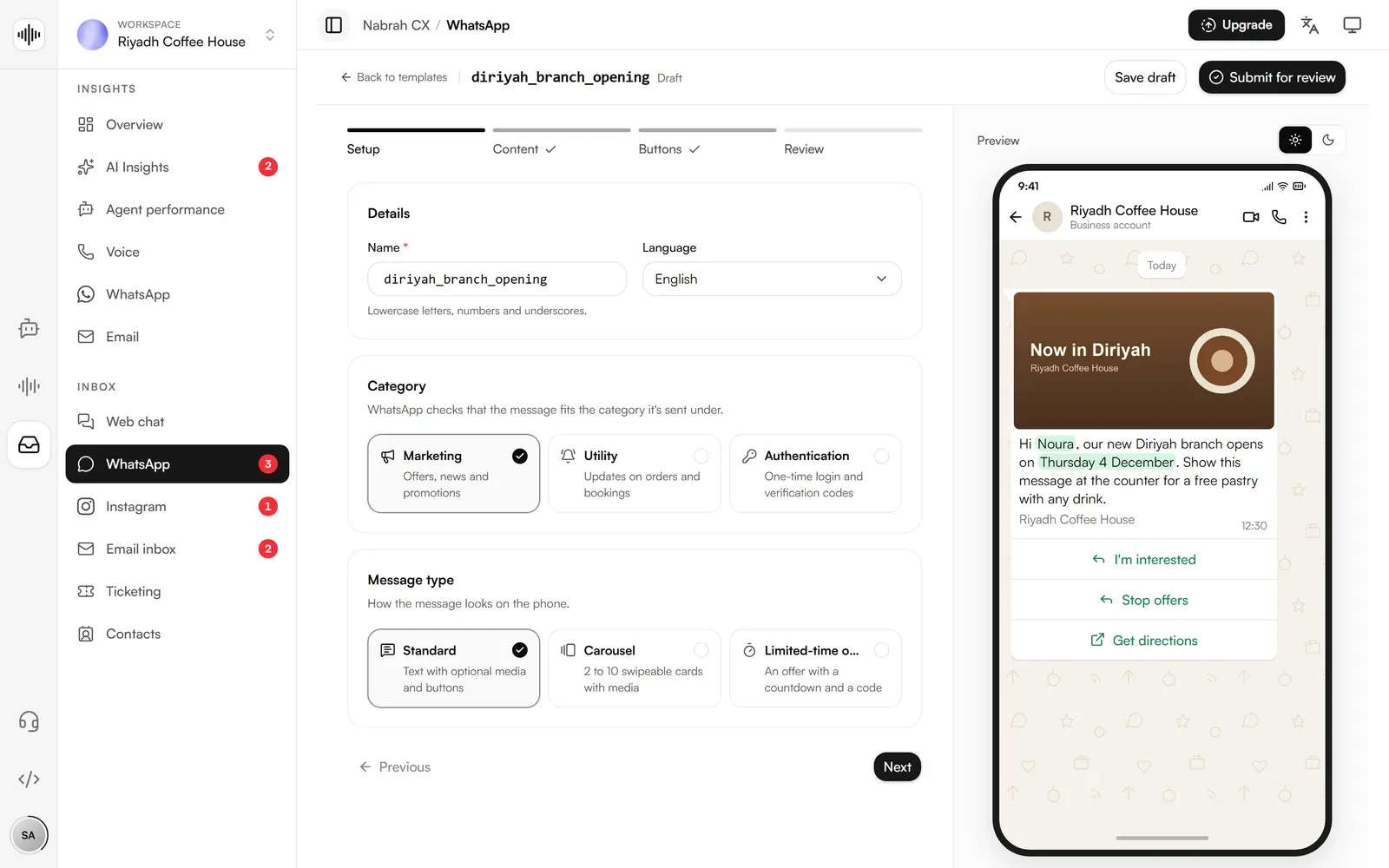
Field | Description |
|---|---|
Name | Lowercase letters, numbers and underscores only, up to 512 characters. A name and language pair must be unique on the account |
Language | العربية, English, English (US), English (UK), Français, اردو, हिन्दी, Bahasa Indonesia or Türkçe |
Business account | Shown when you have more than one |
Category | Marketing (offers, news and promotions), Utility (updates on orders and bookings) or Authentication (one-time login and verification codes). WhatsApp checks that the message fits the category it's sent under. Default: Marketing |
Message type | Marketing only. Standard (text with optional media and buttons), Carousel (2 to 10 swipeable cards with media) or Limited-time offer (an offer with a countdown and a code). Default: Standard |
Pick the category carefully. WhatsApp can move a template to another category during review, and an approved template keeps its category. Utility templates that read like promotions are the most common reason for a category change.
Content
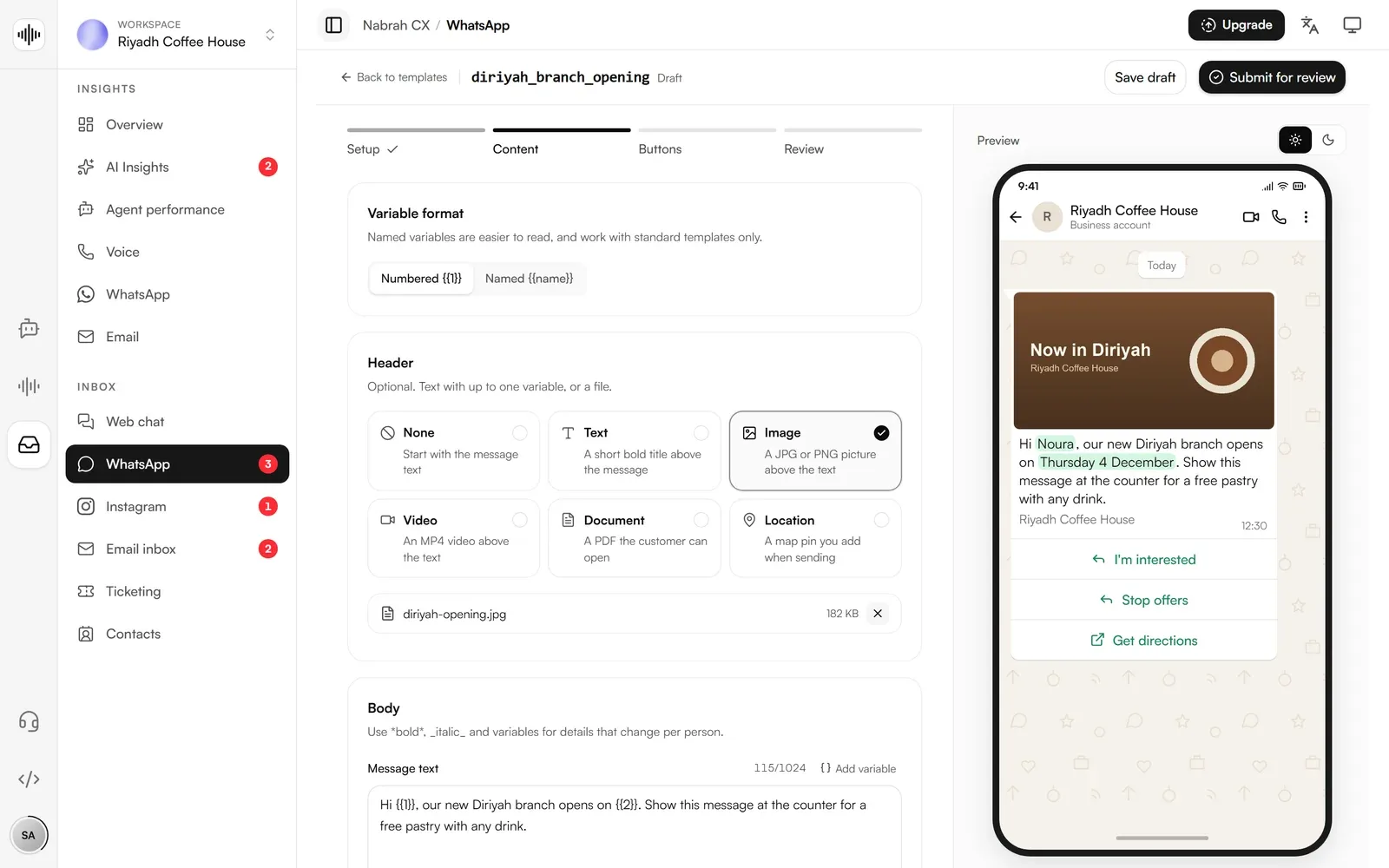
Variable format (Standard only): Numbered {{1}} or Named {{name}}. Named variables are easier to read. Carousels and limited-time offers always use numbered variables.
Header (optional):
Header | Description |
|---|---|
None | Start with the message text |
Text | A short bold title, up to 60 characters, with at most one variable |
Image | A JPG or PNG picture, up to 5 MB |
Video | An MP4 video, up to 16 MB |
Document | A PDF the customer can open, up to 30 MB |
Location | A map pin you add when sending. Not available for limited-time offers |
For an image, video or document header, upload a sample file. WhatsApp reviews the template with it, and it becomes the Saved sample you can reuse when sending. A limited-time offer allows only None, Image or Video.
Body: write the Message text. Use *bold*, _italic_, and Add variable for details that change per person, such as a name or order number. Enter a Sample value for every variable; WhatsApp reviews the template with these values.
Footer (optional): a short line under the message, up to 60 characters, with no variables. Limited-time offers can't have a footer.
Buttons
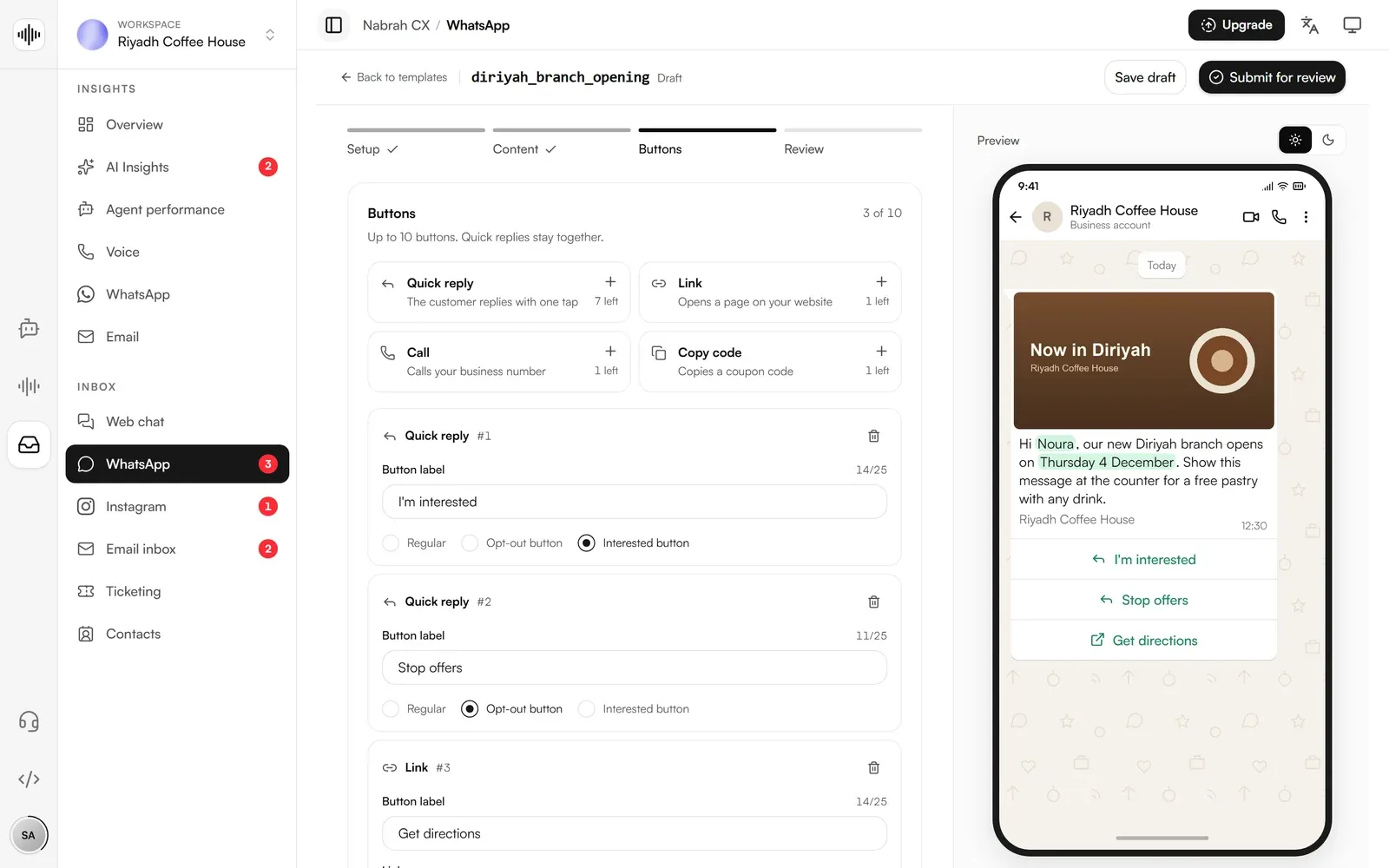
Add up to 10 buttons. The counter shows how many are left of each type.
Button | Description | Limit |
|---|---|---|
Quick reply | The customer replies with one tap | Keep quick replies next to each other |
Link | Opens a page on your website. Choose Same link for everyone, or Link ends with a variable and enter a Sample full link | Up to 2 |
Call | Calls your business number | 1 |
Copy code | Copies a coupon code. Marketing only | 1 |
Each button needs a Button label of up to 25 characters (Copy code buttons have none).
Button roles: Opt-out and Interested
Each quick-reply button has a Button role: Regular, Opt-out button (Marketing only) or Interested button.
Taps on the Opt-out button add the number to Opted-out numbers, so marketing campaigns skip it.
Taps on the Interested button count as Interested in campaign results.
You can also change roles later from the template's details with Save marks, without another review. If an edit changes the marked button, the details ask you to mark it again.
Add an Opt-out button to every marketing template. Giving people a one-tap way to stop protects your number's quality rating, and Nabrah keeps them out of future marketing for you.
Cards (Carousel)
Write the message text above the cards in Content, then add 2 to 10 cards in Cards. Every card has the same parts and buttons:
An image or video, required on every card.
Card text, up to 160 characters.
Up to 2 buttons: Quick reply or Link.
Use Add card, Remove card, Move up and Move down to arrange them.
Offer (Limited-time offer)
Field | Description |
|---|---|
Offer text | A short title shown above the countdown, up to 16 characters, for example Today only |
The offer has an end time | On by default. You set the end time each time you send the template |
The message text of a limited-time offer is up to 600 characters, and a Copy code value up to 15 characters.
Code settings (Authentication)
Authentication templates use WhatsApp's fixed text, "{{1}} is your verification code." with the code in bold, plus an optional security line and expiry line.
Field | Description |
|---|---|
How the code is delivered | Copy code (the customer copies the code in one tap), One-tap autofill (the code fills your Android app in one tap) or Zero-tap (the code goes straight to your Android app). Default: Copy code |
Android apps | For One-tap and Zero-tap: 1 to 5 apps, each with a Package name and Signature hash |
Autofill button text | One-tap only. Up to 25 characters |
Zero-tap terms | Zero-tap only. You must accept that the code is sent to the app without the customer tapping |
Add the security notice | Adds For your security, do not share this code. On by default |
Code expires after (minutes) | 1 to 90. Default: 10. Adds This code expires in 10 minutes. |
Message lifetime (seconds) | Optional, 30 to 900. How long WhatsApp keeps trying to deliver the code |
Authentication templates can't be used in campaigns.
Review and submit
The Review step checks everything. It shows Everything checks out. Submit when you're ready. or Fix these before submitting. with a list of the problems to fix. Click Submit for review.
WhatsApp usually reviews templates within 24 hours. The status changes to Approved or Rejected by itself. If WhatsApp refuses the template straight away, Nabrah shows WhatsApp didn't accept this template. Change the content and submit it again. with WhatsApp's message in English.
Limits and variable rules
Part | Limit |
|---|---|
Name | Lowercase letters, numbers and underscores, up to 512 characters |
Header text | Up to 60 characters, at most 1 variable |
Message text | Up to 1,024 characters (600 for a limited-time offer) |
Footer | Up to 60 characters, no variables |
Buttons | Up to 10: up to 2 Link, 1 Call, 1 Copy code |
Button label | Up to 25 characters |
Link | A full |
Call number | Up to 20 characters |
Copy code value | Up to 20 characters (15 for a limited-time offer) |
Carousel | 2 to 10 cards, card text up to 160 characters, up to 2 buttons per card |
Offer text | Up to 16 characters |
Header file | JPG or PNG up to 5 MB, MP4 up to 16 MB, PDF up to 30 MB |
Variable rule | Example |
|---|---|
Numbered variables run in order |
|
Named variables use lowercase letters, numbers and underscores, starting with a letter |
|
Named variables work with Standard templates only | Carousels and limited-time offers use |
The text can't start or end with a variable | Hi {{1}}, your order is ready. not {{1}}, your order is ready or Your code is {{1}} |
Put some text between variables | {{1}} {{2}} is refused |
Use at least two words per variable | A short line with three variables is refused as too many variables for the length of the text |
Add a sample value for every variable | WhatsApp reviews the template with them |
Edit a template
Open the template and click Edit, then Submit changes for review.
Approved, Rejected and Paused templates can be edited. Drafts can be changed freely.
Approved templates can be edited once a day and 10 times in 30 days. Each edit goes back to review.
The name, language, category and message type stay the same. To change them, duplicate the template instead.
Delete a template
Open the template and click ⋯ → Delete. Choose This language only or All languages, then Delete. If campaigns use the template, the dialog lists them.
An approved template's name can't be used again for 30 days. WhatsApp locks the name after deletion. Disabled templates can't be deleted.
Send a test
Open an approved template and click Send test. In Send a test, pick Send from, enter a Phone number, fill in the values and click Send test. The test arrives like a real message from that number.
Opted-out numbers
Click Opted-out numbers in the library. Marketing templates and campaigns skip these numbers. Utility messages still reach them.
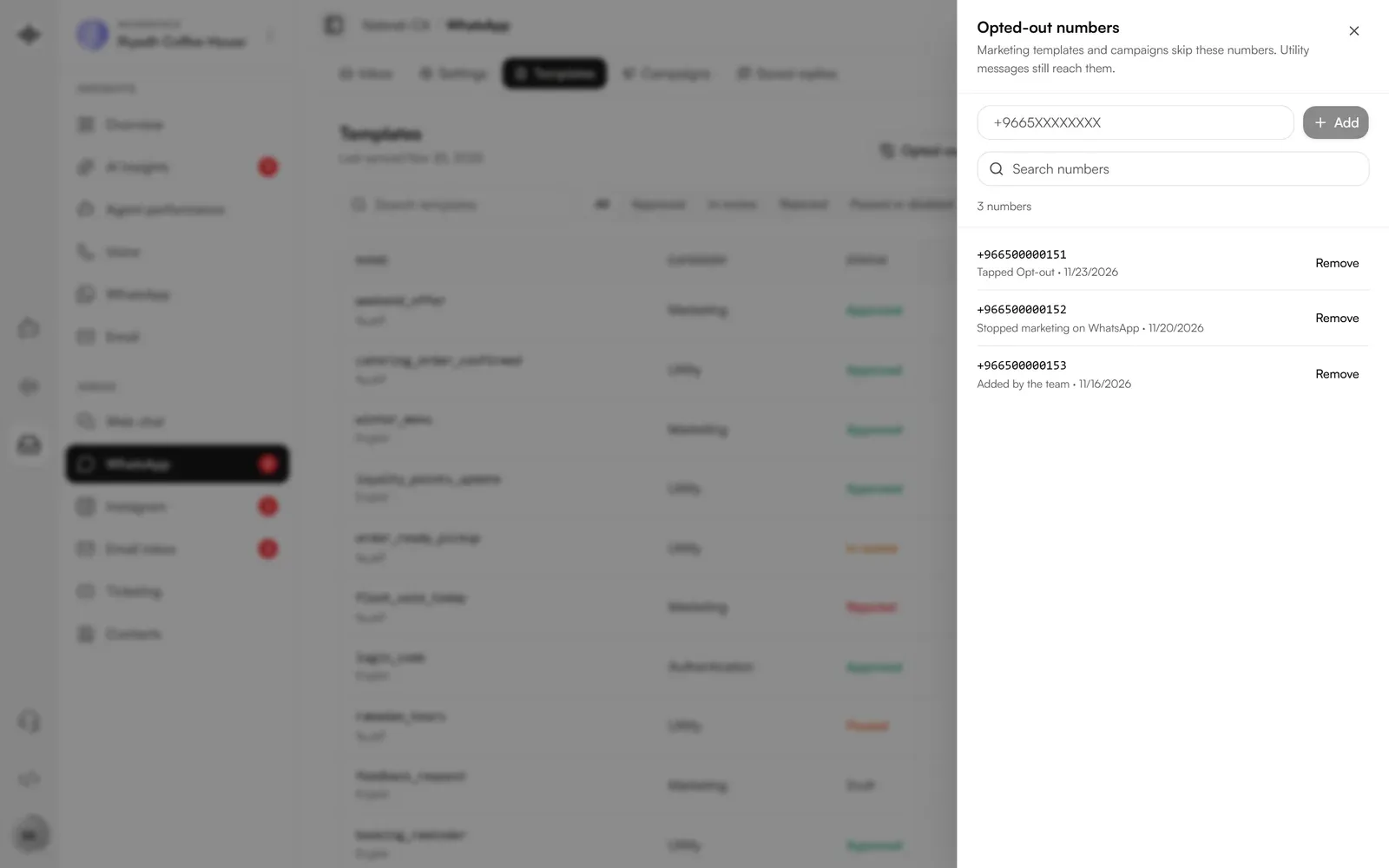
Each number shows why it's on the list:
Reason | How it got there |
|---|---|
Tapped Opt-out | The person tapped a template's Opt-out button |
Stopped marketing on WhatsApp | The person turned off marketing messages from your business in WhatsApp |
Added by the team | Someone added it here |
To add a number, type it in international format (+9665XXXXXXXX) and click Add. Click Remove next to a number to let marketing reach it again. Search with Search numbers.
Send a template from the inbox
In a conversation, click Send template in the closed-window banner, or the template icon in the message box. Pick an approved template, fill in its values and click Send. To message someone who hasn't written to you, use ⋮ → New contact. See WhatsApp for the full steps.
When you send, each value must fit on one line: values can't contain line breaks, tabs or more than 4 spaces in a row.
Troubleshooting
Symptom | Cause | Fix |
|---|---|---|
A template with this name and language already exists | The name and language pair is taken on this account | Pick another name, or use Add a language on the existing template |
This name was deleted recently and can't be used for 30 days | An approved template with this name was deleted | Use a different name |
Another template already has this text | WhatsApp refuses two templates with the same text | Change the wording, or use the existing template |
WhatsApp allows one edit a day for this template | The approved template was already edited today | Try again tomorrow |
This template was edited 10 times in 30 days | The 30-day edit limit is reached | Duplicate the template and submit the copy |
Too many templates were created this hour | WhatsApp's hourly creation limit | Try again later |
This account has reached its template limit | WhatsApp's limit for the business account | Delete templates you no longer use |
A template is missing from the library | It was created in WhatsApp Manager after the last sync | Click Sync from WhatsApp |
The template isn't in the inbox's template list | Only approved templates of that number's account are listed | Wait for approval, or check the number's business account |
A template is Paused | WhatsApp paused it for low quality | Improve the content, add an Opt-out button, and send it to people who expect it |
A category changed after approval | WhatsApp decided the content fits another category | Check the details; pricing and who can receive it follow the changed category |
Use a JPG, PNG, MP4 or PDF file | The header file type isn't supported | Convert the file |
The file is larger than 30 MB | The header file is too big | Use a smaller file or send it by link |
Frequently asked questions
How long does review take? WhatsApp usually reviews templates within 24 hours. The status updates by itself.
Can I change an approved template? Yes, once a day and up to 10 times in 30 days. Each change goes back to review, and the name, language and category stay the same.
Do opted-out numbers still get messages? Campaigns that send a marketing template skip them. Utility and authentication templates still reach them, and a template you send by hand from the inbox isn't checked against the list.
Can I use one template in several languages? Yes. Use ⋯ → Add a language. Each language is reviewed separately.
Which templates can I use in campaigns? Approved Marketing and Utility templates. Authentication templates can't be used. See WhatsApp campaigns.